
AI Writing Tools
Best AI Coding Tools in 2026 (Compared & Reviewed)
Coding in 2026 is no longer just about writing lines manually. AI coding assistants have become extremely powerful — they can autocomplete code, debug errors, explain complex concepts, generate entire functions, and even help you learn faster. Whether you’re a beginner, student, or professional developer, the right AI coding tool can dramatically boost your productivity.
In this guide, I’ve tested the top AI coding tools extensively. I’ll cover what each tool does best, their key features, real drawbacks, pricing, and honest use cases so you can choose the right one for your workflow.
AI Coding Tools Comparison Table (2026)
| Tool | Best For | Free Tier Quality | Pricing (Paid) | Code Generation | Debugging |
|---|---|---|---|---|---|
| GitHub Copilot | General Coding & Autocomplete | Good | $10/mo | Excellent | Very Good |
| Cursor | Full Project Workflow & Editing | Limited | $20/mo | Excellent | Excellent |
| Claude Code | Complex Reasoning & Long Code | Good | $20/mo (Pro) | Excellent | Excellent |
| Devin | Autonomous Agentic Development | Very Limited | $500+/mo (Team) | Excellent | Excellent |
| Gemini CLI | Terminal & Command Line Tasks | Good | Free / $20/mo | Good | Good |
| Tabnine | Privacy-Focused & Customizable | Good | $12–39/mo | Very Good | Good |
| Aider | Terminal-Based Git Workflow | Free | Free (Open Source) | Very Good | Good |
| ChatGPT Codex | Learning & Quick Tasks | Good | $20/mo (Plus) | Good | Good |
GitHub Copilot
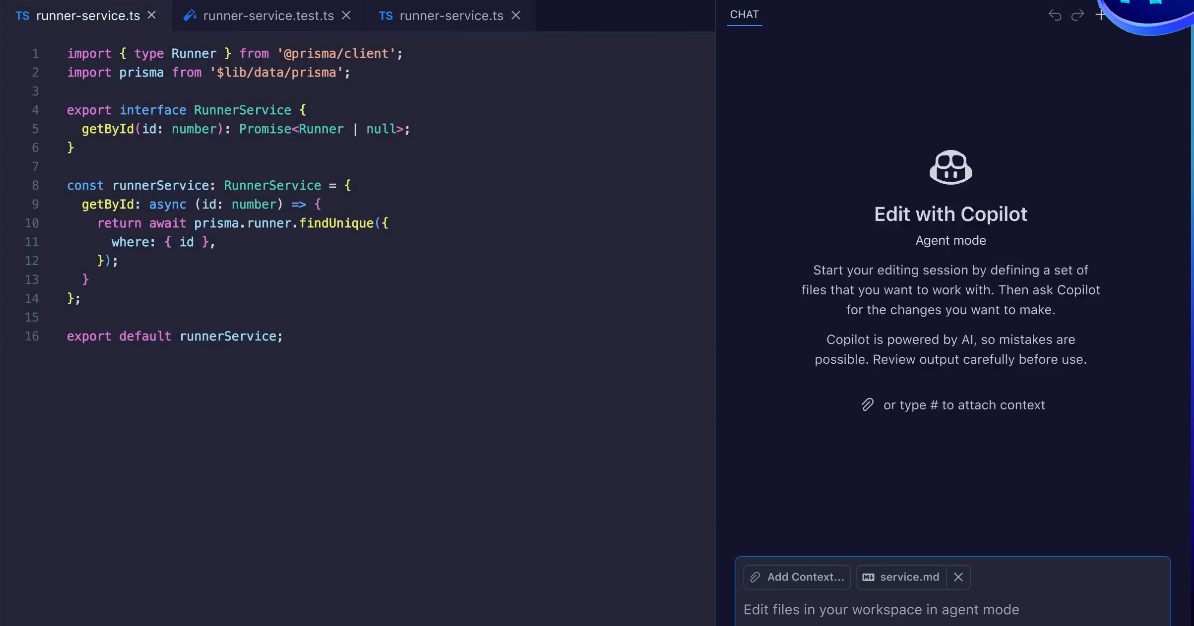
GitHub Copilot is still the most popular AI coding assistant in 2026, and for good reason. It works directly inside your IDE (especially VS Code) and suggests code as you type, almost like an extremely smart pair programmer. You can access it after installing the extension from the VS Code marketplace or through GitHub’s website.
I use Copilot daily for everything from writing small functions to building entire features. It’s incredibly fast at understanding context from your existing code and suggesting the next logical lines. It has improved a lot in understanding entire project structures, which makes it very useful for larger codebases. Many developers say it has doubled their coding speed.
Key Features:
- GitHub Copilot provides real-time code completions and whole-function suggestions as you type, which saves massive amounts of time.
- It understands comments and natural language instructions very well — you can write a comment describing what you want and it generates the code.
- The Chat feature inside the IDE lets you ask questions, debug errors, or explain code blocks.
- It supports almost all major programming languages and frameworks.
Drawbacks:
- The free tier is quite limited, so most serious developers need the paid plan.
- It sometimes suggests insecure or inefficient code, so you still need to review everything carefully.
- Privacy-conscious developers may worry because it was trained on public GitHub repositories.
Pricing: Individual plan costs $10 per month. Students can get it completely free through the GitHub Student Developer Pack. Enterprise plans are more expensive for teams.
Cursor
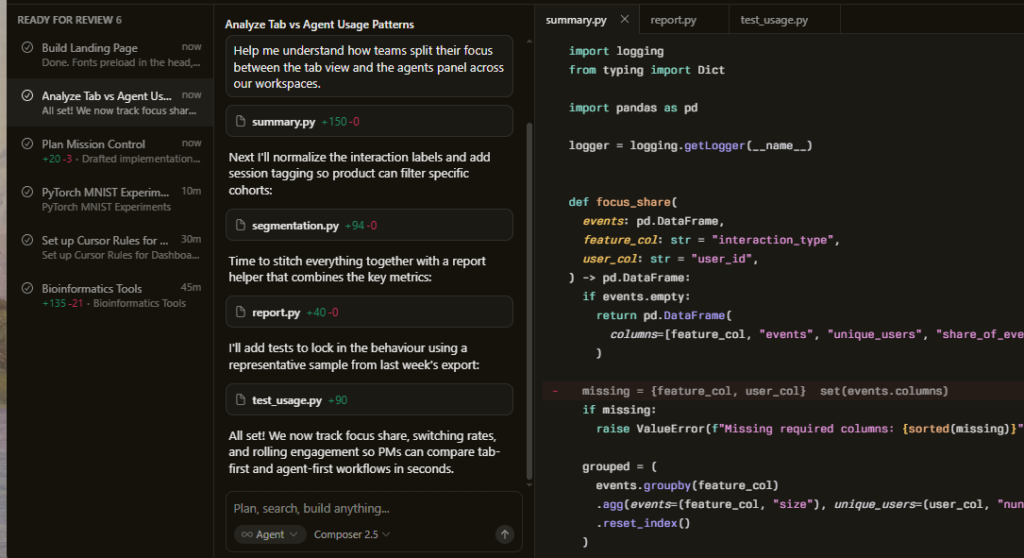
Cursor is one of the most exciting AI coding tools to emerge in recent years. It’s basically a full AI-powered code editor built on top of VS Code. You can download it from cursor.com.
What makes Cursor special is that it treats the entire project as context. You can highlight large parts of your codebase and ask it to refactor, add features, or fix bugs across multiple files. I’ve been using it heavily for building side projects — it feels like having a senior developer sitting next to you. The AI chat inside the editor is much more powerful than regular Copilot chat.
Key Features:
- Cursor allows you to chat with your entire codebase, making it excellent for understanding and modifying large projects.
- It has powerful “Composer” mode where you can describe a feature in plain English and it can implement it across multiple files.
- Excellent debugging and refactoring capabilities with very good context awareness.
- It supports multiple AI models (Claude, GPT, etc.) so you can switch depending on the task.
Drawbacks:
- The free tier is limited in usage, so heavy users need the Pro plan.
- Because it’s a full editor, there’s a small learning curve if you’re very attached to your current VS Code setup.
- Sometimes it can be overconfident and make big changes that need manual review.
Pricing: Free tier available with limits. Pro plan costs $20 per month and unlocks much higher usage and priority access to better models.
Claude Code
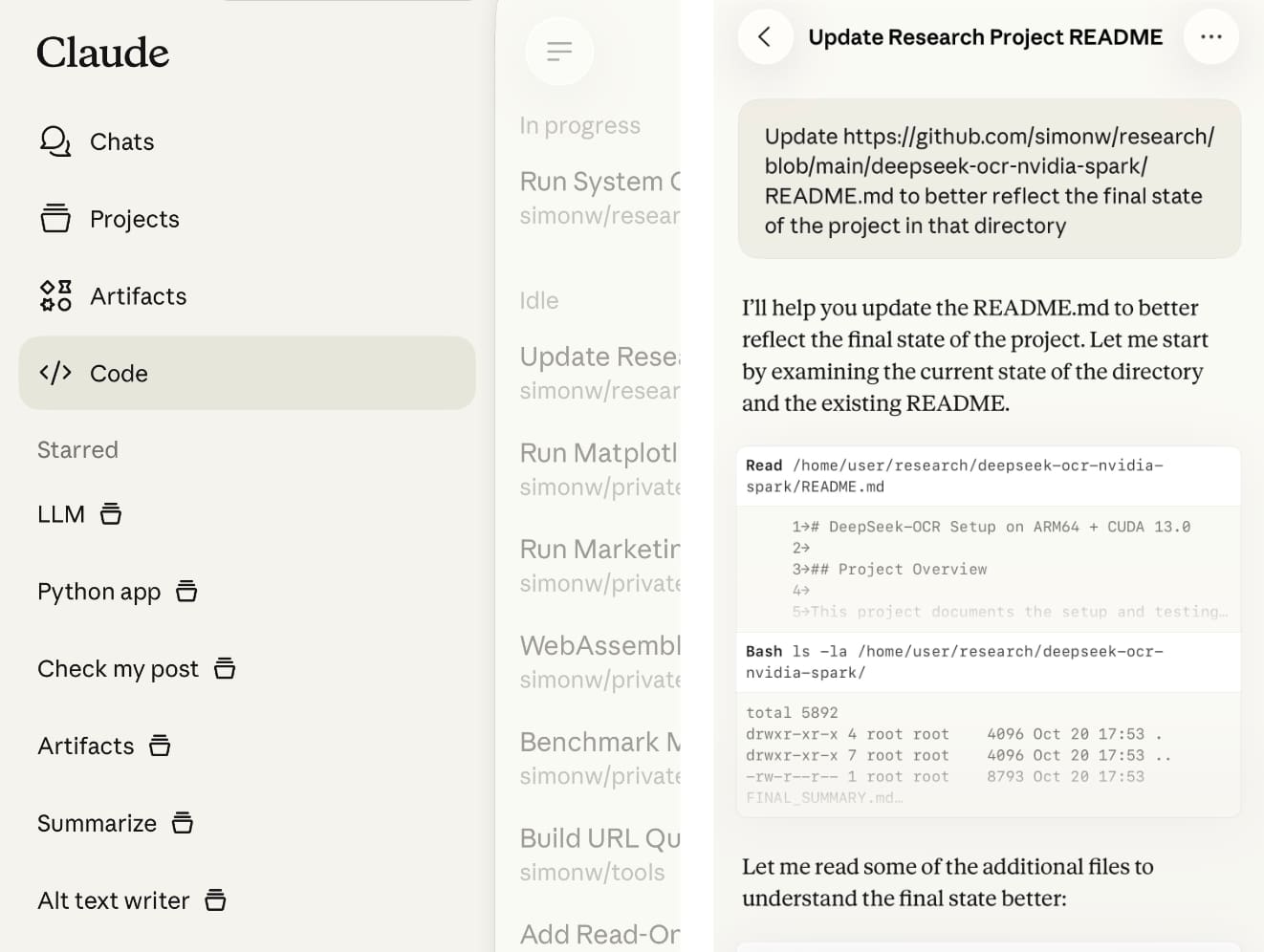
Claude (especially Claude Sonnet and Opus) has become one of the strongest AI coding assistants in 2026, particularly for complex reasoning and long codebases. You can access it through the website claude.ai or directly inside tools like Cursor and VS Code extensions.
I rely on Claude Code whenever I’m working on challenging logic, refactoring large parts of a project, or trying to understand complicated code. Its massive context window (up to 200K tokens) allows me to paste entire files or multiple modules at once, and it gives thoughtful, well-reasoned suggestions. Many developers say Claude currently produces the highest quality code among all AI tools, especially for clean architecture and logical thinking.
Key Features:
- Claude excels at deep code reasoning and can understand complex project structures better than most other tools.
- It is excellent at explaining code in simple terms, which makes it very useful for learning and teaching.
- The Artifacts feature allows you to generate and edit complete files or components directly with the AI.
- It has a very low hallucination rate for code, meaning the suggestions are more reliable and less likely to break your project.
Drawbacks:
- On the free tier, usage limits can be hit quickly when working with large code files or long sessions.
- It can be slightly slower than Copilot or Cursor when you need instant autocomplete suggestions.
- The strict safety filters sometimes prevent it from generating certain types of code (especially for advanced or experimental projects).
Pricing: Free tier is good for light use. Claude Pro costs $20 per month and significantly increases limits while unlocking the more powerful Opus model. For serious developers working on complex projects, many consider this one of the best investments.
Devin
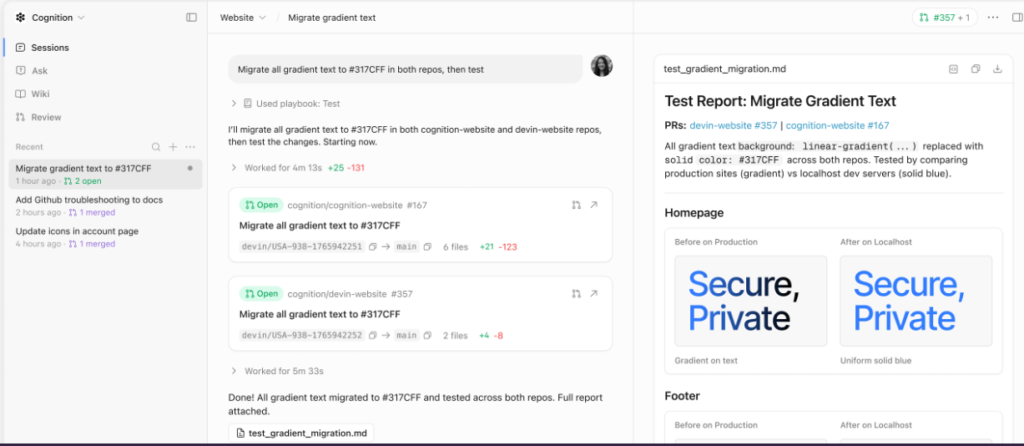
Devin, developed by Cognition Labs, is an ambitious autonomous AI software engineer designed to handle complex coding tasks with minimal human intervention. You can access it through the official platform at devin.ai. It is primarily positioned as a team/enterprise tool rather than an individual developer assistant.
Unlike traditional coding assistants that suggest code or answer questions, Devin acts more like a full junior developer. You give it a task, and it can plan, write code across multiple files, run tests, debug errors, browse documentation, and even create pull requests. I’ve tested it on small feature implementations, and it’s impressive how it can work independently for extended periods. It’s particularly useful for teams that want to accelerate development on repetitive or well-defined tasks.
Key Features:
- Devin can autonomously plan and execute complex engineering tasks from high-level descriptions.
- It works inside a sandboxed environment with its own code editor, browser, and terminal access.
- It can debug issues, run tests, fix bugs, and iterate on solutions without constant human input.
- It supports long-horizon tasks and can manage multiple steps to complete a feature or fix.
Drawbacks:
- Devin is currently very expensive and mainly targeted at teams and enterprises, making it less accessible for individual developers or students.
- Real-world performance can vary significantly from the impressive demo videos, and it still requires human oversight for important projects.
- Being a newer and more ambitious tool, it can sometimes get stuck or make decisions that need correction.
Pricing: Devin offers a Core plan starting around $20/month with usage-based billing (ACUs). The Team plan is significantly higher (around $500 per seat/month) with higher quotas. Enterprise pricing is custom. It is one of the most premium options in the AI coding space right now.
Gemini CLI
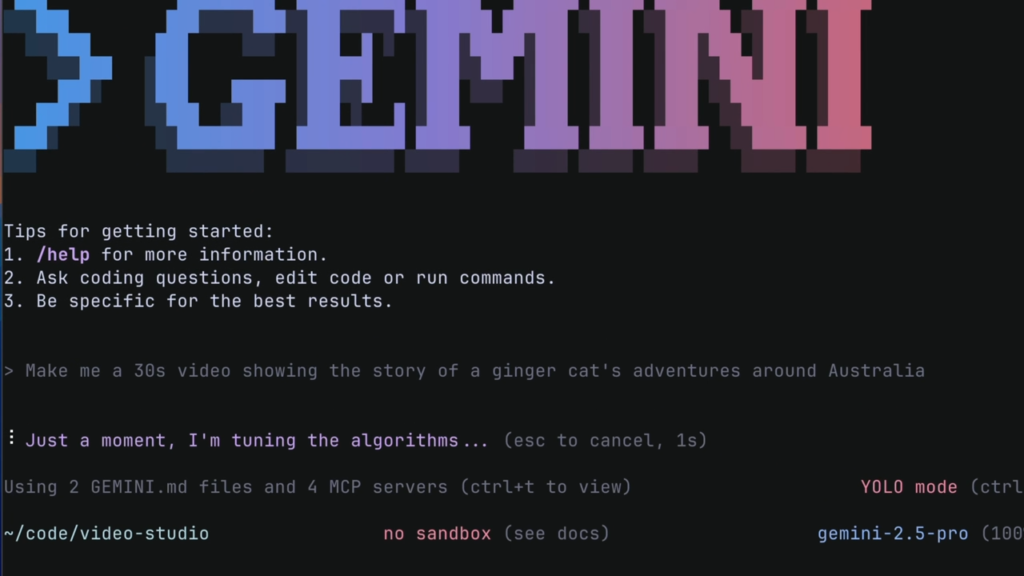
Google Gemini CLI is a powerful command-line tool that brings Gemini’s intelligence directly into your terminal. You can access it by installing the Gemini CLI tool through your terminal after setting up a Google account. It’s especially popular among developers who prefer working in the command line.
I use Gemini CLI when I need quick help while working in the terminal — whether it’s writing shell scripts, debugging commands, explaining Linux commands, or generating code snippets on the fly. What makes it special is its strong connection to Google’s latest models and its ability to understand context from your project files. It’s also very good at explaining concepts clearly, which makes it excellent for learning.
Key Features:
- Gemini CLI allows you to run natural language commands directly in your terminal and get intelligent responses or code.
- It has excellent integration with your local files and can analyze project structure when given access.
- It supports multiple programming languages and can generate, explain, and debug code right inside the terminal.
- The research capabilities are strong, so it can pull up-to-date information when needed.
Drawbacks:
- It requires some setup and comfort with the terminal, so it may not be ideal for absolute beginners.
- The free tier has daily usage limits that can be restrictive during heavy coding sessions.
- It sometimes feels less polished than dedicated IDE tools like Cursor or Copilot for large-scale development.
Pricing: The basic Gemini CLI is free with generous limits for personal use. Advanced features and higher limits require Gemini Pro or higher plans (around $20/month). It’s one of the more affordable options for developers who love the terminal.
Tabnine

Tabnine is a highly respected AI coding assistant known for its strong privacy focus and customization options. You can access it through its website tabnine.com and as extensions for VS Code, JetBrains, and other popular IDEs.
I use Tabnine when privacy is important or when I want highly customized code suggestions. It can be trained on your own codebase, which makes the suggestions much more relevant to your project’s style and architecture. It’s particularly good at learning your coding patterns over time.
Key Features:
- Tabnine offers excellent privacy options, including the ability to run it locally without sending code to the cloud.
- It learns from your own codebase and coding style to give highly personalized suggestions.
- It supports a wide range of IDEs and programming languages with strong autocomplete capabilities.
- The chat feature allows you to ask questions about your code and get contextual answers.
Drawbacks:
- The free tier has limited features and usage compared to paid plans.
- It can sometimes be slower than Copilot or Cursor in delivering suggestions.
- The learning curve is slightly higher if you want to fully customize and train the model on your projects.
Pricing: Tabnine has a usable free tier. Pro plans start from around $12/month and go up to $39/month for teams and advanced features. The local AI option (for maximum privacy) is available on higher plans.
Aider
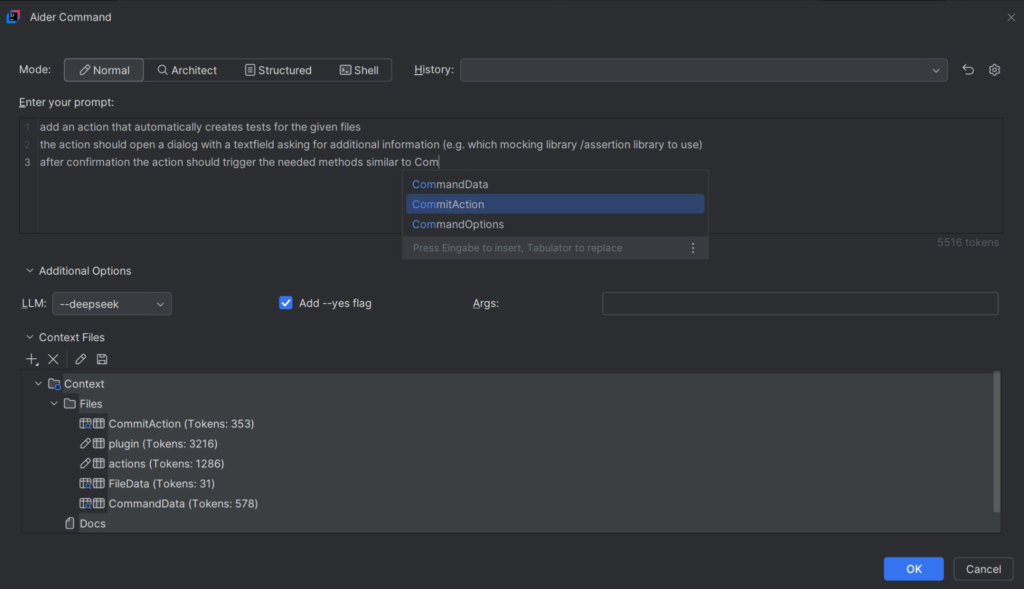
Aider is a unique and powerful terminal-based AI coding tool that has gained a strong following in 2026 among developers who love working in the command line. You can install it directly through your terminal using pip or other package managers.
I use Aider when I want to make fast, git-aware changes to my codebase. It’s different from other tools because it works directly with your local git repository. You can describe what you want to build or fix, and it will edit the actual files, run tests, and even commit the changes if you want. It feels like having a very smart coding partner sitting right in your terminal. Many experienced developers love it for its speed and precision.
Key Features:
- Aider works directly with your git repository, making changes to files and allowing easy version control.
- It can understand your entire project context and make intelligent edits across multiple files.
- You can run tests, lint code, and fix issues all from the terminal with natural language commands.
- It supports many programming languages and is especially strong at following your existing code style.
Drawbacks:
- Since it runs in the terminal, it has a steeper learning curve if you’re not comfortable with command line tools.
- It requires good local setup and may not be ideal for absolute beginners.
- The interface is text-only, so it lacks the visual editing experience of tools like Cursor.
Pricing: Aider is mostly free and open-source. Some advanced features or higher usage with powerful models may require API keys from providers like Anthropic or OpenAI (which have their own costs).
ChatGPT Codex
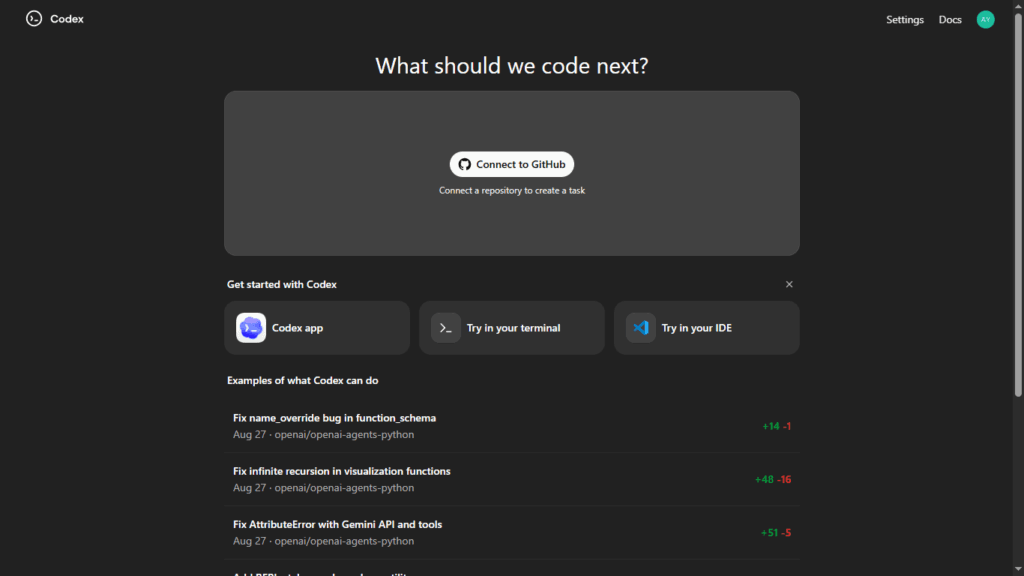
ChatGPT Codex (powered by OpenAI’s advanced models) is a very capable AI coding assistant, especially for learning and quick tasks. You can access it through chatgpt.com on web and mobile, or through integrations in VS Code and other IDEs.
I use ChatGPT Codex when I need to quickly understand new concepts, generate boilerplate code, or get explanations for tricky programming problems. It’s particularly good at teaching and breaking down complex topics into simple steps. The voice mode on mobile is also useful for explaining code while walking or commuting.
Key Features:
- ChatGPT Codex is excellent at explaining code concepts in simple, beginner-friendly language.
- It can generate complete functions, scripts, and even small applications from natural language descriptions.
- The Canvas feature allows side-by-side editing of code with the AI.
- It supports file uploads so you can analyze existing code and get improvement suggestions.
Drawbacks:
- The free tier has strict usage limits that can be frustrating during long coding sessions.
- Code quality can be inconsistent compared to specialized tools like Claude or Cursor.
- It sometimes produces code that looks correct but may have subtle bugs or inefficiencies.
Pricing: Free tier is usable for learning and small tasks. ChatGPT Plus ($20/month) gives much higher limits and access to better models, making it more practical for daily coding work.
Explore Categories:
Best Image Generation tools in 2026: Click here.
Best Video Generation tools in 2026: Click here.
Best AI Assistant Tools in 2026: Click here.
Best AI Writing Tools in 2026: Click here.