
AI PDF to Excel: We Tested ChatGPT, Gemini, and Claude on Scanned Tables
Introduction
If you have ever tried to convert a scanned PDF, receipt, financial statement, or image of a table into Excel, you probably know the problem: the document looks perfectly readable to you, but getting that information into a usable spreadsheet can be surprisingly difficult.
Copy and paste can scramble the columns. Traditional PDF converters may lose the table structure. And when the document is a scan, there may not even be selectable text to begin with.
That is where AI PDF to Excel tools become interesting.
Modern AI assistants such as ChatGPT, Gemini, and Claude can look at an uploaded document, understand its visual structure, and turn the information into an editable spreadsheet. In theory, the process is simple:
Upload your file → ask AI to extract the table → download the Excel file.
But there is an important question most “PDF to Excel” guides skip:
How accurate is the resulting spreadsheet?
A spreadsheet can look perfectly clean while containing a missing value, a changed decimal, an incorrect symbol, or a number placed under the wrong heading. For a simple personal list, that might be a minor inconvenience. For an invoice, financial statement, inventory record, or business report, one incorrect cell can change the result of an entire calculation.
So we decided to test it ourselves.
We gave ChatGPT, Gemini, and Claude the same scanned documents and the same extraction instructions, then compared their outputs against the original source documents cell by cell. We tested three very different types of tables: a retail receipt, a financial statement, and a complex multi-page U.S. Census table.
The results were surprisingly strong—but they also showed why “AI extracted it” does not automatically mean “the spreadsheet is correct.” Across the three tests, the models achieved scores ranging from 9.33/10 to 10/10 on our predefined cell-level accuracy tests, yet even these highly accurate outputs contained substantive errors.
And before we get into the testing, there is something you can use right now.
Want to convert a document to Excel?
We created a copy-and-paste prompt that you can use with an AI assistant when you need to extract a table from a PDF, scan, receipt, screenshot, or other document.
Bookmark this page so you have the prompt the next time you need to convert a file into spreadsheet data. Just upload your document, paste the prompt, and let the AI create the workbook.
But don’t stop at the download.
The rest of this guide shows you what happened when we tested this workflow on difficult real-world documents—and how to check whether the Excel file you receive is actually accurate.
Quick Answer: How Accurate Is AI PDF to Excel?
AI can be remarkably accurate at converting scanned tables into Excel—but you should not assume that a clean-looking spreadsheet is error-free.
We tested ChatGPT, Gemini, and Claude on three different scanned documents: a retail receipt, a financial statement, and a complex multi-page Census table. Using predefined cell-level scoring, the models scored between 9.33/10 and 10/10 across the tests.
| Document tested | ChatGPT | Gemini | Claude |
|---|---|---|---|
| Scanned receipt | 9.33/10 | 9.33/10 | 10/10 |
| Financial statement | 9.38/10 | 10/10 | 9.38/10 |
| Multi-page Census table | 9.97/10 | 9.78/10 | 9.96/10 |
If you want a broader comparison of the AI assistants used in this test, see our AI assistants comparison.
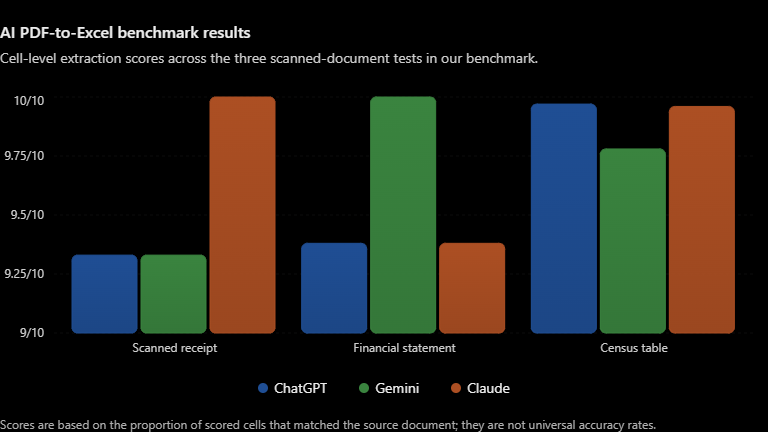
There wasn’t one model that produced the highest score across all three tests. The highest score varied by document type.
But there’s an important detail behind those numbers.
These aren’t overall Excel-quality scores
The scores measure cell-level extraction accuracy against predefined benchmark cells. They do not independently score things such as workbook aesthetics, formula use, number of worksheets, or general usability.
And even the high-scoring outputs contained meaningful mistakes.
For example:
- A model omitted values of 62,088,800 and 40,169,486 from the financial statement.
- Another produced -238,274,249 where the source showed -258,274,249.
- In the Census table, one output changed 0.2 to 2 and another changed 6.4 to 64.4.
- Some outputs substituted disclosure codes such as
EE,CC,(D), and(NA).
So the practical answer is:
Yes, AI is now capable of turning difficult scanned documents into highly usable Excel data. But the more important the data is, the more carefully you should verify the resulting workbook against the original document.
If you’re here simply because you need to convert a file right now, use the copy-and-paste prompt in the next section. If you want to understand how reliable that workflow actually is, keep reading—we’ll show you exactly what happened in our three tests.
Our Universal Copy-and-Paste Prompt for AI to Excel
If you need to convert a scanned PDF, receipt, screenshot, financial statement, or image of a table into Excel, you can start with the prompt below.
Bookmark this section so you can reuse it whenever you need to extract a document into a spreadsheet. 👇
“ I need you to extract the table(s) from the uploaded document/image and create a usable Excel workbook (.xlsx).
Follow these rules strictly:
- Extract the information directly from the source document. Do not guess, infer, correct, or invent missing values.
- Preserve the original text, numbers, codes, labels, units, symbols, punctuation, and spelling exactly as they appear in the source.
- Preserve the original table structure:
- Keep the same rows and columns.
- Do not merge separate rows or columns unless the source clearly does so.
- Preserve blank cells where they are blank in the source.
- Preserve grouped and hierarchical headers.
- Preserve multi-level column headings and subheadings.
- Preserve numerical information exactly:
- Keep decimal places exactly as shown.
- Preserve negative numbers and minus signs.
- Preserve percentages, dates, quantities, currencies, and other units.
- Do not round or recalculate values unless I specifically ask you to.
- Preserve footnotes, annotations, symbols, and disclosure codes exactly as they appear, including values such as (D), (NA), EE, CC, or similar codes.
- If the document contains multiple distinct tables, place them on separate worksheets where appropriate.
- Make the resulting workbook editable and practical to use. Do not simply insert the source image into Excel as the table.
- If a character, number, cell, or section is genuinely unreadable, do not guess. Flag it as uncertain and tell me where the uncertainty occurs.
- If a table continues onto another page, preserve the correct row and column relationships across the page break.
- After creating the workbook, briefly tell me:
- the name of the Excel file,
- how many tables/sheets you created,
- any areas that were difficult to extract,
- and any values or cells that require manual verification.
Create the Excel workbook now. “
One important warning
This prompt is designed to reduce avoidable extraction mistakes, but it cannot guarantee a perfect workbook.
That’s why we tested the workflow ourselves. Even with the same type of strict instructions, our benchmark found missing values, incorrect numbers, character substitutions, and incorrect codes in some outputs.
So the workflow we recommend throughout this guide is:
Upload → Extract → Check → Use
rather than simply:
Upload → Download → Trust
Now let’s look at exactly how we tested the three AI tools and how we made the comparison fair.
What We Tested
To make the comparison meaningful, we kept the core testing conditions the same across all three AI tools.
We tested ChatGPT, Gemini, and Claude using the same extraction task and the same source document for each test. The instruction was designed specifically for Excel extraction: preserve the original values and structure, avoid guessing or correcting unusual entries, retain codes and symbols, and flag anything genuinely unreadable.
Instead of testing three similar documents, we deliberately used three different types of scanned tables. This allowed us to see how the tools handled different extraction challenges rather than judging them on a single easy example.
Test 1 — Retail Receipt
Our first document was ICDAR 2019 SROIE Receipt #004, a scanned MR D.I.Y. receipt.
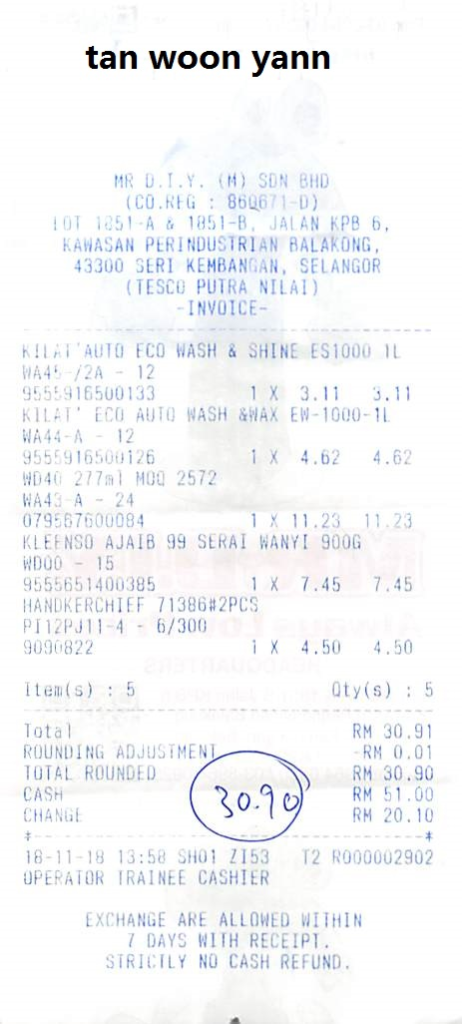
This gave us a relatively small table with product descriptions, reference information, barcodes, quantities, prices, and line amounts. Small characters and punctuation also mattered because the goal was to reproduce the source rather than simply capture the general meaning.
30 cells were scored across the five product rows.
Test 2 — Financial Statement
The second document was the U.S. GAO Student Loan Insurance Fund Statement of Financial Condition.
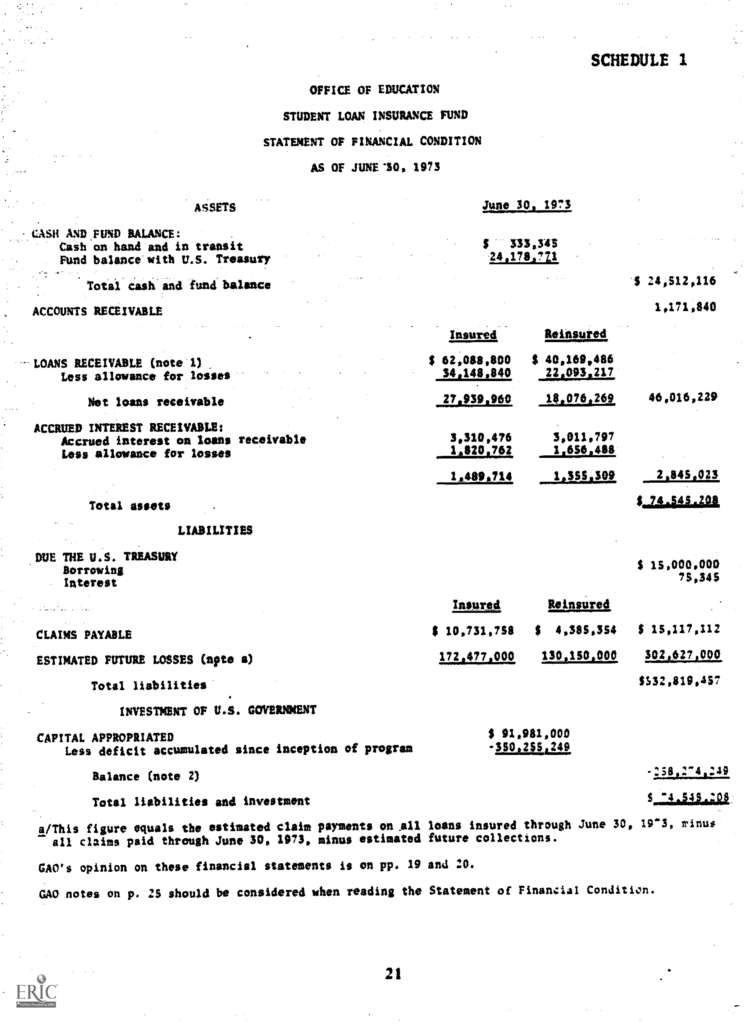
This was substantially more structured, with relationships between insured, reinsured, and total figures, along with financial values that needed to remain associated with the correct rows and columns.
We scored 32 substantive numerical values for this test.
Test 3 — Multi-Page Census Table
The final test was the 1982 U.S. Census of Manufactures, Table 2: Industry Statistics for Selected States: 1982 and 1977.
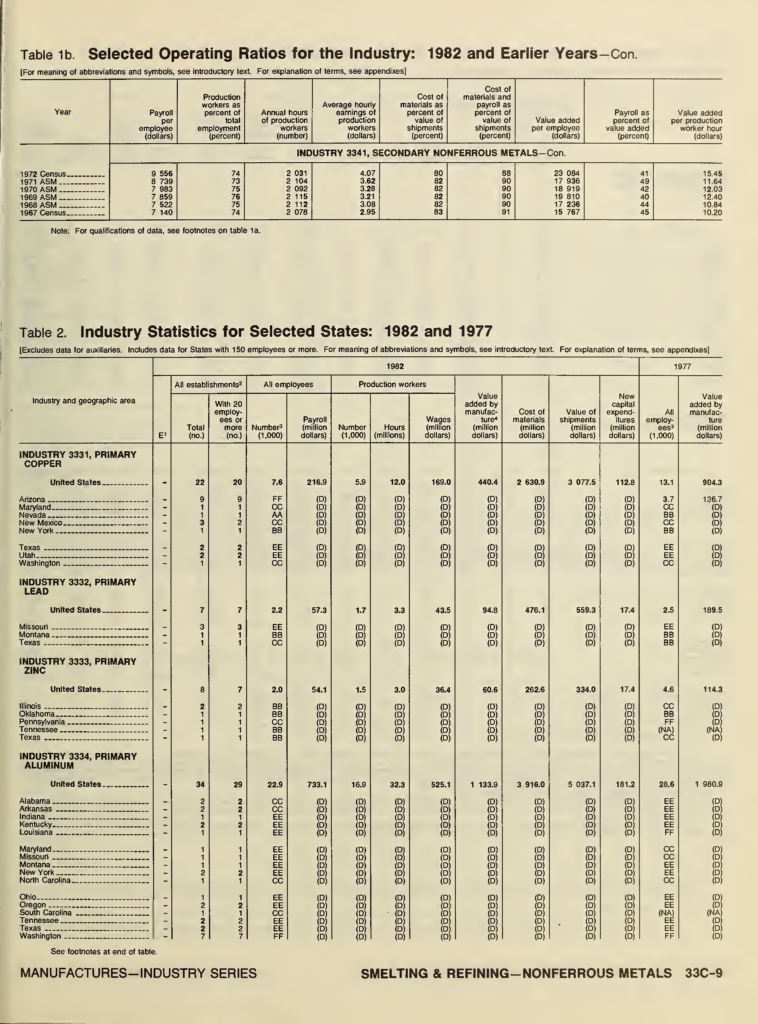
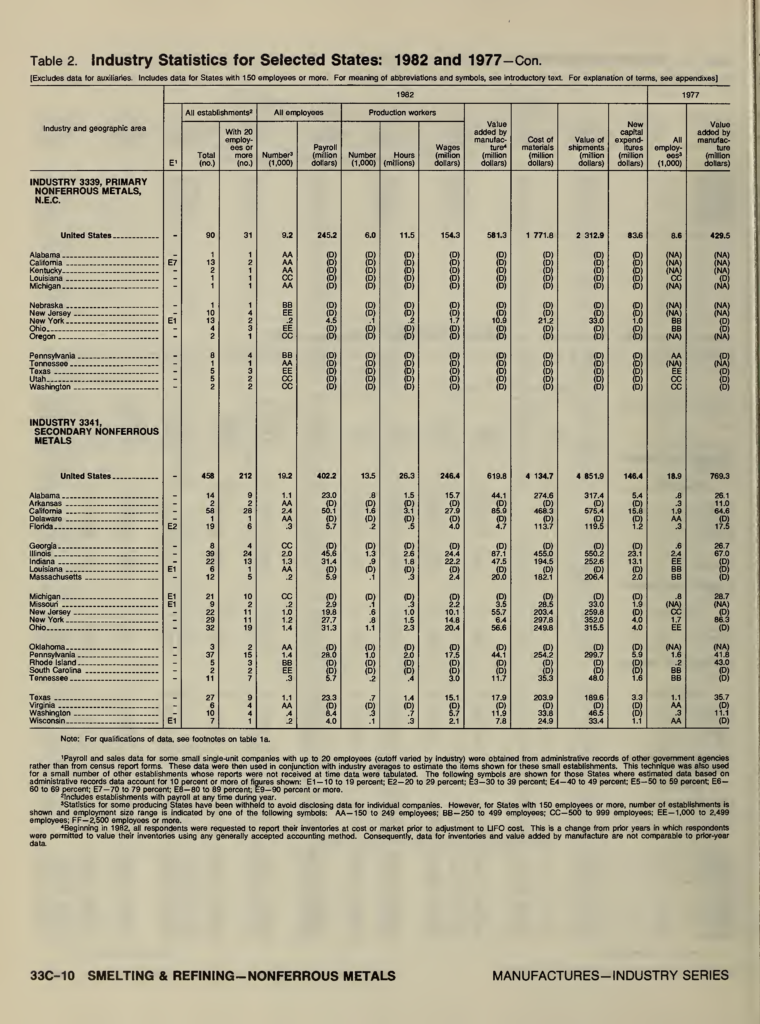
This was the most demanding document in the benchmark. It contained multiple industries and states, hierarchical headers, years, different measurement fields, decimals, and disclosure codes such as (D), (NA), EE, and CC. The table also continued across two scanned pages.
For this test, we evaluated 76 data rows across 14 scored fields, giving us 1,064 scored cells.
How We Scored the Results
The scoring was deliberately simple: correct scored cells ÷ total scored cells × 10.
That gave us a consistent way to compare extraction accuracy across documents of very different sizes.
Importantly, we did not assign extra points for things such as workbook aesthetics, formulas, number of worksheets, or general usability. Those characteristics were recorded separately as qualitative observations.
We also treated formatting and spacing differences differently from actual data errors. A changed space, for example, was not automatically counted as a substantive mistake.
With the methodology established, let’s look at what happened when the first document—a scanned retail receipt—was put through all three tools.
Test 1: Extracting a Scanned Receipt to Excel
For the first test, we used ICDAR 2019 SROIE Receipt #004, a scanned MR D.I.Y. retail receipt.
This is the kind of document that looks straightforward at first glance. It contains only five product rows, but each row combines several different pieces of information: the product description, reference information, barcode, quantity, unit price, and line amount. That gave us 30 scored cells in total.
The important detail here is that we weren’t only checking whether the AI understood what the receipt was saying. We were checking whether it reproduced the source exactly enough for the extracted spreadsheet to be trusted as data.
ChatGPT — 9.33/10
ChatGPT correctly extracted 28 of the 30 scored cells.
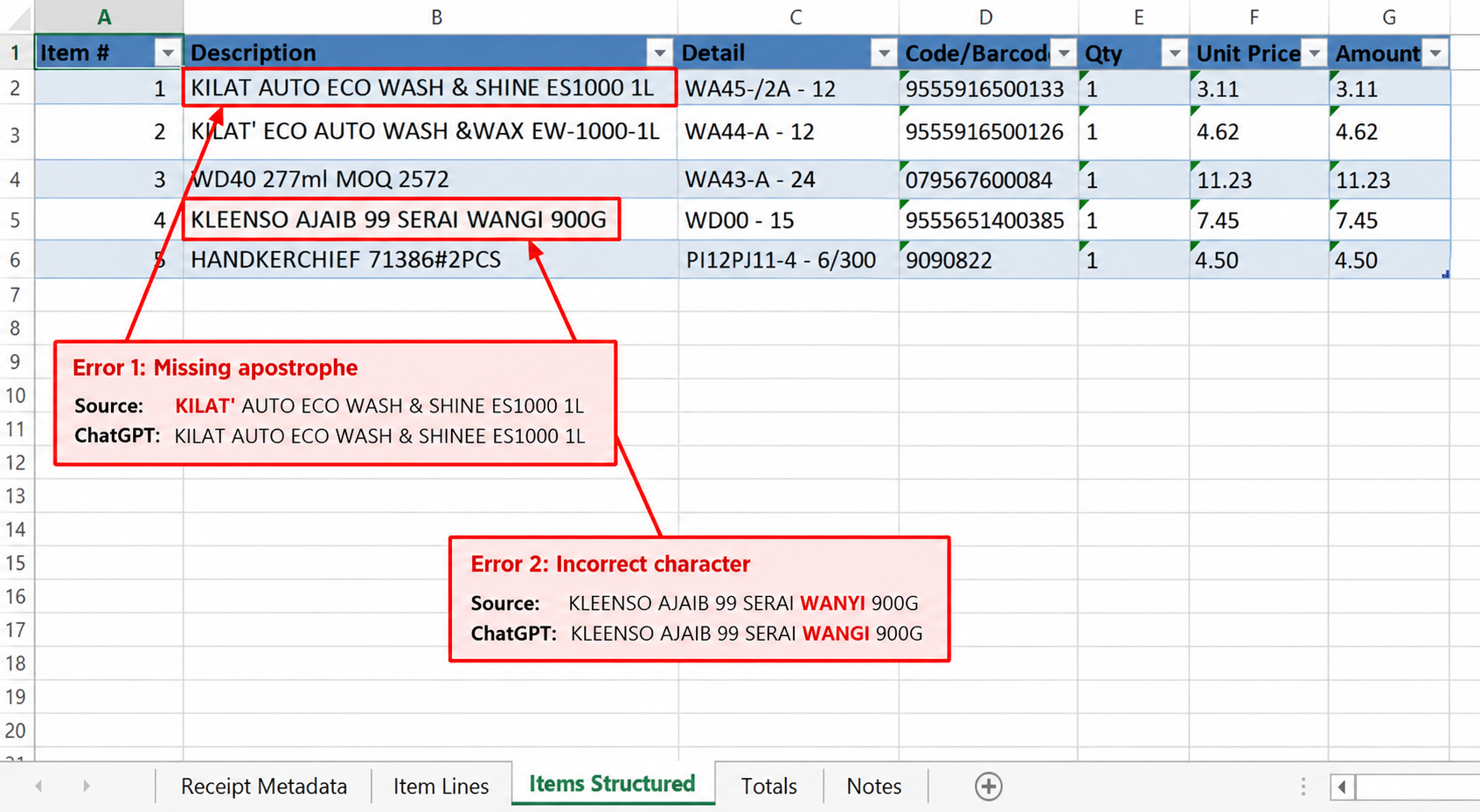
The two substantive errors were both in product descriptions:
- Source:
KILAT' AUTO ECO WASH & SHINE ES1000 1L
ChatGPT:KILAT AUTO ECO WASH & SHINE ES1000 1L - Source:
KLEENSO AJAIB 99 SERAI WANYI 900G
ChatGPT:KLEENSO AJAIB 99 SERAI WANGI 900G
In the first case, the apostrophe was omitted. In the second, Y was extracted as G. Both were counted as substantive text errors.
Result: 28/30 → 9.33/10
Gemini — 9.33/10
Gemini also correctly extracted 28 of 30 scored cells.
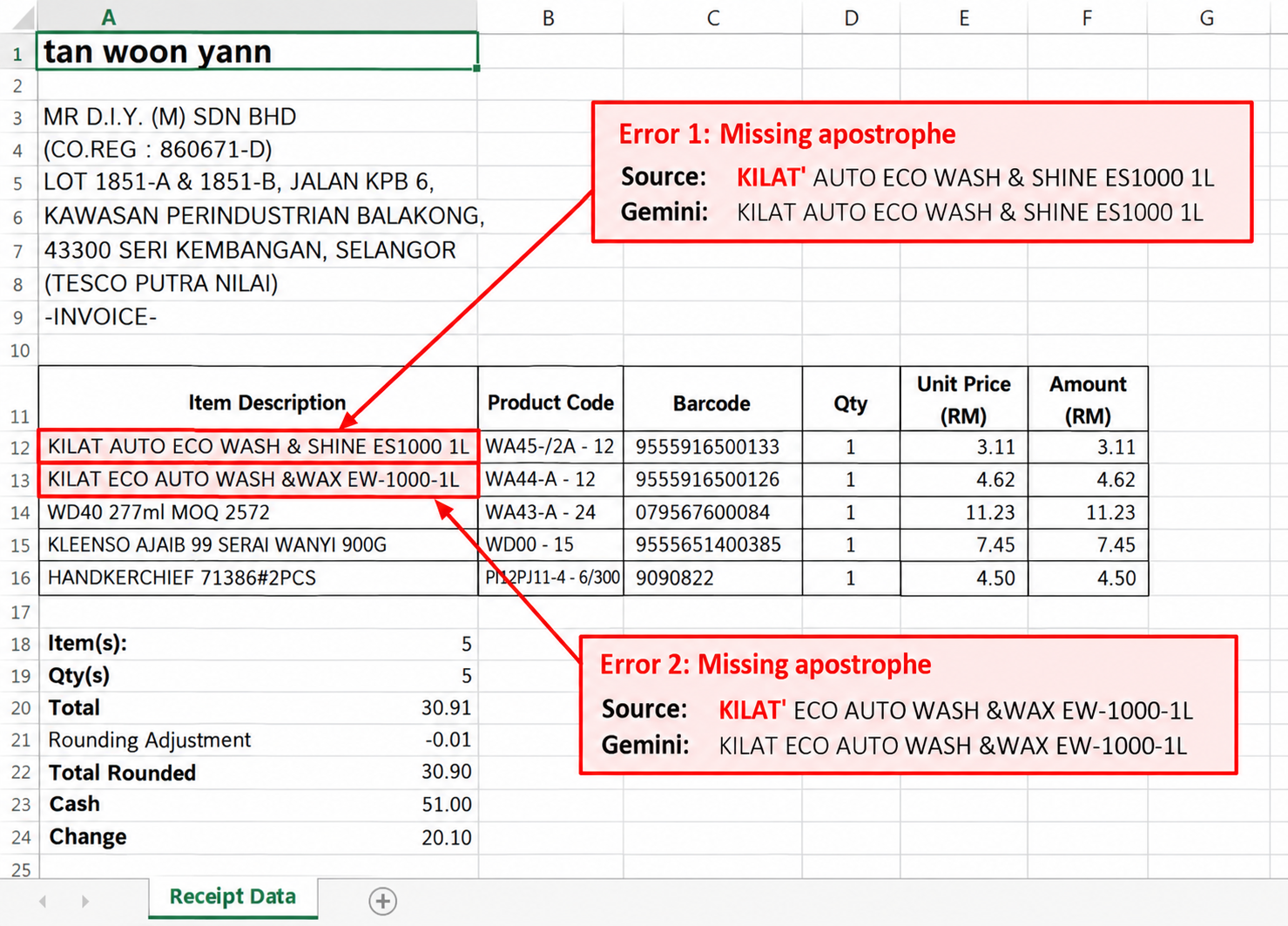
Its two errors were:
- Source:
KILAT' AUTO ECO WASH & SHINE ES1000 1L
Gemini:KILAT AUTO ECO WASH & SHINE ES1000 1L - Source:
KILAT' ECO AUTO WASH &WAX EW-1000-1L
Gemini:KILAT ECO AUTO WASH &WAX EW-1000-1L
In both cases, the apostrophe was omitted from the product description.
Result: 28/30 → 9.33/10
Claude — 10/10
Claude correctly extracted all 30 scored cells.
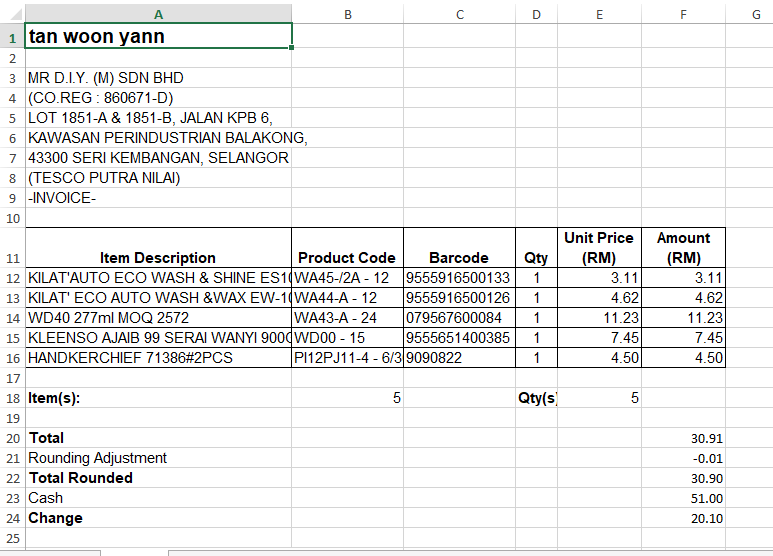
No substantive error remained in the final scoring record.
Result: 30/30 → 10/10
One earlier difference—KILAT' AUTO... versus KILAT'AUTO...—was treated as a spacing difference rather than a substantive error, so it was not deducted from the score.
What this test tells us
The receipt test produced a very high level of accuracy across all three tools. But it also demonstrates an important point about document extraction:
An error doesn’t have to change a price or total to matter.
A single character can change a product name or code, even when all the important-looking numbers are correct.
That becomes even more important when the document contains financial figures, multiple columns, and specialized symbols—which is what we tested next.
Test 2: Extracting a Scanned Financial Statement to Excel
For the second test, we moved from a small retail receipt to a much more structured document: the U.S. GAO Student Loan Insurance Fund, Statement of Financial Condition.
This test was useful because financial statements introduce a different problem. It’s not enough to recognize the numbers. The extracted values need to remain associated with the correct financial categories, columns, and relationships.
For this test, we evaluated 32 substantive numerical values. The score was calculated from those 32 values; structural and text observations were recorded separately.
ChatGPT — 9.38/10
ChatGPT correctly captured 30 of the 32 scored numerical values.
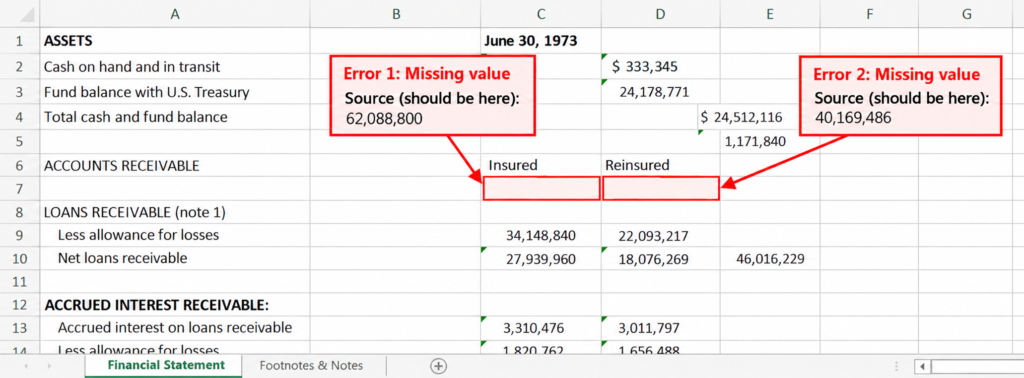
The two missing values were:
- Loans receivable — insured:
62,088,800 - Loans receivable — reinsured:
40,169,486
Both were treated as substantive missing-value errors and affected the score.
There was also a separate text-extraction issue: the source’s (note a) was rendered as (apts 3). That was a genuine text error, but it wasn’t included in the 32-number scoring denominator.
Result: 30/32 → 9.38/10
Gemini — 10/10
Gemini correctly captured all 32 scored numerical values.
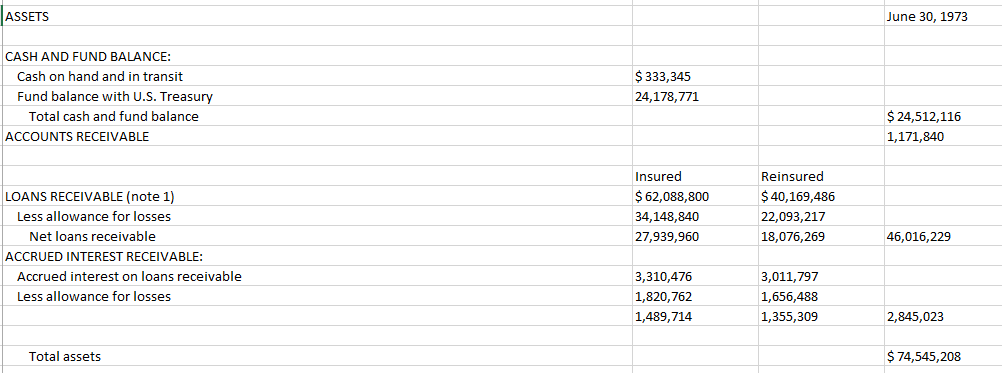
That included the gross insured and reinsured loan amounts, allowances, net loans, accrued interest, total assets, liabilities, accumulated deficit, and final reconciliation.
Result: 32/32 → 10/10
Claude — 9.38/10
Claude also had two substantive errors, but they were different from ChatGPT’s.
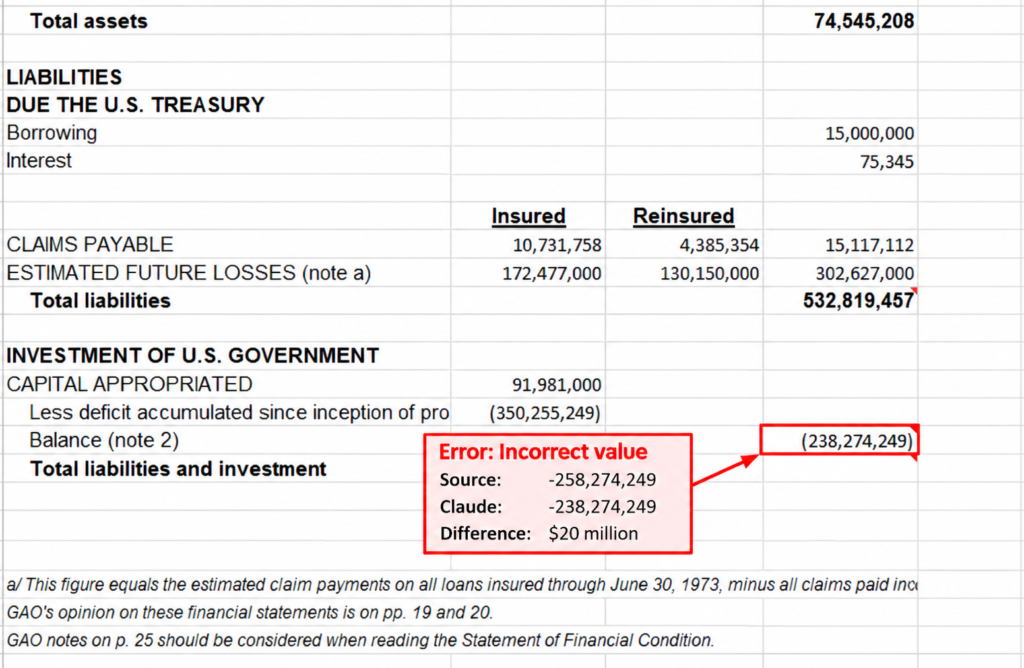
First, the source showed a balance of:
-258,274,249
Claude produced:
-238,274,249
That’s a $20 million difference. The audit classified this as a calculation/output error.
Second, Claude left the final Total liabilities and investment value blank. The source value was:
74,545,208
Result: 30/32 → 9.38/10
What this test tells us
This test exposes a different kind of risk from the receipt.
With a receipt, an OCR mistake might change a product name by one character. With a financial statement, an apparently small extraction or calculation problem can affect an important financial figure.
It also shows why extraction accuracy and calculation correctness should not be treated as the same thing. Claude’s source inputs could be correct while its resulting balance was still wrong.
And despite those errors, the overall extraction accuracy remained very high across all three tools.
The next test was considerably harder: a large historical table spread across two scanned pages, with hierarchical headers, decimals, and disclosure codes.
Test 3: Extracting a Complex Multi-Page Census Table to Excel
For the third test, we deliberately raised the difficulty.
We used Table 2 from the 1982 U.S. Census of Manufactures, titled Industry Statistics for Selected States: 1982 and 1977. Unlike the receipt and financial statement, this table spans two scanned pages and contains a much larger number of data points, multiple industries and states, hierarchical headings, decimal values, and disclosure codes such as (D), (NA), EE, and CC.
The final benchmark contained 76 data rows × 14 scored fields = 1,064 scored cells. That larger denominator also makes the score more informative than the smaller first two tests: a handful of mistakes has a much smaller effect on the final score.
ChatGPT — 9.97/10
ChatGPT correctly extracted 1,061 of 1,064 scored cells, leaving three confirmed substantive errors.
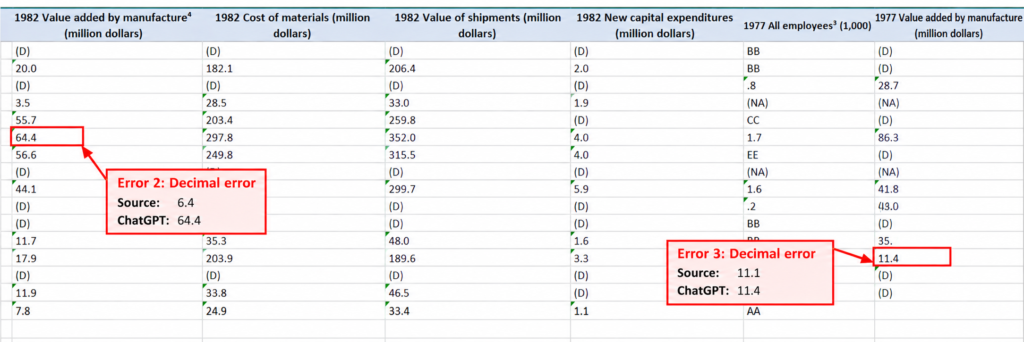
The first was in Industry 3339, New York:
- Source:
0.2 - ChatGPT:
2
The second was in Industry 3341, New York:
- Source:
6.4 - ChatGPT:
64.4
Both were decimal errors.
The third was in Industry 3341, Washington:
- Source:
11.1 - ChatGPT:
11.4
This was classified as a wrong numerical value.
Result: 1,061/1,064 → 9.97/10
Gemini — 9.78/10
Gemini correctly extracted 1,041 of 1,064 scored cells, with 23 confirmed substantive errors.
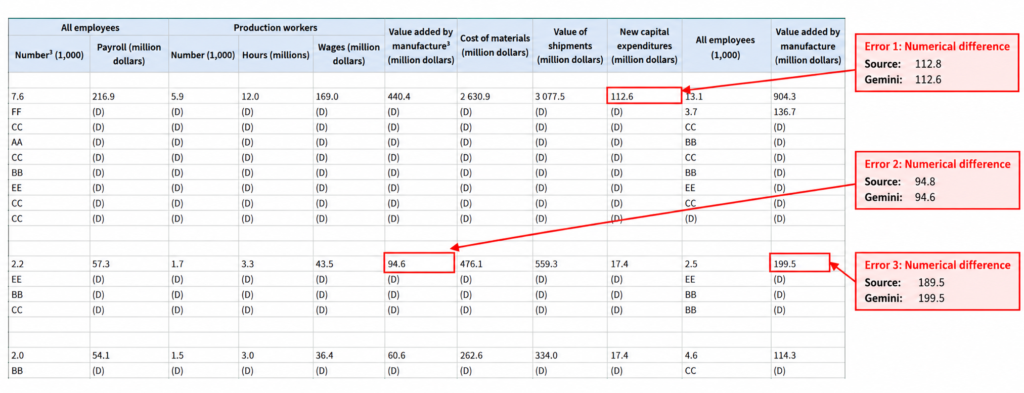
The errors weren’t limited to one type.
Some were numerical differences, such as:
112.8→112.694.8→94.6189.5→199.528→2615.8→15.6249.8→249.6246.4→248.4
Others involved disclosure or employment codes. For example:
EE→CCCC→(D)(D)→(NA)FF→EE
These errors occurred across several industries and states, including Primary Copper, Primary Lead, Primary Aluminum, Primary Nonferrous Metals, and Secondary Nonferrous Metals.
Result: 1,041/1,064 → 9.78/10
Claude — 9.96/10
Claude correctly extracted 1,060 of 1,064 scored cells, with four confirmed substantive errors.
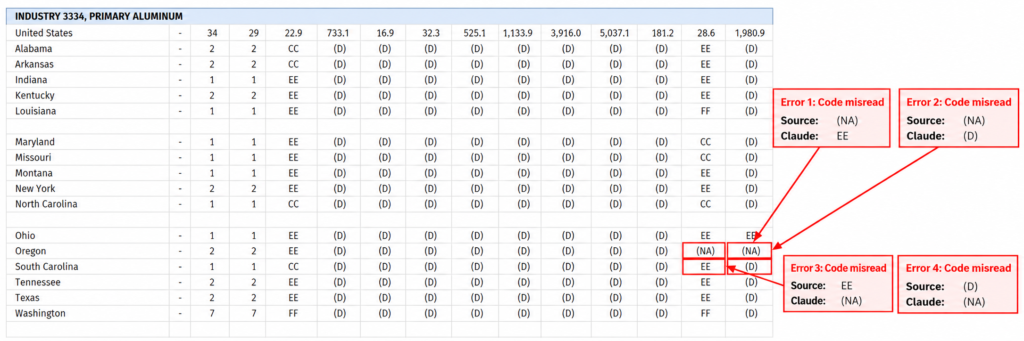
All four occurred in Industry 3334 — Primary Aluminum.
For Oregon:
- Source:
(NA)→ Claude:EE - Source:
(NA)→ Claude:(D)
For South Carolina:
- Source:
EE→ Claude:(NA) - Source:
(D)→ Claude:(NA)
These were all classified as wrong code/symbol errors.
Result: 1,060/1,064 → 9.96/10
What this test tells us
This was the clearest demonstration that high extraction accuracy doesn’t necessarily mean every cell is safe to trust.
The errors included both ordinary numerical mistakes and substitutions of symbols that have specific meanings in the source document. A value such as 0.2 becoming 2 is obvious once you compare it with the source. But a code such as (D), (NA), EE, or CC can be much easier to overlook in a large spreadsheet.
It’s also worth noting how close the top two scores were: 9.97 for ChatGPT and 9.96 for Claude. The difference came down to only three versus four incorrect cells out of 1,064.
Across all three tests, the results point to the same broader lesson: AI can dramatically reduce the work involved in turning scanned tables into spreadsheets, but the final spreadsheet still needs to be checked against the source—especially when the data matters.
What Went Wrong? The AI Table Extraction Errors We Found
The three tests produced high accuracy overall, but the mistakes were revealing. They weren’t all the same type of OCR error, and several could easily be missed if you simply opened the resulting Excel file, saw a clean table, and assumed everything was correct.
Here are the main failure patterns we actually observed in our benchmark.
1. Missing values
Sometimes the AI simply left a source value out.
In the financial statement test, ChatGPT omitted:
62,088,80040,169,486
Both were scored as substantive errors.
This is particularly important because a missing value can be harder to notice than an obviously corrupted one. A blank cell may look intentional unless you compare it with the original document.
2. Decimal errors
A misplaced decimal can completely change a number while still making the result look plausible.
In the Census test, for example:
0.2became26.4became64.4
These were two of ChatGPT’s three confirmed errors.
Gemini also produced several smaller numerical changes, including 112.8 → 112.6 and 189.5 → 199.5.
This is one reason decimal-heavy tables deserve extra attention during verification.
3. Character and text substitutions
Not every extraction error involves a number.
In the receipt test, ChatGPT changed:
WANYI → WANGI
while Gemini omitted apostrophes from two product descriptions.
These errors didn’t affect the numerical totals, but they still meant the extracted spreadsheet did not exactly reproduce the source.
4. Codes and symbols can be misread
Large statistical tables often contain codes that aren’t ordinary numbers.
In the Census test, Gemini produced multiple substitutions involving values such as:
EE, CC, (D), (NA), and FF.
For example, one source value of EE became CC, while another source value of (D) became (NA).
These are particularly easy to overlook because someone unfamiliar with the source may assume the codes are insignificant.
They aren’t. If the source uses a symbol or code, treat it as data unless you know what it means.
5. A correct extraction can still lead to a wrong calculation
This is a different problem from OCR.
In the financial statement test, Claude produced:
Source: -258,274,249
Claude: -238,274,249
The audit classified this as a calculation/output error, with a $20 million difference.
It also left the final total of 274,545,208 blank.
This is why checking only whether the extracted text looks right isn’t enough when the AI has also created formulas or calculations.
6. Structural problems can hide behind correct-looking data
A spreadsheet can contain the right values but still arrange them incorrectly.
Our scoring system deliberately did not assign separate points for workbook aesthetics, formulas, worksheet count, or structural elegance. Those were evaluated qualitatively. A structural problem affected the numerical score only when it resulted in a wrong or missing scored cell.
That distinction matters because a workbook can be technically populated while still requiring restructuring before it is useful.
The bigger lesson
The most important finding wasn’t that one model made more mistakes than another.
It was that AI extraction errors can be deceptively small.
A missing value, a misplaced decimal, one character in a product name, or a substituted disclosure code may be difficult to spot when you’re looking at hundreds of spreadsheet cells.
That’s why we don’t recommend treating an AI-generated Excel file as the finished product.
Extract first. Verify second.
And that brings us to two other approaches we tested: Excel’s built-in Data from Picture feature and Docling.
What About Excel Data from Picture?
If you’re already using Microsoft Excel, Data from Picture is an obvious alternative to AI chat tools. Instead of uploading the document to ChatGPT, Gemini, or Claude, you can use Excel’s own image-to-data workflow.
We tested it on the same three benchmark documents to see how it handled the task.
The results were mixed.
Test 1: Receipt
For the receipt, Excel produced a workbook, but the extracted information was fragmented across cells rather than reliably reconstructing the original product rows and columns.
The output also showed 18 items requiring review.
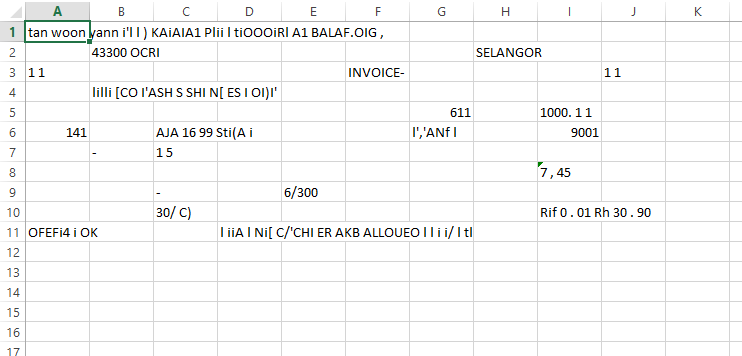
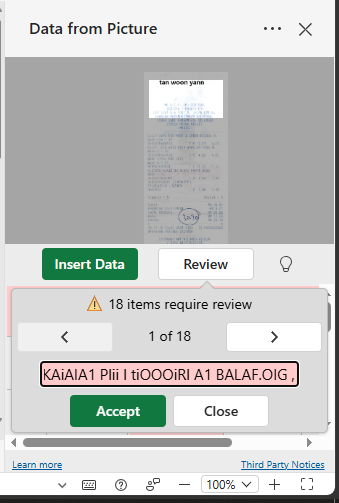
However, those 18 review flags should not be interpreted as 18 confirmed extraction errors. They were uncertainty/review indicators, and we did not use them as a substitute for the cell-level scoring used in our AI benchmark.
Tests 2 and 3: Financial Statement and Census Table
We attempted the same workflow on the financial statement and Census table.
In both cases, the process returned:
“Something went wrong. We apologize for the inconvenience.”
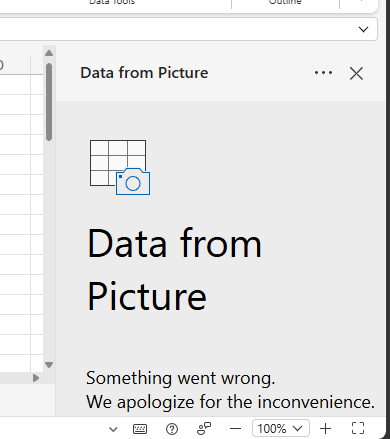
We repeated the tests, but the same issue remained.
Because these outputs did not give us a completed extraction to audit, we did not assign Excel Data from Picture a score out of 10. That would have required a comparable completed dataset and scoring basis.
So, is Excel Data from Picture better than AI?
Our tests don’t support a universal conclusion.
What they do show is that having a dedicated image-to-spreadsheet feature doesn’t necessarily mean a difficult scanned table will be reconstructed correctly.
For the simple receipt, Excel generated usable output but still required review and restructuring. For the two more complex documents, we couldn’t obtain a completed result from the feature during our tests.
That’s why we kept Excel Data from Picture as a supporting comparison rather than including it in our main model accuracy ranking.
Next, we tried a very different approach: Docling, an open-source document-processing framework designed for developers working with documents and structured data.
What About Docling?
If you want a more technical alternative to browser-based AI tools, Docling takes a different approach. It is an open-source document-processing framework that can extract content and table structures from documents, making it particularly interesting for developers building their own document-processing workflows.
We ran the same three benchmark documents through Docling’s standard table-extraction workflow and inspected the resulting HTML output.
The results were useful—but they also showed why document parsing and spreadsheet-ready table extraction aren’t necessarily the same thing.
Test 1: Receipt
Docling extracted a substantial amount of text from the receipt, but it did not reliably reconstruct the product table into usable rows and columns.
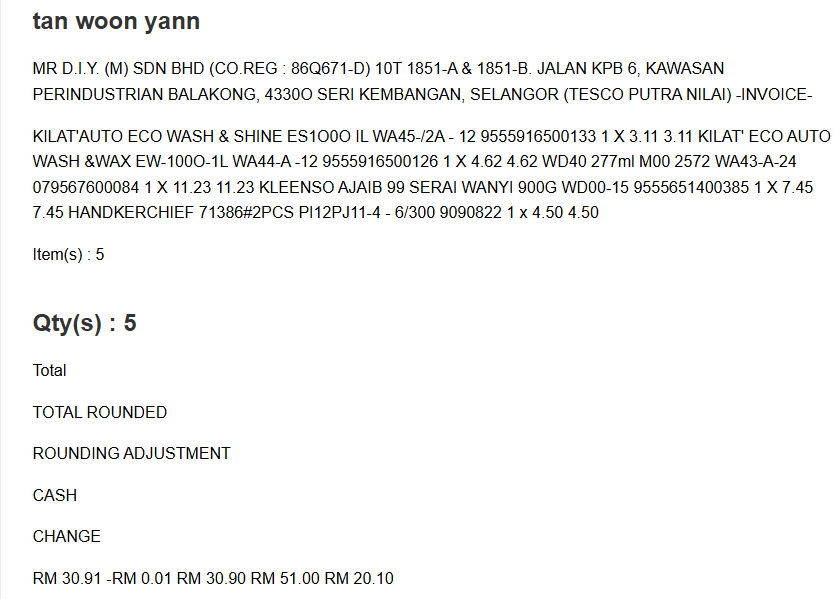
Several OCR mistakes were also visible. For example, product text such as ES1000, EW-1000-1L, and WD40 277ml contained character substitutions in the extracted output.
The result was therefore not suitable as a spreadsheet-ready reconstruction of the receipt.
Test 2: Financial Statement
This time, Docling detected a table, but the reconstruction was badly distorted.
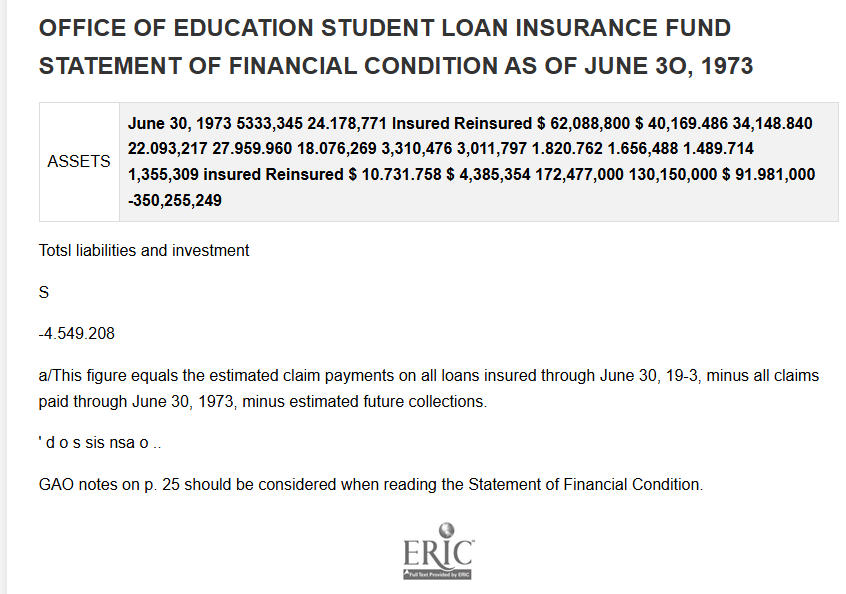
The output essentially collapsed much of the financial information into a malformed one-row/two-column structure instead of preserving the original relationships between rows and columns. The extraction also contained OCR errors in dates, labels, and numerical values.
The command output itself reported that 34 of 60 PDF cells could not be matched to the detected row or column bands and were dropped from the table.
The result was not suitable for directly turning the scanned statement into a reliable Excel table.
Test 3: Census Table
The Census document produced a more interesting result.
Docling reconstructed a substantial amount of the table structure, including the large Table 2 section. However, the output still contained significant OCR and structural corruption, including fragmented headers and corrupted symbols and values.
So while this was the strongest structural reconstruction of the three Docling tests, it still wasn’t reliable enough to treat as a spreadsheet-ready result without substantial manual checking.
What did we learn from Docling?
Across these three scanned-image benchmarks, Docling’s standard workflow did not produce a reliable spreadsheet-ready reconstruction.
That doesn’t mean Docling cannot extract tables. It means that in these particular tests, its out-of-the-box workflow wasn’t sufficient to turn the difficult scanned documents into dependable spreadsheet data.
For developers building custom document-processing pipelines, that distinction matters. But for someone whose immediate goal is simply:
“I have this scanned document—turn it into an editable Excel spreadsheet.”
our three tests suggest that you’ll still need to inspect and validate the output rather than assuming the extraction is complete.
How to Verify an AI-Generated Excel File: Our 9-Point Checklist
A spreadsheet can look perfectly clean and still contain a few incorrect cells. That is why checking the output against the source document matters just as much as the extraction itself.
Based on the errors we found across our three tests, here is the checklist we would use before treating an AI-generated Excel file as reliable.
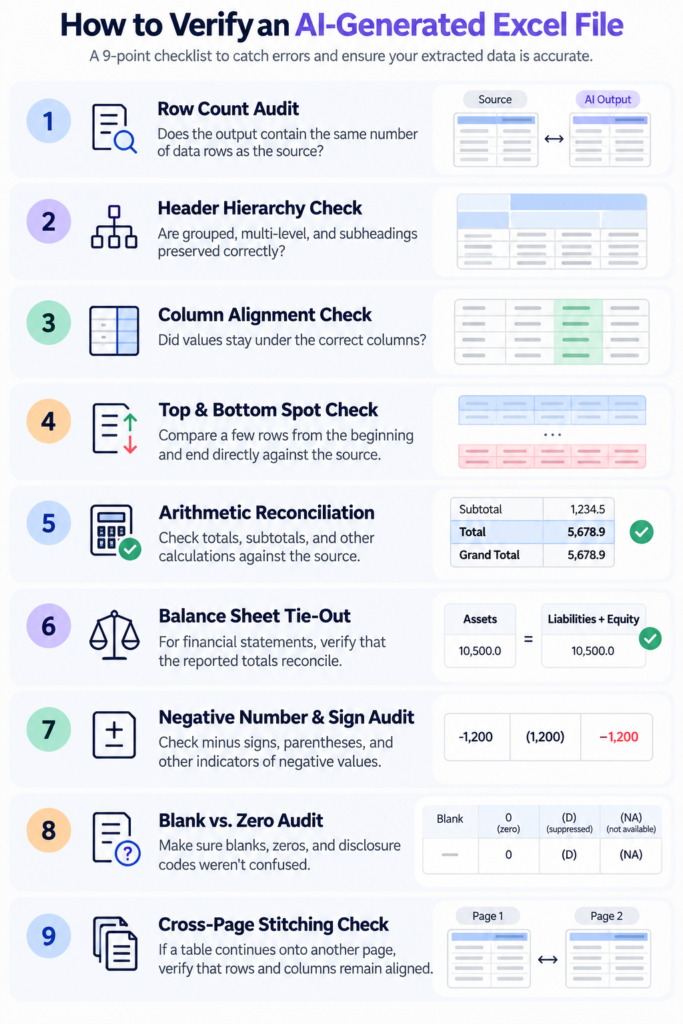
If you’re interested in how we approach testing AI systems more broadly, see our guides to testing AI agents.
1. Check the row count
Compare the number of rows in Excel with the source table.
If the source contains 76 data rows, the extracted sheet should contain the same 76 rows. A missing row can be harder to notice than a visibly broken table.
Quick check: compare the first and last row, then scan for missing sequence numbers or categories.
2. Check the header hierarchy
Scanned documents often use multi-level headers, grouped columns, and subheadings.
Make sure the AI has not:
- shifted a subheading into the wrong column
- combined separate headers
- dropped a header
- attached a value to the wrong category
This is particularly important for financial and statistical tables where the meaning of a number depends on its column heading.
3. Check column alignment
Don’t just check whether every value is present. Check whether it is in the right column.
A spreadsheet can contain all the original numbers while still being wrong if one column has shifted during extraction.
Pick a few rows and trace them from the original document into Excel from left to right.
4. Spot-check the beginning, middle, and end
You don’t necessarily need to manually compare every cell in a large table.
Instead, check samples from:
- the beginning of the table
- the middle
- the end
- any page where the table continues
Also inspect rows that look unusual.
This can quickly reveal whether the extraction quality changes from one part of the document to another.
5. Reconcile totals and calculations
If the source contains totals, subtotals, balances, or other arithmetic relationships, recalculate them in Excel.
For example:
Total = Category A + Category B + Category C
If the extracted values do not produce the source total, stop and investigate before using the workbook.
This matters because an AI can extract most of the underlying values correctly while still missing one number that changes the final calculation.
6. Check negative numbers and signs
Pay special attention to:
- negative values
- minus signs
- parentheses used for negative amounts
- positive/negative adjustments
- deficit figures
A single missing minus sign can completely change the meaning of a financial value.
Our financial-statement test demonstrated why this matters: Claude extracted a value as -238,274,249 when the source showed -258,274,249.
7. Check blanks versus zeroes
A blank cell and a value of 0 are not necessarily the same thing.
Likewise, disclosure codes such as (D), (NA), EE, or CC should not be casually converted into numbers or blanks.
Our Census test found several errors involving these kinds of codes, including substitutions such as EE → CC and CC → (D).
8. Inspect page breaks
For multi-page tables, check where one page ends and the next begins.
Look for:
- duplicated rows
- missing rows
- repeated headers treated as data
- columns becoming misaligned
- a continued row being split incorrectly
This is one of the areas where a spreadsheet can look reasonable at first glance while the underlying structure is wrong.
9. Compare important cells directly with the source
Finally, manually verify the cells that matter most to your task.
For a receipt, that could be:
- product names
- quantities
- prices
- total
For a financial statement:
- major asset/liability figures
- totals
- balances
- negative values
For a statistical table:
- identifiers
- category codes
- percentages
- unusually large or small values
The goal isn’t to distrust every AI-generated spreadsheet. It’s to know where a quick manual check can prevent a small extraction error from becoming a bigger business or analytical mistake.
A useful rule is:
The more important the data, the less you should rely on visual confidence alone.
In our tests, all three AI systems produced spreadsheets with very high cell-level accuracy, but every system still produced at least some substantive errors across the benchmark.
When Can You Trust AI PDF-to-Excel Extraction?
Our tests showed that ChatGPT, Gemini, and Claude can extract tables from scanned documents with high cell-level accuracy. However, the results also revealed an important distinction: a spreadsheet can be accurate enough to save you time without being accurate enough to use without checking.
The amount of verification you need depends on the document and what you plan to do with the extracted data.
| Use case | Recommended approach |
|---|---|
| Personal notes or simple reference tables | Extract with AI and perform a quick visual check. |
| Receipts, invoices, and expense records | Verify product descriptions, quantities, prices, and totals against the source. |
| Large datasets for analysis | Check row counts, headers, column alignment, numerical outliers, and representative samples. |
| Financial statements and business reports | Verify critical figures individually and recalculate totals before using the data. |
| Regulatory, legal, or other high-stakes documents | Use AI to accelerate extraction, but require thorough human verification before relying on the workbook. |
Three questions to ask before using the spreadsheet
1. How complicated is the original document?
A simple table with clear borders and a few columns is easier to inspect than a multi-page statistical table with grouped headings and disclosure codes.
As complexity increases, pay more attention to table structure, page breaks, and whether every value is associated with the correct row and column.
2. What happens if one cell is wrong?
An incorrect character in a personal reference sheet may be inconvenient. An incorrect financial figure or inventory quantity could affect a calculation or business decision.
Verification should reflect the consequences of an error, not just how accurate the spreadsheet appears.
3. Can you independently verify the important information?
The strongest workflow combines AI extraction with checks that do not depend on the AI’s own assessment.
Compare important cells with the original document, recalculate totals in Excel, and investigate discrepancies rather than asking the same AI to simply confirm that its output is correct.
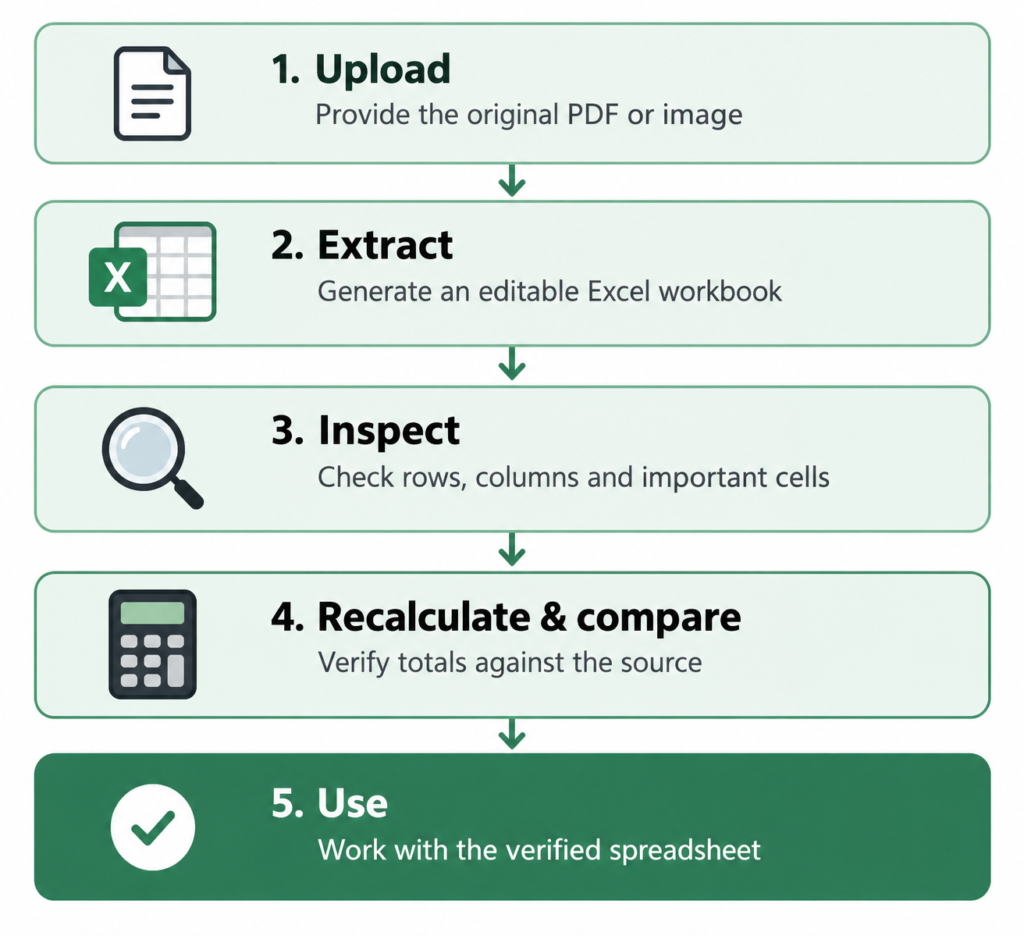
Our recommended workflow
Use AI to reduce manual data entry, not eliminate verification.
Our benchmark covered three scanned documents, not every document type or scanning condition. The results demonstrate what these tools achieved on our particular tests; they should not be treated as guaranteed accuracy rates for other PDFs.
The practical takeaway is simple: trust AI to help with extraction, but trust the spreadsheet only after you’ve verified it to the standard your task requires.
Frequently Asked Questions
Can AI convert a PDF to Excel?
Yes. AI tools can extract tables from PDFs and create editable Excel workbooks. The results depend on the document type, table complexity, and whether the PDF contains selectable text or is a scanned image.
Our tests specifically focused on scanned tables, where the AI had to interpret the visual document rather than simply copy an existing text layer.
Can AI convert a scanned PDF to Excel?
Yes, but scanned PDFs require more verification than clean, text-based PDFs.
Because a scanned document is essentially an image, the extraction process can introduce errors such as incorrect characters, numbers, decimal places, codes, or column positions.
That is exactly what we found in our benchmark: all three AI tools produced highly accurate results overall, but each still made substantive errors in at least one test.
What is the best prompt for converting a PDF to Excel with AI?
A good prompt should tell the AI to preserve the original table structure and values, rather than simply asking it to “convert the PDF to Excel.”
It should specifically address rows, columns, headers, decimals, negative numbers, blank cells, codes, footnotes, and multi-page tables. It should also instruct the AI not to guess unreadable information.
We’ve included the complete copy-and-paste prompt earlier in this article.
Can ChatGPT extract tables from a PDF into Excel?
Yes. In our test, ChatGPT successfully created Excel workbooks from all three scanned documents.
Its cell-level scores were 9.33/10 for the receipt, 9.38/10 for the financial statement, and 9.97/10 for the Census table. These scores describe our specific benchmark and should not be interpreted as a guaranteed accuracy rate for every PDF.
Final Takeaway
AI can turn a scanned PDF or image into an editable Excel workbook surprisingly well—but “looks correct” is not the same as “is correct.”
Across our three tests, ChatGPT, Gemini, and Claude all produced high cell-level accuracy, with scores ranging from 9.33/10 to 10/10 depending on the document. But every tool also produced at least some substantive errors across the benchmark.
The errors weren’t always obvious. We found:
- missing values
- incorrect numbers
- decimal-place mistakes
- character substitutions
- changed statistical codes
- structural issues that could affect how data is interpreted
That leads to a simple workflow worth remembering:
Upload → Extract → Inspect → Recalculate → Compare → Use
Use the AI to remove the tedious manual data-entry work. Then use the original document to verify the parts that matter.
If you’re converting a receipt, financial statement, statistical table, or another scanned document today, you can start with the copy-and-paste prompt in this guide and then run the resulting workbook through the 9-point verification checklist.
That’s the practical middle ground: AI can do the extraction, but verification is what makes the spreadsheet trustworthy.