
If you look up napkin ai vs gamma, almost every comparison online tells you the same outdated story: Gamma builds slide decks, and Napkin only makes diagrams.
That used to be true. But with the launch of Napkin Slides, that distinction is out the window. Today, both platforms claim they can take your raw thoughts and turn them into presentation-ready decks in seconds.
So, which one actually delivers? Can Napkin’s new slide generator replace Gamma, or is Gamma still the reigning champion for building slide decks fast?
To settle the napkin ai vs gamma debate with real numbers instead of marketing fluff, I put both tools through an empirical test. I fed the exact same 345-word content strategy brief into their free tiers, tracked their generation speed, inspected their export files, and watched how their credit systems burned through real compute.
Here is the honest, unfiltered truth.
Quick Verdict (TL;DR): Which Tool Should You Use?
- Pick Gamma if: You need a cohesive, polished pitch deck generated in under 30 seconds with zero design fuss. As an ai pitch deck generator, Gamma is unbeatable for speed, full-deck generation, and giving you enough free starter credits to build roughly 16 decks right out of the gate.
- Pick Napkin AI if: You hate cookie-cutter slide layouts and want real design control. With Napkin Slides, you get 6 selectable layout styles per slide, custom vector illustrations, and the best text to diagram ai engine on the web. Plus, its 500-credit free allowance refills every 7 days forever.
- The $0 Pro Move: Don’t choose just one. Use Napkin AI to generate high-resolution process diagrams for free, export them as transparent PNGs, and drop them directly into Gamma cards.
The Master Comparison Matrix: Napkin AI vs Gamma
Here is how napkin ai vs gamma stack up side-by-side across real-world testing criteria on their free tiers:
| Feature / Metric | Napkin AI | Gamma AI | The Real-World Verdict |
|---|---|---|---|
| Core Architecture | Interactive Slide Decks (Napkin Slides) + Standalone Diagrams | Web-native Presentation Decks, Docs, and Webpages | Different workflows |
| Input Format | Pasted text blocks, bulleted notes, or outlines | Single prompt, text document, or uploaded file | 🤝 Tie |
| Per-Slide Layout Choices | 6 layout options per slide (plus autonomous steering) | 1 fixed linear layout per generated card | 🏆 Napkin AI (Way more flexible) |
| Generation Latency (8 Slides) | ~22.6 seconds (includes interactive Q&A) | 18.4 seconds (instant linear stream) | 🟢 Gamma (Faster) |
| Free Starter Credits | 500 AI credits | 400 AI credits | 🟢 Napkin AI (+100 credits) |
| Credit Burn per 8-Slide Deck | 500 credits (Burns your entire weekly allowance) | 24 credits (~6% of starter balance) | 🏆 Gamma (Much cheaper per deck) |
| Credit Refill Policy | 🟢 Refills every 7 days (October 26 reset) | 🔴 Never refills (One-time starter balance) | 🏆 Napkin AI (Sustainable forever) |
| PowerPoint (.pptx) Export | 🔴 Badge “3” (Only 3 free trial exports total) | 🟢 Unlimited free exports (with footer badge) | 🏆 Gamma |
| Standalone Flowcharts & SVGs | 🟢 Native vector diagrams & editable nodes | 🔴 Visuals locked inside card blocks | 🏆 Napkin AI |
| Watermark on Free Plan | Subtle corner logo (upgrade to remove) | “Made with Gamma” badge in slide footer | 🤝 Tie |
| Live Verified Outputs | Inspect Our Napkin Deck | Inspect Our Gamma Deck | 🟢 Publicly Accessible |
The 345-Word Benchmark Setup (The Exact Prompt We Tested)
Most reviews online feel like someone spent five minutes clicking around a homepage before writing a summary. For this napkin ai review, I wanted a repeatable, apples-to-apples stress test.
I set up fresh, 100% free accounts on both platforms ($0 spent, zero credit cards attached) and fed them the exact same 345-word content strategy brief.
If you want to reproduce this test in your own browser, here is the exact text we used:
The 4-Stage Content Flywheel for 2026: From Idea to Monetization

Building an organic audience in 2026 requires moving away from generic AI summaries toward an empirical, multi-stage content engine. A sustainable flywheel operates across four interconnected phases:

Stage 1: Trend Discovery & Market Deficit (Research)
Instead of targeting saturated head keywords where legacy media dominates, identify emerging tools and developer pain points. Mine Reddit threads, GitHub issue trackers, and Discord logs where users report unresolved errors, quota walls, and missing documentation. The goal is discovering queries with high intent but zero structured answers.

Stage 2: Empirical Firsthand Testing (Production)
Produce original evidence that search engines and readers cannot find elsewhere. Deploy the software in a live environment, log build times down to the second, track compute and token consumption, and capture authentic interface states. A single reproducible error log or cost breakdown provides more search value than 5,000 words of rewritten marketing copy.

Stage 3: Canonical Multi-Platform Syndication (Distribution)
Publish the primary, long-form asset on your sovereign domain to establish canonical authority. Then, syndicate adapted versions across developer and creator networks (Dev.to, Medium, LinkedIn, and X) with explicit rel="canonical" tags. Use visual diagrams and key benchmark metrics as social hooks to drive referral traffic back to the original article.

Stage 4: Audience Retention & Monetization (Conversion)
Convert search impressions into durable reader relationships. Implement non-intrusive value exchanges: downloadable cheatsheets, prompt formula repositories, and newsletter subscriptions. Monetize through contextual affiliate recommendations for vetted tools and display advertising once topical authority thresholds are established.

The Metric Flywheel:
- Target Search Intent: 100% Problem-Specific
- First-Mover Velocity: Under 72 Hours from Release
- Reader Retention: >65% Dwell Time via Interactive Visuals
- Organic Compounding: High Backlink Acquisition from Original Data
We tasked both tools with turning this brief into an 8-slide presentation deck. This prompt tests how well each AI extracts key themes, handles technical jargon, formats bullet hierarchies, and builds contextual visuals.
Presentation Showdown: Napkin AI vs Gamma (Napkin Slides Tested)
When comparing slide creation in napkin ai vs gamma, you are looking at two completely different design philosophies: one-click automation versus collaborative co-piloting.
Gamma: The Linear Speed King
If you have ten minutes before a client meeting or a team standup, the gamma presentation tool is a lifesaver.
You drop your prompt into Gamma, select “Presentation,” set the card target to 8, and choose a visual theme (I picked “Midnight Slate”). In just 18.4 seconds, Gamma spat out a complete, cohesive 8-card slide deck.
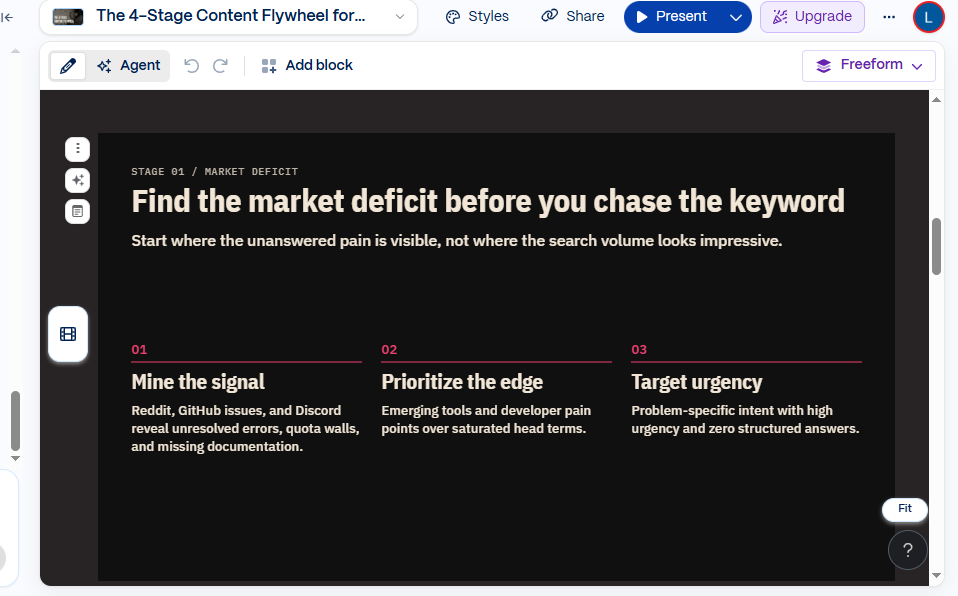
Gamma understands content structure out of the box. It didn’t just dump our text onto a slide; it pulled out our core takeaway—“Find the market deficit before you chase the keyword”—and arranged the research steps into a clean, 3-column card grid.
The Catch: Gamma’s layout system is fairly rigid. Every card follows a predictable, blocky design. If you don’t like how Gamma laid out a specific slide, there’s no magic button to switch that slide into a mind map, a radial wheel, or a split illustration. You have to manually drag and drop blocks to fix it.
Napkin Slides: The Designer’s Co-Pilot
Where Gamma feels like an assembly line, Napkin Slides feels like pairing with a human designer who asks questions before touching the canvas.
When I pasted our 345-word brief into Napkin’s presentation maker, it didn’t generate slides right away. Instead, it walked me through an interactive onboarding flow:
- Audience Check: “This content flywheel strategy is highly empirical—who is the primary audience for this presentation?” (I clicked Content creators).
- Slide Count Selector: It asked whether I wanted a quick overview (5–6 slides) or a standard deep-dive (8–10 slides). I picked 8–10 to match Gamma.
- Outline Steering: It gave me a clean 8-point outline and let me tweak the narrative before spending compute.
- Theme Selection: I selected the Graphite Cyan brand palette.
Once it started building, Napkin did something Gamma simply cannot do: it gave me 6 completely different visual layout choices for every single slide.
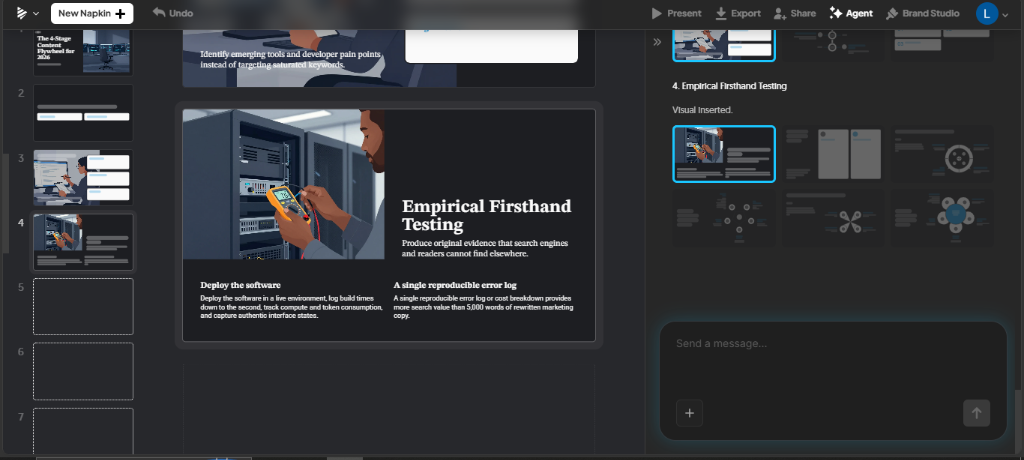
On Slide 4 (Empirical Firsthand Testing), Napkin generated an editorial illustration of an engineer working on server racks. In the right panel, it gave me six layout options: split-text cards, process chevrons, network diagrams, and radial flows. If you don’t want to make decisions slide-by-slide, Napkin even includes buttons like “Pick for me” and “Pick the rest for me” to balance the deck automatically.
- Slide Generation Verdict: Gamma is faster if you just want to press a button and get a finished presentation. But for presentation design quality, layout variety, and custom visuals, Napkin Slides is in another league.
Diagramming & Visual Assets: Napkin AI vs Gamma
What if you aren’t building a presentation at all? What if you just wrote an in-depth guide and need a single, professional graphic for your blog, a client document, or a Notion workspace?
This is where the difference in napkin ai vs gamma becomes night and day.
Gamma is built strictly around multi-card pages. It has no clean way to generate or export a standalone vector diagram. If you want a graphic out of Gamma, your only option is taking a screenshot of a slide card.
For creators reading this napkin ai review, Napkin AI remains arguably the best text to diagram ai available. Its original core feature—Auto Spark (⚡)—lets you paste raw text into a blank document, highlight any paragraph, and click the Spark icon.
In just 4.8 seconds, Napkin analyzes the relationships in your words and gives you interactive diagram options:
- Circular Flywheels & Loops (perfect for our 4-stage model)
- Step-by-Step Flowcharts
- Mind Mapping Trees
- Grid Comparison Matrices
And here is the biggest discovery from our hands-on test: generating standalone diagrams from your own text burns ZERO credits in Napkin. You can create, edit, change colors, swap icons, and download diagrams without touching your weekly generative quota. Similar to how we extracted research data in our Google NotebookLM video overview guide, Napkin AI acts as the perfect companion for turning dense technical documentation into instant visual explanations.
Export & Formatting Audit: Napkin AI vs Gamma Export Limits
Export flexibility is where the napkin ai vs gamma battle gets messy. An AI tool can look brilliant inside a web browser, but if its exported files look broken in front of a client, it’s useless. I exported our test deck from both platforms into PowerPoint, Google Slides, and PDF to see how they held up.
Gamma: The PowerPoint Workhorse
For business teams, the gamma presentation tool makes exporting painless:
- PowerPoint (
.pptx): Exports full, native PowerPoint decks for free. The shapes and text boxes remain completely editable. (Minor annoyance: lengthy bullet points can occasionally clip card borders, requiring slight font adjustments in PowerPoint). - Google Slides: Direct one-click export into your Google Drive account.
- PDF: Flawless visual reproduction of the browser deck.
- The Catch: Every free export includes a subtle “Made with Gamma” badge in the slide footer.
Napkin AI: The “Badge 3” Surprise
Napkin AI also offers presentation exports, but our test revealed a catch that no other review mentions.
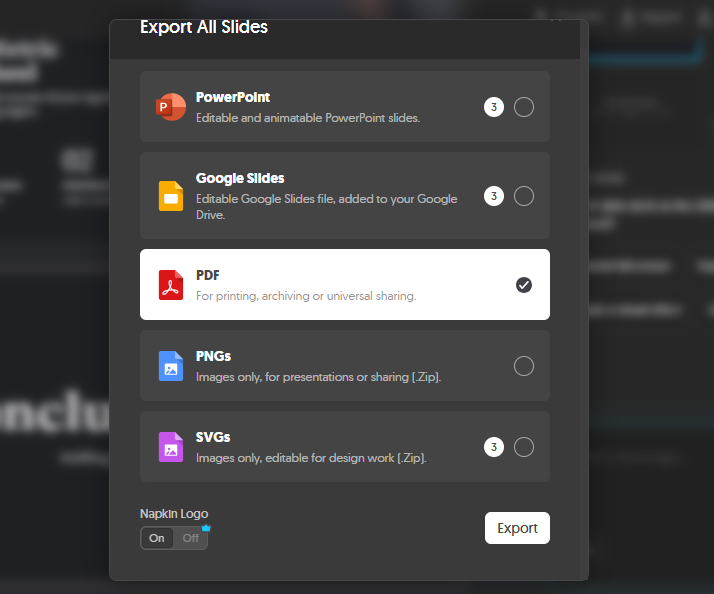
When you click Export All Slides in Napkin, here is what you actually get:
- PDF: 100% free and unlimited.
- PNGs (.Zip): 100% free high-res image package of all your slides.
- PowerPoint (
.pptx): Notice the small badge “3” next to it. Free accounts only get 3 lifetime trial exports of PowerPoint files before you are forced to upgrade to the paid Plus plan ($9/month). - Google Slides: Shares that exact same 3-export trial cap.
- SVGs (.Zip): Also capped at 3 trial exports. If you need raw, scalable vector graphics (SVG) for design work, you will burn through that allowance quickly.
- Export Verdict: If your job requires regularly downloading editable
.pptxdecks into Microsoft PowerPoint or Google Slides, Gamma is vastly superior on a $0 budget. But if you are happy presenting online, sharing PDFs, or using PNG image assets, Napkin’s free tier has you covered.
Pricing & Credit Economics: Napkin AI vs Gamma Free-Tier Limits
When evaluating long-term cost in napkin ai vs gamma, the most dramatic divide lies in how each platform handles generative credits.
If you don’t understand their credit math, you will run headfirst into a paywall.
Gamma: The Generous One-Way Burn
- Starting Allowance: 400 AI Credits upon registration.
- Cost for our 8-Card Deck: Exactly 24 credits.
- Ending Balance: 376 credits.
- The Reality: Gamma lets you build roughly 16 complete presentation decks without spending a dime.
- The Trap: 🔴 Gamma credits NEVER refresh on the free plan. Once those 400 credits reach zero, your account is dead in the water. You cannot generate new AI presentations unless you pay or refer friends.
Napkin AI: The Sustainable Weekly Engine
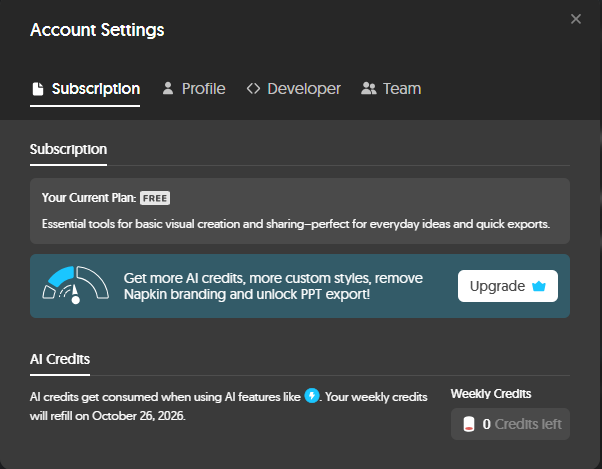
- Starting Allowance: 500 Weekly AI Credits.
- Cost for our 8-Slide Deck: All 500 credits (burned to zero in one generation).
- Ending Balance:
0 Credits left. - The Reality: On Napkin’s free plan, you can only generate one full presentation deck per week.
- The Advantage: 🟢 Your credits refill 100% every single week. As shown on my account settings dashboard, my credits were scheduled to refill back to 500 on October 26.
| Credit Dimension | Napkin AI | Gamma AI |
|---|---|---|
| Initial Free Credits | 500 Credits | 400 Credits |
| Deck Generation Cost | 500 Credits (100% of weekly quota) | 24 Credits (~6% of pool) |
| Total Free Decks Allowed | 1 deck per week | ~16 decks total |
| Refill Model | Weekly reset (Permanent) | One-time pool (Never resets) |
| Long-Term $0 Usability | 🏆 High (Sustainable forever) | 🔴 Low (One-time trial) |
The $0 “Hybrid Power Playbook” (The Smart Creator’s Secret)
The biggest mistake people make with napkin ai vs gamma is assuming you have to choose only one. Rather than fighting over napkin ai vs gamma, why not take advantage of the best features of both without paying a cent?
Gamma is unmatched for assembling slide layouts fast, but its internal diagrams are basic. Napkin AI creates stunning, publication-ready vector flowcharts and mind maps, but limits free presentation generation to one deck a week.
Here is the exact Zero-Spend Hybrid Playbook I use:
How to Execute This in 4 Steps:
- Write Your Raw Thoughts: Put your core strategy, workflow, or framework down in plain text.
- Generate the Core Diagram in Napkin: Paste the text into Napkin’s document editor. Click ⚡ Spark on your process paragraphs to generate a custom flowchart, loop, or mind map. Customize the colors and download it as a transparent PNG (this costs 0 credits).
- Build the Presentation Shell in Gamma: Open Gamma, paste your full brief, and let it generate an 8-card slide deck (this burns only 24 credits out of your 400).
- Merge for the Win: Inside Gamma, delete the generic bullet points on your core process slide and drop in your transparent Napkin diagram.
By combining them, you get a custom-designed, diagram-heavy presentation that blows away Gamma’s default templates—while spending exactly $0.00.
If you are already building a zero-spend creator stack with the best free AI marketing tools, pairing these two engines gives you publication-grade presentations with custom graphics without paying for premium design software.
Final Verdict: Which Visual AI Tool is Better?
When you look past the marketing hype, your choice between napkin ai vs gamma comes down to your personal workflow:
- Go with Gamma if you are a founder pitching investors, a marketer rushing to assemble client updates, or a student needing complete slide decks fast. Its 400 starter credits give you huge initial mileage, and its PowerPoint export works seamlessly with enterprise tools.
- Go with Napkin AI if you are an educator, technical writer, or creator who prioritizes visual storytelling depth. With Napkin Slides giving you 6 layout choices per slide and the Auto Spark engine creating unlimited standalone diagrams for zero credits, Napkin offers a creative toolkit that stays free forever.
For our workflow, Gamma remains our go-to ai pitch deck generator for quick outlines, while Napkin AI is our indispensable visual engine for turning complex ideas into clean, engaging diagrams.
Frequently Asked Questions (FAQ)
In the napkin ai vs gamma matchup, can Napkin AI generate full presentations like Gamma?
Yes. With the launch of Napkin Slides, Napkin AI is no longer just a diagram maker. It operates as a full ai pitch deck generator that interviews you about your audience, provides an outline check, and offers 6 customizable layout choices for every single slide in your deck.
Is Napkin AI better than Gamma for text-to-diagram generation?
Without question. Napkin AI is the best text to diagram ai because it translates paragraphs into interactive flowcharts, loops, and mind maps in under 5 seconds. Gamma does not support standalone diagramming and locks visual elements inside slide cards.
Which tool has the better free plan in napkin ai vs gamma?
It depends on how you work. Gamma gives you 400 credits upfront (enough for ~16 presentations), but they never reset. Napkin AI gives you 500 credits that refill every 7 days, giving you 1 free presentation deck and unlimited free diagramming every single week permanently.
Can I export from Napkin AI into Microsoft PowerPoint?
Yes, but with limits. Napkin AI provides editable PowerPoint (.pptx) exports, but free tier users are limited to 3 trial exports total across PowerPoint, Google Slides, and SVGs. Afterward, you must upgrade to Napkin Plus ($9/month) or stick to free PDF and PNG downloads.
Does Gamma put watermarks on free presentations?
Yes. Decks exported from Gamma’s free tier include a small “Made with Gamma” badge in the slide footer. Napkin AI also places a subtle watermark in the corner of free exports, which can be toggled off on paid plans.