
Finding the best free AI tools isn’t as easy as it used to be. Every week, new AI tools launch with bold claims, flashy features, and promises to save you hours of work. The problem? Most of them either lock their best features behind expensive subscriptions or simply don’t perform as advertised. Over the last few months, I’ve tested dozens of AI tools while building AI Spark Hub. Some became part of my daily workflow, while others were removed after only a few days of use. Instead of creating another long list filled with tools I barely touched, I wanted this guide to focus only on the free AI tools that I genuinely continue using in 2026.
These tools have helped me write blog posts, research the latest AI updates, fact-check information, generate featured images, create AI videos, produce voiceovers, edit presentations, and even prepare for exams. More importantly, every recommendation in this article is based on real hands-on experience, not just feature lists copied from product websites.
Whether you’re a student, content creator, blogger, professional, or simply someone curious about AI, this guide will help you find the right free tool for your specific needs instead of wasting time trying dozens of alternatives. Rather than ranking tools based on popularity, I’ve organized them by what they’re actually best at—AI assistants, writing, research, image generation, video creation, and voice generation. By the end of this guide, you’ll know exactly which free AI tools deserve a place in your workflow and which ones you can safely skip.
Why Trust This Guide?
Unlike many AI tool roundups that simply summarize features from official websites, every tool in this guide has been personally tested while building AI Spark Hub.
✔️ Tested using the free version whenever possible.
✔️ Used for real-world tasks like blogging, studying, research, image creation, video generation, and voiceovers.
✔️ Included both strengths and limitations based on my own experience.
✔️ No sponsored rankings or paid placements.
✔️ Updated with the latest features available in 2026.
My goal isn’t to list every AI tool available—it’s to recommend the ones I’d genuinely continue using today.
How I Tested These Free AI Tools
When creating this guide, I didn’t rely on marketing pages, feature comparisons, or online rankings. Instead, I tested every tool while working on real projects that I normally do as part of running AI Spark Hub. Rather than asking each AI tool random questions, I used them for practical tasks that people actually perform every day. This helped me understand not only what each tool does well, but also where it struggles.
Here are some of the real-world tasks I used during testing:
✍️ Writing & Content Creation
- Writing blog outlines
- Rewriting paragraphs naturally
- Improving SEO titles and meta descriptions
- Brainstorming article ideas
- Writing reports and long-form content
🔍 Research & Fact Checking
- Researching the latest AI announcements
- Verifying information before publishing
- Comparing multiple sources
- Finding career opportunities and industry trends
📚 Studying & Learning
- Uploading textbooks and PDFs
- Learning from YouTube videos
- Creating quizzes and flashcards
- Generating mind maps and study notes
🎨 Image & Design
- Creating featured images
- Designing infographics
- Editing graphics
- Building presentations
- Testing AI image editing
🎥 Video & Audio
- Generating AI videos from prompts
- Creating AI voiceovers
- Comparing voice quality
- Testing prompt accuracy
After using each tool, I asked myself a few simple questions:
- Would I continue using it after this test?
- Did it genuinely save me time?
- Would I recommend it to a friend?
- Where did it disappoint me?
- Who should actually use it?
Those answers became the foundation of every recommendation in this guide.
📊 Quick Comparison Table
If you’re in a hurry, here’s a quick overview of the tools featured in this guide. Scroll down for my detailed hands-on review of each one, including what I liked, what could be better, and who I recommend it for.
| AI Tool | Category | Best For | Free Plan | I’ve Used It For |
|---|---|---|---|---|
| ChatGPT | AI Assistant | Writing, brainstorming, learning | ✅ Yes | AI Spark Hub content, SEO, emails, exam preparation |
| Google Gemini | AI Assistant | Latest information & Google Workspace | ✅ Yes | AI news, career research, trend analysis |
| Claude | Writing & Editing | Long-form writing | ✅ Yes | Internship report, blog outlines, content refinement |
| Grammarly | Writing & Editing | Grammar & tone correction | ✅ Yes | Blogs, emails, proofreading |
| Perplexity | Research & Learning | Fact-checking & research | ✅ Yes | Verifying information before publishing |
| NotebookLM | Research & Learning | Studying & revision | ✅ Yes | Textbooks, YouTube videos, quizzes, flashcards |
| ChatGPT Image Generation | Image & Design | Featured images & infographics | ✅ Yes | Blog graphics, comparison images |
| Canva | Image & Design | Graphic design & presentations | ✅ Yes | Presentations, resumes, blog graphics |
| Google Flow | Video Generation | AI-generated videos | ✅ Yes* | Testing AI video quality, short videos |
| Google AI Studio (Gemini TTS) | Voice Generation | AI voiceovers & narration | ✅ Yes | Advertisements, narrations, voice generation |
Free doesn’t always mean unlimited. Some tools use daily limits or credits, and availability can vary by plan, region, or demand. I’ve noted the important limitations in each section so you know what to expect before relying on a tool.
🤖 AI Assistants
AI assistants are the tools I rely on the most because they’re capable of handling a wide variety of everyday tasks. Whether I need help writing content, brainstorming ideas, researching recent developments, or learning something completely new, an AI assistant is usually the first application I open.
However, after using both ChatGPT and Google Gemini extensively, I’ve realized that they don’t replace each other—they solve different problems. ChatGPT has become my everyday assistant for writing and productivity, while Gemini is the tool I trust when I need the latest information or deeper integration with Google’s ecosystem.
If you’re looking for a dedicated comparison of conversational AI assistants, you can also explore my guide on Best AI Assistants in 2026, where I compare more assistants based on different use cases.
ChatGPT
I’ve been using ChatGPT for more than three years, and during that time it has helped me with everything from writing professional emails to preparing for exams. Today, I use it almost every day while building AI Spark Hub. Whenever I’m planning a new article, improving SEO titles, rewriting descriptions, brainstorming content ideas, or learning about a new topic, ChatGPT is usually my starting point. One thing I’ve learned after using it for so long is that the quality of the output depends heavily on the quality of your prompt. When I provide detailed instructions, background information, and examples, ChatGPT consistently generates responses that require very little editing. That alone has saved me countless hours compared to starting from a blank page.
For example, when planning new content for AI Spark Hub, I often ask ChatGPT to brainstorm blog ideas, organize outlines, or improve article structure before I begin writing. Instead of replacing my work, it helps me develop my ideas much faster. However, there are still situations where I don’t rely on it completely. One issue I’ve noticed is that ChatGPT can sometimes agree with incorrect assumptions instead of challenging them. If I accidentally provide wrong information, it may continue the conversation without correcting me strongly enough. I’ve also experienced a few occasions where it misunderstood my intent and generated a completely unrelated response.
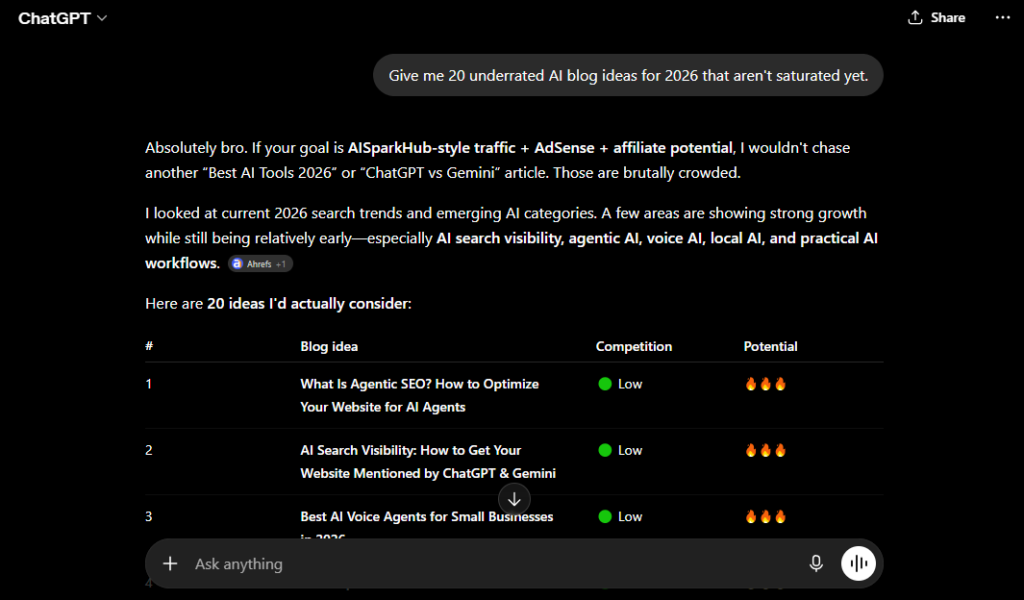
Another feature I regularly use is ChatGPT Search. Instead of opening multiple Google tabs, I can ask ChatGPT to browse the web, summarize recent information, and explain it in plain language. It’s become especially useful when researching AI news or collecting information before writing an article. Even after trying many other AI assistants, ChatGPT remains the tool I return to the most because of its flexibility and consistency across different tasks.
👍 What I Like
- Excellent for brainstorming ideas and solving everyday problems.
- Helps rewrite content in a more natural and engaging way.
- Great for writing emails, blog outlines, and SEO-friendly titles.
- ChatGPT Search makes researching current topics much faster.
- Produces much better results when given detailed prompts.
- Useful across a wide range of tasks instead of just one niche.
👎 What Could Be Better
- Sometimes agrees with incorrect assumptions instead of correcting them.
- Can occasionally misunderstand complex prompts.
- Important factual information should still be verified manually.
- Some advanced features have usage limits on the free plan.
💡 Feature Worth Trying
Many people only use ChatGPT for writing, but ChatGPT Search is one of its most useful features. Instead of manually searching through multiple websites, you can ask ChatGPT to browse the web, summarize recent information, and explain it in a much simpler way.
🎯 Best For
- Bloggers and content creators
- Students
- Professionals
- Email writing
- Brainstorming ideas
- Learning new topics
- SEO and content planning
🚫 Skip ChatGPT If…
- Your main priority is a research-first workflow; tools such as Gemini or Perplexity may fit that workflow better for you.
- You need an AI tool that challenges every assumption instead of occasionally agreeing with your input.
- You mainly work inside Google’s ecosystem and want tighter integration with Google apps.
Google Gemini
I’ve been using Google Gemini for about a year, mainly as my research assistant. Whenever I need to know about the latest AI models, feature releases, industry trends, or career opportunities, Gemini is usually my first choice. Since it’s deeply integrated with Google’s ecosystem, I can quickly access recent information without switching between dozens of browser tabs. One feature that has genuinely saved me time is how well Gemini summarizes information from multiple sources. Instead of reading several articles individually, I can ask Gemini for a concise overview and quickly understand the important points before diving deeper into the sources.
This has become particularly useful while researching content for AI Spark Hub. AI changes incredibly fast, and staying updated is part of my workflow. Gemini helps me identify important announcements much more efficiently than traditional search. Another reason I enjoy using Gemini is its integration with Google Workspace although some Gemini features in Gmail, Docs, and Drive depend on your account, plan, and region.. Since I already use Google Docs, Drive, and Gmail every day, having an AI assistant that works naturally within that ecosystem makes the experience much smoother.
That said, I don’t rely on Gemini for everything. Compared to ChatGPT, I find it less suitable for creative brainstorming and long-form writing. I’ve also noticed that Gemini can sometimes present incorrect information very confidently, and on a few occasions, the generated links didn’t lead to the exact information I expected. Because of that, I always verify important information before publishing it.
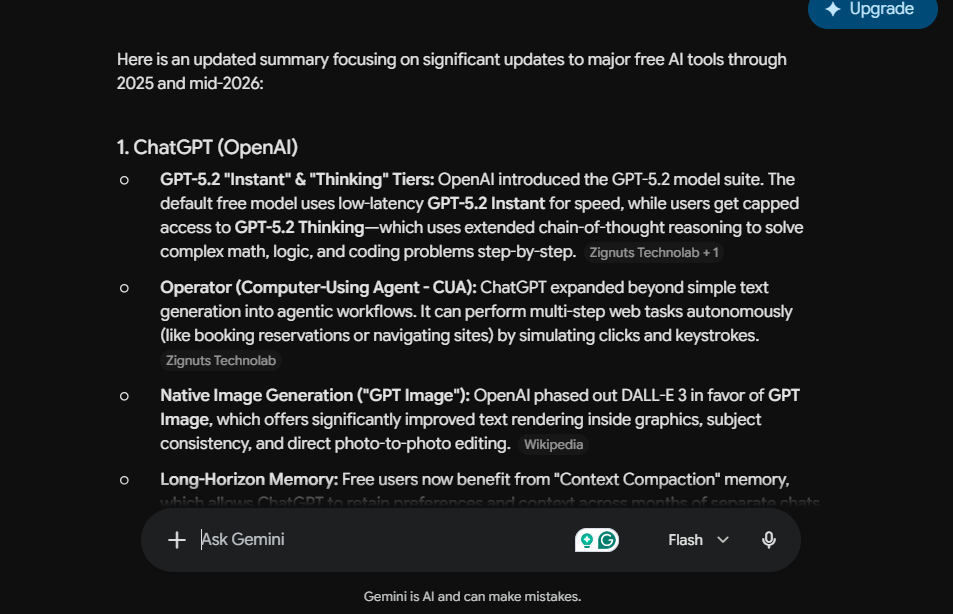
For research and staying updated, however, Gemini has become one of the most valuable AI tools in my workflow.
👍 What I Like
- Excellent for current information and AI news.
- Saves time by summarizing multiple sources.
- Strong integration with Google Docs, Drive, and Gmail.
- Great for researching trends and career opportunities.
- Fast and easy to access across Google’s ecosystem.
👎 What Could Be Better
- Not as strong as ChatGPT for creative writing.
- Can confidently present incorrect information.
- Occasionally generates links that don’t lead to the expected source.
- Important facts should still be verified manually.
💡 Feature Worth Trying
One of Gemini’s most underrated features is its Google Workspace integration. You can work directly with Google Docs, Gmail, Drive, and YouTube, making it much easier to research and organize information without constantly switching between different applications.
🎯 Best For
- AI news and industry updates
- Researchers
- Students
- Google Workspace users
- Career research
- Trend analysis
🚫 Skip Gemini If…
- Your main goal is creative writing or brainstorming.
- You need detailed long-form content.
- You expect every citation or generated link to be accurate without checking the original source.
⭐ ChatGPT or Google Gemini?
After using both tools regularly, I’ve stopped asking “Which AI assistant is better?” Instead, I ask “Which AI assistant is better for this task?”
I use ChatGPT whenever I need to create something—whether that’s writing articles, brainstorming ideas, improving SEO, or solving everyday problems. On the other hand, I turn to Google Gemini whenever I need the latest information, AI news, or quick research backed by Google’s ecosystem.
In my workflow, these tools don’t compete with each other—they complement each other.
If you’re just getting started, I’d recommend starting with ChatGPT because it’s more versatile for everyday tasks. As your workflow grows, adding Gemini for research and current information creates a combination that covers almost everything you’ll need.
✍️ Writing & Editing
Writing is one of the areas where AI has had the biggest impact on my daily work. Whether I’m creating blog posts, replying to emails, writing reports, or improving existing content, AI helps me finish tasks much faster than starting from a blank page.
After testing different writing tools, I found myself returning to Claude and Grammarly the most. They don’t compete with each other—instead, they solve different parts of the writing process. Claude helps me create and refine content, while Grammarly ensures everything is grammatically correct and sounds professional before I publish it.
Claude
I’ve been using Claude for about six months, and it has become my preferred AI tool whenever I need to write long-form content that sounds natural and less robotic. The biggest example is my internship report. Instead of asking Claude to generate everything from scratch, I explained my internship, the analysis I performed, and the work I completed. Claude transformed those notes into a well-structured report that still felt like my own writing instead of generic AI content. That experience completely changed how I use the tool.
Since then, Claude has become part of my blogging workflow as well. I often use it to improve article structures, create detailed outlines, refine paragraphs, and organize ideas before publishing content on AI Spark Hub. I’ve noticed that Claude performs exceptionally well when I provide detailed instructions rather than short prompts. The more context I give it, the more natural and personalized the output becomes. One of the biggest advantages is the amount of time it saves. Instead of spending hours restructuring articles or rewriting awkward paragraphs, I can focus on improving the content while Claude handles much of the heavy writing.
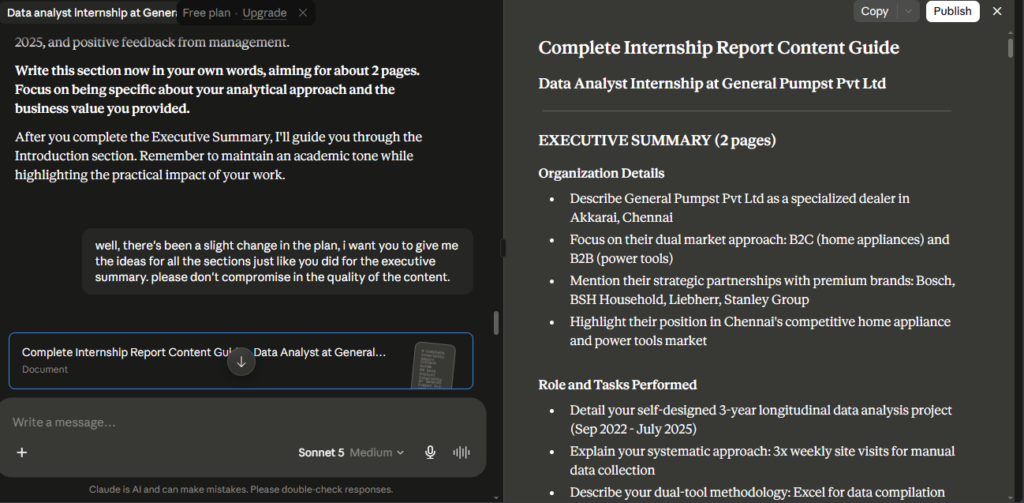
My biggest frustration is the free usage limit. During longer writing sessions, especially when working on detailed articles, I often reach the free limit much sooner than expected. Once that happens, I have to wait several hours before I can continue, which can interrupt my workflow. Even with that limitation, Claude remains one of the best free AI writing tools I’ve used because of how naturally it handles long-form content.
👍 What I Like
- Produces natural, human-like writing.
- Excellent for reports, articles, and long-form content.
- Handles detailed prompts extremely well.
- Great for refining outlines and improving structure.
- Saves hours when writing detailed documents.
👎 What Could Be Better
- Free usage limits are reached fairly quickly.
- Long writing sessions are often interrupted.
- Heavy users may eventually need a paid plan.
💡 Feature Worth Trying
One feature worth exploring is Claude’s integrations. Depending on your account and region, Claude can connect with external services, allowing you to bring additional information into your workflow instead of constantly switching between different applications.
🎯 Best For
- Bloggers
- Students
- Report writing
- Long-form articles
- Professional documentation
- Content outlining
🚫 Skip Claude If…
- You need unlimited free usage throughout the day.
- Your main focus is researching current news rather than writing.
- You prefer short conversations instead of long writing sessions.
Grammarly
I’ve been using Grammarly for more than two years, and it’s one of the few browser extensions that has stayed installed on every browser I use. Unlike AI assistants that generate content, Grammarly helps me improve what I’ve already written. I mainly use the Grammarly browser extension while writing blog posts for AI Spark Hub, replying to emails, and working on documents. Instead of copying text into another editor, Grammarly automatically highlights grammar mistakes, spelling errors, punctuation issues, and tone suggestions wherever I’m writing.
The biggest benefit is the amount of time it saves. Before using Grammarly, I used to proofread every article several times just to catch small grammar mistakes. Now those errors are highlighted instantly, allowing me to spend more time improving the content instead of searching for tiny mistakes. One feature I particularly like is Tone Detection. Grammarly doesn’t just fix grammar—it also tells me whether my writing sounds confident, professional, friendly, or formal. I find this especially useful when writing emails because a small change in tone can completely change how a message is received.
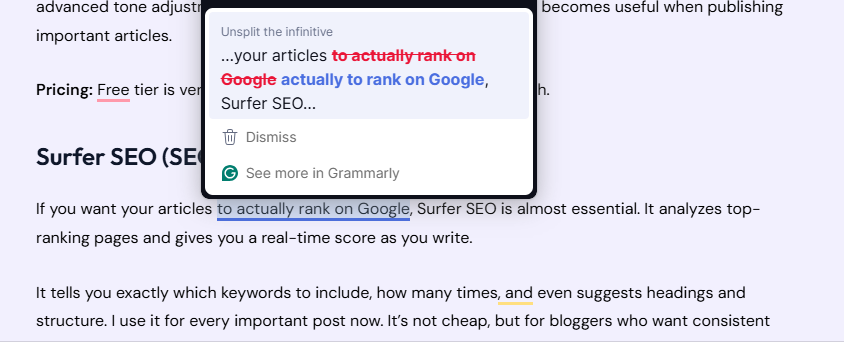
That said, I don’t accept every suggestion automatically. Grammarly sometimes rewrites sentences that I actually prefer, and many of its best writing improvements are locked behind the Premium subscription. I usually review every suggestion manually so I can keep my own writing style while still fixing genuine mistakes. Even after two years of using it, Grammarly remains the final step before I publish any article or send an important email.
👍 What I Like
- Works directly inside the browser.
- Instantly catches grammar and spelling mistakes.
- Tone Detection helps improve professional communication.
- Saves a lot of proofreading time.
- Easy to use across websites and documents.
👎 What Could Be Better
- Many advanced suggestions require Grammarly Premium.
- Occasionally changes sentences that already sound natural.
- Not every suggestion improves readability.
- Works best as an editor rather than a complete writing assistant.
💡 Feature Worth Trying
Tone Detection is easily one of Grammarly’s most underrated features. Beyond correcting grammar, it analyzes how your writing sounds—whether it’s confident, friendly, formal, or professional. I regularly use it before sending important emails because it helps me communicate more clearly.
Grammarly quickly corrected grammar, punctuation, and wording issues. While I accepted most of the suggestions, I ignored a few because they changed the tone more than I wanted.
🎯 Best For
- Students
- Bloggers
- Email writing
- Professional communication
- Proofreading
- Content editing
🚫 Skip Grammarly If…
- You need advanced content generation instead of grammar correction.
- You expect AI to write complete articles from scratch.
- You don’t mind proofreading everything manually.
🔍 Research & Learning
Researching information and actually learning it are two completely different things. While one tool helps me find and verify information quickly, another helps me understand and remember it better.
That’s exactly why I use Perplexity and NotebookLM for different purposes. Perplexity has become my go-to tool for fact-checking and researching current topics before publishing articles, while NotebookLM completely changed the way I study by turning textbooks, PDFs, and YouTube videos into interactive learning material.
Perplexity
I’ve been using Perplexity for around six months, and unlike ChatGPT or Gemini, I don’t use it as my primary AI assistant. Instead, I treat it as my fact-checking partner before publishing content on AI Spark Hub. Whenever I’m writing about the latest AI tools or new feature releases, I usually gather information from different places first. Before publishing, I ask Perplexity to verify my understanding and summarize the key points. This saves me from opening countless browser tabs and manually comparing articles.
The biggest advantage for me is the time it saves during research. Instead of reading multiple websites individually, I can ask Perplexity to verify several points at once and quickly identify where I should spend more time checking the sources. One thing I appreciate is that it usually includes citations alongside its answers. However, I don’t blindly trust every response. There have been times when a cited page didn’t fully support the generated answer or had changed since the response was created. Because of that, I always open the sources before publishing anything factual.
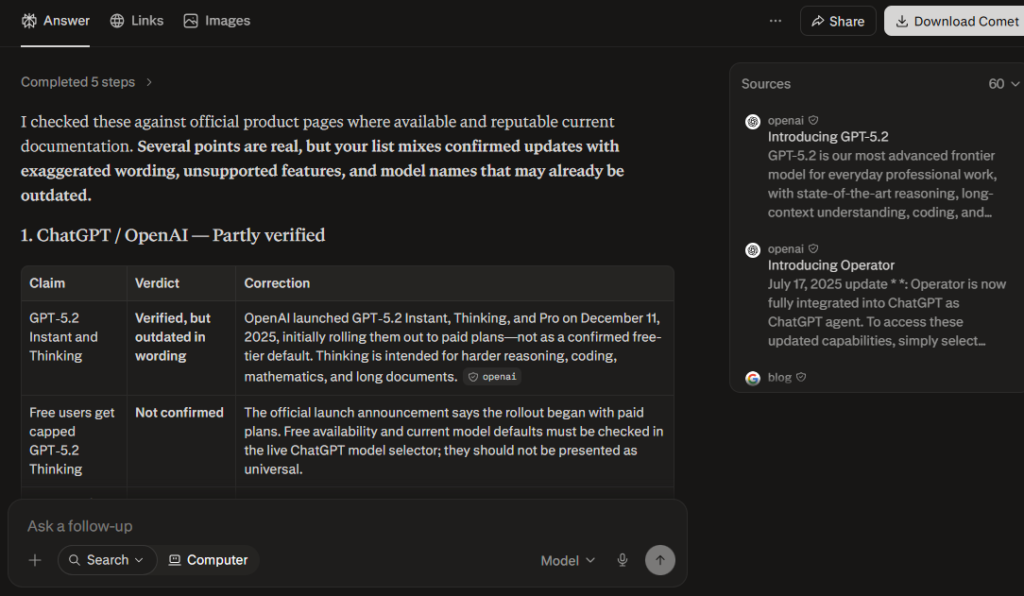
Although I still verify important information myself, Perplexity has become an essential part of my research workflow because it significantly reduces the time required to gather and organize information.
👍 What I Like
- Excellent for fact-checking before publishing.
- Saves time by summarizing information from multiple sources.
- Helpful citations for further reading.
- Great for researching current AI news and trends.
- Easy to compare information quickly.
👎 What Could Be Better
- Some cited pages don’t always fully support the generated answer.
- Important facts still need manual verification.
- Not ideal for creative writing or brainstorming.
- Works best as a research assistant rather than a writing assistant.
💡 Feature Worth Trying
One feature worth exploring is Focus Mode, which lets you narrow your search to specific types of sources instead of searching the entire web. This can make research much more relevant depending on the topic you’re working on.
🎯 Best For
- Bloggers
- Researchers
- Students
- AI news
- Fact-checking
- Current information
🚫 Skip This If…
- You mainly need creative writing.
- You want AI to generate long-form articles.
- You don’t plan to verify important information yourself.
NotebookLM
I’ve been using NotebookLM for about two months, and it has completely changed the way I study. Instead of reading textbooks from beginning to end and creating notes manually, I now upload everything into NotebookLM and let it organize the information for me. I usually upload textbooks, PDFs, lecture notes, and YouTube videos into the same notebook. From there, NotebookLM can generate summaries, quizzes, flashcards, mind maps, slide decks, reports, and even audio overviews. Instead of simply reading information, I can revise the same topic in multiple ways, which makes studying much more engaging.
The biggest benefit is the amount of time it saves. Creating revision notes, flashcards, or practice questions manually can take hours. NotebookLM generates them in minutes, allowing me to spend more time understanding the concepts instead of organizing my study material. Another feature I really like is notebook sharing. If you’re studying with classmates or working on a group project, you can share the notebook so everyone has access to the same sources and AI-generated study materials.
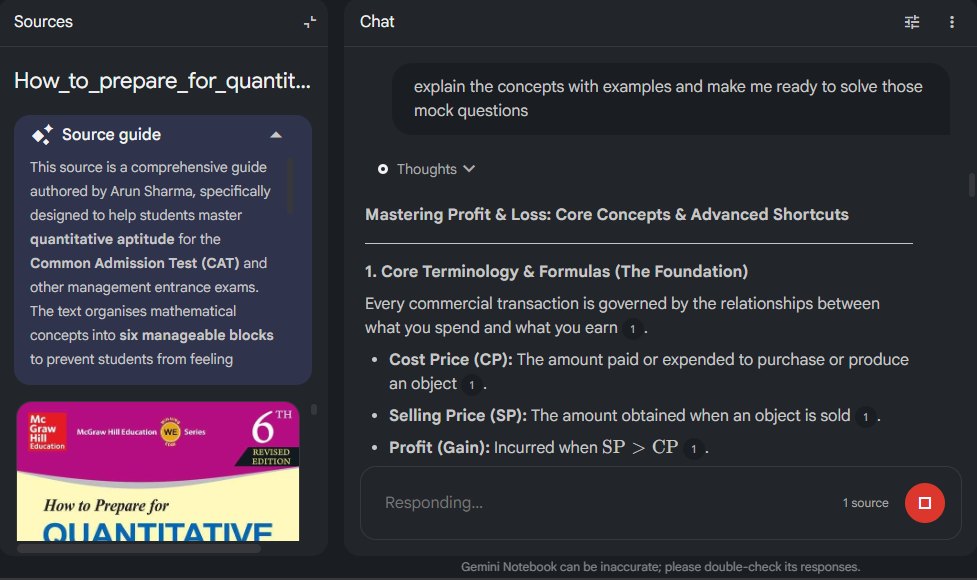
The only limitation I’ve personally noticed is with the Audio and Video Overviews. Once NotebookLM generates the AI host conversation, you can’t edit the script before it’s produced. If the AI misunderstands a concept or mispronounces a technical term, you usually have to regenerate the entire overview instead of fixing one small section. Despite that limitation, NotebookLM has quickly become one of my favorite AI tools because it makes studying much more interactive and efficient.
👍 What I Like
- Supports PDFs, textbooks, YouTube videos, and documents.
- Automatically creates quizzes, flashcards, mind maps, and summaries.
- Makes studying much more interactive.
- Saves hours of manual note-taking.
- Easy notebook sharing for collaborative learning.
👎 What Could Be Better
- Audio and Video Overviews can’t be edited before generation.
- Regenerating overviews can be time-consuming if something is incorrect.
- Best results require good-quality source material.
💡 Feature Worth Trying
Most people use NotebookLM only for summaries, but it’s worth exploring its ability to generate flashcards, quizzes, mind maps, slide decks, reports, infographics, and audio overviews from the same set of study materials. It feels like having multiple study tools inside a single workspace.
🎯 Best For
- Students
- Competitive exam preparation
- College assignments
- Learning from PDFs
- Revision
- Group study
🚫 Skip This If…
- You mainly need live web research.
- You don’t have your own study material to upload.
- You’re looking for creative writing instead of learning tools.
🎨 Image Generation & Design
ChatGPT Image Generation
I’ve been using ChatGPT Image Generation for around six months, and I’ve been genuinely impressed by how much it has improved. Most of the featured images and infographics you see on AI Spark Hub start with a simple prompt in ChatGPT. I mainly use it to create blog featured images, comparison graphics, infographics, and simple table illustrations. Instead of spending time searching through stock photo websites or worrying about copyright restrictions, I can describe exactly what I want and generate a completely original image within minutes.
The biggest advantage is how much time it saves. Before using AI image generation, I often spent more time searching for the right image than actually writing the article. Now, I can create visuals that perfectly match my content instead of adjusting my content to fit an existing stock image. One feature I use constantly is image editing through conversation. If the first image isn’t exactly what I want, I simply continue the conversation and ask ChatGPT to remove an object, change the aspect ratio, modify the background, or add new elements. That iterative editing process feels much more natural than starting over every time.
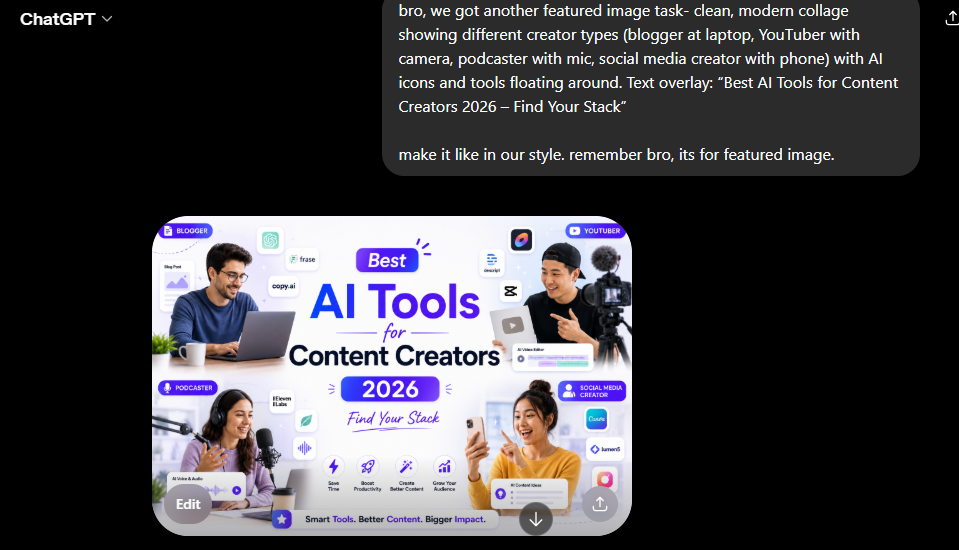
Of course, it’s not perfect. When I request highly detailed or complex scenes, ChatGPT can occasionally produce images with distorted objects, unusual proportions, or layout inconsistencies. In those situations, I usually refine my prompt or ask it to regenerate specific parts of the image until I’m satisfied with the result. For bloggers, students, marketers, and content creators, I think ChatGPT has become one of the fastest ways to create original visuals without relying on generic stock photography.
👍 What I Like
- Creates completely original images from text prompts.
- Saves time searching for copyright-free images.
- Excellent for featured images, infographics, and blog graphics.
- Easy to refine images through conversation.
- Understands detailed prompts surprisingly well.
👎 What Could Be Better
- Complex scenes may require multiple attempts.
- Object proportions can occasionally look unrealistic.
- Images containing a lot of text may still need manual editing.
- The final result depends heavily on how well the prompt is written.
💡 Feature Worth Trying
One feature I use almost every time is conversational image editing. Instead of generating a new image from scratch, you can continue the conversation and ask ChatGPT to make changes like adjusting the aspect ratio, removing an object, changing the background, or adding new elements. It makes refining an image much faster than rewriting the entire prompt.
🎯 Best For
- Bloggers
- Content creators
- Students
- Social media graphics
- Featured images
- Infographics
🚫 Skip This If…
- You need pixel-perfect graphic design with precise positioning.
- You’re creating technical diagrams or engineering illustrations.
- You require complete manual control over every design element.
Canva
I’ve been using Canva for more than two years, and it’s one of the tools I open almost every day. While I originally started using it for presentations, it has gradually become my go-to platform for editing images, creating resumes, designing graphics, and preparing visual content for different platforms. One thing I appreciate most about Canva is how beginner-friendly it is. Whether I’m designing a presentation, resume, YouTube thumbnail, Instagram Story, or blog graphic, Canva already provides templates with the correct dimensions. Instead of designing everything from scratch, I simply choose a suitable template and customize it to match my style.
The biggest advantage is the amount of time it saves. I don’t have to think about layouts, spacing, fonts, or canvas sizes because Canva already takes care of the design foundation. That allows me to focus on the actual content rather than the technical side of graphic design. However, Canva isn’t designed to replace professional editing software. While testing its video editing features, I noticed that the playback speed could only be increased up to 2×, which felt limiting compared to dedicated editors like CapCut. This isn’t a major issue for simple edits, but advanced creators may eventually need more specialized software.
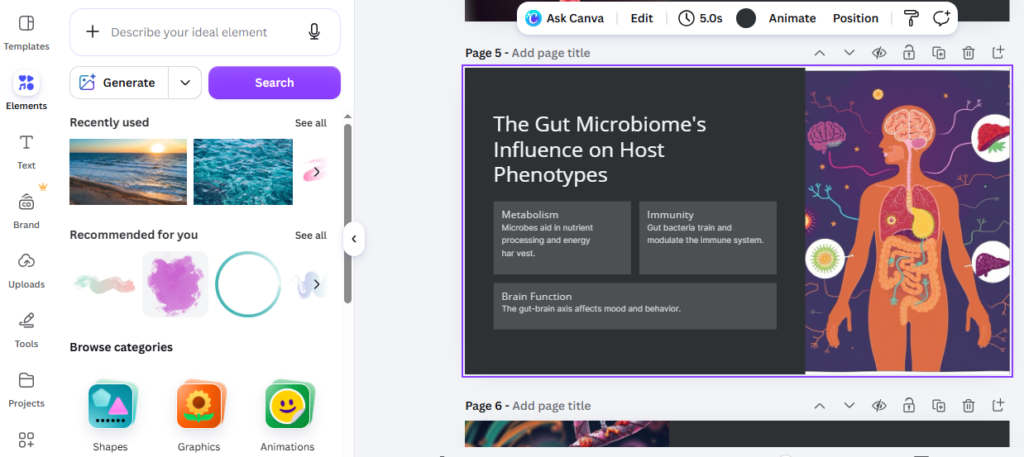
Another feature I think deserves more attention is Magic Layers. It makes editing images much easier by allowing you to work with different elements separately, making design adjustments much faster—especially if you’re new to graphic design. Even after using Canva for over two years, it’s still one of the easiest design tools I recommend because it strikes a great balance between simplicity and productivity.
👍 What I Like
- Beginner-friendly interface.
- Huge collection of ready-made templates.
- Saves a lot of time when designing.
- Great for presentations, resumes, blog graphics, and social media.
- Easy to learn without prior design experience.
👎 What Could Be Better
- Limited compared to professional design software.
- Video editing tools are fairly basic.
- Some AI features on the free plan are subject to usage allowances, so heavy AI use may require a paid plan.
- Advanced editors may eventually outgrow it.
💡 Feature Worth Trying
If you’ve never explored Magic Layers, it’s worth trying. It lets you work with different elements of a design more easily, making image editing much faster and less frustrating—especially when you’re working with multiple objects in the same design.
🎯 Best For
- Students
- Bloggers
- Content creators
- Small businesses
- Presentation design
- Resume creation
🚫 Skip This If…
- You need advanced photo or video editing features.
- You regularly work with professional editing software like Photoshop or Premiere Pro.
- Your projects require detailed editing controls beyond Canva’s capabilities.
🎥 Video & Audio
Creating videos and voiceovers used to require recording equipment, editing software, and a lot of time. Today, AI has made that process much simpler.
While testing different AI media tools, Google Flow and Google AI Studio (Gemini TTS) impressed me the most. I use Google Flow to generate short AI videos from text prompts, while Google AI Studio helps me create natural-sounding narrations and voiceovers. Together, they’ve become part of my workflow whenever I need to create visual content quickly without recording everything manually.
Google Flow
I discovered Google Flow through Google Labs about a month ago, and although I’ve only been using it for a short time, it quickly became one of the most impressive AI video generators I’ve tested. I first started using it while researching AI video generators for AI Spark Hub. Rather than relying on promotional videos or online reviews, I generated multiple videos myself to evaluate the quality, prompt understanding, and overall consistency. That hands-on testing gave me a much better understanding of what the tool can actually do.
The biggest advantage for me is the amount of time it saves. Instead of recording footage, finding stock videos, or editing clips manually, I can simply describe the scene I want and generate a short AI video within minutes. It’s particularly useful when I want to demonstrate an idea or quickly create supporting visuals for an article. The biggest limitation I’ve experienced is the credit system. Since Google Flow is currently available through Google Labs, the number of free credits and available models can change over time. During longer testing sessions, I occasionally reached the usage limit sooner than expected. When that happens, I usually switch to Google Vids as an alternative for simpler AI-assisted video creation.
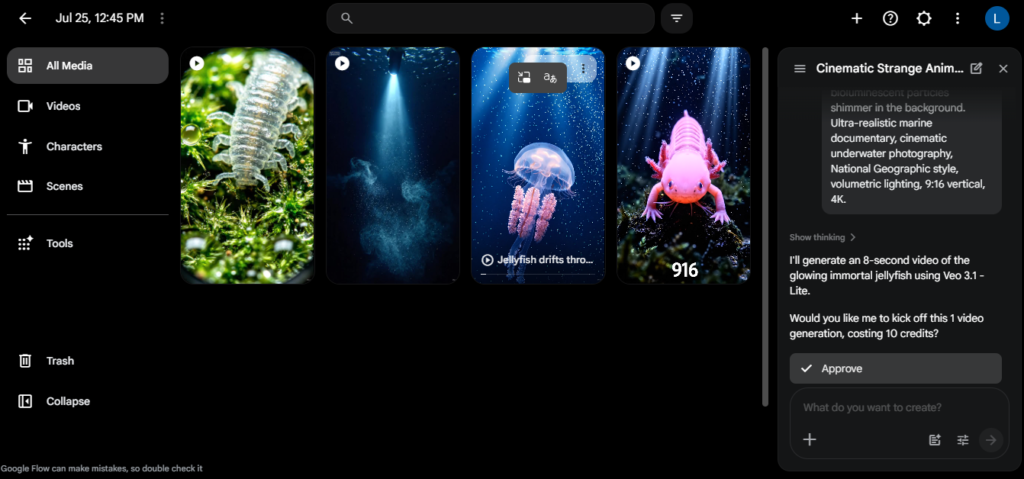
Even though it’s still evolving, I think Google Flow is one of the most promising free AI video tools available today, especially for creators who want to experiment with AI-generated videos without investing in expensive software.
👍 What I Like
- Generates high-quality AI videos from simple prompts.
- Saves a significant amount of time compared to traditional video production.
- Great for demonstrations, short videos, and visual storytelling.
- Easy to experiment with different ideas and styles.
- Produces surprisingly cinematic results for a free tool.
👎 What Could Be Better
- Free access is credit-based, so frequent video generation can use your daily allowance quickly.
- Credit availability may change over time.
- Complex scenes sometimes require multiple generations.
- Longer videos still require editing afterwards.
💡 Feature Worth Trying
If you’re already using Google products, it’s worth exploring Google Vids alongside Google Flow. While the two tools serve different purposes, Google Vids can be a useful backup whenever you’ve exhausted your Google Flow credits or need a simpler way to build AI-assisted presentations and videos.
🎯 Best For
- Content creators
- Bloggers
- YouTubers
- Social media creators
- AI video experimentation
- Marketing videos
🚫 Skip This If…
- You need frame-by-frame control over video editing.
- You create long professional productions regularly.
- You don’t want to work within a credit-based system.
Google AI Studio (Gemini TTS)
I discovered Google AI Studio’s Gemini TTS around a month ago while researching free AI voice generators, and it immediately stood out because of how natural the generated voices sounded. I mainly use it to create AI narrations, advertisements, and voiceovers. While testing different text-to-speech tools for AI Spark Hub, Gemini TTS consistently produced some of the most realistic and expressive voices among the free options I tried.
The biggest advantage is how much time it saves. Recording voiceovers manually often means multiple takes, editing mistakes, and removing background noise. With Gemini TTS, I can generate a clear narration within minutes, making it much easier to test different scripts before creating the final version. What impressed me the most is how well it understands context. Instead of reading every sentence with the same tone, it naturally changes pacing and emphasis depending on the text, making the narration sound much more human than many traditional text-to-speech tools.
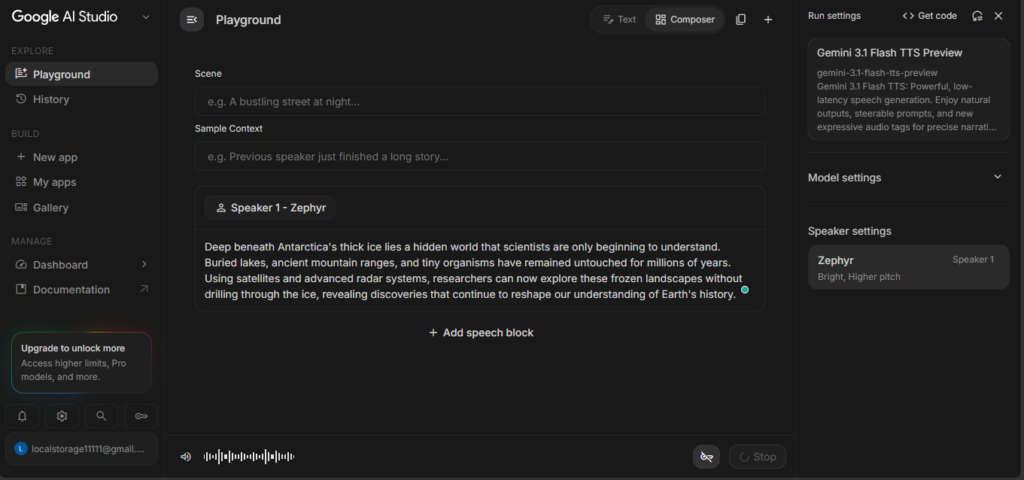
The main feature I wish Google would add is voice cloning. Several competing AI voice generators allow users to create AI voices based on their own recordings, but Gemini TTS currently doesn’t offer that capability. If creating content in your own voice is important, you’ll probably need another tool. Despite that limitation, I still think Gemini TTS is one of the strongest free AI voice generators available today because of its natural speech quality and ease of use.
👍 What I Like
- Produces natural and expressive voices.
- Understands context instead of reading mechanically.
- Saves time creating narrations and voiceovers.
- Great for advertisements, explainers, and educational content.
- Completely free to experiment with.
👎 What Could Be Better
- No voice cloning support.
- Limited if you want to use your own voice.
- Some projects require prompt experimentation.
- Doesn’t replace professional voice actors for every situation.
💡 Feature Worth Trying
One feature that’s worth experimenting with is prompt-controlled speech style. Instead of simply pasting text, you can tell Gemini TTS how the voice should sound—for example, “speak like a documentary narrator,” “sound energetic,” or “read this calmly.” Those small instructions can make a noticeable difference in the final narration.
🎯 Best For
- YouTubers
- Educators
- Content creators
- Advertisements
- Explainer videos
- AI narration
🚫 Skip This If…
- You specifically need voice cloning.
- You want to create content using your own voice.
- Your workflow depends on advanced voice editing rather than text-to-speech generation.
❓ Frequently Asked Questions
What is the best free AI tool in 2026?
There isn’t a single AI tool that’s best for everyone because each one excels at different tasks. If I had to recommend one all-rounder, ChatGPT would be my first choice because of its versatility. However, if your focus is research, studying, design, video creation, or voice generation, the other tools in this guide may be a better fit for your workflow.
Which free AI tool is best for students?
There isn’t one best tool for every student. For my workflow, NotebookLM is the most useful for studying from textbooks, PDFs, and lecture material, while ChatGPT helps with explanations and brainstorming and Grammarly helps polish written assignments.
Can I use these AI tools for free?
Yes. Every tool featured in this guide offers a free version. However, some include daily message limits, usage credits, or premium-only features. Throughout this article, I’ve highlighted those limitations so you know exactly what to expect before using each tool.
Which AI tool is best for writing?
It depends on your workflow.
ChatGPT is excellent for brainstorming, rewriting, and everyday writing tasks.
Claude is my preferred choice for long-form writing because it produces natural-sounding content.
Grammarly is the tool I use to polish grammar and improve tone before publishing.
Which AI tool is best for research?
For research, I use different tools depending on the task. Gemini is useful for current information and broader research, while Perplexity is my preferred choice when I want quick source-backed fact-checking. For studying from my own PDFs and notes, I use NotebookLM.
Which AI tool is best for creating images?
If I need an original image, infographic, or blog featured image, I usually start with ChatGPT Image Generation. After generating the image, I move it into Canva to add text, resize it, or make final design adjustments.
🎯 Final Conclusion
Which Free AI Tools Do I Actually Recommend?
After testing dozens of AI tools over the past few years, I’ve realized something important. The goal isn’t to find one AI tool that does everything. The goal is to build a workflow where each tool solves a specific problem. That’s exactly how I use AI while building AI Spark Hub.
Here’s the toolkit I continue using today:
🤖 Everyday AI Assistant
ChatGPT – For brainstorming, writing, learning, and solving everyday problems.
🌐 Latest Information & Research
Google Gemini – For current AI news, web research, and Google Workspace integration.
✍️ Long-Form Writing
Claude – For reports, detailed articles, and natural-sounding writing.
✅ Grammar & Editing
Grammarly – For polishing blog posts, emails, and professional documents.
🔍 Fact Verification
Perplexity – For checking facts before publishing and researching current topics.
📚 Studying
NotebookLM – For turning textbooks, PDFs, and YouTube videos into quizzes, flashcards, and summaries.
🎨 Images & Design
ChatGPT Image Generation + Canva – My favorite combination for creating blog graphics, featured images, presentations, and infographics.
🎥 AI Video Creation
Google Flow – For quickly generating creative AI videos.
🎙 AI Voice Generation
Google AI Studio (Gemini TTS) – For natural-sounding narrations and voiceovers.
Every one of these tools has earned a permanent place in my workflow because each one saves me time in a different way. Rather than trying to replace everything with a single AI platform, I combine the strengths of multiple tools to get better results. If you’re just starting out, don’t feel like you need all ten tools on day one. Start with one or two that match your goals, learn how they fit into your workflow, and gradually expand from there.
Enjoyed This Guide?
AI is evolving incredibly fast, and I’m constantly testing new tools to find out which ones are genuinely worth your time.
If this guide helped you, you might also enjoy exploring some of my other resources on AI Spark Hub, where I share detailed reviews, comparisons, tutorials, and practical workflows to help you get more out of AI—without wasting time on tools that don’t deliver.
Whether you’re a student, content creator, blogger, or professional, my goal is simple:
Help you choose the right AI tools, not just the most popular ones.
Keep Exploring
You might also like these articles.
Best Free AI Marketing Tools in 2026: I Tested What Actually Works
━━━━━━━━━━━━━━━━━━━━━━━━━━━━━━Updated August 16, 2026: I’ve reviewed the tools, free-plan details, and features covered in this guide to keep the information…