
Last Updated: September 5, 2026
Getting a good result from an AI image generator isn’t just about typing more words into the prompt box. A prompt like “a fox in a forest” gives the AI a subject, but leaves many visual decisions open. What does the fox look like? Is it walking or sitting? Is the forest green, snowy, or covered in autumn leaves? Is the image a close-up or a wide shot? Should it look like a photograph or an illustration?
A more specific prompt gives the generator clearer direction about the visual decisions that matter.
For example:
A red fox walking along a forest trail covered with fallen autumn leaves, surrounded by tall trees, eye-level composition, soft golden-hour sunlight filtering through the branches, photorealistic wildlife photography, detailed fur and natural colors.
This doesn’t guarantee a perfect result, but it gives the model considerably more information about the image you’re trying to create. There’s also no need to make every prompt enormous. Current image-generation guidance emphasizes clear, descriptive instructions rather than unnecessary length.
In this guide, I’ll show you how to write AI image prompts, break down a practical prompt structure, and explain how to control composition, lighting, style, text, and unwanted elements.
How I Tested These Prompting Techniques
I tested different prompting approaches and compared the resulting images, including prompt specificity, text generation, negative prompts, and iterative changes to an existing scene. The examples in this guide are based on those tests, but results can vary between image generators and individual generations.
What Makes a Good AI Image Prompt?
A good image prompt gives the generator enough information to understand what you want to create and which visual details matter.
Most prompts can include:
- Subject: What should appear?
- Action or pose: What is it doing?
- Setting: Where is the scene?
- Composition: How should it be framed?
- Lighting: What kind of light should be present?
- Style: What should the visual treatment look like?
- Important details: Are there specific elements that shouldn’t be overlooked?
You don’t need every component for every image.
A simple icon might only need a subject and style. A complex scene may require instructions about the environment, camera angle, lighting, and specific objects.
The important thing is to focus on the visual decisions that actually affect your intended result.
The AI Image Prompt Formula
A practical starting structure is:
Subject + Action/Pose + Setting + Composition + Lighting + Style + Important Details
Think of this as a framework rather than a strict formula.
For example:
A red fox walking along a forest trail covered with fallen autumn leaves, surrounded by tall trees, wide eye-level composition, soft golden-hour sunlight filtering through the branches, photorealistic wildlife photography, detailed fur and natural colors.
Here’s what each part contributes.
1. Subject
Start with the main thing you want to see.
Examples:
- A golden retriever puppy
- A weathered red bicycle
- A futuristic electric car
- A red fox
Add defining characteristics when they matter.
A small golden retriever puppy with a red collar
gives the generator more direction than:
A dog
You don’t need to describe every tiny feature. Start with the characteristics that have the biggest effect on the image.
2. Action or Pose
Describe what the subject is doing.
Compare:
A golden retriever on a porch
with:
A golden retriever sitting on a wooden porch, looking directly at the camera
The second version establishes a much clearer pose.
For people, the same principle applies:
A woman standing beside a rainy window, looking outside.
3. Setting
Establish where the scene takes place.
A fox walking through a dense autumn forest
provides more context than:
A fox walking
The setting can include the environment, season, weather, time of day, and surrounding elements.
4. Composition
Composition controls how the scene is framed.
Useful terms include:
- Close-up
- Medium shot
- Wide shot
- Full-body
- Eye-level
- Low angle
- Overhead view
- Centered composition
- Subject on the left or right
For example:
A wide shot of a fox walking along a forest trail
creates a very different framing from:
A close-up portrait of a fox’s face
5. Lighting
Describe the type of light you want.
Examples include:
- Soft morning light
- Golden-hour sunlight
- Dramatic side lighting
- Overcast lighting
- Neon lighting
- Warm indoor lighting
For example:
A vintage car parked outside a diner at night, illuminated by warm neon signs and surrounded by deep shadows.
6. Style
Style describes the visual treatment.
Examples:
- Photorealistic photography
- Editorial photography
- Digital illustration
- Watercolor
- Oil painting
- 3D render
- Cinematic still
- Minimalist vector illustration
For example:
A red fox walking through an autumn forest, detailed watercolor illustration.
The subject remains the same, but the intended visual treatment changes.
7. Important Details
Finally, include details that the generator shouldn’t overlook.
These might include:
- Specific colors
- Objects
- Clothing
- Materials
- Product placement
- Facial expressions
- Empty space for text
For example:
A matte-black coffee mug on the right side of a wooden table, with clear empty space on the left for a headline.
That’s particularly useful when the image has to fit a specific design or layout.
Put It All Together
A red fox walking along a forest trail covered with fallen autumn leaves, surrounded by tall trees, wide eye-level composition with the fox slightly left of center, soft golden-hour sunlight filtering through the branches, photorealistic wildlife photography, detailed fur and natural colors.
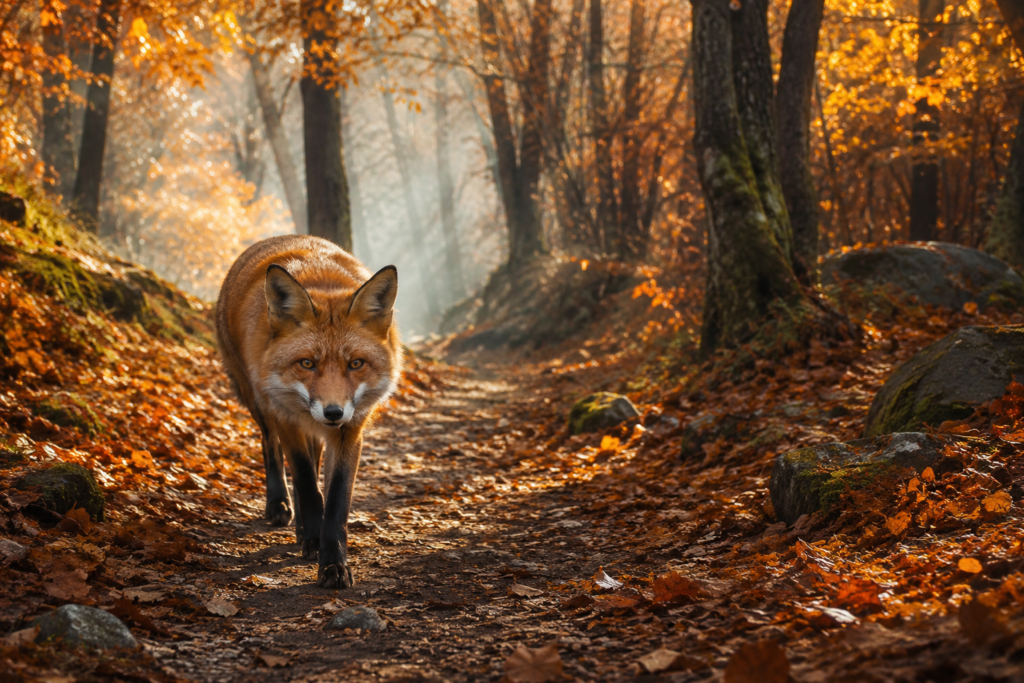
The formula isn’t about filling every possible field. It’s a way to check whether you’ve communicated the visual information that matters.
Weak Prompt vs. Strong Prompt: A Real Example
It’s easy to understand prompting theory. The more useful question is whether adding those details actually changes the result.
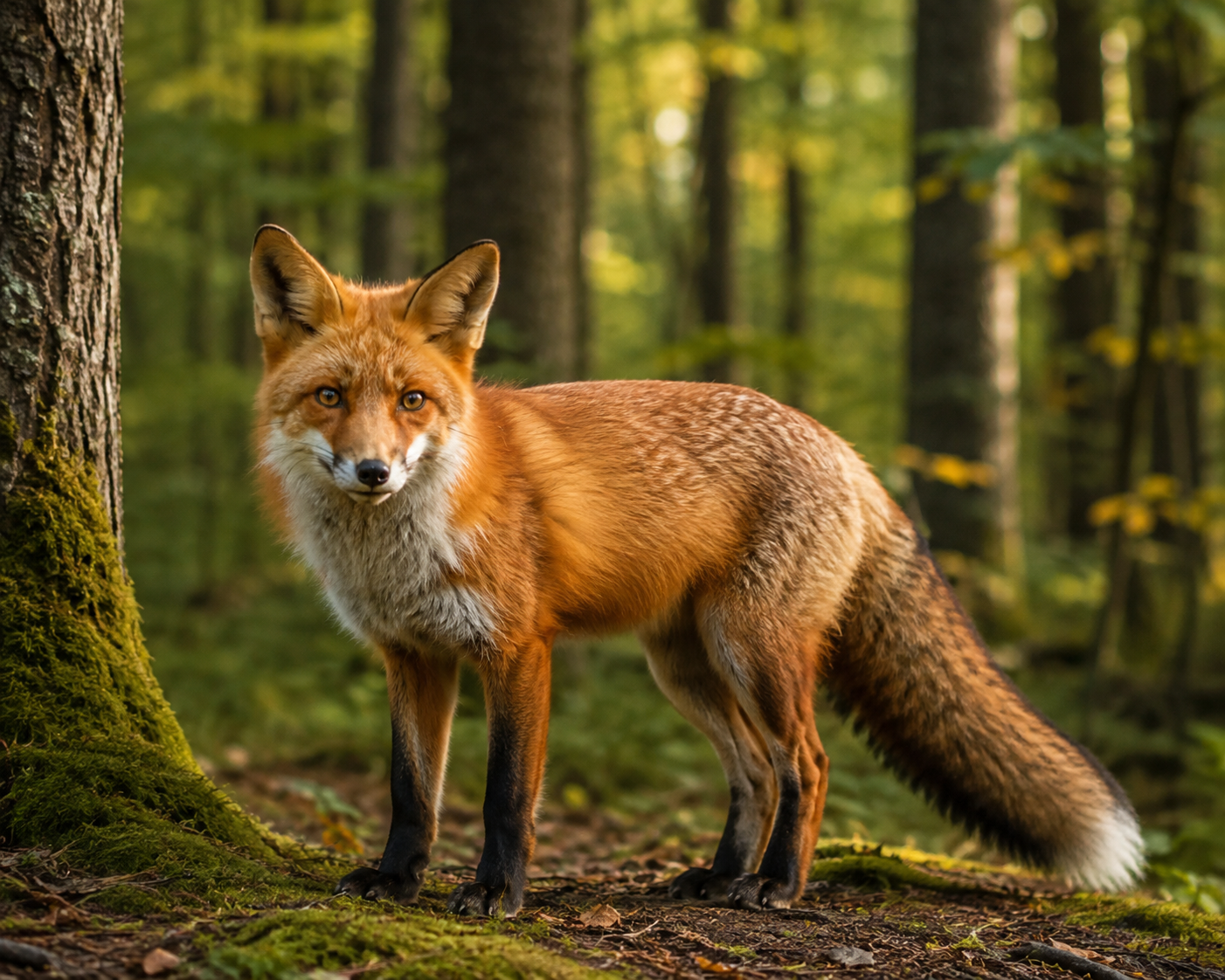
I tested this with a simple subject: a red fox in a forest.
A vague prompt such as:
A red fox in a forest
leaves the generator to decide the fox’s pose, environment, lighting, framing, and visual style.
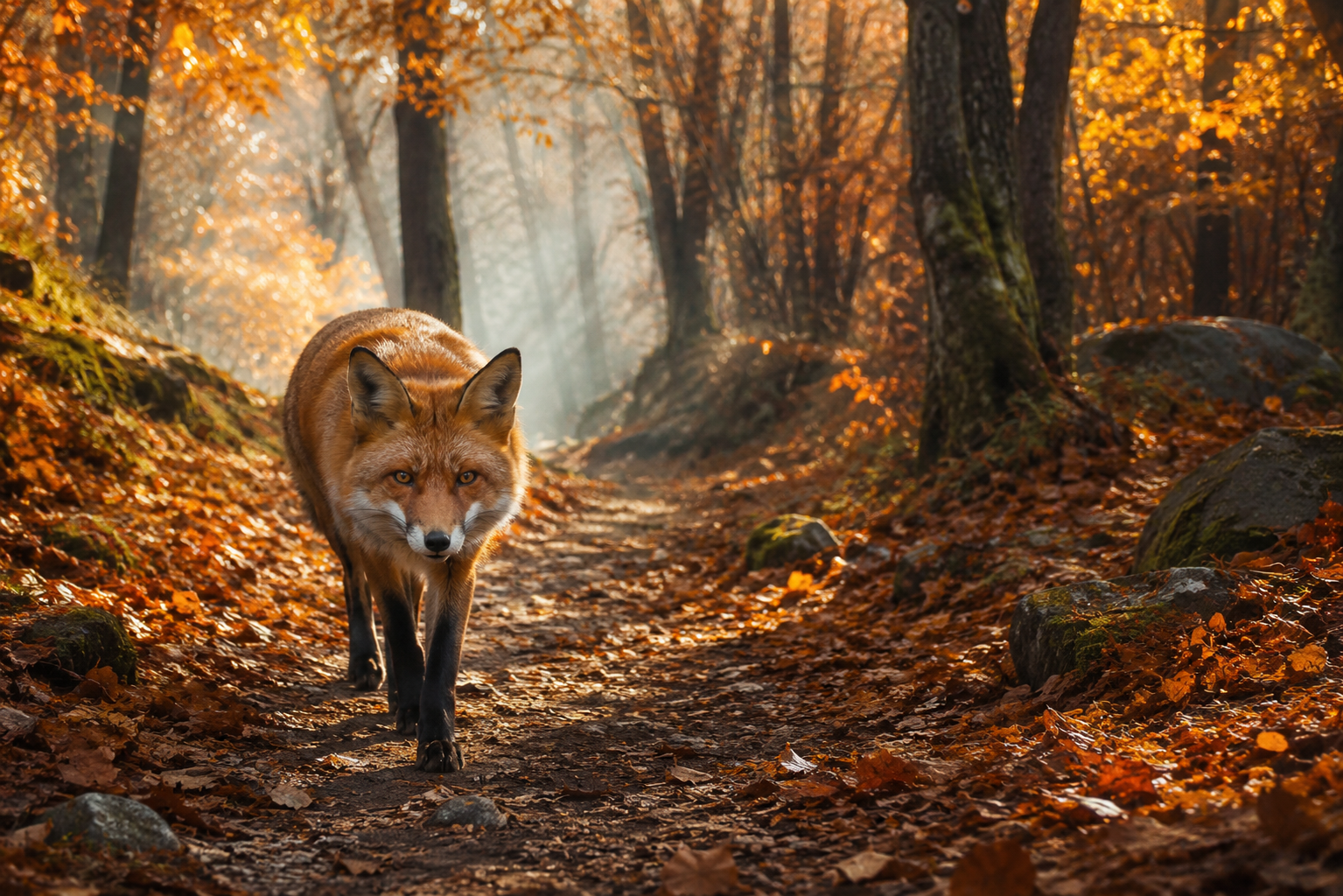
A more specific version gives those decisions upfront:
A red fox walking along a forest trail covered with fallen autumn leaves, surrounded by tall trees, wide eye-level composition, soft golden-hour sunlight filtering through the branches, photorealistic wildlife photography, detailed fur and natural colors.
In my testing, the more descriptive prompt produced a clearer visual direction: the fox was presented as the main subject, the autumn environment was obvious, and the lighting and photographic style were more defined.
But the test also showed an important limitation:
A detailed prompt doesn’t guarantee an identical result every time.
The same or similar instructions can be interpreted differently by different image generators, and individual generations can also vary.
The useful takeaway is not “long prompts are better.”
It’s:
Describe the things you care about, especially when the generator would otherwise have to guess.
How Much Detail Should You Put in an AI Image Prompt?
There isn’t a magic word count for an AI image prompt.
A simple image may need only a short description. A complex scene may need considerably more information.
The key is to describe details that have a meaningful effect on the image.
For example:
Too vague:
A beautiful coffee shop.
More useful:
A cozy independent coffee shop on a rainy evening, viewed from the sidewalk, warm light glowing through large windows, wooden tables and indoor plants visible inside, realistic street photography.
The second prompt provides concrete visual information rather than simply saying the coffee shop should be “beautiful.”
Don’t Confuse Detail With Adjectives
Compare:
A beautiful, stunning, amazing, gorgeous coffee shop with incredible lighting.
with:
A small neighborhood coffee shop with dark wooden furniture, warm pendant lighting, large rain-covered windows, and soft light spilling onto the sidewalk.
The second gives the generator things it can actually represent visually.
Prioritize What Matters
Different images need different information.
For a product advertisement, the product’s appearance and placement may be more important than the entire background.
For a portrait, pose, expression, framing, and lighting may matter more.
For a landscape, the environment, weather, time of day, and composition may matter most.
A useful question is:
“What would I be disappointed if the AI got wrong?”
Those details are usually worth specifying.
How to Control Composition in AI Images
Describing what should appear in an image doesn’t automatically determine how the image will be framed.
For example:
A woman working on a laptop in a coffee shop
doesn’t tell the generator whether to create a close-up, show her full body, center her in the frame, or include a large portion of the coffee shop.
If composition matters, say so.
Useful Composition Instructions
You can use straightforward descriptions such as:
- Close-up
- Medium shot
- Wide shot
- Full-body
- Eye-level
- Low angle
- Overhead view
- Centered composition
- Subject on the left/right
For example:
A red fox walking through an autumn forest, wide shot, eye-level view, fox slightly left of center.
Leave Space for Text
This is especially useful for blog thumbnails, advertisements, and social media graphics.
Instead of:
A laptop on a desk
try:
A laptop on the right side of a modern desk, wide composition, clean empty space on the left for a headline.
The model may not follow the placement perfectly, but you’re giving it a clear layout to aim for.
If the subject looks good but the framing doesn’t, change the composition instruction rather than rebuilding the entire prompt.
How to Describe Lighting and Mood
Lighting can dramatically change the appearance and atmosphere of a scene.
Compare:
A woman standing in a city street at night.
with:
A woman standing in a city street at night, illuminated by warm storefront lights and cool blue ambient light, with reflections on the wet pavement.
The second gives the generator a much clearer visual direction.
Describe the Type of Light
Useful descriptions include:
- Soft morning light
- Golden-hour sunlight
- Overcast lighting
- Dramatic side lighting
- Neon lighting
- Warm indoor lighting
- Low-key lighting
You can also describe the mood through visual characteristics.
For example:
Calm:
Soft morning light, gentle shadows, muted natural colors.
Dramatic:
Strong directional lighting, deep shadows, high contrast.
Mysterious:
Dim blue lighting, heavy shadows, subtle fog.
Rather than relying entirely on a word like “mysterious,” describe the visual elements that create that feeling.
Avoid stacking contradictory instructions such as soft diffused lighting and harsh dramatic shadows unless you have a specific reason for doing so.
How to Specify an Image Style
The same scene can look completely different depending on the visual style you request.
For example:
A red fox walking through an autumn forest, photorealistic wildlife photography.
versus:
A red fox walking through an autumn forest, detailed watercolor illustration.
Some useful style descriptions include:
- Photorealistic photography
- Editorial photography
- Cinematic film still
- Digital illustration
- Watercolor painting
- Oil painting
- 3D render
- Minimalist vector illustration
Choose a style that fits the purpose of the image rather than combining every style keyword you can think of.
For example:
A modern smartwatch on a clean white table, commercial product photography, soft studio lighting, minimal background.
is a clearer visual direction than:
Cinematic, artistic, realistic, hyper-detailed, futuristic, editorial, dramatic product image.
Style terms can also be interpreted differently across generators, so treat them as direction rather than guaranteed settings.
How to Write AI Prompts for Text in Images
Text generation has improved significantly, but accuracy isn’t the same as reliability.
If an image needs specific wording, make the text requirement explicit.
For example:
A clean promotional coffee poster with a modern coffee cup in the center. Include the exact headline “WEEKEND COFFEE SALE” and the exact offer “Buy 2 coffees, get 1 free.” Use clear, readable typography.
In my test, the requested text was generated correctly and was highly readable.
However, the model also added text I didn’t request, including a promotional tagline, an address, and a website.

That’s why you should always inspect text-heavy AI images before publishing them.
If the image is going into a real advertisement, presentation, website, or client project, proofread every word.
Do Negative Prompts Actually Improve AI Images?
Negative prompts tell an image generator what you don’t want to appear.
For example:
blurry, distorted face, extra limbs, duplicate dog, deformed anatomy, cropped subject, text, watermark
They can be useful when you’re trying to correct a recurring problem, but they aren’t automatically necessary for every image.
I tested the same golden retriever scene with and without a negative prompt. Both results were already clean and realistic, and I couldn’t identify an obvious improvement that I could confidently attribute to the negative prompt.
Without Negative prompts:
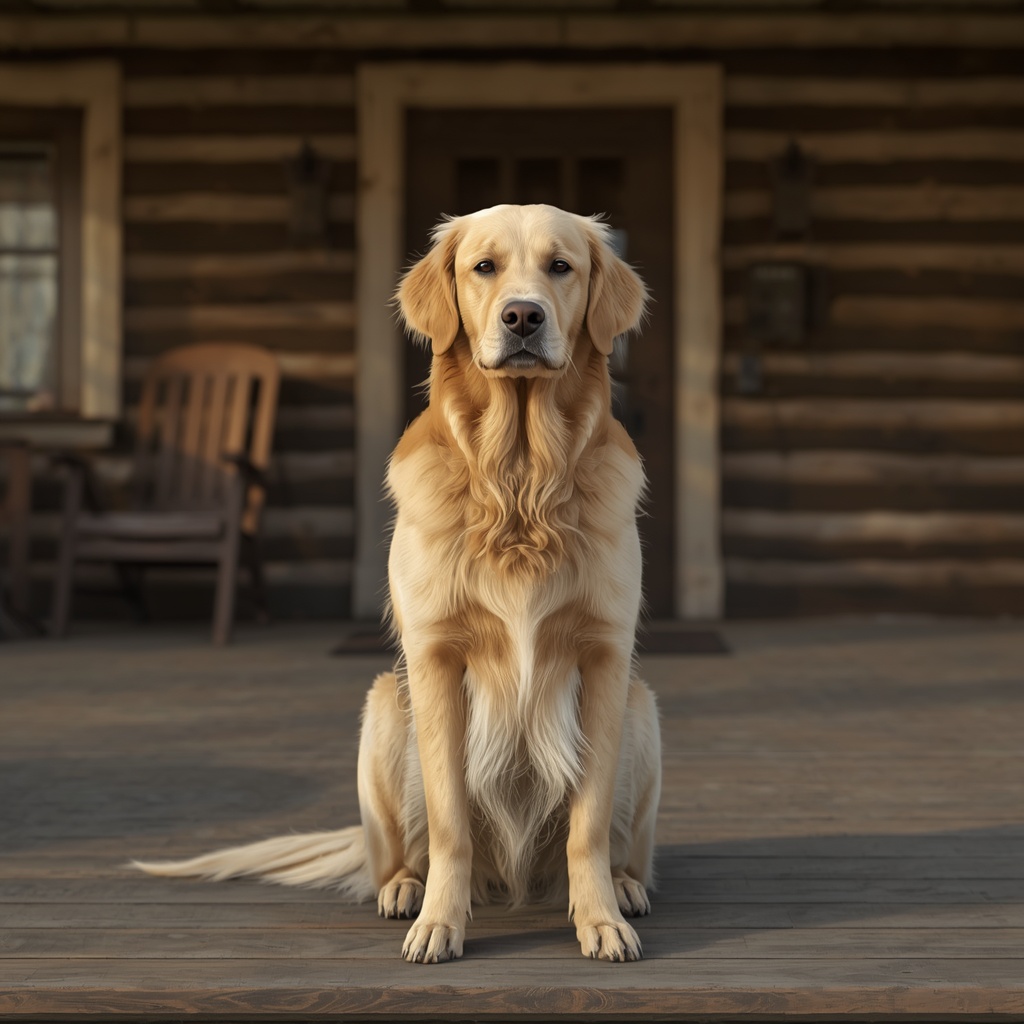
With Negative prompts:
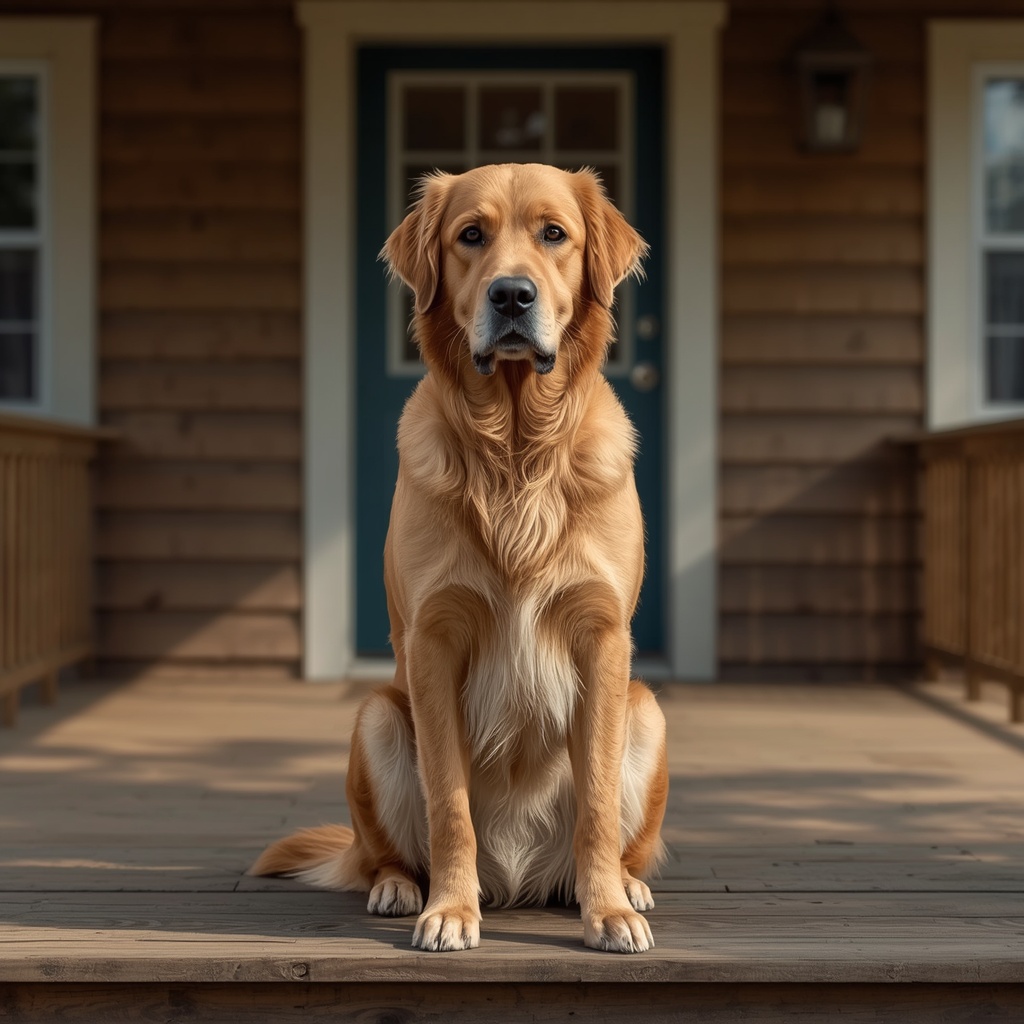
So my approach would be:
Use negative prompts when you’re trying to solve a specific recurring problem—not simply because every prompting guide tells you to use them.
Also keep in mind that negative-prompt support and behavior varies between generators.
AI Image Prompts Are Not One-and-Done
A good first generation is useful, but you shouldn’t expect every image to be perfect immediately.
Your first result might have the right subject but the wrong composition. Another might have the right composition but overly dramatic lighting.
Instead of starting over, identify what needs to change.
For example:
Keep the same scene and composition, but use softer, diffused morning light.
Or:
Keep the subject and setting the same, but use a wider composition with more of the environment visible.
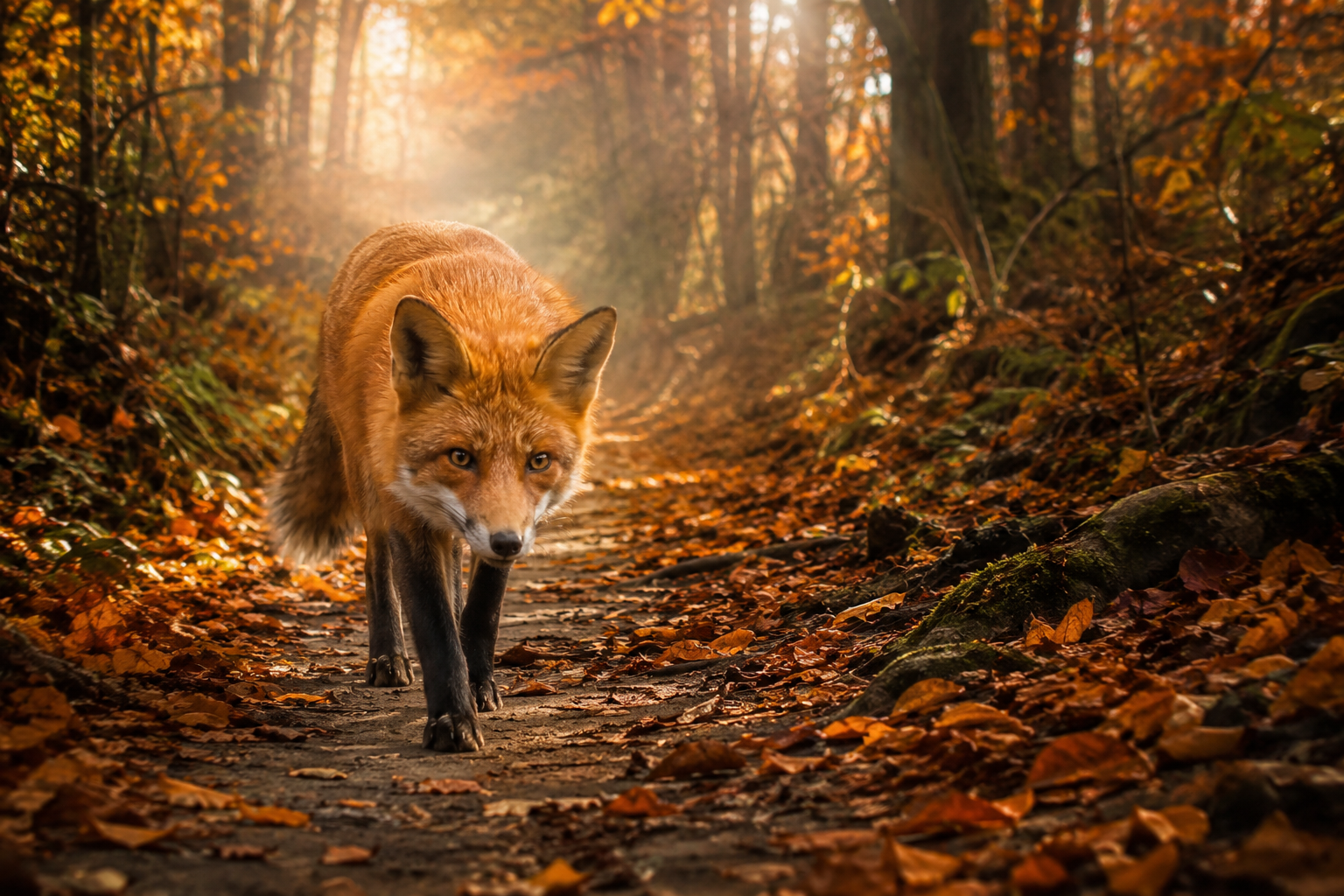
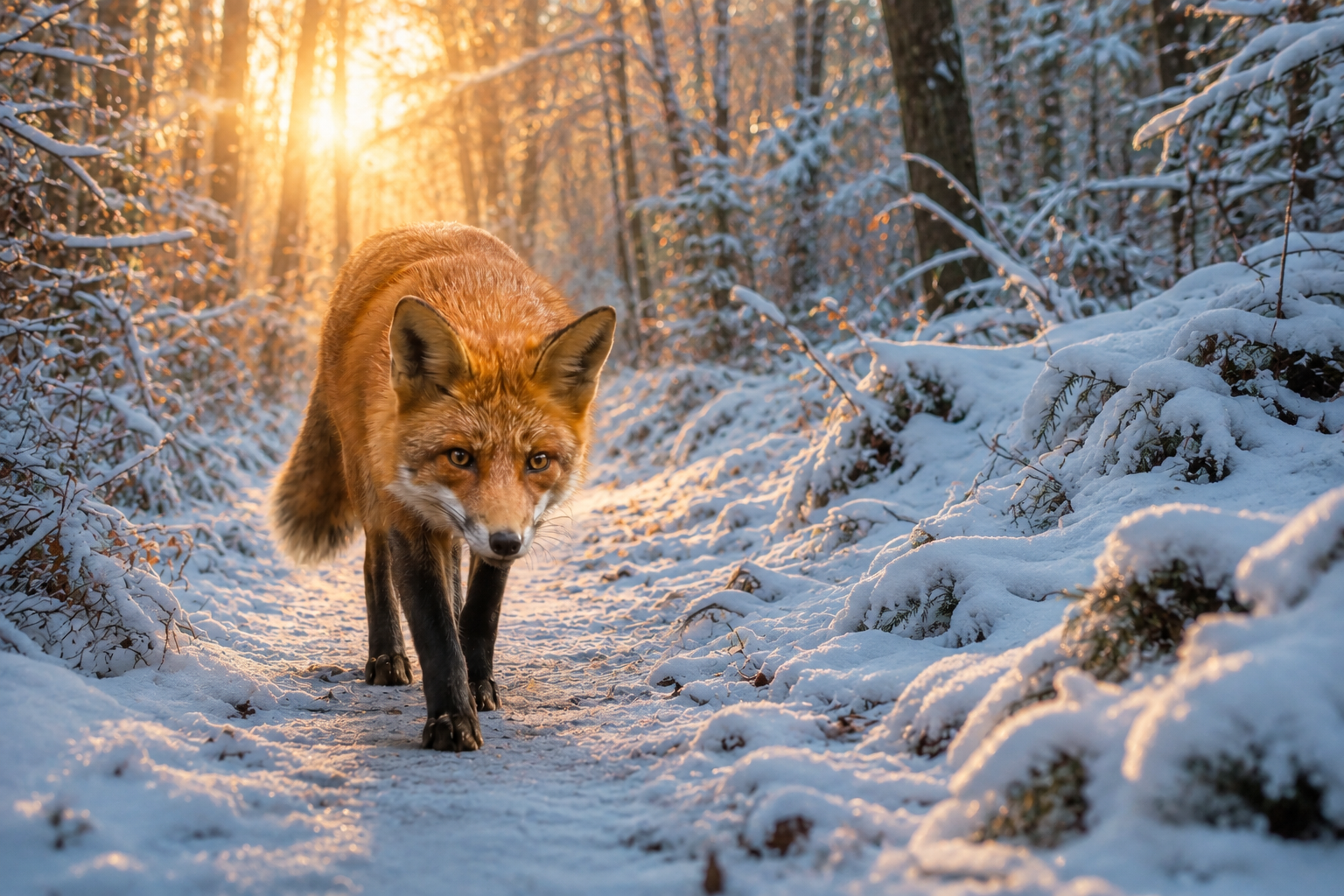
Changing one variable at a time makes it easier to understand what actually affected the result.
An imperfect generation can also provide useful feedback. If the subject is correct but the framing is wrong, you know where to focus your next instruction.
The goal isn’t to find one magical prompt that works forever. It’s to generate, evaluate, adjust, and repeat until the image meets your needs.
Using Reference Images With AI Image Prompts
Sometimes text alone isn’t enough to communicate what you want.
A reference image can give the generator a visual starting point for things such as a product, character, composition, or existing scene.
For example:
Use the reference image for the subject and general composition. Change the environment to a snowy forest and use soft winter lighting.
This is more specific than simply uploading an image and saying:
Make this better.
The important part is explaining what should stay and what should change.
However, a reference image doesn’t guarantee an exact copy. Depending on the generator, details such as facial features, pose, clothing, proportions, background elements, or lighting may still change.
So if consistency matters, inspect each generation rather than assuming the reference will be reproduced perfectly.
Common AI Image Prompt Mistakes
1. Being Too Vague
A beautiful woman in a city.
gives the generator very little direction.
If the details matter, specify the environment, pose, framing, and visual style.
2. Making the Prompt Extremely Long
More words don’t automatically mean more control.
Remove details that don’t contribute to the image you’re trying to create.
3. Using Contradictory Instructions
Avoid combining directions that pull the image in opposite directions.
For example:
A minimalist image with an extremely crowded background.
Clearer instructions generally make the intended result easier to communicate.
4. Mixing Too Many Styles
Avoid throwing unrelated styles together:
Photorealistic watercolor anime 3D oil painting vector illustration.
Choose a coherent visual direction instead.
5. Forgetting the Image’s Purpose
A beautiful image can still be the wrong image.
A blog thumbnail may need wide framing and empty space for a title. A profile image may need a tighter crop. A product image may need the product positioned precisely.
Think about where the image will actually be used before writing the prompt.
6. Expecting the First Generation to Be Perfect
AI image generation is still an iterative process.
If the result is almost right, identify the problem and refine that part instead of starting over.
A Reusable AI Image Prompt Template
You can use this as a starting point:
[Subject] + [Action/Pose] + [Setting] + [Composition] + [Lighting] + [Style] + [Important Details]
For example:
A matte-black wireless headphone resting on a modern wooden desk, three-quarter view, positioned slightly to the right with empty space on the left, soft natural window light, realistic commercial product photography, clean background with subtle indoor plants.
You don’t need to fill every section.
For a simple image, this may be enough:
[Subject] + [Setting] + [Style]
For example:
A red vintage bicycle leaning against a brick wall, realistic street photography.
Use the template as a starting point, then remove or add details based on what the image actually needs.
Which AI Image Generator Should You Use?
The generator you use also affects how your prompts are interpreted and what kind of results you get.
There’s no single tool that’s ideal for every image. Some may suit your workflow better for photorealistic images, illustrations, text-heavy designs, or editing.
I’ve compared several free options separately in my guide to the best free AI image generators, including their strengths and limitations.
For this guide, the important thing is not to assume that a prompt that works well in one generator will produce exactly the same result elsewhere.
Final AI Image Prompt Checklist
Before generating an image, ask yourself:
☐ Is the main subject clear?
☐ Is the action or pose specific enough?
☐ Is the setting defined where necessary?
☐ Have I considered the composition?
☐ Does the lighting fit the intended mood?
☐ Is the visual style clear?
☐ Did I include details that absolutely matter?
☐ Have I removed unnecessary or contradictory instructions?
☐ Is the image suitable for where I plan to use it?
☐ Am I prepared to refine the result if necessary?
If you can answer those questions, your prompt has a solid starting structure.
Frequently Asked Questions – FAQs
What is the best formula for an AI image prompt?
A useful starting structure is:
Subject + Action/Pose + Setting + Composition + Lighting + Style + Important Details
You don’t need every element in every prompt. Use the parts that matter to your image.
How long should an AI image prompt be?
There is no ideal word count. A simple image may need one short sentence, while a complex scene may require more detail.
Focus on relevant visual instructions rather than length.
How do I make AI-generated images more realistic?
Describe the visual characteristics you want, such as photorealistic photography, natural lighting, realistic textures, natural colors, or a specific photographic style.
These instructions can influence the result, but they don’t guarantee perfect realism.
Do negative prompts make AI images better?
Not automatically.
They can help when you’re trying to prevent a recurring problem, but my own test didn’t show an obvious improvement when the original image was already clean.
Can AI image generators create accurate text?
They can produce readable and correctly spelled text, but you should still proofread the result. A generator may produce your requested wording correctly while also adding unwanted text.
Why does the same prompt produce different results?
Different generators interpret instructions differently, and individual generations can also vary.
A prompt provides direction, but the model still has room to interpret the scene.
Should I use reference images?
Reference images are useful when you need to communicate visual information that’s difficult to describe with words alone.
Tell the generator what you want to preserve and what you want to change.
Do I need to use every part of the AI image prompt formula?
No.
The formula is a framework, not a requirement. A simple image might only need a subject, setting, and style.
What’s the biggest mistake beginners make when writing AI image prompts?
Trying to either say too little or control absolutely everything.
A better approach is to identify the details that matter most and describe them clearly.
Conclusion
Learning how to write AI image prompts isn’t about finding a secret combination of keywords.
It’s about communicating a visual idea clearly.
Start with the subject and add the details that actually matter: what it’s doing, where it is, how it’s framed, how it’s lit, and what visual style you’re aiming for.
Then generate the image, evaluate the result, and refine the instructions when something isn’t right.
You don’t need the longest prompt possible.
You need a prompt that gives the generator the right information at the right level of detail.
And that’s the real skill behind AI image prompting: not memorizing hundreds of keywords, but learning how to turn the image in your head into clear visual instructions.
Keep Exploring
You might also like these articles.

How to Test an AI Agent Before You Trust It
An AI agent can give you the right answer and still be unreliable. It might use the wrong tool, skip an…
How to Create Faceless YouTube Shorts with AI for Free (2026 Guide)
Introduction Creating faceless YouTube Shorts with AI has become one of the easiest ways to start a YouTube channel in 2026….

Best AI Tools for Content Creators in 2026 (Organized by Creator Type)
↻ Last updated: August 31, 2026I reviewed the tools, features, free-plan limitations, and creator workflows in this guide to keep…

Is Perplexity AI Free? Free Plan, Limits & Pricing (2026)
Last Updated: September 2, 2026 Yes, Perplexity AI is free to use. Its Standard plan gives you practically unlimited basic searches,…
Google NotebookLM Review 2026 — Is It Really Worth Using?
Last updated: September 3, 2026 Most AI tools try to answer whatever you ask. NotebookLM is different: it is designed to…

Best AI Tools for Affiliate Marketing in 2026: The Tools I’d Actually Use
━━━━━━━━━━━━━━━━━━━━━━━━━━━━━━Last updated: August 28, 2026This guide was reviewed and updated to reflect current tool features, pricing, free-plan limits, and our…