
Last updated: September 24, 2026
Most AI tools try to answer whatever you ask. NotebookLM is different: it is designed to work with the material you give it. You can add lecture notes, PDFs, research papers, websites, and other sources, then use AI to understand, summarize, compare, and study that material. Google has made some major changes to NotebookLM in 2026. It now has stronger research capabilities, new output formats, web source discovery, and more advanced analysis features. Google also renamed NotebookLM to Gemini Notebook in July 2026. In this review, I’ll use ‘NotebookLM’ because that’s still the name most people know and search for.
I’ve been using NotebookLM mainly as a student for lecture notes, research papers, exam preparation, and assignments. The feature I keep coming back to is Audio Overviews, but I also use its quizzes, flashcards, summaries, and document comparison tools. Some of these features genuinely make studying easier; others aren’t quite as useful as they sound. So in this NotebookLM review, I’m not just going to list Google’s features. I’ll show you what I actually found useful, where NotebookLM falls short, what you get for free, what the paid plans add, and whether I’d recommend it to a student in 2026.
What Is Google NotebookLM?
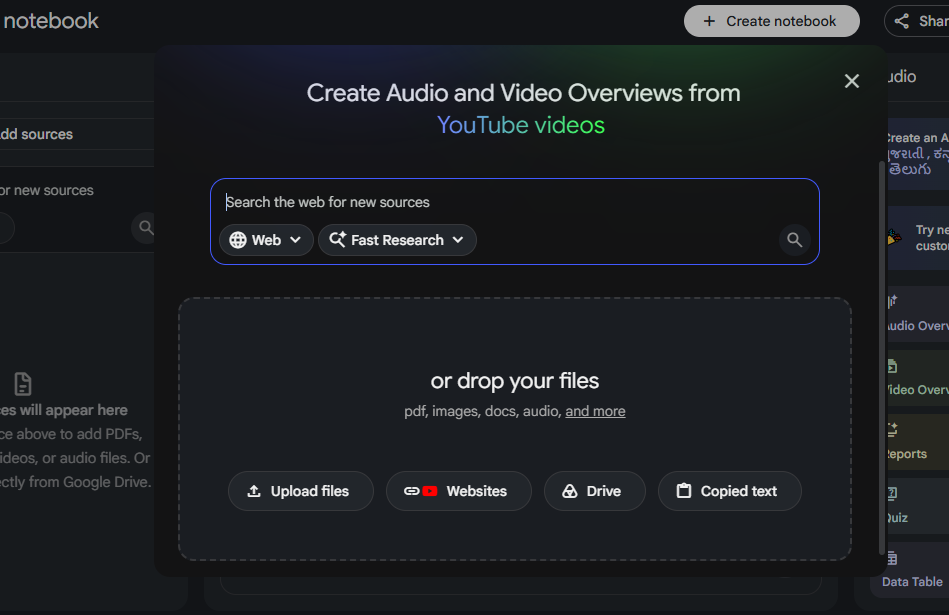
NotebookLM is Google’s AI-powered research and learning assistant. Instead of treating the entire internet as its knowledge base, it is designed to work with the sources you add to a notebook, such as PDFs, lecture notes, Google Docs, websites, YouTube videos, and audio files. You can then chat with those sources, ask questions, summarize material, compare documents, or turn your notes into things like study guides, flashcards, quizzes, Audio Overviews, and other formats. NotebookLM also provides inline citations that let you check where information in an answer came from.
This source-grounded approach is what makes NotebookLM different from a general-purpose chatbot. When I’m studying, I can give it my actual lecture notes or research papers and ask questions about that specific material instead of relying on a general answer that may not match what I’m expected to learn. NotebookLM isn’t completely limited to files you upload, though. Its current tools can help you discover sources from the web and import them into your notebook. Once they’re added, they become part of the source collection that NotebookLM can work with.
Think of it this way: you give NotebookLM the material, and it helps you understand, organize, and work with it.
Best for: Studying, research, working with documents, comparing sources, and turning your own material into useful study resources.
What’s New in NotebookLM 2026?
NotebookLM has changed quite a bit in 2026. Google has added stronger research capabilities, new ways to create outputs from your sources, web source discovery, and more advanced analysis tools. It also renamed NotebookLM to Gemini Notebook in July, while keeping it as a standalone research and learning product.
One of the biggest changes is that NotebookLM can now go beyond simply answering questions about sources you’ve already added. Its newer research tools can help discover relevant web sources and bring them into your notebook, which is useful when you’re starting with a topic rather than a finished collection of documents.
Google has also expanded what you can create from your research. Depending on your available features and plan, NotebookLM can generate things such as reports, charts, spreadsheets, slide decks, infographics, Audio Overviews, and Video Overviews from your sources. The June 2026 update also introduced a secure cloud computer that can run code for more advanced analysis, with availability depending on the account and subscription.
Another important change is the way usage limits work. Google began rolling out flexible, compute-based limits on September 2, 2026, where usage depends on factors such as prompt complexity, chat length, number of sources, and the features you use. Limits refresh every five hours rather than following a simple daily counter.
My take: The 2026 updates make NotebookLM much more than a PDF summarizer. It is moving toward a broader research workspace where you can collect sources, analyze them, and turn your research into different formats. However, not every new capability is available on every plan, so I’d check your account before assuming a particular feature is included.
What Can NotebookLM Actually Do?
NotebookLM is more than a chatbot that summarizes PDFs. Its main strength is that you can build a notebook around a specific set of sources and then use those sources for research, studying, analysis, and content creation.
Here are the features I found most useful, along with where I think they actually make a difference.
Chat With Your Sources
This is the basic NotebookLM experience, but it’s also the foundation for everything else. You can ask questions about your uploaded material, request summaries, find specific information, or ask it to compare different sources. Responses include citations that point back to the relevant material in your notebook. (support.google.com)
For studying, I find this much more useful than simply asking a general chatbot the same question. If I’ve uploaded my lecture notes and a research paper, I can ask questions specifically about those materials and get an answer based on what I’m actually expected to study.
My take: This is the feature you’ll probably use most often. The citations are particularly useful because you can jump back to the source instead of blindly trusting the generated answer.
Audio Overviews
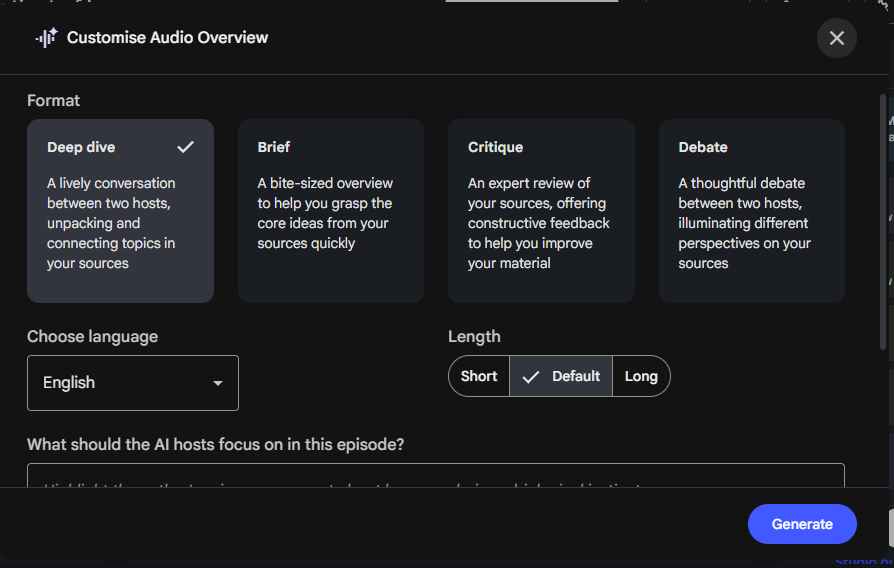
Audio Overviews are probably my favorite NotebookLM feature. They turn your sources into an AI-generated discussion between hosts who explain and connect the important points from the material. You can also customize the format, language, length, and focus of the discussion. (support.google.com)
I found this especially useful for revision. Instead of rereading lecture notes for the third time, I can generate an Audio Overview and listen to the material while doing something else, such as commuting. It makes dense material feel much easier to revisit.
There’s an important catch, though: it’s a study aid, not a replacement for the original material. Google itself warns that Audio Overviews are AI-generated and can contain inaccuracies or audio glitches.
My take: One of the genuinely useful AI study features I’ve tried. If you learn well by listening, this alone makes NotebookLM worth experimenting with.
Flashcards and Quizzes
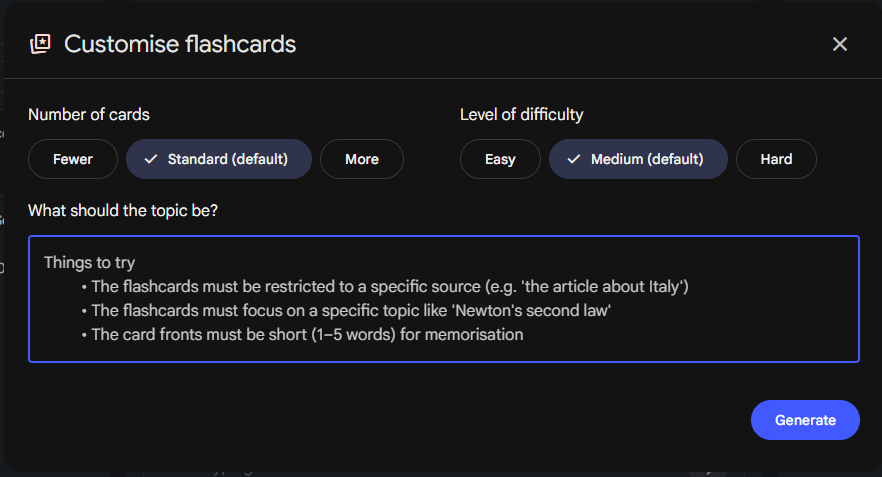
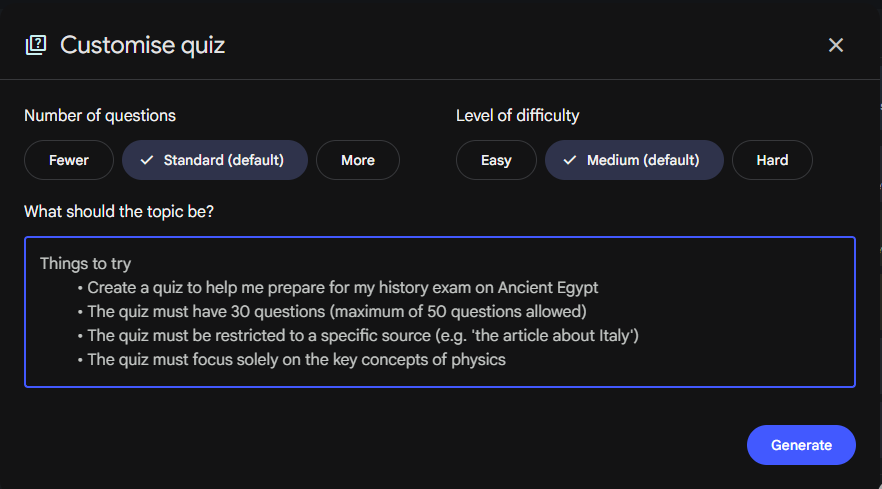
NotebookLM can turn your sources into interactive flashcards and quizzes, with options to adjust difficulty and customize what the generated questions focus on. You can also track which flashcards you got right or wrong and review the ones you struggled with. (support.google.com)
This is useful when you’ve already uploaded your study material and want to move from reading to active recall. Instead of asking NotebookLM for another summary, you can use your own notes to test whether you actually remember the material.
I particularly like this approach for exam preparation because the questions are generated from the material in the notebook rather than being completely disconnected from what I’m studying.
My take: More useful than another AI-generated summary. I’d use quizzes and flashcards after studying a topic, not as a substitute for learning it.
Mind Maps and Other Study Outputs
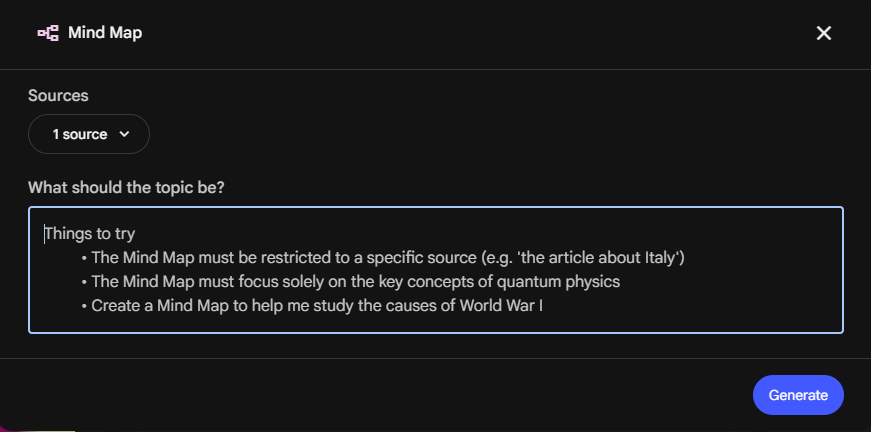
NotebookLM can turn your sources into different formats, including mind maps, study guides, reports, and other generated outputs. These are useful when the same information needs to be understood in a different format. (support.google.com)
For example, a long set of lecture notes can be easier to understand as a structured study guide or visual map than as several pages of text. I wouldn’t treat these outputs as finished academic work, but they can give you a much better starting point for revision.
My take: Useful when you’re trying to reorganize information, but I’d prioritize Chat, Audio Overviews, quizzes, and flashcards if you’re mainly using NotebookLM for studying.
Newer Research and Creation Tools
Google’s 2026 updates have also expanded NotebookLM into more advanced research and creation workflows. Depending on your account and available features, you can generate data tables, charts, infographics, slide decks, and other artifacts from your sources. Some accounts can also use the secure cloud computer for code-based analysis. (blog.google)
This is where NotebookLM starts feeling less like a study assistant and more like a research workspace. You can take a collection of sources, analyze them, and turn the results into something more usable without manually moving everything between different tools.
My take: These features are interesting, but I wouldn’t make them the main reason to use NotebookLM as a student. The value depends heavily on the type of work you’re doing and which features your account actually has.
Is NotebookLM Free?
Yes. NotebookLM has a free Standard tier, and you can use it without subscribing to a paid Google AI plan. The free version is enough to experiment with source-grounded chat, summaries, Audio Overviews, and several study features, although usage and feature limits apply.
The free Standard plan currently allows up to 50 sources per notebook. This is worth keeping in mind if you’re working with a large collection of lecture notes, research papers, or other reference material.
Google has changed how NotebookLM’s limits work in 2026. As of September 2, 2026, Google began moving NotebookLM to a more flexible, compute-based usage system. Instead of treating every request as identical, the amount of usage you get can depend on factors such as the complexity of your prompts, the length of your conversation, the number of sources you’re working with, and the features you use. The quota refreshes every five hours until you reach the weekly limit.. (blog.google)
For students, this makes the free version a good starting point. I use NotebookLM mainly for studying, lecture material, research papers, and exam preparation, and I wouldn’t recommend paying immediately just to get started. Try the free version first and see whether you actually run into its limits.
NotebookLM Pricing in 2026
| Plan | Price |
|---|---|
| Standard | Free |
| Google AI Plus | From $4.99/month |
| Google AI Pro | $19.99/month |
| Google AI Ultra | $99.99/month |
The exact NotebookLM limits and available features depend on your Google account and subscription. Google also continues to change these limits, so I recommend checking the current plan details before subscribing rather than relying on an old “X queries per day” figure. (support.google.com)
My take: If you’re a student wondering whether NotebookLM is worth paying for, start with the free version. The core experience is already useful. I’d only consider upgrading once you know that the free limits are actually getting in the way of your work.
Who Is NotebookLM Best For?
NotebookLM can be useful for a lot of people, but I think students are one of its strongest use cases. The reason is simple: students already have a collection of material—lecture notes, PDFs, textbooks, research papers, slides, and study guides—that they need to understand.
Students
This is where I use NotebookLM the most. I can put my lecture material into a notebook and use it to ask questions, create study guides, generate flashcards and quizzes, or listen to an Audio Overview while I’m away from my desk. Google’s newer study-focused tools also connect NotebookLM with Gemini’s learning features, including personalized lessons and progress-based quizzes.
What I like most is that I can keep the material for one subject together instead of repeatedly pasting sections into a general chatbot. If I’m preparing for an exam, I can return to the same notebook and continue working with the same source material.
Best for: Exam preparation, lecture notes, research papers, revision, and active recall.
Researchers
NotebookLM is also useful when you’re working with several documents and need to understand how they relate to each other. You can bring sources into a notebook, ask questions across them, and use the citations to trace information back to the original material. Its newer source-discovery tools can also help you build a research collection when you don’t already have all the sources you need.
Best for: Literature reviews, comparing papers, organizing research material, and extracting information from large collections of sources.
Teachers and Educators
Teachers can use NotebookLM to turn class materials into study resources such as flashcards, quizzes, audio content, and other formats. Google is also integrating NotebookLM into education workflows, including teacher-led experiences through Google Classroom and supported learning-management systems.
Best for: Preparing learning materials, organizing course content, and creating resources from existing class material.
Professionals
NotebookLM can also make sense for professionals who regularly work with reports, documents, research, or other source-heavy material. For example, you could keep the documents for a project in one notebook and use it to find information, compare sources, or create summaries and other outputs.
Best for: Document-heavy projects, research, briefings, and working with internal reference material.
Who Probably Doesn’t Need NotebookLM?
If you mainly want an AI for casual conversation, brainstorming, creative writing, coding, or general-purpose tasks, NotebookLM probably wouldn’t be my first choice. Its biggest advantage appears when you have specific material you want the AI to work with.
My take: If your work revolves around a collection of documents, NotebookLM is worth trying. If you mostly want a general chatbot, something like ChatGPT or Claude may fit your workflow better.
NotebookLM vs ChatGPT vs Gemini: Which Is Better?
NotebookLM, ChatGPT, and Gemini overlap in some areas, but I wouldn’t treat them as interchangeable tools. The biggest difference is what they’re designed around.
NotebookLM is strongest when you already have a collection of sources you want to understand. Its notebook chat is grounded in the sources you select, and its citations let you check the material behind an answer.
ChatGPT is more of a general-purpose AI assistant. I’d reach for it when I need brainstorming, writing help, coding, general questions, or a workflow that isn’t necessarily tied to one collection of documents.
Gemini is particularly useful if you already work heavily inside Google’s ecosystem. It can connect notebooks with Gemini and Google services, although the way responses are grounded can differ between Gemini and the standalone Gemini Notebook experience.
Quick comparison
| NotebookLM | ChatGPT | Gemini | |
|---|---|---|---|
| Main strength | Working with your sources | General-purpose AI assistance | Google ecosystem + general AI |
| Best for | Research, studying, document analysis | Writing, brainstorming, coding, everyday tasks | Google-connected workflows and general tasks |
| Source grounding | Strong focus on notebook sources | Depends on the feature and sources used | Depends on the Gemini feature/workflow |
| Citations | Built into notebook responses | Available in supported features | Available in supported features |
| Study features | Strong | Available, but broader-purpose | Strong learning features |
| Audio/visual study outputs | Yes | Depends on plan/features | Depends on plan/features |
My preference: When I’m working with lecture notes, research papers, or a specific collection of documents, I’d choose NotebookLM. I like being able to keep the sources together and trace answers back to them.
For general writing, brainstorming, coding, or tasks that don’t depend on a fixed source collection, I’d usually choose ChatGPT instead. Gemini makes more sense to me when the task benefits from being connected to Google’s ecosystem.
So I wouldn’t ask “Which one is the best?” I’d ask “What am I trying to do?”
If your work starts with a pile of documents, NotebookLM is probably the one I’d try first.
5 Practical Ways I Use NotebookLM as a Student
After using NotebookLM for studying and research, I’ve found that its value isn’t really in having another AI chatbot. It’s in what you can do after you’ve given it the material you’re already working with.
Here are five ways I’ve actually found it useful.
1. Turn Lecture Notes Into a Study Session
If I have a long set of lecture notes, I can add them to a notebook and ask questions about the material instead of searching through the document manually. I can ask for explanations, summaries, important concepts, or areas that need more attention.
What makes this useful is that I can keep the notes and my questions in the same notebook. I don’t have to repeatedly paste sections into a chatbot and explain the context again.
My take: This is probably the simplest way to get value from NotebookLM as a student. If your notes are organized and reasonably clear, it can save a lot of time when revising.
2. Create Flashcards and Quizzes for Active Recall
One of my favorite study workflows is using NotebookLM to turn my source material into flashcards and quizzes. You can choose the difficulty and customize what the generated questions focus on. The flashcard and quiz tools also let you track your progress and review questions you missed. (support.google.com)
I prefer this to simply asking an AI for another summary because it makes me retrieve the information myself. After reading a chapter or reviewing my notes, I can use the generated questions to find out what I actually remember.
My take: Use this after studying, not instead of studying. It’s much more useful as an active-recall tool than as a shortcut for learning the material.
3. Listen to Your Notes With Audio Overviews
This is the feature I keep coming back to. NotebookLM can turn your sources into an AI-generated audio discussion that explains and connects the material. You can customize things such as the format, language, length, and focus of the overview. (support.google.com)
I’ve found this useful when I’m away from my desk. Instead of opening my lecture notes again, I can listen to an Audio Overview while commuting or doing something that doesn’t require my full attention.
It isn’t a replacement for the original notes, though. Google warns that Audio Overviews are AI-generated and can contain inaccuracies or audio glitches, so I’d still check important information against the source material. (support.google.com)
My take: One of NotebookLM’s most useful features for students, especially if you learn well through listening.
4. Understand Research Papers Without Reading Them Blindly
Research papers can be difficult to work through when you’re dealing with several at once. I can put the papers into a notebook and ask questions about the methodology, findings, terminology, or differences between the studies.
The citations are particularly useful here because I can check where an answer came from instead of treating the AI’s summary as the final authority. NotebookLM is designed to ground its chat responses in your notebook sources and provide inline citations. (support.google.com)
I still read the original paper when the details matter. I use NotebookLM more like a research assistant for navigating the material than something that reads the paper for me.
My take: Great for getting oriented in a large collection of papers, but don’t let the summary replace the actual research.
5. Turn Your Study Material Into Different Formats
Sometimes the problem isn’t understanding the information—it’s how the information is presented. NotebookLM’s Studio can turn your sources into things such as study guides, reports, mind maps, data tables, slide decks, infographics, Audio Overviews, and Video Overviews. (support.google.com)
I’ve found this useful when the same material needs to be approached in a different way. A long collection of notes can become a structured study guide, while a set of concepts can be turned into a mind map or quiz for revision.
I wouldn’t submit these generated outputs as finished academic work without checking and editing them. They’re much more useful as starting points that help me organize the material faster.
My take: This is where NotebookLM starts feeling like more than a document Q&A tool. You can take the same source material and reshape it into whatever format makes the next step easier.
NotebookLM: What I Like and What I Don’t Like
After using NotebookLM for studying, research, and working with documents, I think its biggest strength is also what makes it different from general AI chatbots: it works best when you give it a specific collection of material to work with.
What I Like
- Strong source-based answers: I can ask questions about my own lecture notes, papers, and documents instead of starting from a blank chatbot conversation.
- Citations are genuinely useful: Being able to trace an answer back to the source makes it easier to verify important information.
- Audio Overviews are excellent for revision: This is probably the feature I use most outside the browser.
- Good study workflow: Flashcards, quizzes, study guides, and other outputs make it easier to move from reading to revision.
- One place for a project: Keeping related sources together in a notebook is much cleaner than repeatedly uploading the same documents to a chatbot.
What I Don’t Like
- It isn’t always accurate: Source citations make verification easier, but they don’t mean every generated answer is automatically correct.
- AI-generated outputs still need checking: Audio, summaries, quizzes, and other generated material can contain mistakes.
- Some advanced features depend on your plan: You shouldn’t assume that everything shown in Google’s current NotebookLM/Gemini Notebook documentation is available on the free tier.
- It can be overkill for simple questions: If I just need a quick general answer, opening a notebook and adding sources isn’t necessarily the fastest option.
- The product is changing quickly: Google’s 2026 updates and the transition from NotebookLM to Gemini Notebook mean that features, limits, and availability can change.
My verdict
NotebookLM is one of the AI tools I’d actually recommend trying if you regularly study from documents or do source-heavy research.
I wouldn’t recommend it simply because it’s made by Google or because it has a long list of AI features. Its real advantage is the workflow: give it your material, question it, verify the answers, and turn the material into something easier to understand or revise.
If you don’t regularly work with documents, however, you may get more value from a general-purpose AI assistant.
Is NotebookLM Accurate? What Are the Drawbacks?
NotebookLM’s source-based approach makes it easier to check where an answer came from, but citations don’t make the AI infallible. I’ve had to fact-check answers myself, including cases where I initially assumed the cited material made the response trustworthy.
This is especially important when you’re using generated study material. Summaries, quizzes, flashcards, Audio Overviews, and other outputs can occasionally contain mistakes or miss an important detail. I treat them as tools for understanding and revision—not as replacements for the original source.
Another limitation is that NotebookLM works best when your source material is actually useful. If your notes are incomplete, poorly organized, or missing important context, the quality of what you get back can suffer too. And while NotebookLM has become much more capable in 2026, some of its newer features are still dependent on your account, plan, or availability.
The biggest drawbacks I noticed
- It can still make mistakes, even when citations are provided.
- Generated study material needs checking before you rely on it.
- Quality depends heavily on your sources.
- Some advanced features aren’t available to everyone.
- It’s not the best choice for general-purpose AI tasks like open-ended brainstorming, coding, or casual conversations.
My take: NotebookLM’s biggest advantage is its source grounding, but that’s also where you need to be disciplined. Use it to work through information faster, not to stop thinking or verifying information yourself.
NotebookLM Privacy: Is Your Data Safe?
If you’re uploading lecture notes, research papers, or other personal documents, privacy is worth checking before you start.
Google says the files and chats you add to Gemini Notebook aren’t used to directly train its foundational AI models unless you choose to provide feedback. If you submit feedback, Google may review the associated interaction, including prompts, uploads, and generated responses. Google also says Workspace and Workspace for Education users have additional data protections.
My advice: Don’t upload confidential or sensitive material unless you’re comfortable with the terms that apply to your account. For school or work accounts, check your organization’s specific Google Workspace policies as well.
Frequently Asked Questions – (FAQs)
Is Google NotebookLM completely free?
NotebookLM has a free Standard version, while paid Google AI plans provide higher usage limits and access to additional capabilities. The exact limits and available features can change, so it’s worth checking Google’s current plan information before upgrading.
Can NotebookLM make mistakes?
Yes. NotebookLM can generate incorrect or misleading information even when its responses include citations. Treat its answers and generated study materials as assistance rather than a replacement for checking the original sources.
Can NotebookLM summarize PDFs?
Yes. You can add PDFs and other supported sources to a notebook and then ask questions, request summaries, compare information, or create different study and research outputs from those sources.
Is NotebookLM good for students?
In my experience, yes. It’s particularly useful for working with lecture notes, research papers, revision material, flashcards, quizzes, and Audio Overviews. Its biggest advantage for students is being able to keep course material together and work directly with it.
Is NotebookLM better than ChatGPT?
Not universally. NotebookLM is the one I’d prefer when I’m working with a specific collection of sources. ChatGPT is more flexible for general writing, brainstorming, coding, and open-ended tasks. The better choice depends on what you’re trying to accomplish.
What is NotebookLM called now?
Google renamed NotebookLM to Gemini Notebook in July 2026. The product continues as Google’s source-based research and learning tool, with deeper connections to the wider Gemini ecosystem.
Should I use NotebookLM instead of reading my study material?
No. I’d use it to work through the material more efficiently, not replace the material itself. Generated summaries, quizzes, and explanations can help with revision, but important information should still be checked against the original sources.
Final Verdict: Is NotebookLM Worth Using in 2026?
After using NotebookLM for lecture notes, research papers, exam preparation, and assignments, I’d recommend giving it a try if you regularly work with your own documents.
What makes it useful isn’t simply that it has a lot of AI features. It’s the workflow. You can bring your material into one place, ask questions about it, turn it into study resources, and revisit the same sources whenever you need them.
Audio Overviews, quizzes, flashcards, and source-based chat are the features I’d personally get the most value from. The newer research and creation tools make NotebookLM more capable than the document-focused tool I originally started using, but I wouldn’t say you need every new feature to benefit from it.
There are still limitations. AI-generated answers can be wrong, generated study material needs checking, and some capabilities depend on your plan and account. So I wouldn’t treat NotebookLM as something that replaces studying or research. I’d treat it as a tool that makes the work around studying and research easier.
My rating: 8.5/10
Best for: Students, researchers, teachers, and anyone who regularly needs to understand or organize a collection of sources.
Would I use it again?
Yes. For studying from my own material, NotebookLM is one of the AI tools I’d keep in my workflow.
Keep Exploring
You might also like these articles.
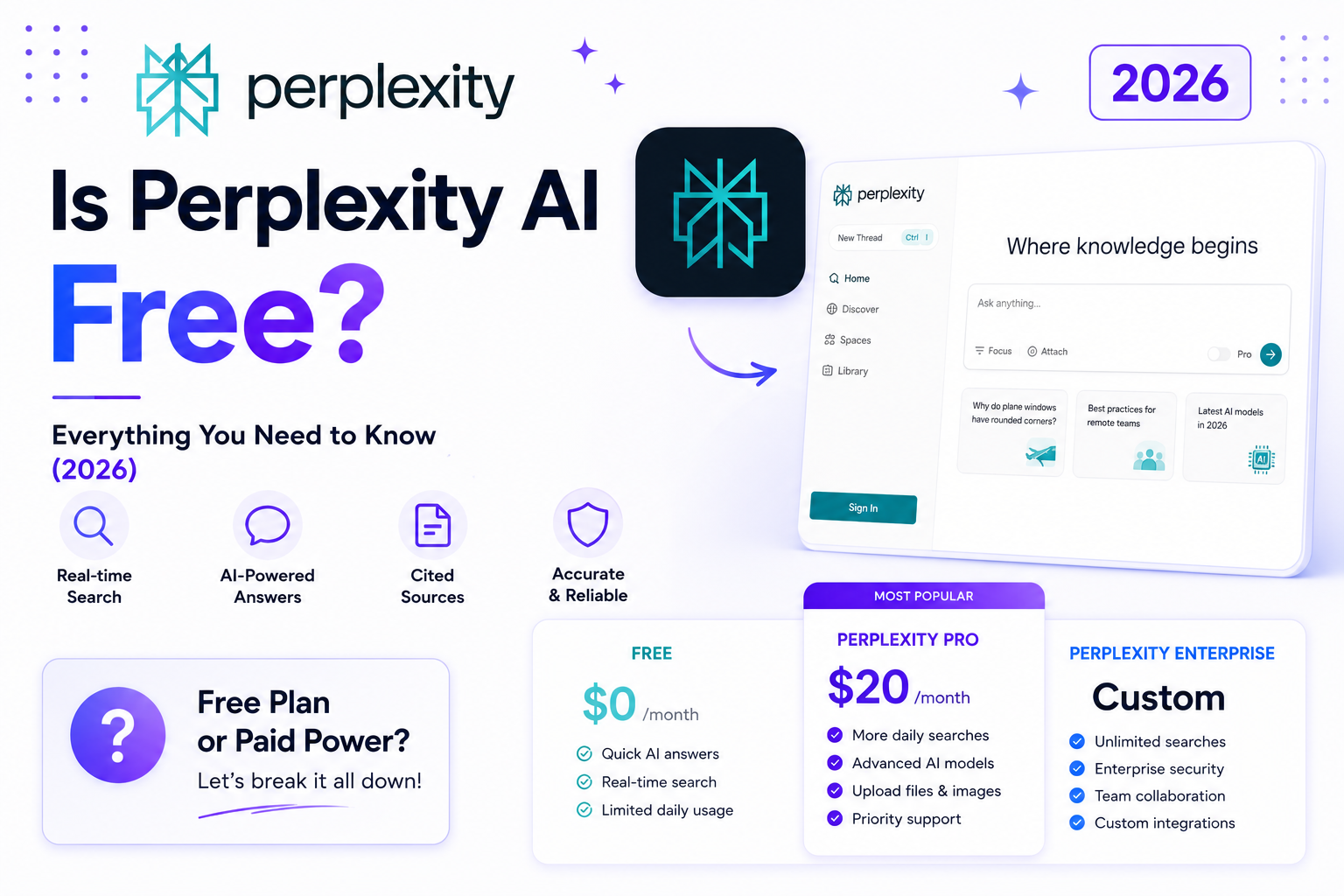
Is Perplexity AI Free? Free Plan, Limits & Pricing (2026)
Last Updated: September 2, 2026 Yes, Perplexity AI is free to use. Its Standard plan gives you practically unlimited basic searches,…
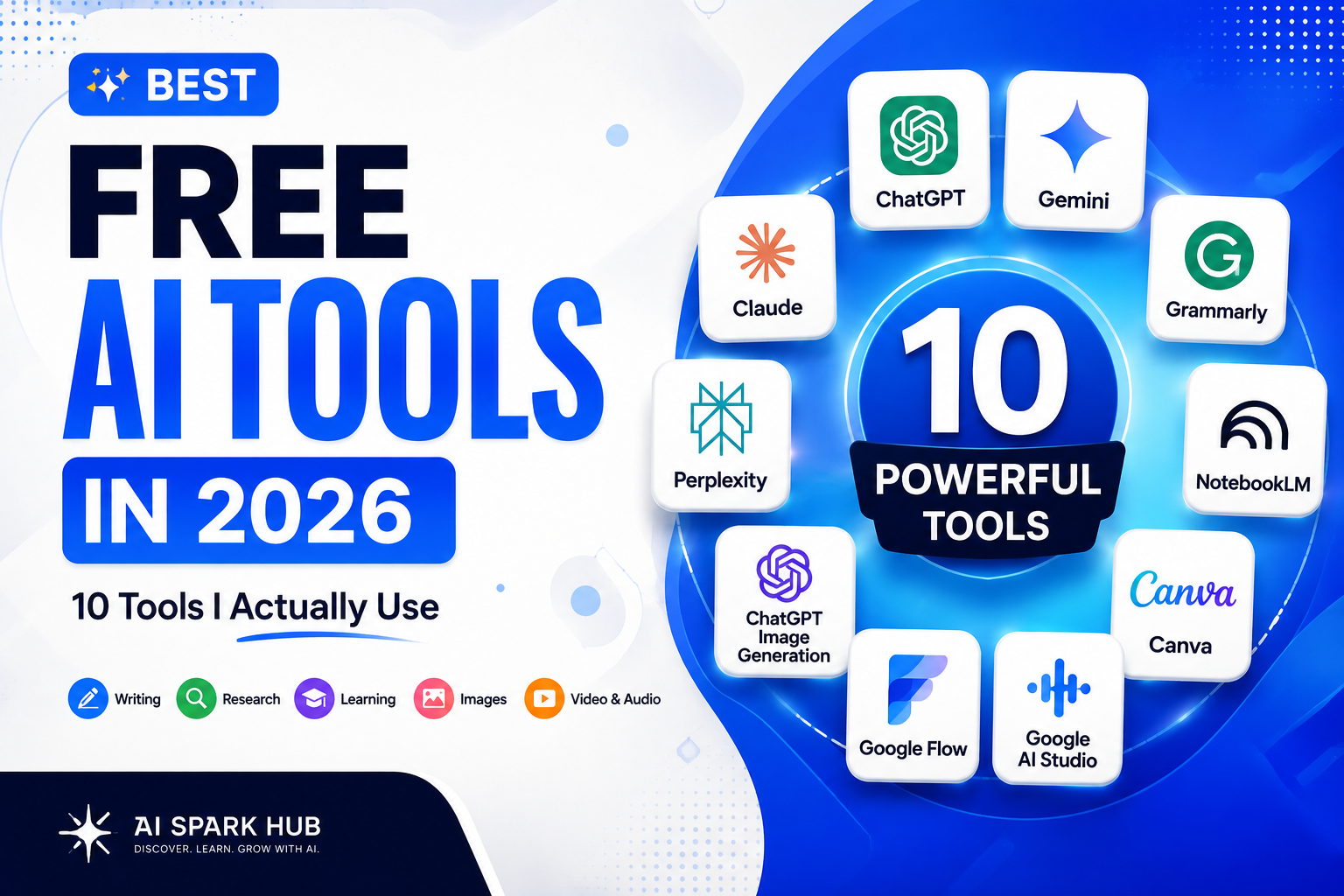
Best Free AI Tools in 2026 — Actually Free (No Credit Card Needed)
Finding the best free AI tools isn’t as easy as it used to be. Every week, new AI tools launch…