
⚡ Quick Takeaway / Summary
What It Does: NotebookLM’s “Make me a site” feature transforms raw source notes, research documents, and web links into a fully formatted, interactive web application inside Google’s Studio workspace with zero code.
Empirical Generation Latency: In our live benchmark test using an 18,000-word historical document, generation took exactly 3 minutes 10 seconds (190s) on a Google Pro account. The generation runs asynchronously inside the Studio queue.
Real Dynamic Interactivity: Unlike static Markdown summaries or slide decks, generated sites feature active client-side components—including self-checking quizzes with instant red/green answer verification, filterable milestone timelines, and collapsible profile cards.
Key Limitation: Sites currently live inside the Google NotebookLM Studio environment. You can share public view-only access, but cannot export standalone HTML/CSS files or host on custom domains yet.
What is NotebookLM “Make Me a Site”?
Google has quietly expanded NotebookLM from an audio-first research assistant into an interactive web artifact generator. By issuing the natural language prompt Make me a site in the NotebookLM chat bar, users can convert complex source documents into a responsive, multi-section web application.
Unlike conventional AI website builders such as v0, Lovable, or Bolt.new—which write custom React/Tailwind frontend code from scratch with synthetic data—NotebookLM takes a fundamentally different architectural approach: 100% strict source grounding. Every headline, timeline event, card summary, and quiz question generated on the website is directly tied to the documents you selected in your notebook.
This eliminates the primary risk of AI web generation: hallucinated facts and fictitious copy. As we documented in our Google NotebookLM review and analysis, the platform’s core advantage is its citation engine, ensuring that research material, technical manuals, and educational study guides remain completely factual.
How to Trigger “Make Me a Site” in NotebookLM
Generating an interactive site requires four straightforward steps. However, the exact phrasing of your prompt dictates whether NotebookLM generates a flat summary or a dynamic, component-rich web application.
Step 1: Curate and Select Your Knowledge Sources
Open notebooklm.google.com and create a new notebook or open an existing one. In the left-hand Sources panel, upload your source materials—PDFs, Google Docs, copied text, or web URLs. Before prompting, ensure the checkboxes next to your target documents are actively checked so the model grounds the site against the correct data.
Step 2: Enter the Structured Generation Prompt
Instead of simply typing “make a website”, provide an explicit structural breakdown. Specify the sections you want rendered (such as an interactive timeline, breakdown cards, and a self-check quiz).
Verified Master Prompt Formula
Make me a site that breaks down [Source Topic] into an interactive mission timeline, key crew profile cards, and a 3-question self-check quiz at the bottom.
Step 3: Monitor the Studio Panel Queue
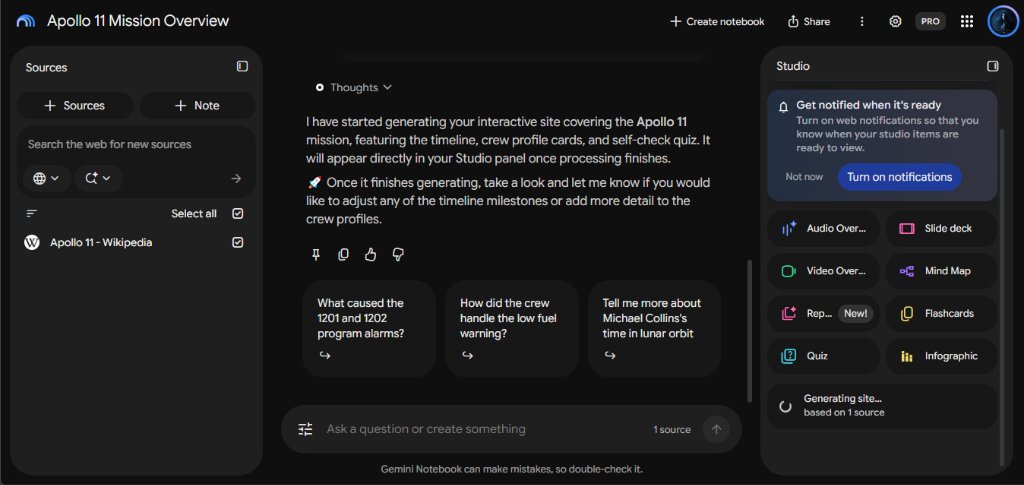
Once you hit submit, NotebookLM posts an immediate chat confirmation: “I have started generating your interactive site… It will appear directly in your Studio panel once processing finishes.” Simultaneously, the right-hand Studio panel displays an animated progress spinner reading Generating site... based on 1 source.
Step 4: Launch the Full Interactive Viewer
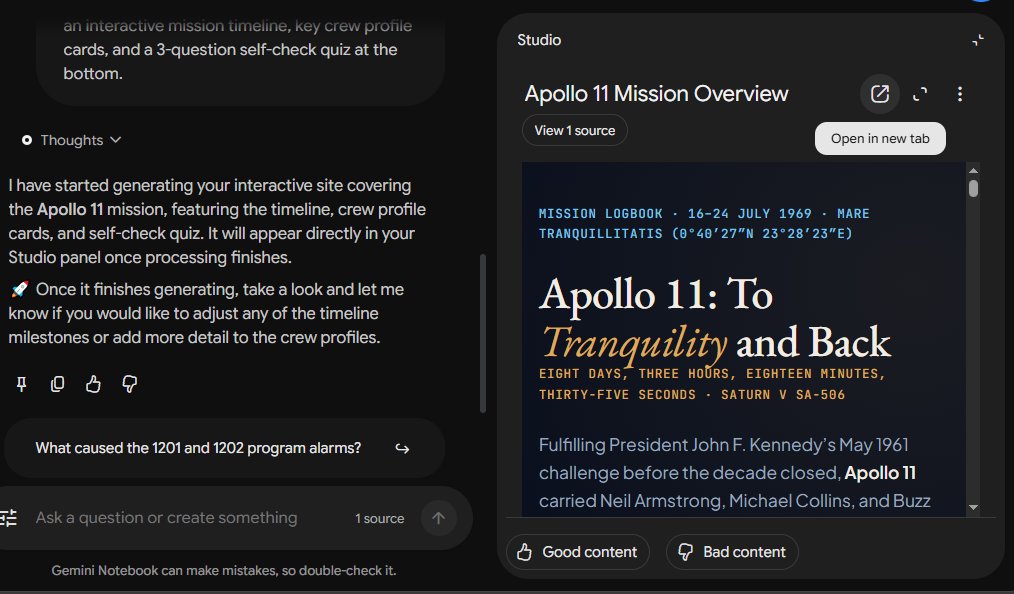
When processing completes, a dedicated site artifact card appears in your Studio panel under your notebook title. Click the Open in new tab button (or the external window icon) in the Studio card header to launch the full-screen interactive web application.
Empirical Test & Benchmark Findings
To evaluate the real-world build performance, reliability, and interactive capabilities of NotebookLM’s site builder, we conducted a firsthand empirical benchmark using a heavy, content-dense historical dataset.
| Benchmark Metric | Empirical Test Measurement | Operational Impact |
|---|---|---|
| Input Source | Wikipedia: Apollo 11 (~18,000 words, tables, timestamps) | High context density; tests multi-source parsing |
| Account Tier | Google Pro (Workspace / Gemini Advanced) | Standard subscriber queue priority |
| Generation Latency | 3 Minutes 10 Seconds (190 seconds) | Requires patience; users should not reload tab |
| Artifact Title | Apollo 11: To Tranquility and Back | Generated cleanly with subtitle & metadata |
| Interactive Widgets | Mission Logbook, Interactive Timeline, Crew Profiles, 3-Question Quiz | Fully functional dynamic client-side elements |
| Validation Behavior | Instant red/green visual state toggle with Reset button | Zero server latency once loaded in browser |
Why the 3m 10s Latency Matters
Most AI chat interfaces produce immediate token streaming within 2 to 5 seconds. Because NotebookLM’s site generator builds a structured client-side web application—complete with CSS design styling, component hierarchies, and interactive quiz logic—the generation queue operates asynchronously.
During our benchmark, the Studio spinner ran for 190 seconds. First-time users often assume the generation has frozen or crashed and refresh the page, which restarts the queue from scratch. When triggering “Make me a site”, anticipate a 2.5 to 3.5 minute build window and allow the background worker to finish.
Interactive Verification: Testing the Dynamic Quiz Engine
The standout feature of NotebookLM’s site generator is that its output is not a static PDF or read-only HTML page. It embeds functional client-side JavaScript logic directly into the document.
In our test artifact, Section 03 rendered a complete Mission Debrief: Three-Question Self-Check module:
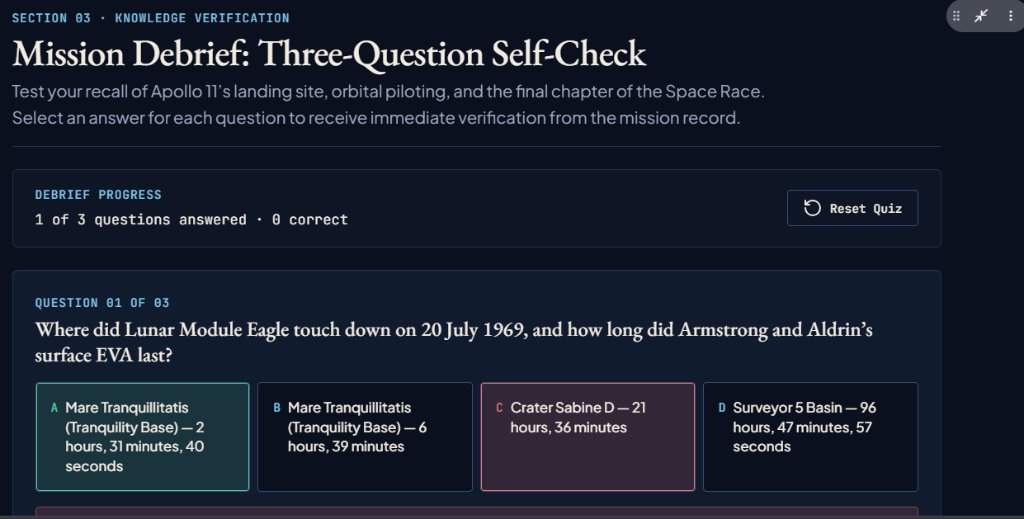
- Instant Answer Verification: Clicking an incorrect answer option immediately highlights the card in a subtle red outline. Clicking the correct historical answer illuminates the card in green.
- Dynamic Progress Tracking: The top debrief bar tracks user performance in real time (e.g., “1 of 3 questions answered · 0 correct”).
- State Reset Button: A dedicated
Reset Quizbutton in the debrief header clears active selections, allowing learners to re-test their knowledge without refreshing the page.
This makes the tool exceptionally powerful for teachers, corporate trainers, and students converting course syllabi or research notes into self-contained interactive study portals—complementing NotebookLM’s audio and video briefing capabilities covered in our NotebookLM Video Overview Guide.
3 Tested Prompt Formulas for Superior Sites
The quality of your generated web application depends on how clearly you define the UI components in your prompt. Here are three tested prompt formulas designed for different knowledge workflows:
Formula 1: The Interactive Study Portal & Self-Check Quiz
Best for: Students, exam prep, course summaries, and onboarding manuals.
Make me a site that transforms my uploaded notes into an interactive study portal.
Include:
1. An Executive Summary card highlighting core concepts.
2. A chronological breakdown of major milestones or modules.
3. Key terms glossary with expandable cards.
4. A 4-question interactive self-check quiz at the bottom with instant feedback.
Formula 2: The Project Roadmap & Executive Dossier
Best for: Product managers, startup pitch decks, and technical research briefings.
Make me an executive dashboard site summarizing these documents.
Include:
1. High-level project KPIs and objective metrics at the top.
2. An interactive phase-by-phase implementation roadmap.
3. Team member and stakeholder responsibility cards.
4. Key risk factors and mitigation strategies in a collapsible accordion.
Formula 3: The Structured Feature & Vendor Comparison
Best for: Software evaluations, architecture decision records, and tool teardowns.
Make me a comparative evaluation site based on the attached technical whitepapers.
Include:
1. A feature matrix comparing capabilities, rate limits, and pricing tiers.
2. Architecture trade-offs highlighting latency and memory bottlenecks.
3. A recommendation selector with filtering criteria for budget vs enterprise deployments.
Current Limitations: What You Cannot Do Yet
While NotebookLM’s site generator is an impressive productivity leap, users should be aware of several architectural constraints currently in place:
- No Standalone HTML/CSS Code Export: You cannot download a ZIP bundle containing
index.html, JavaScript assets, or raw CSS to host on GitHub Pages, Netlify, or your own domain. The site is strictly executed inside Google’s sandboxed Studio environment. - Sharing is Bound to Notebook Permissions: To share your site with colleagues or students, you must share the notebook via Google’s standard sharing settings (View or Edit permissions). Recipients open the site through the NotebookLM interface.
- No Direct In-Place Visual Editor: You cannot click on a headline or button inside the generated web page to manually edit wording or change colors. To make adjustments, you must enter a follow-up refinement prompt in the NotebookLM chat (e.g., “Regenerate the site with 5 quiz questions instead of 3”).
- Mobile App Execution: The feature is optimized for desktop browsers at
notebooklm.google.com. Viewing and generating complex interactive site layouts on mobile screens is currently constrained by viewport dimensions.
For users monitoring cloud quotas and tool allowances across leading AI platforms, explore our real-time AI Free Tier & Token Limits Tracker for the latest capacity updates.
NotebookLM vs Dedicated AI Website Builders
How does NotebookLM’s “Make me a site” compare against dedicated AI coding agents like v0, Lovable, or Bolt.new? The table below highlights the fundamental differences:
| Feature / Dimension | NotebookLM “Make Me a Site” | v0 / Lovable / Bolt.new |
|---|---|---|
| Primary Objective | Interactive knowledge translation & grounded study portals | Full-stack production web apps & commercial SaaS UIs |
| Data Grounding | 100% strict adherence to uploaded source documents | Prompt-generated placeholder or synthetic data |
| Code Exportability | No (Studio sandboxed runtime only) | Full React, Next.js, Vite, and CSS codebase export |
| Interactive Widgets | Self-checking quizzes, milestone timelines, logbooks | Full custom interactive forms, APIs, and databases |
| Technical Barrier | Zero code required; prompt and read | Requires basic frontend/development knowledge |
| Cost / Access | Free / Included with Google One AI Premium | Credit-based consumption / Paid monthly tiers |
Frequently Asked Questions
Can I export the HTML and CSS of a NotebookLM generated site?
No. Currently, Google NotebookLM does not offer an “Export Code” or “Download ZIP” button. The interactive site runs inside Google’s sandboxed Studio viewer. To share it with others, use the Share button in the top right of your notebook to grant View access.
How long does it take NotebookLM to generate a site?
In our empirical testing on an 18,000-word source, generation took 3 minutes 10 seconds (190 seconds). Because the model synthesizes documents, constructs UI layouts, and embeds interactive quiz logic, processing takes significantly longer than standard chat responses. Do not refresh your browser while the Studio spinner is active.
Does “Make me a site” require a paid Google Pro subscription?
The feature is accessible across NotebookLM accounts. However, users subscribed to Google One AI Premium (Google Pro) receive higher throughput, faster background generation priority, and expanded daily context quotas during high-demand server windows.
Can I edit the generated site after it is created?
You cannot edit the HTML or layout directly on the canvas. However, you can refine the site conversationally by chatting with NotebookLM. Simply type follow-up instructions such as “Update the site artifact to include a section on Neil Armstrong’s flight background” to generate an updated version.
What source file types work best for site generation?
NotebookLM supports PDFs, Google Docs, Google Slides, copied text notes, YouTube video transcripts, and web URLs. Structured documents containing clear headers, bullet points, and chronological data yield the most organized and dynamic interactive site layouts.