
↻ Last updated: August 31, 2026
I reviewed the tools, features, free-plan limitations, and creator workflows in this guide to keep my recommendations useful and up to date.
Creating content isn’t usually difficult because you lack ideas. The harder part is turning those ideas into scripts, designs, videos, captions, audio, and published posts without spending your entire day on production. That’s where the right AI tools can help.
But you don’t need a dozen subscriptions. A blogger, YouTuber, social media creator, and podcaster can have completely different needs. So instead of throwing a random list of AI tools at you, I’ve organized this guide by creator type and focused on what each tool is actually useful for. I’ve also tested several of the tools in real workflows, including video editing, AI clipping, transcription, content optimization, and social publishing, and I’ve noted the limitations where they matter.
Quick answer: If you want a starting point, Claude is a strong choice for writing, Canva for visual content, Descript for video editing and repurposing, ElevenLabs for AI voice, and Buffer for social publishing. Your best choice ultimately depends on what type of content you create.
Quick Navigation Table
Jump to Your Creator Type
| Creator Type | Recommended Tools | Typical Starting Cost | Best For |
|---|---|---|---|
| Blogger / Writer | Claude + Grammarly + NeuronWriter | $0 – $20 | Long-form articles & SEO content |
| YouTuber | Opus Clip + Descript + Canva | $0 – $30 | Video editing & thumbnail creation |
| Social Media Creator | Canva + CapCut + ChatGPT | $0 | Fast reels, captions & visuals |
| Podcaster | ElevenLabs + Descript + Riverside | $0 – $22 | Audio editing & episode production |
| All-round Creator | ChatGPT + Canva + CapCut + Grammarly | $0 | Doing a bit of everything |
Find your type above and jump straight to the tools and workflow made for you.
How I evaluated these tools: I personally tested several of the tools covered here through real creator workflows, including writing, SEO optimization, video repurposing, video editing, recording, research, and social content. For tools I haven’t personally tested to the same depth, I don’t treat them as benchmark winners; they’re included because they fit naturally into the workflow described.
Best AI Tools for Bloggers & Writers
If you’re a blogger or writer, you don’t need an AI tool that simply produces words. The useful ones help with different parts of the workflow—from research and drafting to editing and SEO. For this category, I’d focus on Claude, Grammarly, Perplexity, and an SEO optimization tool. Each solves a different problem, so you don’t necessarily need all of them.
Claude (Long-Form Writing)
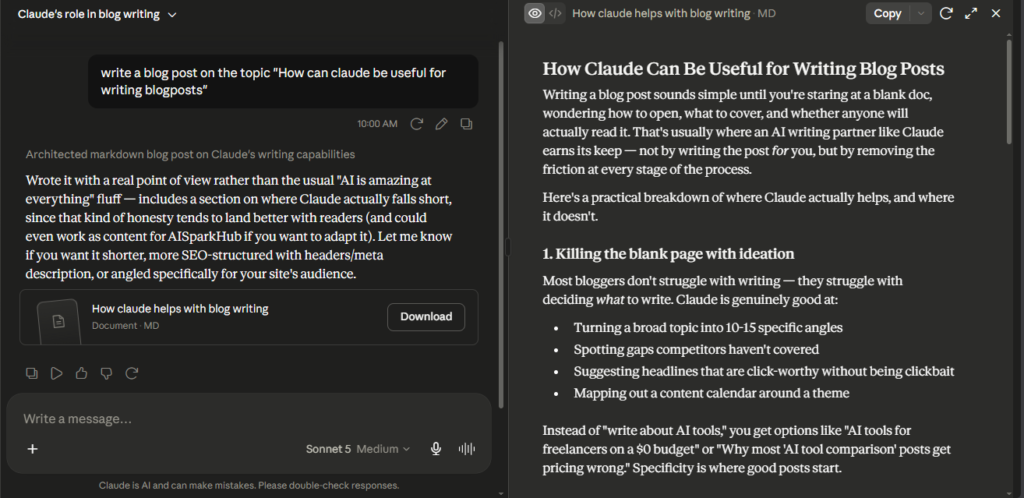
Claude is especially useful when you’re planning a blog before writing it. I use it to create detailed outlines, suggest what each section should cover, and identify keywords that could be targeted naturally within the article. This makes it easier to turn a broad topic into a structured post instead of starting with a blank page.
If you want Claude to write the content itself, give it your experiences, objectives, target audience, and the points you want to communicate. The more context you provide, the more useful and specific the draft becomes. I find this much better than simply asking it to write an article from a short prompt.
For facts, figures, dates, and other important claims, I’d still verify the information separately before publishing. AI can help with the writing, but the final accuracy check should remain with you.
Best for: Blog outlines, content planning, keyword ideas, and turning your own experience into a structured first draft.
Grammarly (Editing)
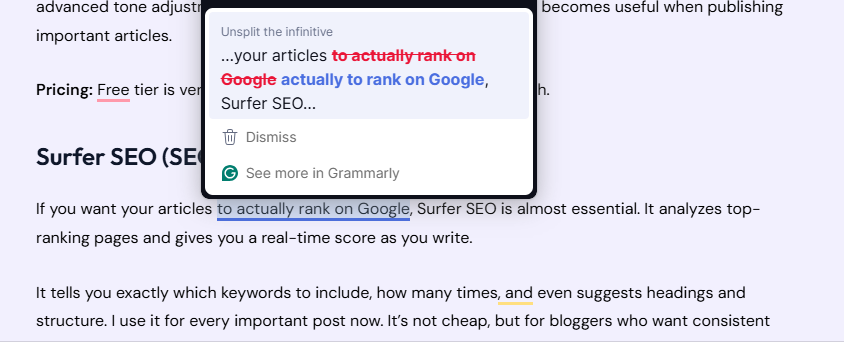
I use Grammarly mainly through its browser extension, which is useful because it stays available across the websites where I write. Instead of copying text into a separate editor, I can write directly in the page and get suggestions for grammar, spelling, clarity, and word choice as I go.
It also goes beyond basic grammar. Grammarly can help with tone, so you can check whether your writing comes across as confident, professional, friendly, or otherwise appropriate for your audience.
For content creators, I’d use it as a final writing pass rather than letting it rewrite everything. It can catch mistakes and improve clarity while you keep control over your own voice.
Best for: Creators who want grammar, clarity, and tone assistance directly wherever they write.
Perplexity AI (Research)
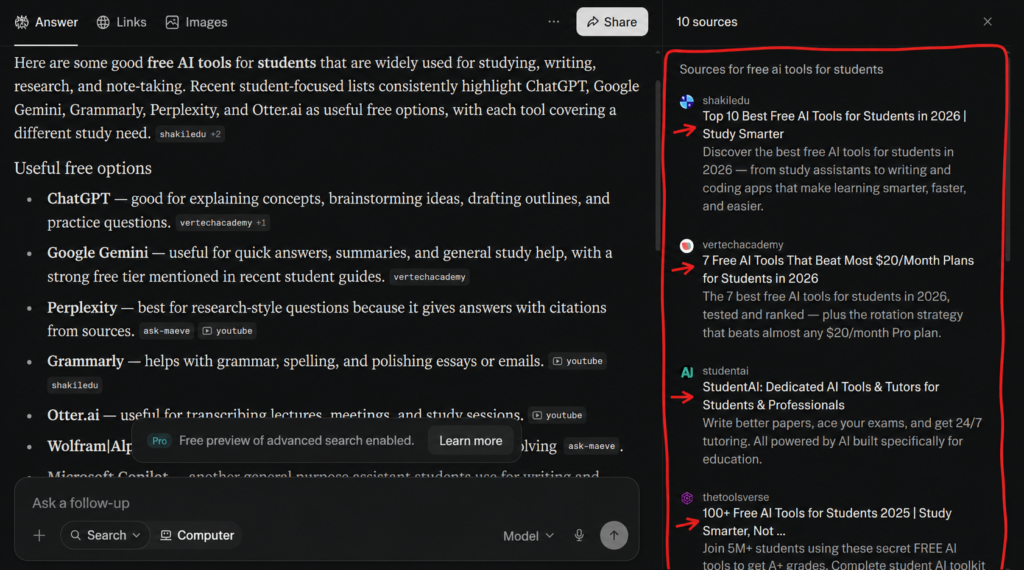
I mainly use Perplexity when I need to verify something with sources, especially facts, figures, and information that may have changed recently. Its answers include citations and links to the original sources, which makes it much easier to trace where a claim came from.
That doesn’t mean I automatically trust the AI’s answer. For blogging, I’ll usually open the sources Perplexity provides and verify the information myself before putting it into an article. That’s particularly important for statistics, product details, pricing, and other time-sensitive information. Perplexity itself recommends checking the original sources rather than treating its source labels or citations as a substitute for reading them.
Best for: Bloggers who need to quickly find and verify current facts, figures, and supporting sources.
For a deeper look at how you can use it, you can also read our Perplexity review.
NeuronWriter — (SEO Optimization)
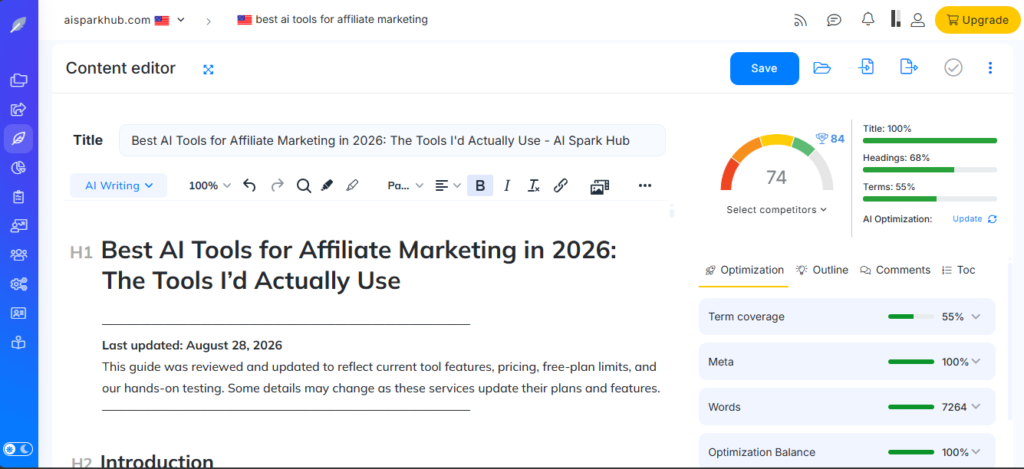
NeuronWriter is different from the other tools because it comes into the workflow after you have content to optimize.
I actually tested its Optimize Content feature using my own article. I entered a page of mine and target keyword, imported the content, selected competing pages, and reviewed the recommendations inside the editor. The free plan gave us enough usage to test the core workflow, although its limits make it more suitable for occasional use than unlimited optimization.
What I liked was the competitor-based approach. Instead of simply giving the article an SEO score, it gives you information you can use to identify areas where your content may need better topical coverage.
However, I wouldn’t blindly follow an optimization score or start stuffing keywords just to satisfy a tool. The recommendations should help you improve the article—not dictate how you write it.
Best for: Bloggers who already have a draft and want practical, competitor-based on-page SEO guidance.
A Simple Blogging Workflow
You don’t need to use every tool here. A practical workflow could look like:
Perplexity → Claude → Grammarly → NeuronWriter
Research the topic, develop the article, polish the writing, and then optimize the finished piece for search.
The important part is that each tool has a job. Using four AI tools to do the same thing usually adds complexity rather than saving time.
Best AI Tools for YouTubers
YouTube creators have a different problem from bloggers: one video can require scripting, recording, editing, captioning, and repurposing before it is ready to publish. The right AI tools can reduce some of that production work without taking control away from the creator. For this category, the strongest options from my testing are OpusClip, Descript, Canva, and ChatGPT. They solve different parts of the YouTube workflow, so you don’t need all four.
OpusClip (Video Repurposing)
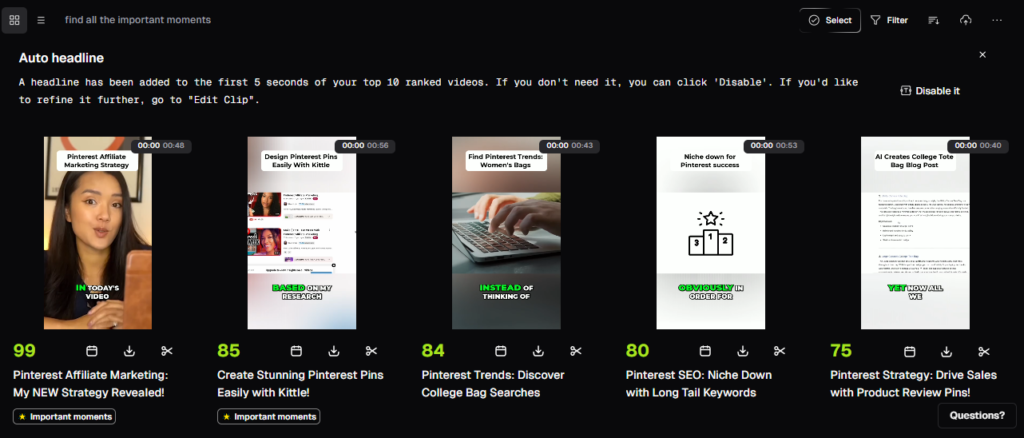
OpusClip focuses on one particularly useful workflow: turning longer videos into short-form content.
I tested it by uploading a video and letting the AI generate clips. It selected moments automatically, formatted them for short-form video, added captions, and gave the generated clip a rating. That can save considerable time compared with watching a long recording and manually searching for potential Shorts.
The important thing is to treat the AI’s selection as a starting point, not a guarantee of a good Short. A high score doesn’t necessarily mean the moment will perform well with your particular audience, so I’d still watch the finished clip and check whether it makes sense without the original video’s context.
Best for: YouTubers who regularly repurpose long-form videos into Shorts.
Descript (Video Editing)
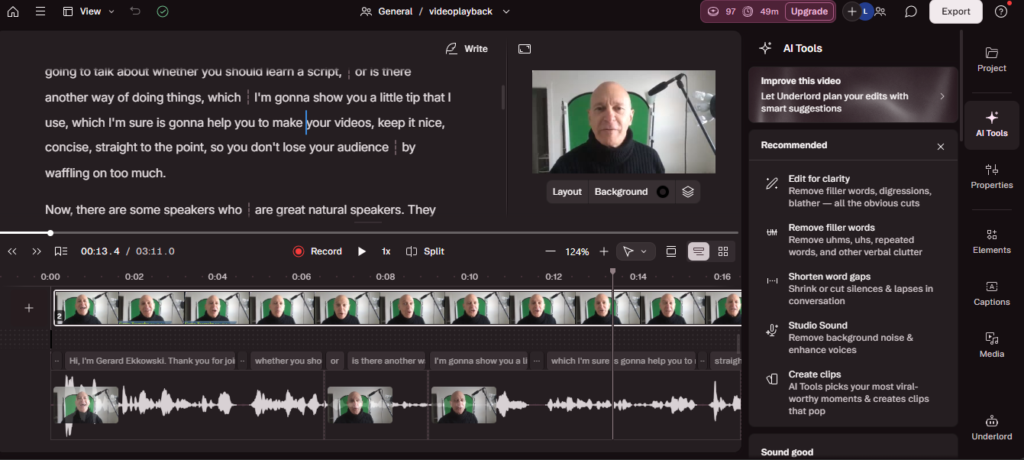
Descript takes a different approach to video editing. Instead of relying entirely on a traditional timeline, you can work with the transcript and edit the video through its text.
I tested this workflow ourselves. After uploading a suitable video, Descript generated the transcript and identified filler words. I could review the detected fillers and remove them all at once or individually, rather than having the AI silently make every cut for us.
I also tested Create Clips, which identified a funny, playful moment from the video and turned it into a short with captions. That was one of the more useful parts of the workflow because the AI wasn’t simply cutting the video into arbitrary sections—it actually picked out a moment that made sense as a standalone clip.
There is a trade-off on the free plan, though: exports include a watermark. So while you can use the free version to test the workflow and edit content, creators producing polished videos for clients or brands may find the limitation restrictive.
Best for: YouTubers who want more control over AI-assisted editing and video repurposing.
Canva (Thumbnails)
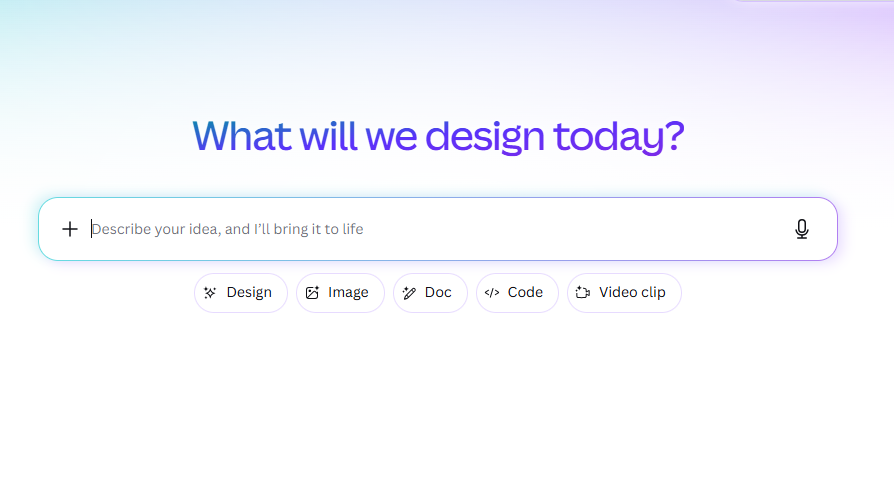
Canva is particularly useful when you need to create visual content quickly without advanced design skills. It has a large collection of templates, and its beginner-friendly editor makes it easy to customize designs instead of creating everything from scratch.
One feature I find useful for content creators is Canva AI’s ability to create designs such as posters with text included. The editing tools are also straightforward, making it practical for everyday creator work. For YouTube, Canva is especially handy for thumbnails, banners, and logos.
The main advantage is speed and flexibility—you can create several types of visual assets from the same platform without needing professional design software.
Best for: Creators who need thumbnails, banners, logos, posters, and other visual content without advanced design skills.
ChatGPT (Idea, Hooks & Scripts)
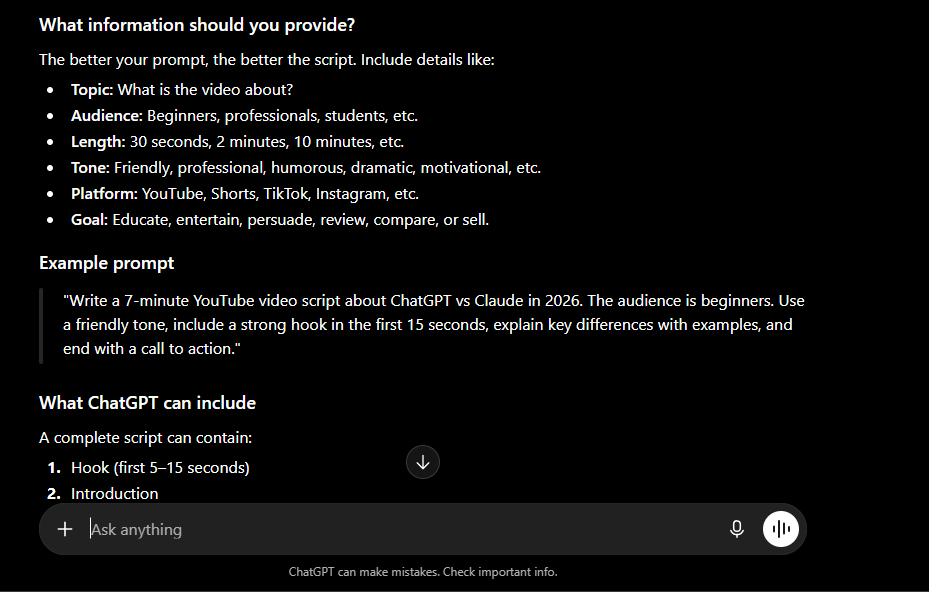
ChatGPT is particularly useful at the idea and planning stage of content creation. I use it for brainstorming topics, creating stronger hooks, developing content ideas, and writing video scripts.
The quality of the output depends heavily on the context you provide. Instead of asking for a generic script, tell it what you’re creating, who it’s for, your objective, your preferred style, and what you’ve already worked on. The more context it has about the project, the more useful the result tends to be.
For creators, I’d treat ChatGPT as a creative partner rather than a replacement for your own ideas. Use it to get past the blank page, explore different angles, and develop your initial concept, then shape the final content yourself.
Best for: Content ideas, hooks, outlines, and video scripts.
YouTuber Minimum Viable Stack: OpusClip Free + Canva Free + ChatGPT Free = $0/month
This combination is enough to edit, create thumbnails, and script videos without spending money when you’re starting out.
For Social Media Creators
If you’re a social media creator (Instagram, TikTok, Twitter/X, LinkedIn, etc.), your needs are all about speed, consistency, and visual appeal. You need tools that help you create content fast and post regularly without burning out.
Canva (Using It for Social Media Content)
For social media, I’d use Canva mainly to turn content ideas into platform-specific posts, carousels, and Stories. It’s particularly useful when you want to present information visually rather than publishing everything as plain text.
For example, a blog post can be broken into several carousel slides, while a single idea can become a set of posts with consistent formatting. This makes Canva useful for repurposing existing content into social-friendly formats rather than designing something completely new every time.
Best for: Turning ideas and existing content into social media posts, carousels, and Stories.
CapCut (Short-form Video)
CapCut is a good fit when your content revolves around short-form videos, particularly Reels, TikToks, and YouTube Shorts. Its editing workflow is designed to help creators quickly add things like captions, transitions, effects, and other elements without needing a complicated professional editor.
For creators, the biggest advantage is speed. You can take a raw clip and turn it into something more suitable for social media without spending a lot of time learning advanced editing techniques. It’s especially useful when you’re producing short videos regularly and want a straightforward editing workflow.
I’d recommend CapCut mainly for creators who want to edit and polish short-form content quickly, rather than those looking for a full professional video-production environment.
Best for: Beginners and social media creators who regularly produce Reels, TikToks, and YouTube Shorts.
ChatGPT (Social Media Captions)
For social media, ChatGPT can take the same idea-generation ability and make it more platform-specific. You can use it to turn a topic into post ideas, Instagram captions, carousel copy, or short-form hooks instead of starting every post from scratch.
The key is to give it the platform, target audience, purpose of the post, and the tone you want. You can also give it an existing blog, video, or idea and ask it to adapt that content into several social posts rather than creating unrelated content.
I find this most useful for getting variations quickly. Instead of accepting the first caption ChatGPT gives you, ask for several angles and then choose and edit the one that actually sounds like you.
Best for: Social media ideas, captions, hooks, and repurposing existing content.
Buffer (Scheduling)
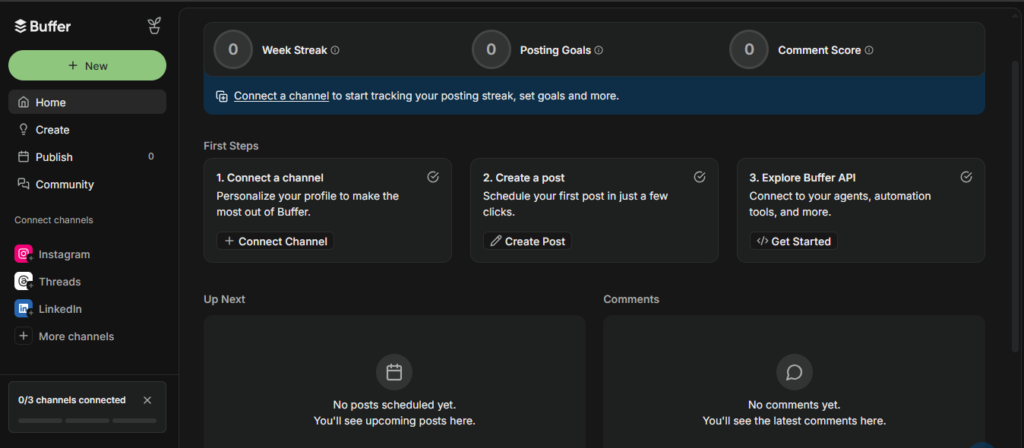
Buffer is useful when publishing consistently becomes harder than creating the content itself. It lets you prepare social posts in advance, organize them, and schedule them instead of manually publishing everything at the right time.
For a content creator, this is particularly useful when you’re managing multiple social platforms or publishing regularly. You can batch your content and let Buffer handle the repetitive scheduling work, giving you more time to focus on creating.
I’ve covered Buffer in more detail in our AI Tools for Marketing guide, including how it fits into a broader marketing workflow.
Best for: Creators who want to batch, organize, and schedule social media content.
Social Media Minimum Viable Stack: Canva Free + CapCut Free + ChatGPT Free + Buffer Free = $0/month
This simple stack is enough for most social media creators to stay consistent and grow without spending money when starting out.
For Podcasters
For podcasters, the workflow goes beyond recording. You also have to clean up audio, create transcripts, turn conversations into clips, and sometimes generate additional voice content. For this category, the tools that fit best are Riverside, Descript, and ElevenLabs. They overlap in a few areas, but their strengths are different.
Riverside.fm (Recording)
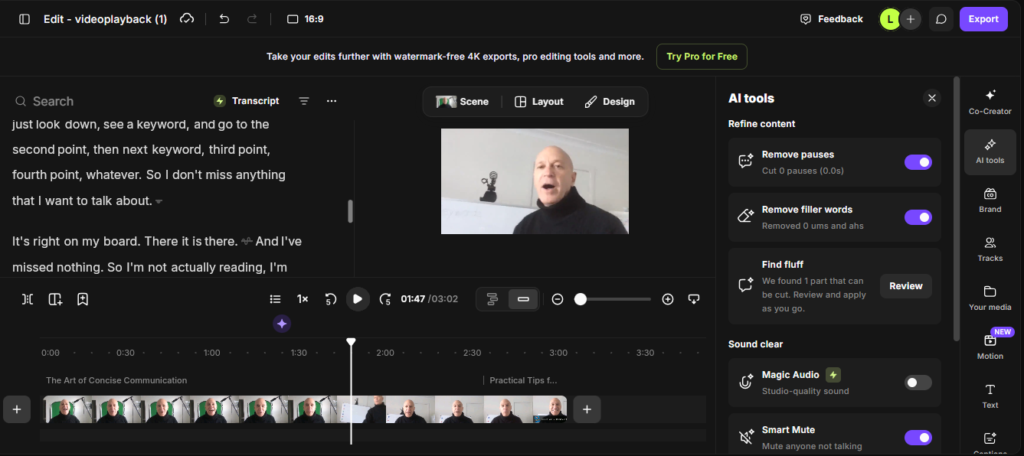
Riverside is built around the recording workflow, making it useful when your content starts with interviews, podcasts, or video conversations.
I tested Riverside by uploading a video and selecting the number of speakers before processing it. The platform generated a transcript successfully, and its editor also provided AI-assisted options such as Remove pauses and fluff.
One thing I noticed during testing is that Riverside takes a more automated approach to cleanup. When I used Remove pauses and fluff, it automatically removed the detected sections and showed the resulting cuts on the timeline, but I couldn’t review each removed pause or filler in the same way we could in Descript.
I also tried Magic Clip, but the test recording was too short for Riverside to generate one. So I wouldn’t claim that feature worked for us based on this test.
The free plan also includes a watermark on exported content, which is worth considering if you’re producing client or public-facing videos.
Best for: Podcasters and interview creators who want recording, transcription, and automated editing in one workflow.
ElevenLabs (Voice & Audio)
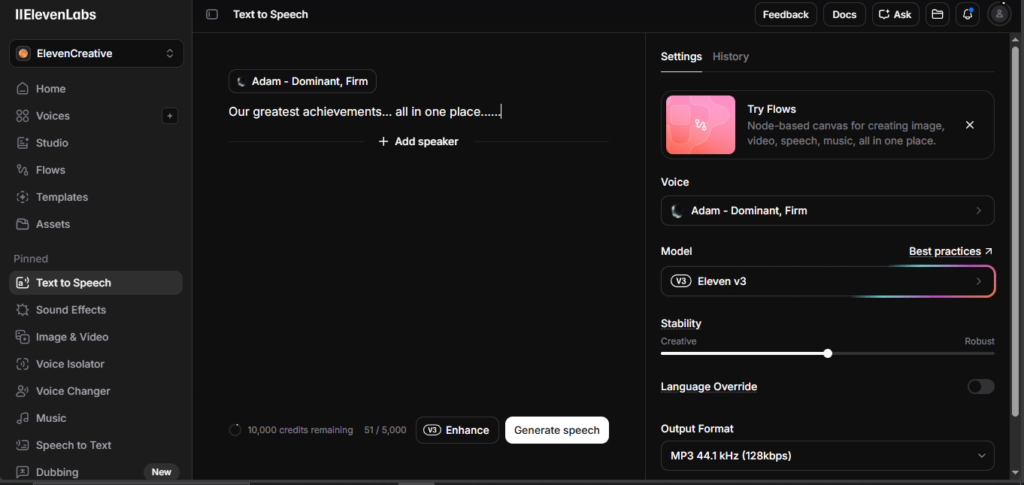
ElevenLabs is useful when you need realistic AI-generated voices for narration, voiceovers, or other audio content. For a podcaster, it can be useful for creating intros, outros, supplementary narration, or supporting audio without having to record every line yourself.
It can also fit into a broader content workflow when you want to turn written material into spoken audio. For example, you could use it to narrate supporting content for a video or create an alternate audio version of written content.
I’d use AI voice as a production aid rather than a replacement for your own voice when the personal connection of a podcast is important. For a deeper look at the tools and voice-generation features, check out our best AI voice generators guide.
Best for: Podcasters and creators who need realistic AI narration, voiceovers, or supplementary audio.
Descript (Editing)
If you’re recording a podcast, Descript is useful for turning the raw conversation into a cleaner, more publishable episode. Since you can work with the transcript, you can quickly find parts of the conversation, cut unnecessary sections, and make edits without constantly searching through the video or audio timeline.
It’s also useful when your podcast is part of a video-first workflow. After finishing the main episode, you can use the same project to identify interesting moments and turn them into shorter pieces of content for platforms such as YouTube Shorts or social media.
Best for: Podcasters who want to edit conversations and repurpose episodes into shorter content.
Riverside vs Descript: Which Should You Choose?
These two are easy to confuse because both can handle transcription and editing, but my testing showed a useful difference:
| If you prioritize… | Better fit |
|---|---|
| Recording and automatic cleanup | Riverside |
| Reviewing individual edits | Descript |
| Transcript-based editing | Descript |
| Repurposing into clips | Descript |
| AI voice generation | ElevenLabs |
Our take: For a podcaster who mainly needs a recording platform, Riverside is a solid choice. But if editing control and repurposing are more important, I’d pick Descript based on my testing. Add ElevenLabs when AI-generated voice is actually part of your workflow.
The Honest Cost Section
This is the part most “best AI tools” articles conveniently skip. Let’s be real about money.
What this stack can cost
Prices vary depending on monthly vs annual billing, region, taxes, and the number of channels or seats you need. Using the standard plan prices available when I last checked, subscribing to every paid tool mentioned here would cost well over $100 per month. But I don’t recommend doing that.
Most creators can start with the free versions and only pay for a tool when a specific limitation is slowing down their workflow.
If you subscribed to every paid tool I mentioned in this guide, here’s what it would actually cost you per month:
- Claude Pro: $20
- Grammarly Pro: $12
- NeuronWriter Bronze: $23
- OpusClip Starter: $15
- Descript Hobbyist: $16
- Canva Pro: $15
- ElevenLabs Starter: $6
- Buffer Essentials: $5
Total if you went all-in: Around $112 per month (approx.)
That’s a lot of money.
Here’s the truth most guides won’t tell you:
You can start and grow very well with $0 per month. The free tiers of several tools in this guide are enough to cover many of the basics when you’re starting out.
My Honest Advice:
Don’t upgrade anything until you’re consistently hitting the free tier limits and it’s actually slowing you down or hurting your output. That’s the real signal you’ve outgrown the free version — not because a shiny new feature looks cool.
Start free. Stay free as long as possible. Only pay when the return is clear and the tool is already making you money or saving you significant time.
That’s the approach I’d recommend: start with free plans, identify the bottleneck in your workflow, and only upgrade when the paid feature solves a problem you actually have.
How to Build Your Stack Without Overwhelm
The biggest mistake most creators make is trying to use 12 different AI tools from day one. The stack that actually works is the one you’ll use consistently — not the one that looks impressive on paper.
Here’s the simple 3-step approach I recommend:
1. Start with one tool per category: Focus on the basics first: one good writing tool (Claude or ChatGPT), one design tool (Canva), and one video tool (CapCut). Master these three before adding anything else. Learn them deeply instead of jumping between 10 different tools. This prevents overwhelm and helps you actually get results.
2. Only upgrade when you hit limits: Don’t upgrade just because a tool looks cool or because someone recommended it. The real signal is when you’re consistently hitting free tier limits and it’s slowing down your workflow. That’s when you know the paid version will actually help you. Until then, stay free and save your money.
3. Add tools based on real pain points, not hype: If editing video isn’t painful for you yet, you don’t need Descript. If you’re not struggling with research, you don’t need Perplexity Pro. Only add a new tool when you feel a clear frustration or bottleneck in your current process. This keeps your stack lean and effective.
Final Advice: Start small. Build slowly. Consistency beats complexity every single time. A simple stack you use every day is infinitely better than a fancy stack you never touch.
Frequently Asked Questions – (FAQs)
What is the best free AI tool for content creators in 2026?
There isn’t one best tool for every type of content. For my workflow, Canva Free is my preferred starting point for visual content because it combines templates, editing, and AI-assisted features in one place. For writing and video creation, a combination of free tools such as Claude, Canva, and CapCut can cover most basic creator workflows without requiring a paid subscription.
Do I need to pay for AI tools to create good content?
No. You can create really good content completely free. The free tiers of Claude, Canva, CapCut, Perplexity, and Grammarly are powerful enough for most creators. Only upgrade when you’re consistently hitting limits and it’s slowing you down.
Which AI tools are useful for YouTube creators?
It depends on the part of the workflow you’re trying to improve. In my testing, OpusClip was useful for turning longer videos into Shorts, while Descript gave me more control over transcript-based editing. Canva was useful for thumbnails and other visual assets. Using these tools together can cover editing, repurposing, and basic channel visuals without needing a large software stack.
Can AI replace content creators in 2026?
No. AI is an amazing assistant, but it can’t replace your personal voice, experience, opinions, and creativity. The creators who win are the ones who use AI to work smarter, not the ones who let AI do everything for them.
What’s the best AI tool for social media content?
Canva + CapCut make a practical combination for many social media workflows. Canva is useful for graphics and thumbnails, while CapCut works well for quick video editing and captions. Add ChatGPT or Claude for caption writing and content ideas when needed.
Conclusion
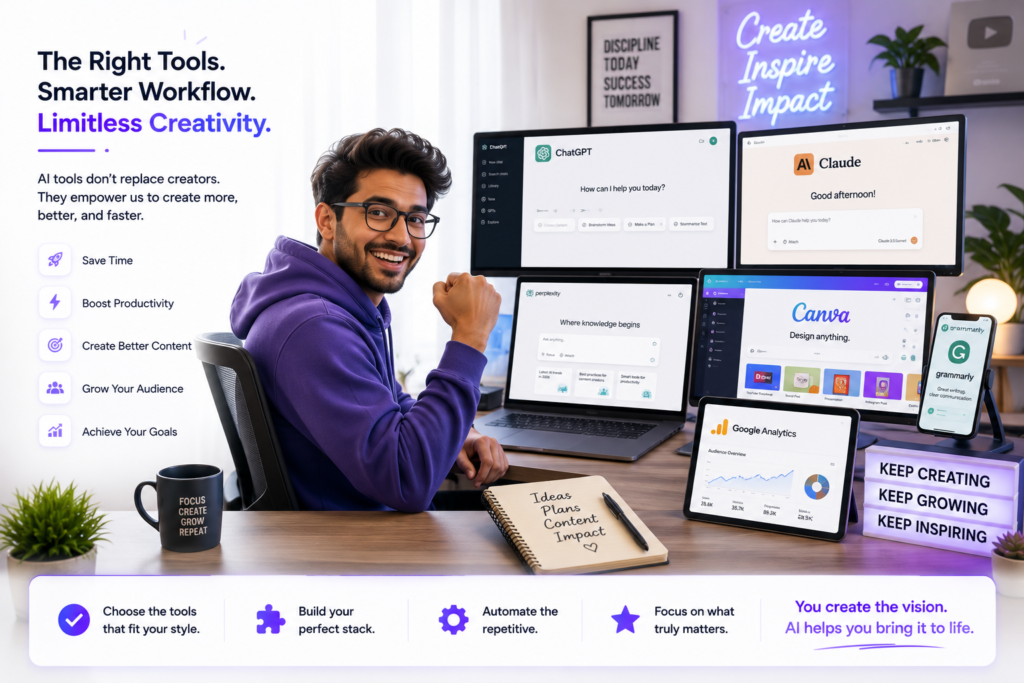
The right AI stack for content creation isn’t one-size-fits-all — it really depends on your creator type. A blogger needs different tools than a YouTuber, and a podcaster needs something else entirely. That’s why organizing by creator type actually matters.
Start with free tools. Master them first. Only upgrade when you’re consistently hitting limits and it’s slowing you down. That’s the smartest way to grow without wasting money.
For AISparkHub, I personally use Claude for most writing, Canva for visuals, Perplexity for research, and Gumloop + Zapier to connect everything. This simple system helps me stay consistent without feeling overwhelmed.
Which creator type are you, and what’s the first tool you’re going to try? Drop your answer in the comments — I read every single one.
Keep Exploring
You might also like these articles.
Best AI Tools for Affiliate Marketing in 2026: The Tools I’d Actually Use
━━━━━━━━━━━━━━━━━━━━━━━━━━━━━━Last updated: August 28, 2026This guide was reviewed and updated to reflect current tool features, pricing, free-plan limits, and our…

Best Free AI Marketing Tools in 2026: I Tested What Actually Works
━━━━━━━━━━━━━━━━━━━━━━━━━━━━━━Updated August 16, 2026: I’ve reviewed the tools, free-plan details, and features covered in this guide to keep the information…