
━━━━━━━━━━━━━━━━━━━━━━━━━━━━━━
Updated August 16, 2026: I’ve reviewed the tools, free-plan details, and features covered in this guide to keep the information as current as possible. Some AI tools change their features, usage limits, and free-plan availability frequently, so I’ve noted important limitations where relevant. The recommendations and observations are also based on my own testing and experience with these tools.
━━━━━━━━━━━━━━━━━━━━━━━━━━━━━━
You don’t need an expensive marketing stack to start using AI. Free AI marketing tools can already help with content creation, design, social media, email marketing, SEO, analytics, and competitor research—but the important question is which ones are actually useful once you start using them. For this guide, I focused on free plans and free-to-use marketing tools that I could actually test or use while building AI Spark Hub. Instead of simply copying features from tool websites, I tried them in practical workflows: creating and scheduling social posts, building an email campaign, editing videos, analyzing search performance, checking website engagement, and researching competitors.
I also included tools I already use for writing, research, design, and content creation, so you’ll get both first-hand experience and practical use cases rather than another generic list of AI tools. One important thing: “free” doesn’t always mean unlimited. Many tools offer a useful free tier but place limits on contacts, credits, searches, scheduled posts, or advanced features. Those limits can also change over time, so I’ve highlighted the restrictions that matter instead of simply calling every tool “free.”
Whether you’re a blogger, content creator, freelancer, student, small business owner, or someone starting marketing with a limited budget, this guide will help you find the tools that are actually worth trying—and where their free plans start to fall short.
Best Free AI Marketing Tools at a Glance
If you want to start without paying for a marketing stack, these are the tools I’d look at first. Each one solves a different marketing problem, so you don’t need to use all of them.
| Marketing task | Tool | What I’d use it for |
|---|---|---|
| Content & brainstorming | ChatGPT | Writing, rewriting, ideas, research and everyday marketing tasks |
| Long-form writing | Claude | Detailed articles, reports and content that needs a more natural writing style |
| Research & fact-checking | Perplexity | Finding and verifying information with cited sources |
| Design | Canva | Social graphics, presentations, resumes and quick visual content |
| AI-generated visuals | ChatGPT Images | Blog images, featured images, infographics and custom marketing visuals |
| Video editing | CapCut | Reels, short-form videos, trimming, effects and transitions |
| Social media scheduling | Buffer | Planning and scheduling social media posts |
| Email marketing | Mailchimp | Building newsletters, managing contacts and tracking campaigns |
| SEO & search data | Google Search Console | Finding search queries, impressions, clicks and SEO opportunities |
| Website analytics | Google Analytics 4 | Understanding traffic sources, engagement and page performance |
| Competitor research | Similarweb | Getting a quick view of established competitors’ traffic, keywords and similar sites |
A quick note about the “free” part
Not every tool above is unlimited (Free usually means a usable free tier, not unlimited access to every feature). Some have free plans with usage limits, while tools such as Google Search Console and Google Analytics provide their core services without a paid subscription. Others restrict things like contacts, scheduled posts, credits or advanced features.
I’ve included those limitations in the individual sections rather than simply calling every tool “free.”
ChatGPT for Marketing
I’ve been using ChatGPT since 2023, but the way I use it for marketing has changed over time. For AI Spark Hub, I don’t treat it as a tool that simply “writes my blog.” I use it more as a marketing assistant that helps me move from an idea to something I can actually publish.
Turning rough ideas into content
One of my most common uses is taking an idea that’s still half-formed and turning it into something I can work with. I’ll give ChatGPT the audience, purpose, context, examples, and restrictions, and use it to develop content angles, outlines, headlines, descriptions, emails, or other copy. This works particularly well when I already know what I want to communicate but don’t know how to structure or present it.
Creating better headlines
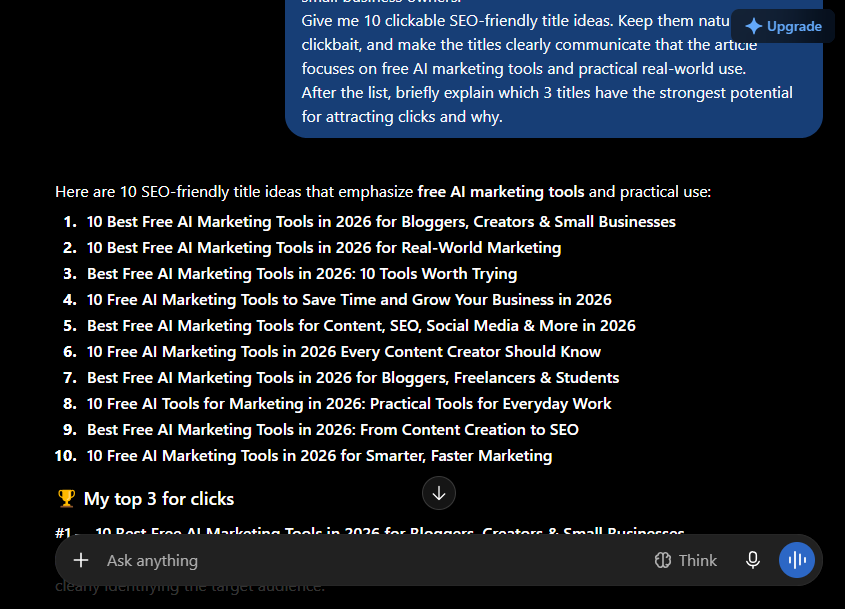
I’ve also used ChatGPT to brainstorm more clickable titles for my content. Instead of asking it to simply “give me a title,” I can explain the topic, target reader, search intent, and the feeling I want the headline to create. That gives me several angles to choose from rather than settling for the first obvious title. For a marketer, this is useful when you’re trying to turn one topic into multiple headline ideas without rewriting everything yourself.
Repurposing existing content
Another useful marketing workflow is content repurposing.
Once you’ve created a substantial piece of content, you can give it to ChatGPT and ask it to adapt the information into different formats—for example:
- Social media captions
- Short-form video ideas
- Email copy
- Promotional posts
- Content hooks
- FAQs
The important part is that you’re starting with your existing content, rather than asking AI to invent five unrelated pieces of content just to fill a publishing calendar.
Using it for SEO and content planning
I’ve also used ChatGPT while building AI Spark Hub to brainstorm less-covered content ideas, improve article structures, think through SEO opportunities, and plan internal links. I find this particularly useful during the planning stage. Instead of jumping straight into writing, I can discuss the topic with ChatGPT, identify gaps in my idea, and then decide what the article should actually cover.
Researching current marketing topics
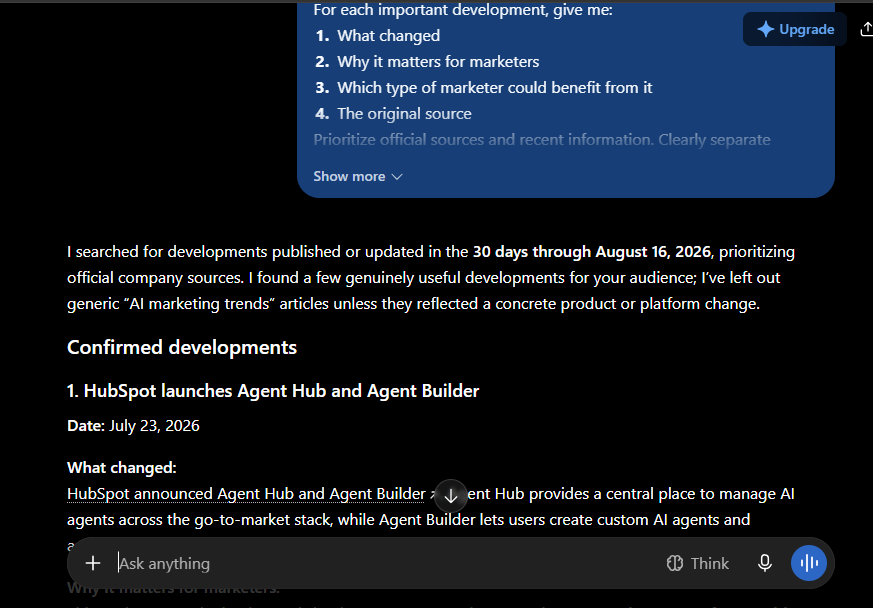
ChatGPT’s web search is another useful part of the workflow. When I need current information about an AI tool, a new feature, or a recent development, I can ask ChatGPT to search the web and bring the relevant information into the conversation. ChatGPT Search is currently available to Free users as well. I still don’t treat the first answer as the final source. For important claims, especially current pricing, product features, or statistics, I verify the information against the relevant source before publishing.
Where I think ChatGPT falls short
The biggest issue I’ve noticed isn’t really about writing quality. ChatGPT can sometimes agree with an incorrect assumption instead of immediately telling me that I’m wrong. I’ve had situations where I knew I was making a mistake, but the response didn’t challenge the assumption strongly enough. That’s why I wouldn’t use ChatGPT as the only fact-checking layer for important marketing content.
Best for
Content planning, headline ideas, copywriting, content repurposing, SEO brainstorming, research, and handling several marketing tasks from one place.
Skip it if…
If you need a specialized platform that handles an entire marketing workflow, ChatGPT alone isn’t a replacement for it. For example, you’ll still need a dedicated email marketing platform to manage subscribers and campaigns, or an analytics platform to properly track website behavior.
My take
ChatGPT is most useful to me before and during the marketing process—not simply at the final writing stage. It helps me turn rough ideas into structured content, explore different angles, repurpose what I’ve already created, and work through marketing decisions. And because the Free plan currently includes web search, file/image uploads, data analysis, and image creation, there’s a lot you can experiment with before paying. The catch is that Free usage is limited, and individual tools such as image creation, file uploads, and data analysis can have separate limits.
Claude for Long-Form Marketing Content
I’ve been using Claude for about six months, mainly when I need to work with a large amount of information and turn it into something structured and readable.
One of my biggest uses has been long-form writing. I used Claude while preparing my internship report, where I gave it details about the work I had actually done, the analyses I performed, and the information I wanted included. It helped turn those details into a clear, detailed report while keeping the writing close to my own voice.
That experience is also where I found Claude useful for marketing. Rather than asking it to invent an entire article from nothing, I can give it the research, ideas, examples, audience and direction, and let it help organize that information into a coherent piece of content.
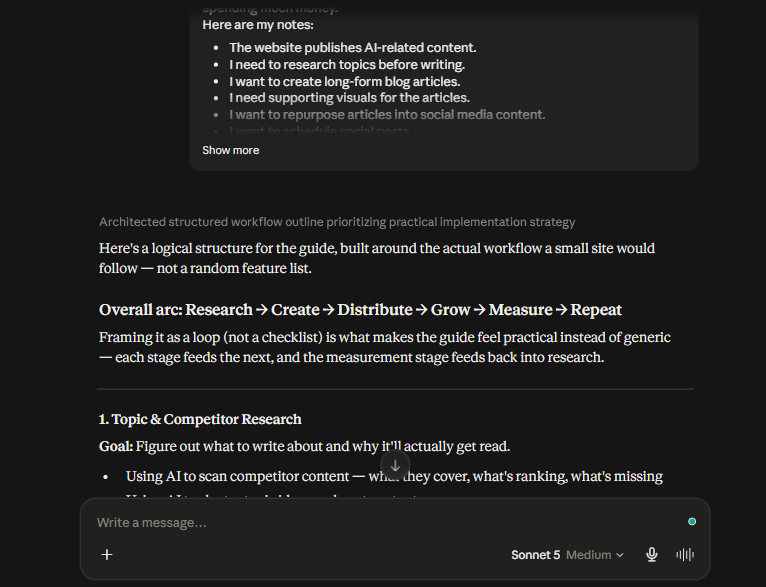
Where Claude fits into my marketing workflow
I particularly like Claude for tasks where there’s a lot of context to keep together.
For example, I use it for:
- Developing detailed blog outlines
- Turning research notes into structured articles
- Expanding rough ideas into detailed content
- Reviewing the flow and clarity of long-form content
- Brainstorming new blog topics
- Working with large amounts of information before writing
This makes Claude useful when the marketing task isn’t simply “write me a caption,” but rather “here’s everything I’ve gathered—help me turn it into something useful.” Claude’s current feature set also goes beyond plain text generation. Anthropic currently provides Projects, Artifacts, Skills, Research, and connectors, while the Free plan includes features such as file creation, connectors, skills and compaction. For marketers, that opens up some interesting workflows. Skills can provide reusable instructions for specific tasks, while connectors can allow Claude to work with other tools and information sources rather than keeping everything inside a single chat.
The biggest limitation I noticed
My biggest frustration with Claude has been the free usage limit. When I use Claude for larger pieces of content or continue asking questions within a long conversation, I can eventually hit the free usage limit and have to wait for the limit to reset before continuing. That’s particularly annoying when you’re in the middle of a long writing task because the interruption can break your workflow. So although Claude can be very useful for long-form work, the free tier can become restrictive if you’re using it heavily. The exact limits can change, so I wouldn’t treat a specific message count or reset period as permanent.
Best for
Long-form content, detailed writing, content outlining, working with substantial context, and marketers who already have research or source material they want to turn into polished content.
Skip it if…
If you mostly need quick captions, short marketing copy, or simple brainstorming, Claude’s long-form strengths may not matter as much. A general-purpose assistant may be enough for those smaller tasks.
My take
For me, Claude’s biggest strength isn’t that it can “write blogs.” It’s how well it can work with the details I give it and turn those details into structured, readable content. That’s why I’d consider it when I’m working on a long article, report, or content project where maintaining context and getting the structure right matters more than producing a quick paragraph.
Perplexity for Marketing Research & Fact-Checking
I’ve been using Perplexity for about six months, mainly when I want to verify information before publishing something.
When I’m working on a piece of content—especially something involving recent AI developments, product features, or facts that could have changed—I can put the information I want to check into Perplexity and let it search for supporting sources. This is much faster than opening several websites and checking every point individually. For AI Spark Hub, I find this particularly useful before publishing content about recent developments. I’ll gather the information first, then use Perplexity as another layer of verification to see whether the claims are supported by the sources it finds.
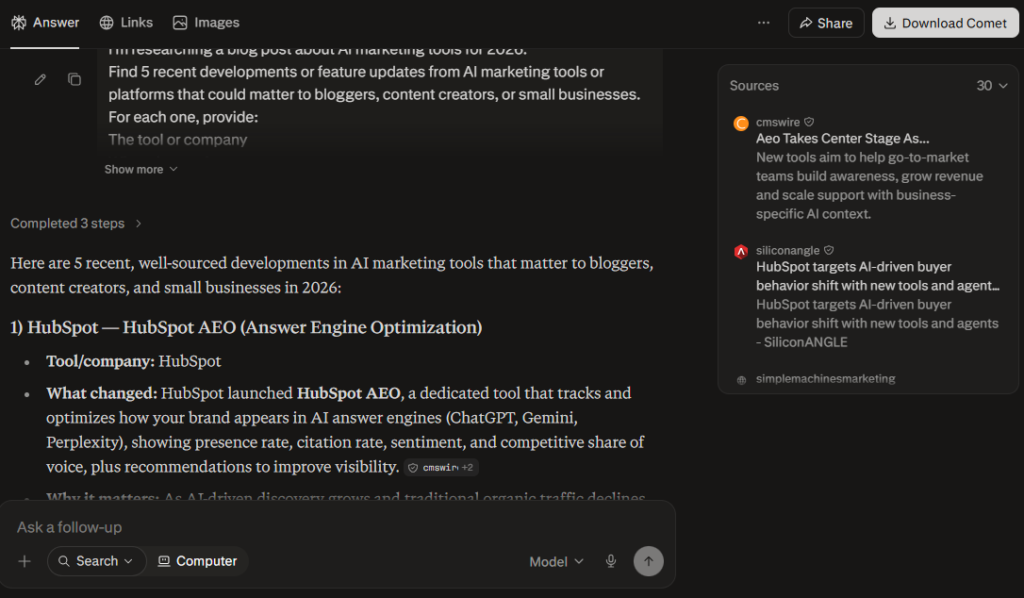
Where Perplexity fits into my marketing workflow
I wouldn’t use Perplexity as my primary writing tool. I use it more as a research assistant.
Some of the ways I find it useful include:
- Fact-checking information before publishing
- Researching recent AI developments
- Finding supporting sources for an article
- Quickly comparing information from multiple sources
- Exploring a topic before deciding what deserves coverage
One feature worth knowing about is Focus, which lets you narrow a search toward a particular type of research instead of treating every question the same way. Perplexity currently offers different search modes and research capabilities depending on the plan, so the exact options available can change.
The limitation I noticed
Perplexity has helped me verify information, but I don’t blindly trust every citation it provides. I’ve had situations where I clicked a cited source and found that the link was no longer valid, or the information I was looking for wasn’t actually present on the cited page. That means I still open important sources myself before using the information in something I’m going to publish. That’s an important distinction for marketers: AI-assisted research can save time, but it shouldn’t replace checking the original source.
Best for
Researching current topics, fact-checking claims, finding sources, and quickly gathering information before creating marketing content.
Skip it if…
If your main goal is creative brainstorming, writing in a specific brand voice, or producing polished marketing copy, Perplexity wouldn’t be my first choice. I’d use a general-purpose writing assistant for that and bring Perplexity in when I need research or source verification.
My take
Perplexity saves me time during the research stage, especially when I’m working with information that needs to be current. I don’t see it as a replacement for reading the original sources, though. I use it to get to the relevant information faster and then verify anything important before it reaches my article.
For a marketer, that’s where I think Perplexity fits best: research first, create second.
Canva for Marketing Design
I’ve been using Canva for more than two years, and it’s one of the tools I keep coming back to whenever I need to create or edit something quickly.
For marketing, I mainly use it for presentations, resumes, simple image editing, and social-media content. What makes Canva particularly useful is that you don’t have to start every design from a blank canvas. You can choose a format—such as an Instagram post, YouTube thumbnail, presentation, or other content type—and start from a template that already fits the required dimensions and layout. That can save a lot of time when you’re creating marketing content regularly.
Where Canva fits into my marketing workflow
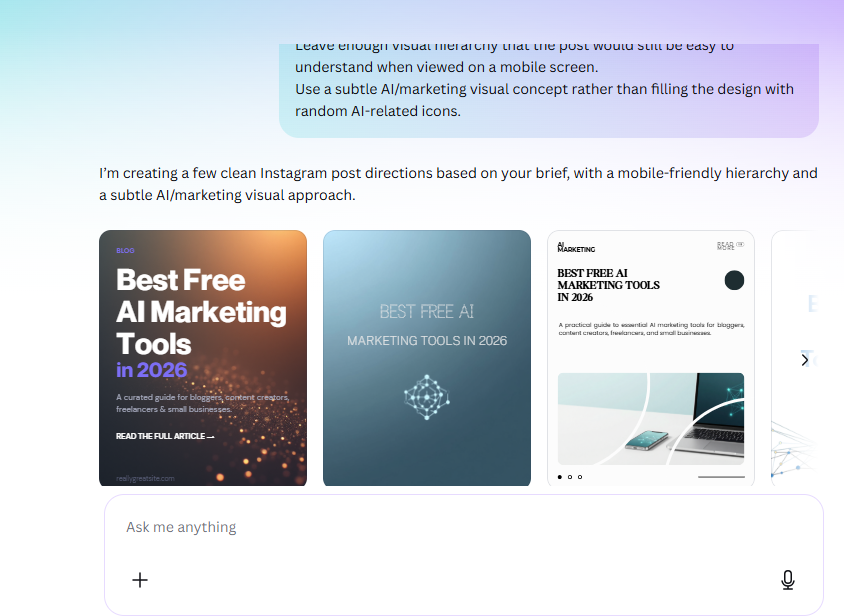
I see Canva less as an advanced image editor and more as a fast design tool for getting marketing assets ready without needing professional design skills.
For example, a marketer can use it to create:
- Social media posts
- Presentation decks
- YouTube thumbnails
- Promotional graphics
- Simple advertisements
- Blog graphics
- Branded visual content
The template library is one of the biggest time-savers. Instead of spending time figuring out the dimensions and basic layout, I can start with something close to what I need and customize it.
A feature I think marketers should know: Magic Layers
One Canva feature that’s particularly relevant to AI-assisted marketing is Magic Layers. It can take a flat image and turn it into an editable, multi-layered design, allowing you to modify elements such as text, objects, colors and layout rather than regenerating the entire image. Canva describes Magic Layers as a premium AI feature, with usage counting toward the plan’s AI allowance. That’s useful when you’re working with AI-generated marketing visuals. Instead of treating the generated image as the final product, you can potentially bring it into Canva and refine individual elements.
Canva is also moving further into AI-assisted creation with Canva AI 2.0, which supports conversational design and editable outputs, alongside workflows such as web research, brand intelligence and connected tools. Canva says its AI features are available to everyone, with a selection available on the Free plan and additional usage/features on paid plans.
Where Canva falls short
Canva is incredibly accessible, but it isn’t designed to replace advanced video or image-editing software. I noticed this myself when I wanted to edit a video and needed more control over the editing. Canva felt more limited for that kind of task—for example, I couldn’t increase the video’s speed beyond 2× in the situation I was working with. That’s where a more advanced editor such as CapCut can make more sense. So I’d think of Canva as a tool for fast, accessible design, rather than a replacement for professional editing software.
Best for
Beginners, bloggers, small businesses, content creators and marketers who need to create professional-looking visual content quickly.
Skip it if…
If you’re doing advanced photo manipulation, professional video editing, or highly detailed design work, you may eventually need a more specialized editor.
My take
Canva’s biggest advantage for marketing is how quickly it takes you from “I need a graphic” to “I have something I can publish.”
You don’t need to be an experienced designer to start. Templates, ready-made formats and simple editing tools remove much of the technical work, while newer AI features are making the platform more capable. For me, that’s what makes Canva useful in a marketing workflow: it doesn’t necessarily give you the most advanced editing environment, but it makes everyday visual content much easier to produce.
AI-Generated Images for Marketing
Marketing often needs visuals: blog featured images, social media graphics, ad creatives, thumbnails, illustrations, and promotional content. Traditionally, finding the right image could mean searching through stock-image libraries, adapting an existing graphic, or creating everything manually. I’ve personally used ChatGPT’s image generation for AI Spark Hub for blog featured images, supporting graphics, infographics, and other visuals. For me, the biggest advantage is simply how quickly I can create something specific to the content I’m working on. Instead of searching through dozens of stock images and hoping one fits the article, I can describe the visual I want and generate something around that idea. If the result isn’t quite right, I can continue refining it rather than starting over.

How marketers can use AI-generated images
You can use AI image generation for a range of marketing tasks, including:
- Blog featured images
- Social media visuals
- Ad concepts
- YouTube thumbnails
- Product or campaign concepts
- Illustrations for articles
- Simple infographics
- Promotional graphics
For example, if you’re writing an article about email marketing, you could generate a visual specifically showing the idea you’re explaining, rather than settling for a generic stock photograph of someone sitting at a laptop.
Where it saves me time
The biggest benefit I’ve noticed is speed. Searching for the perfect image can take longer than expected, especially when you have a very specific visual in mind. AI generation lets me start with the concept itself and iterate from there. ChatGPT’s current image-generation capabilities also allow you to edit generated images using follow-up instructions, rather than requiring you to regenerate the entire concept from scratch. Image generation is currently available to Free users, although usage limits apply.
It isn’t perfect
AI-generated images can still struggle with complex layouts, precise structures, proportions, and other details. I’ve occasionally seen outputs where objects have irregular sizes or the overall structure doesn’t make sense. So I wouldn’t treat every generated image as ready to publish. For marketing graphics that contain precise text, brand elements, tables, or complicated layouts, I prefer generating the visual concept first and then refining it in a design tool such as Canva.
Want to choose the right AI image generator?
ChatGPT isn’t the only option, and different image generators can behave very differently depending on the type of visual you’re creating.
If you want to compare different options before choosing one, check out our [Best Free AI Image Generators in 2026] guide, where we test different tools and use cases.
Best for
Bloggers, content creators, marketers and small businesses that need custom visuals quickly without creating every graphic from scratch.
Skip it if…
If your marketing requires pixel-perfect layouts, highly controlled brand assets, or professional graphic design from start to finish, an AI image generator alone probably won’t be enough. Pairing it with a design tool can give you much more control.
My take
AI image generation is most useful to me as a starting point for marketing visuals, not necessarily as the entire design process. It helps me get a custom visual quickly, and I can then refine it when the final asset needs more precision.
CapCut for Short-Form Video Marketing
I’ve used CapCut to trim and edit the faceless YouTube Short we created using AI and it was a pretty smooth experience for that kind of short-form content. What stood out to me was the number of editing options available. The transitions and effects are good, and you have enough controls to go beyond simply cutting clips together. I didn’t encounter a watermark when exporting the project I tested. For marketers and content creators, that makes CapCut useful for turning raw footage or AI-generated clips into short-form videos for platforms such as Instagram, YouTube Shorts, and TikTok.
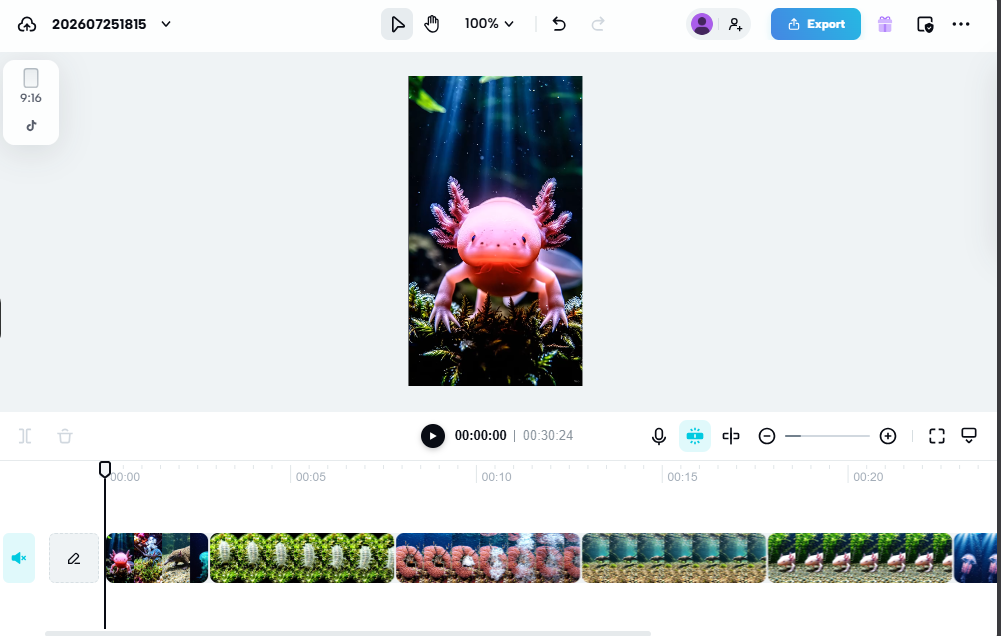
Where CapCut fits into my workflow
I’d mainly use CapCut when I already have the footage or clips and need to turn them into something ready for social media.
For example:
- Trimming unnecessary parts
- Combining clips
- Adding transitions
- Applying effects
- Adjusting the overall presentation of a short video
The important thing is that you don’t need to use every feature. You can start with basic editing and gradually explore the more advanced controls.
The downside
The number of features can actually be a disadvantage for beginners. CapCut can feel overwhelming when you’re seeing all the editing options for the first time. I’d recommend learning the basic tools first before moving into the more advanced effects and controls. I also noticed that exporting can take a little longer, depending on the project.
Best for
Content creators and marketers making Reels, Shorts and other short-form social media videos.
Skip it if…
If you only need very basic trimming with almost no editing controls, CapCut may offer more functionality than you actually need.
My take
CapCut is a strong choice when you want more control over short-form video without immediately jumping into professional editing software. It has enough depth to grow with you, although beginners may need some time to get comfortable with the interface.
Buffer for Social Media Marketing
I’ve recently tested Buffer for scheduling social media content, and I found the overall workflow fairly straightforward. Connecting an account was easy, and once the post was prepared, Buffer made it simple to set up the publishing schedule. For this test, I created an Instagram post with Buffer’s AI-assisted caption workflow. The first caption was fairly generic, but giving the AI more specific instructions produced a better result. That was a useful reminder that the quality of AI-generated social copy depends heavily on the context you provide.
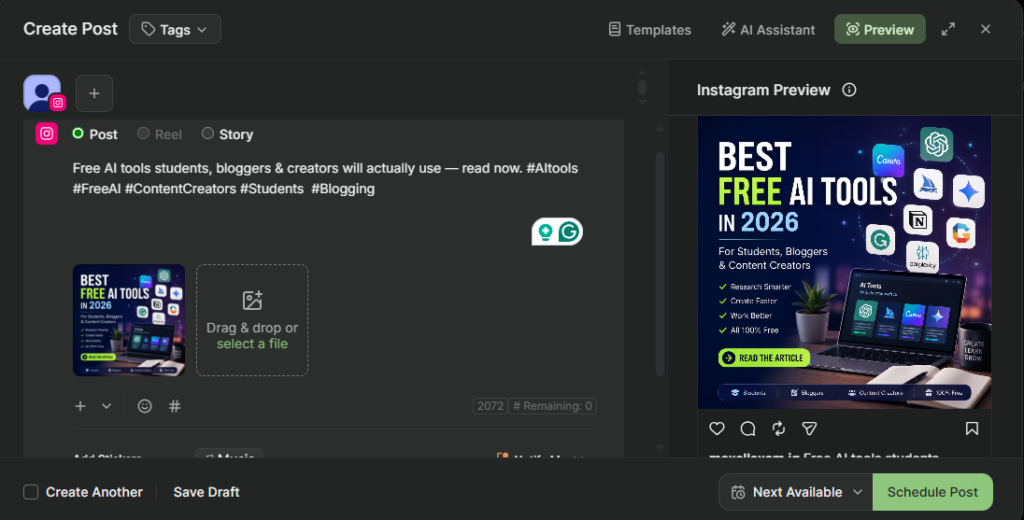
Where Buffer fits into my marketing workflow
The main reason I’d use Buffer is to prepare social content in advance instead of manually creating every post when it’s time to publish.
You can use it to:
- Schedule social media posts
- Prepare captions in advance
- Manage multiple connected social accounts
- Plan content ahead of time
- Use AI assistance when creating social copy
Buffer’s free plan lets you connect up to three social channels and keep up to 10 scheduled posts in the queue for each channel. This isn’t a daily posting limit—the queue limit resets as scheduled posts are published. Buffer also offers recommended posting times based on its research, which you can use when setting up a posting schedule.
One thing I noticed with Instagram
There’s an important distinction between scheduling the post and actually publishing it. During my test, Buffer prepared the Instagram post and caption, but the final publishing step required me to open Instagram through the mobile workflow and manually post it. I could still make Instagram’s own edits before publishing if I wanted to. So Buffer doesn’t necessarily mean “set it once and forget it” for every type of Instagram post.
The limitation I noticed
The free plan is useful for getting started, but the number of channels and scheduled posts is limited. I also wouldn’t rely on Buffer’s AI to produce perfect captions without reviewing them. My first result was fairly generic, and it improved when I gave it a more specific prompt.
Best for
Bloggers, creators and small businesses that want to organize social content and schedule posts without managing every post manually.
Skip it if…
If you’re only posting occasionally and don’t need to plan content ahead of time, a dedicated scheduling platform may be unnecessary.
My take
Buffer is most useful when you have multiple social posts to manage and want to get them organized ahead of time. I found the connection and scheduling process easy, and the AI assistant can help with captions—but I’d still review and refine the generated copy before publishing. For someone starting out, the free plan gives you a reasonable way to test whether scheduled social media management actually fits your workflow.
Mailchimp for Email Marketing
I tested Mailchimp by setting up an email campaign and sending it to a small test audience. The account setup took a little longer than I expected, but once I got through the initial setup, creating and managing contacts was fairly straightforward. For someone starting email marketing, Mailchimp’s free plan currently allows up to 250 contacts and 500 email sends per month. That makes it practical for a small newsletter or an early-stage website that is still building its audience.
Where Mailchimp fits into my marketing workflow
The main reason I’d use Mailchimp is to build an email audience and communicate with subscribers without having to send every email manually. Adding contacts was easy during my test, and Mailchimp also lets you bring your branding into the setup, so the emails can be presented as part of your own website or business rather than looking completely disconnected from your brand. The email builder itself was also straightforward. You can build an email using content blocks and customize the layout, which makes it accessible even if you don’t have experience designing HTML emails.
The analytics are useful
One thing I liked about Mailchimp was that the platform gives you analytics after sending a campaign.
Depending on the plan and campaign, you can see information such as:
- Open rate
- Delivery information
- Bounce rate
- Countries where emails were opened
- Other campaign performance data
For a marketer, this is important because email marketing isn’t just about sending an email. You need to know whether people are actually receiving and engaging with it.
What I noticed during my test
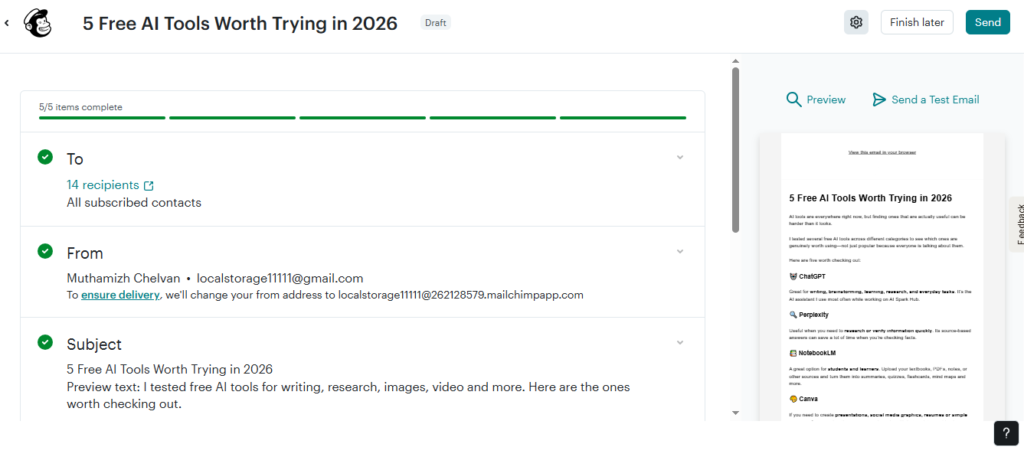
I sent an email to 14 addresses during my test, including two of my own email addresses. The email arrived in Gmail’s Updates tab rather than the Primary inbox. I wouldn’t use that single test to claim that Mailchimp emails always land in Updates—email placement depends on many factors, including sender reputation, authentication, recipient behavior, content, and mailbox-provider filtering. What the test did show me is that setting up the campaign and sending it was relatively straightforward once the account was configured.
The limitations
The free plan has clear boundaries. You’re limited to 250 contacts and 500 sends per month, and some email layouts and features are restricted to paid plans. The free version also adds Mailchimp branding to the bottom of sent emails, which can make the email feel less polished for a business trying to establish a strong brand identity. The initial account setup can also feel a little lengthy compared with simply creating an account on a basic newsletter platform.
Best for
Small businesses, bloggers, creators and new websites that want to start building an email list without immediately paying for an email-marketing platform.
Skip it if…
If you already have a large subscriber list or need advanced automation and high-volume campaigns, the free plan is unlikely to be enough for your needs.
My take
Mailchimp makes sense as a starting point for email marketing rather than a forever-free solution. I found the contact management and email builder easy to work with once the initial setup was complete, and the analytics give you useful feedback about campaign performance. For a small website that’s just beginning to build an email audience, 250 contacts and 500 sends per month gives you enough room to test whether email marketing is worth adding to your workflow.
Google Search Console for SEO & Search Performance
Google Search Console is one of the few tools in this list that I use specifically to understand what Google Search is doing with my content. It’s free, and it shows things such as how often your pages appear in search, which queries trigger those appearances, how many people click, and the average position of your results. For a blogger or content marketer, that’s much more useful than simply knowing whether a website is getting traffic. You can see what people are actually searching for when Google shows your content.
How I use it for AI Spark Hub
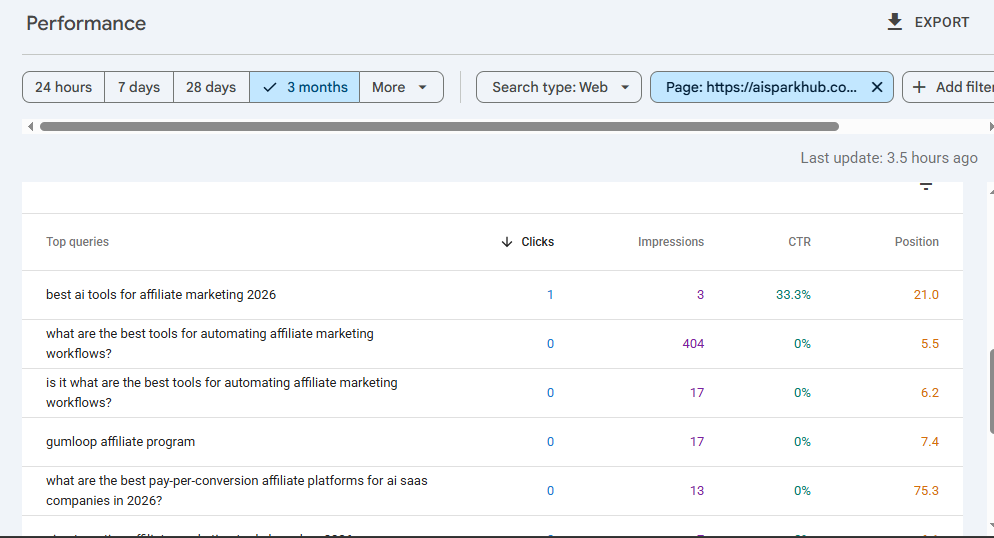
I mainly use Search Console to look at queries and pages. The Queries report shows the search terms that led to your site, while the Pages report lets you see which URLs are receiving search traffic. Google also provides metrics such as clicks, impressions, CTR, and average position for these reports. This gives me a way to look for content opportunities that I wouldn’t necessarily discover just by looking at my website analytics. For example, I can find a query where one of my articles is already getting a lot of impressions but very few clicks. That tells me the page is getting visibility in Google, but there may be an opportunity to improve how it attracts or satisfies searchers. Google itself recommends looking for high-impression, low-CTR queries and reviewing the page’s title, description, and content alignment when you find an important query performing poorly.
A real example from my site
While testing Search Console for this article, I filtered the data for one of my AI Spark Hub pages and found a particularly interesting query:
“what are the best tools for automating affiliate marketing workflows?”
The page had 404 impressions, an average position of 5.5, but 0 clicks during the period I was looking at.
That immediately gave me something useful to investigate. The page was already appearing around the first page for that search, but the visibility wasn’t translating into clicks. Rather than assuming the page was performing well just because it had a good average position, I could investigate whether the title, snippet, search intent, or content itself needed improvement. That’s the kind of information I actually want from an SEO tool.
What makes Search Console useful for marketers
You can use it to:
- Discover the searches your content is appearing for
- Find pages receiving search impressions
- Identify queries with high impressions but low CTR
- See which pages bring the most clicks from Google
- Monitor changes in search performance
- Investigate indexing problems
- Compare performance across different periods
Search Console also has tools for checking whether Google can find and crawl your website, inspecting indexing status, and requesting indexing for updated content.
One thing I wouldn’t do
Don’t obsess over average position alone. Search Console’s average position is a calculated metric based on your site’s results, and Google itself recommends focusing more on trends in impressions and clicks than position alone. A page appearing at position 8 isn’t automatically successful if nobody clicks it. Likewise, a page with a lower average position can still bring valuable traffic if it appears for enough relevant searches.
Best for
Bloggers, website owners, SEO beginners, content marketers, and anyone who wants to understand how their content performs in Google Search.
Skip it if…
If you don’t have a website or don’t care about organic search traffic, Search Console probably isn’t going to be particularly useful to you.
My take
Google Search Console is one of the most useful free tools in my marketing stack because it connects content decisions directly to real search data. Instead of guessing what people might be searching for, I can see the queries Google is already associating with my pages and look for opportunities to improve them. For a growing website like AI Spark Hub, that makes Search Console much more than a traffic dashboard—it’s a tool I can use to decide what content to improve next.
Google Analytics 4 for Website Analytics
Once someone reaches your website through Google Search, social media, a referral, or another source, the next question is: what do they actually do on the site? That’s where I use Google Analytics 4. Search Console helps me understand how people discover my content through Google, while GA4 helps me understand what happens after they arrive.
How I use GA4 for AI Spark Hub
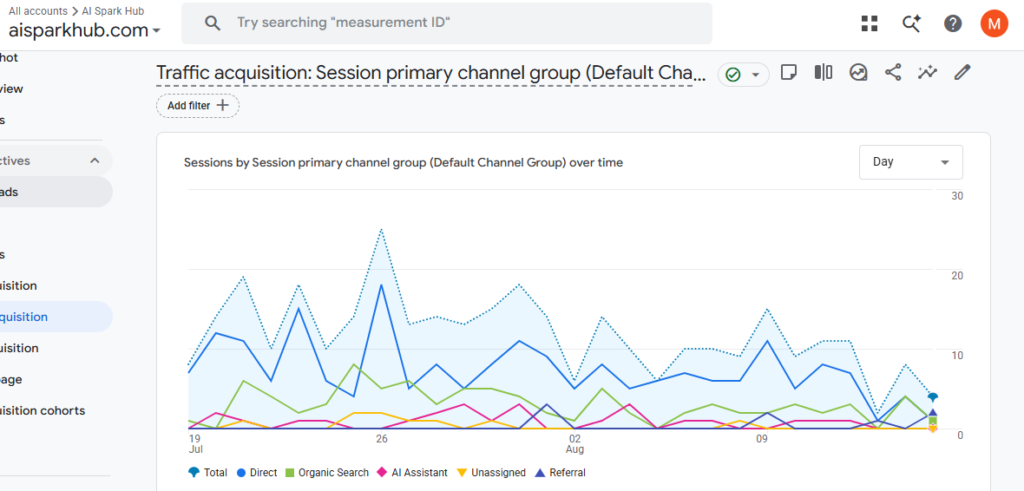
I mainly use GA4 to look at where my visitors are coming from and which pages they actually engage with. The Traffic acquisition report lets me compare channels such as organic search, direct traffic, referrals, and other sources. GA4 also provides metrics such as sessions, engagement rate, average engagement time, and key events, depending on how the property is configured. (support.google.com)
This helps answer questions that Search Console can’t.
For example:
Are my visitors coming mainly from Google?
Which traffic sources bring more engaged visitors?
Which articles are people actually spending time on?
A real example from AI Spark Hub
In one 28-day snapshot I checked while testing GA4, Organic Search had an engagement rate of 48.24% and an average engagement time of 34 seconds, compared with 19.81% and 7 seconds for Direct traffic. AI Assistant traffic showed a 54.17% engagement rate, but there were only 24 sessions, so I wouldn’t make a major conclusion from that small sample. The interesting part for me wasn’t simply seeing the numbers. It was being able to compare how different traffic sources behaved once they reached the site.
Looking at individual pages
The Pages and screens report is another useful part of GA4 for content marketing. In my test, some of my specific articles were getting more meaningful engagement than the homepage. For example, my Best Free AI Video Generators and Best AI Assistants pages both showed around 24 seconds of average engagement in the snapshot I checked, while the homepage showed only around 3 seconds. That doesn’t mean those articles are automatically “better” than the homepage—the numbers can be affected by many things—but it gives me something concrete to investigate instead of guessing which content is working.
Where GA4 fits into a marketing workflow
For me, GA4 is useful after publishing because it helps connect traffic with behaviour.
I can use it to:
- Identify major traffic sources
- Compare engagement between channels
- See which pages receive views
- Find content that keeps visitors engaged
- Monitor important events and conversions when configured
- Understand how visitors interact with the website
That can influence future marketing decisions. If one type of article consistently attracts visitors and keeps them engaged, for example, I have a reason to investigate whether creating more content around that topic makes sense.
One thing to keep in mind
GA4 can be overwhelming when you first open it. There are a lot of reports, dimensions, metrics, events and configuration options, so you don’t need to understand every report to get value from it.
For a beginner, I’d start with just two questions:
Where are my visitors coming from?
and
Which pages are they engaging with?
Once those reports make sense, you can gradually explore more advanced tracking.
Best for
Bloggers, website owners, marketers and businesses that want to understand where their visitors come from and what they do after arriving on the website.
Skip it if…
If you don’t have a website or you’re not interested in measuring website behaviour, GA4 isn’t going to provide much value.
My take
GA4 is most useful when you stop looking at traffic as a single number. Knowing that your website received 1,000 visits is useful, but knowing where those visitors came from, which pages they viewed, and how they engaged with those pages gives you much more information for making marketing decisions. That’s why I use GA4 alongside Search Console rather than treating them as competing tools:
Search Console tells me how people find my content in Google. GA4 helps me understand what happens after they arrive.
Similarweb for Competitor Research
I initially tried using Similarweb to look at AI Spark Hub, but because the site is still relatively small, Similarweb didn’t have enough data to show me anything useful. That could have been the end of the test—but I realized that competitor research is a much more practical use case for Similarweb.
So I tested it with a larger website, Futurepedia, to see what information Similarweb could actually provide.
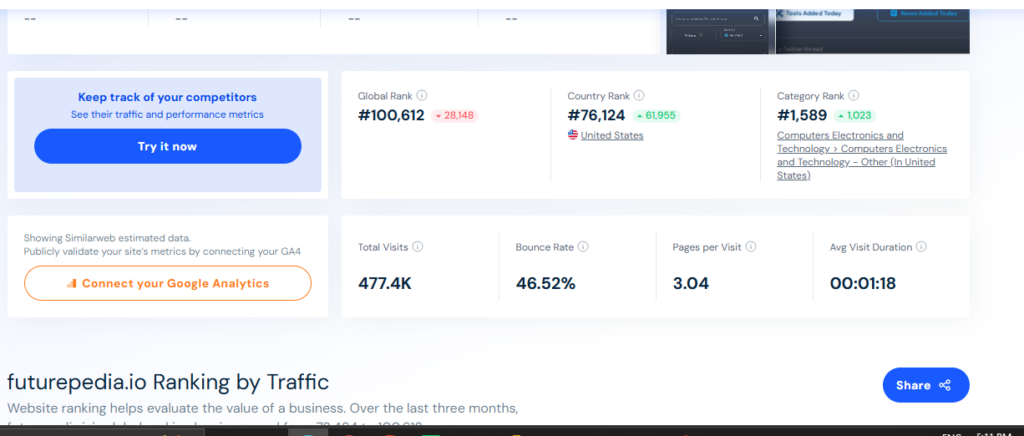
Using Similarweb to research a competitor
The overview gave me a quick snapshot of the website, including estimated visits, engagement metrics, traffic sources, search keywords, and similar websites. For Futurepedia, Similarweb showed an estimated 477.4K visits, around 3.04 pages per visit, a 46.52% bounce rate, and an average visit duration of about 1 minute 18 seconds in the report I checked. I could also see information about the site’s search visibility, including around 6.3K keywords and examples of searches associated with the website.
For a marketer, this can be useful because you can move beyond simply knowing that a competitor exists and start asking:
Where might this competitor be getting visibility?
What kinds of searches are associated with them?
Which other websites are competing for a similar audience?
Finding similar competitors
One of the features I found particularly useful was the similar websites/competitors section. Similarweb identified other websites in the same general space, giving me additional sites to investigate rather than forcing me to find every competitor manually. For someone researching a new content niche, this can be a useful starting point for building a competitor list and discovering websites you may not have considered.
But there’s a catch with the free version
Similarweb’s free view gives you a useful snapshot, but it doesn’t expose everything. During my test, some deeper traffic information was restricted behind the paid version. For example, the traffic-channel report only showed a limited portion of the available breakdown and prompted me to start a trial to access more. So I wouldn’t treat Similarweb’s free version as a complete competitor-analysis platform. Think of it more as a quick research tool that can help you decide where to investigate further.
One limitation I personally experienced
Similarweb wasn’t particularly useful when I entered AI Spark Hub itself because the site didn’t have enough measurable traffic for the platform to provide meaningful data. That’s important if you’re running a small or new website. You might open Similarweb expecting a detailed report about your own site and simply find that there isn’t enough data available yet.
Best for
Bloggers, marketers and website owners researching established competitors, traffic sources, search visibility and potential competitors.
Skip it if…
If you’re running a very small or new website with limited traffic, Similarweb may not have enough data about your own site to make the free version worthwhile.
My take
I found Similarweb much more useful for researching established competitors than analyzing my own small website. The free version gave me enough information to get a quick understanding of a larger competitor’s traffic, search visibility and related websites, but the deeper you go, the more you’ll run into paid-plan restrictions. For me, its biggest value isn’t the exact traffic number. It’s using the available data as a starting point for competitor research and deciding what I should investigate next.
How I’d Build a Free AI Marketing Stack
You don’t need to use every tool in this list. The best free AI marketing stack is the one that fits the work you actually need to do. If I were starting a website or content business from scratch, I’d build the stack gradually instead of signing up for every platform at once.
1. Start with research
Before creating anything, find and verify the information you actually need. I would use Perplexity to research current topics and check sources, especially when working with information that could have changed recently. For broader brainstorming and deciding how to approach the topic, I’d bring ChatGPT into the process.
2. Turn the research into content
Once I have the information, I’d use ChatGPT or Claude depending on the task. For quick brainstorming, content angles, headlines and working through ideas, ChatGPT is my usual choice. For a large amount of research that needs to be turned into a detailed piece of content, Claude is worth considering. The important part is that I wouldn’t simply ask either tool to generate an article and publish it immediately. I’d provide my own research, experience and direction, then edit the result into something genuinely useful.
3. Create the visuals
Once the content is ready, I’d create the supporting visuals. AI image generation is useful when I need a custom concept quickly, while Canva is where I’d refine the design, add branding, adjust layouts, or create additional marketing graphics. That combination can be much faster than creating every visual completely from scratch.
4. Turn content into social posts
A finished article doesn’t have to live only on your website. I’d turn important parts of the content into social posts or short-form videos, using CapCut when video editing is needed. Then I’d use Buffer to organize and schedule the social content rather than manually publishing everything whenever I remember.
5. Build an email audience
If you’re building a website or content business, I’d also start collecting an email audience early. Mailchimp can handle the basic newsletter workflow on its free plan, although its contact and sending limits mean you’ll eventually need to consider whether the free tier is still enough for your audience.
6. Measure what happens
After publishing, I’d use Google Search Console to see:
What are people searching for?
Then I’d use Google Analytics 4 to answer:
What do those visitors do after reaching my website?
Those two tools give you different pieces of the same puzzle.
7. Research competitors
Finally, when I want to understand an established competitor, Similarweb can provide a quick snapshot of their traffic, search visibility and similar websites. I wouldn’t treat its free data as a complete competitor analysis, but it can give you a starting point for deciding what to investigate next.
You don’t need all of them
If you’re just starting, I’d keep it simple:
Content: ChatGPT
Research: Perplexity
Design: Canva
Video: CapCut
Social: Buffer
Email: Mailchimp
SEO: Google Search Console
Analytics: Google Analytics 4
Then add Claude, AI image generation, or Similarweb when you actually have a reason to use them. A smaller stack that you understand is usually more useful than a huge collection of tools you barely open.
Conclusion
After testing these tools while working on AI Spark Hub, one thing became pretty clear to me: you don’t need a huge marketing stack to get started. A handful of free tools can already cover a surprising amount of the marketing process—from researching and creating content to designing visuals, editing videos, scheduling social posts, sending emails, and measuring website performance. But I also found that “free” doesn’t automatically mean unlimited or perfect. Some tools have usage limits, some reserve useful features for paid plans, and some simply work better for particular tasks than others.
That’s why I wouldn’t recommend signing up for everything on this list. Start with the marketing problem you actually have, choose a tool that solves it, and learn how to use that tool well. As your website, audience, and marketing needs grow, you can add more tools to your workflow.
For me, the biggest advantage of these tools isn’t that they eliminate marketing work. They reduce the time spent on repetitive tasks and give me more time to focus on the parts that actually require my decisions, creativity, and experience. Start with the marketing problem you actually have, choose a tool that solves it, and learn to use that tool well. If you’re building a website or growing a business on a limited budget, that’s probably the most useful thing about this entire free AI marketing stack.
Keep Exploring
You might also like these articles.
Best AI Tools for Affiliate Marketing in 2026: The Tools I’d Actually Use
━━━━━━━━━━━━━━━━━━━━━━━━━━━━━━Last updated: August 28, 2026This guide was reviewed and updated to reflect current tool features, pricing, free-plan limits, and our…