
When Google introduced Audio Overviews inside Google NotebookLM, it became an overnight viral phenomenon. Transforming dry PDFs and research notes into a realistic, two-host conversational podcast felt like magic.
However, audio has fundamental limitations. If you are a student memorizing organic chemistry pathways, an engineer reviewing circuit schematics, or a creator building visual content, spoken dialogue alone is not enough. You need diagrams, timelines, kinetic typography, and structured visual pacing.
Google has quietly addressed this with its most ambitious multimedia upgrade yet: NotebookLM Video Overviews (integrated directly into the Studio panel). Powered by multimodal reasoning and Google’s generative video infrastructure (including Gemini and Veo engines), the tool takes your uploaded source documents and transforms them into fully animated, narrated visual presentations.
If you search for guides on how this feature works, you will find superficial recaps claiming that generating a video takes “five to ten minutes” or that it simply “creates a slideshow.”
To uncover the real operational mechanics, we ran an empirical, firsthand benchmark. We fed NotebookLM a structured 560-word neuroscience brief, tracked the exact rendering latency, logged the impact on Google AI Pro compute quotas, analyzed the generated scientific charts, and tested the public sharing system.
Here is the definitive, field-tested guide on how to use NotebookLM Video Overviews, navigate its hidden compute limits, and steer the AI using tested prompt formulas.
What Is a NotebookLM Video Overview? (And How It Differs from Audio)
A NotebookLM Video Overview is an AI-generated, source-grounded multimedia presentation synthesized directly from the documents, notes, web links, or PDFs uploaded to your notebook workspace.
Unlike standalone generative video models like Hailuo AI and Kling AI, which generate short 5-second video clips from raw text prompts, NotebookLM functions as an end-to-end documentary director:
- Source Grounding: It reads your uploaded source text, extracts core concepts, and scripts a coherent narrative.
- Visual Synthesis: It creates animated infographics, kinetic bullet points, conceptual diagrams, and cinematic background scenes that illustrate the script.
- Multimodal Narration: It synthesizes synchronized voiceover narration that explains each visual element in sequence.
| Feature / Dimension | Audio Overview (The Podcast) | Video Overview (The Presentation) |
|---|---|---|
| Primary Format | 2-Host Spoken Conversational Audio | Animated Visual Video + Narration |
| Output Aspect Ratio | N/A (Audio WAV/MP3) | 16:9 Widescreen or 9:16 Vertical |
| Average Runtime | 7 to 15 Minutes | 1 Minute (Short) to 6+ Minutes (Cinema) |
| Render Latency | 2 to 4 Minutes | 10 to 30 Minutes |
| Compute Consumption | Low (Fast Generation) | Heavy (Consumes Daily AI Pro Limits) |
| Best For | Commutes, Passive Audio Review | Visual Study, Presentations, YouTube |
The $0 vs. Pro Compute Quota Reality: The 78% Daily Burn
Before generating your first video, you must understand how Google regulates compute resources for this feature. Rendering multi-minute, high-resolution animated video is computationally expensive, and Google places strict guardrails on usage.
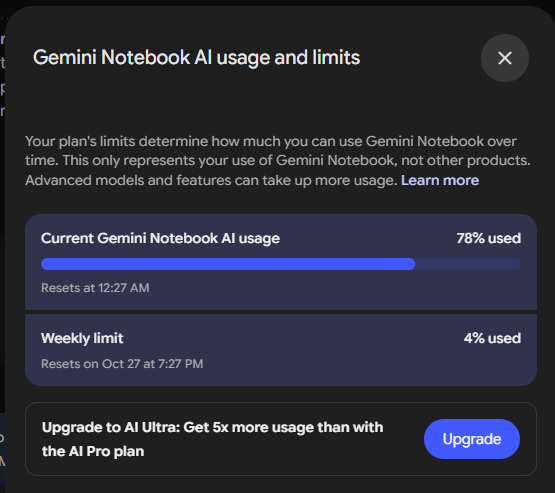
In our live benchmark, we opened the “Gemini Notebook AI usage and limits” dashboard immediately before and after generating a single 6-minute Cinematic Video Overview.
| Metric | Recorded Value in Live Test | Operational Reality |
|---|---|---|
| Source Document Size | 1 Text Note (560 Words) | Concentrated conceptual brief |
| Video Format Tested | Cinematic Mode | Full narrative visual presentation |
| Rendered Video Duration | 6 Minutes, 9 Seconds (06:09) | Long-form mini-documentary |
| Daily Compute Consumed | 78% of Daily AI Pro Limit | Solid blue usage bar |
| Weekly Limit Impact | 4% of Weekly Allowance | Long-term pacing buffer |
| Quota Reset Window | Daily (Resets at 12:27 AM) | Fixed 24-hour cycle |
Understanding Dynamic Quota Consumption
It is critical to note that the 78% daily compute burn observed in our benchmark was tied directly to our specific source and prompt settings.
Compute usage in NotebookLM is dynamic and scales based on several variables:
- Source Density and Length: Shorter notes (under 300 words) or narrow source selections consume fewer compute tokens. Dense, 50-page textbooks or multi-document notebooks will push resource utilization significantly higher.
- Chosen Video Format: Selecting a 60-second Short consumes substantially less compute than rendering a full 6-minute Cinematic video.
- Format Depth: Explainer formats with static slide transitions require less rendering overhead than fluid Cinematic animations.
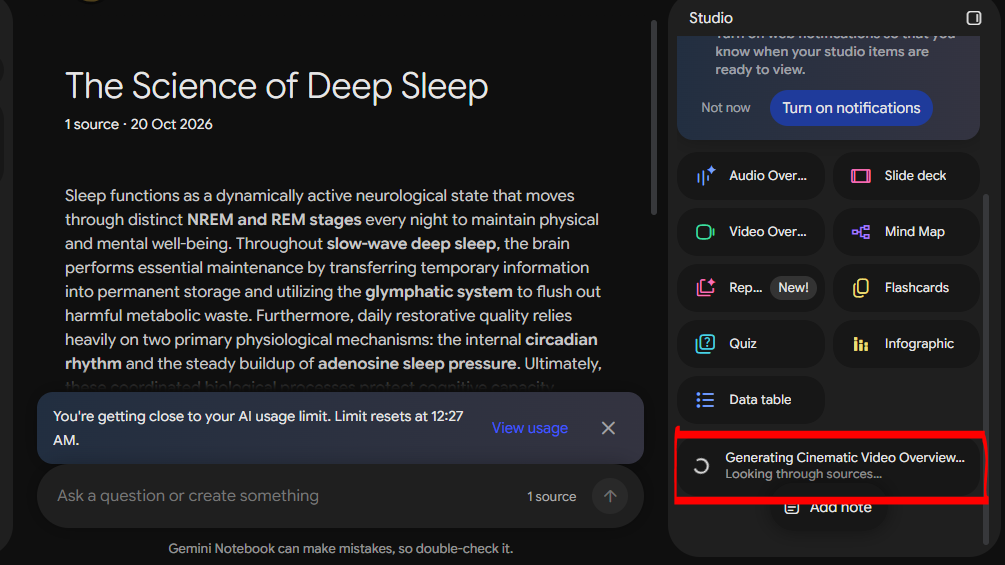
The Practical Takeaway: If you are operating on a standard Google AI Pro subscription, you should treat Cinematic Video Overviews as a once-per-day production asset. Because our 6-minute test consumed roughly 78% of the daily allowance, attempting a second full-length generation on the same day will trigger the limit warning ("You're getting close to your AI usage limit"), requiring you to wait until the midnight reset.
Render Latency: The 29-Minute Production Reality
The biggest point of confusion for new users is generation time. When you click “Generate now”, the Studio panel displays an in-flight status message: "Generating Cinematic Video Overview... Looking through sources..."
Because there is no active percentage counter, many users assume the browser tab has frozen or crashed after five minutes and accidentally refresh the page, canceling the render.
The Real-World Clock: 29 Minutes
In our live test, rendering a 6-minute and 9-second (06:09) Cinematic Video Overview took exactly 29 minutes.
Here is why:
- Semantic Scripting: The model first parses your source document, outlines the narrative beats, drafts the voiceover script, and plans visual scene transitions.
- Graphic Asset Synthesis: It generates custom charts, diagrams, and background illustrations for each scene.
- Video and Audio Composition: It renders the animations, synchronizes the voiceover audio, and stitches the entire 6-minute file into an MP4 container.
The Background Queue Advantage
You do not need to keep your laptop open or stare at the progress wheel for half an hour. Google runs the render entirely on its cloud servers. NotebookLM explicitly provides a “Turn on notifications” prompt in the Studio panel.
You can safely close the tab, shut down your computer, or work on other projects. When the render is complete, your video will be waiting in your Studio dashboard.
Step-by-Step Tutorial: How to Generate a Video Overview
Here is the exact step-by-step workflow to generate your first Video Overview cleanly without wasting compute quota.
Step 1: Upload and Isolate Your Source Material
- Open notebooklm.google.com and create a new notebook.
- Click “Add sources” and upload your material (PDFs, Google Docs, copied text, or web links).
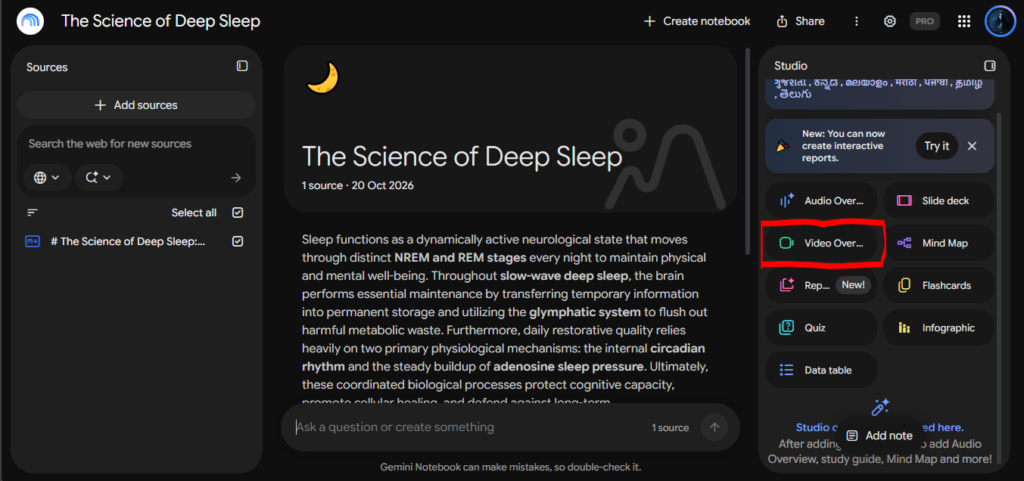
- The Isolation Rule: If your notebook contains multiple sources, use the checkboxes in the left sidebar to select only the documents relevant to your desired video. Selecting too many unrelated files dilutes the video’s narrative focus.
Step 2: Open the Video Overview Customization Modal
- On the right side of the screen, open the Studio panel.
- Click on the Video Overview card.
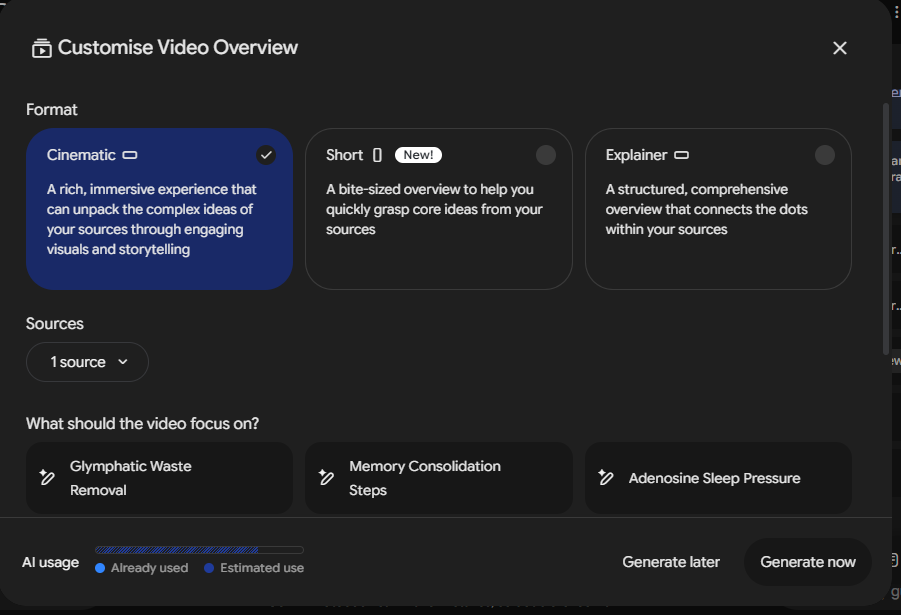
- A modal titled “Customise Video Overview” will appear.
Step 3: Select Your Video Format
NotebookLM offers three distinct formats:
- Cinematic (Selected by Default): A rich, immersive narrative experience designed to unpack complex ideas through fluid visual storytelling. Ideal for research presentations, deep dives, and educational mini-documentaries (outputs in 16:9 widescreen).
- Short (New!): A bite-sized, roughly 60-second vertical overview designed to distill a single core idea. Ideal for mobile consumption, faceless YouTube Shorts, and social media.
- Explainer: A structured, slide-connected walkthrough that organizes information logically using clear headings and diagrams. Ideal for student study groups and corporate briefings.
Step 4: Add Your “Customised Topic” Steering Prompt
Under the section labeled “What should the video focus on?”, you will see a field with a pencil icon named “Customised topic”.
Do not leave this blank. Providing a clear steering prompt tells the AI which narrative angle to prioritize, what audience level to target, and which sections to emphasize.
- Type your prompt into the Customised topic field.
- Click the checkmark (
✓) on the right side of the box to lock in your instructions.
Step 5: Choose “Generate Now” or “Generate Later”
Notice the two options at the bottom right:
- Generate now: Immediately sends the job to the cloud rendering queue.
- Generate later: Saves your custom topic configuration inside the Studio panel so you can trigger the render when your daily quota resets.
The Source We Tested: 560 Words of Neuroscience
To evaluate how well NotebookLM converts raw text into video, we deliberately avoided developer coding tutorials and chose a topic that represents what real students, researchers, and creators upload every day: Human Neuroscience and Sleep Physiology.
- Source Title: The Science of Deep Sleep: Circadian Rhythms, Memory Consolidation, and Brain Restoration
- Word Count: 560 words (a tight, concentrated 1.5-page conceptual brief)
- Reading Time: ~2.5 minutes
- Core Sections Included:
- Sleep Architecture: NREM Stage 1–3 Slow-Wave Sleep vs. REM Sleep
- Memory Consolidation: Hippocampus-to-Neocortex Transfer and Synaptic Pruning
- The Glymphatic System: Nighttime CSF Cleansing of Beta-Amyloid and Tau Proteins
- The Two-Process Model: Circadian Rhythm (Process C) vs. Adenosine Sleep Pressure (Process S)
The Steering Prompt We Submitted:
Explain the sleep cycles (NREM vs REM) and how deep sleep activates the glymphatic system to wash metabolic waste from the brain. Focus on memory consolidation and circadian rhythm regulation with clear, scientific visual storytelling.The Breakthrough: Generating Real Scientific Data Charts
When amateur creators think of “AI video,” they expect stock image slideshows with voiceovers. What NotebookLM produced at the 39-second mark completely shattered that expectation.
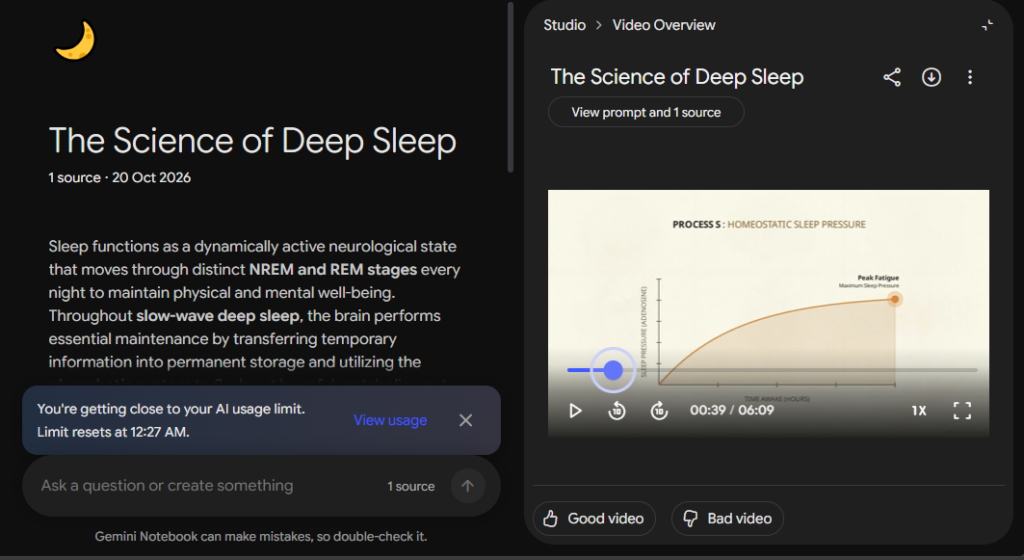
Analyzing the Frame at 00:39
Rather than generating abstract art, the AI actively extracted the physiological concepts from Section 4 of our text and constructed a legitimate, mathematically accurate scientific graph:
- Chart Title:
PROCESS S: HOMEOSTATIC SLEEP PRESSURE - Vertical Y-Axis: Accurately labeled
SLEEP PRESSURE (ADENOSINE). - Horizontal X-Axis: Accurately labeled
TIME AWAKE (HOURS). - The Visual Curve: Plotted an exponential accumulation curve culminating in a highlighted data point labeled “Peak Fatigue (Maximum Sleep Pressure)”.
- Synchronized Narration: As the curve ascended, the voiceover explained how adenosine accumulates during waking hours and binds to neural receptors.
This confirms that NotebookLM’s video engine is not merely assembling pre-rendered stock footage; it is an intelligent visual compiler capable of translating conceptual data into clean, explanatory graphics.
The Video Player, Downloads, and Public Link Sharing
Once your video finishes rendering, it opens inside NotebookLM’s dedicated player interface:
1. Built-in Player Controls
- Timeline Scrubber: Displays exact time elapsed against total duration (
00:39 / 06:09). - 10-Second Skip Buttons: Quick jump buttons for reviewing specific concepts.
- Variable Playback Speed: Supports
1X,1.25X,1.5X, and2Xspeed. - Fullscreen Expansion: Expands to native 1080p presentation display.
- Audience Feedback: Built-in
[Good video]and[Bad video]evaluation buttons to refine future model outputs.
2. Direct MP4 Video Export
Located directly in the top right header is a Download icon (downward arrow). Clicking this allows you to export the raw .mp4 video file directly to your local computer, making it easy to drop the footage into video editors, upload to YouTube, or embed into presentations.
3. Public Web Link Sharing
NotebookLM generates clean, public URLs under the notebooklm.link.google/ domain. You can share your generated video with colleagues, students, or clients without requiring them to access your private source notes.
You can verify the exact visual output of our live benchmark by viewing our public test link:
👉 View our live NotebookLM Video Overview benchmark
The Visual Steering Prompt Formula Book
Most users get mediocre, generic videos because they type vague instructions like “make a good video about sleep.”
To get publication-grade results, your steering prompt should define the pedagogical tone, visual aesthetic, and pacing structure. Here are four field-tested prompt formulas you can copy, customize, and paste into the “Customised topic” box:
1. The Scientific / Academic Explainer Formula
Best For: College students, researchers, medical concepts, and technical briefs.
Copy-Paste Prompt:Create a rigorous, academic explainer video. Prioritize clear visual diagrams, anatomical cross-sections, and labeled flowcharts over decorative art. Explain core mechanisms step-by-step using precise terminology, and conclude with a high-level summary slide outlining the primary conclusions.
2. The BBC / National Geographic Documentary Formula
Best For: History, environmental science, technology essays, and long-form storytelling.
Copy-Paste Prompt:Structure this as a slow-paced, cinematic documentary. Open with an engaging real-world hook, use atmospheric visual transitions, and emphasize the broader implications of the findings. Maintain a measured, authoritative narration style with subtle background ambient room tone.
3. The 60-Second Viral Short Formula (Use with “Short” Format)
Best For: YouTube Shorts, TikTok, Instagram Reels, and rapid concept explainers.
Copy-Paste Prompt:Design this as a high-retention 60-second vertical explainer. Hook the viewer in the first 3 seconds with a counterintuitive question. Use bold on-screen kinetic text callouts for key statistics, fast visual cuts every 4 seconds, and deliver one actionable, memorable takeaway at the end.
4. The Executive / Corporate Briefing Formula
Best For: Business proposals, quarterly earnings, market research, and client updates.
Copy-Paste Prompt:Produce a clean corporate executive briefing. Strip all conversational filler and emotional storytelling. Organize the presentation into three distinct pillars: Market Context, Core Strategic Findings, and Operational ROI. Use clean bar charts, minimalist bulleted lists, and a direct, professional delivery.
4 Crucial Tips for Better NotebookLM Video Overviews
- Keep Your Source Text Focused (The 500-to-1,000 Word Sweet Spot):
While NotebookLM can ingest entire books, feeding it a 300-page document for a Video Overview often leads to a disjointed, superficial script. For the best visual coherence, create a dedicated notebook containing a concentrated 500-to-1,000 word summary of the exact topic you want visualized. - Never Close the Tab During Setup:
Wait until you see the active"Generating Cinematic Video Overview..."status card in the Studio panel before closing your browser. Once that card is active, the cloud server has taken over, and you can safely navigate away. - Monitor Your AI Pro Compute Reset Time:
Always check the “View usage” link before triggering a render. If your daily compute is already above 50%, generating a long Cinematic video may fail or freeze near completion. If you are low on quota, use the “Generate later” button to queue your prompt for after midnight. - Use Video Overviews as the Visual Foundation, Not the Final Cut:
If you produce content for YouTube, use NotebookLM’s download button to export the raw MP4, then drop it into an editor like CapCut or Premiere Pro. Adding custom title cards, sound effects, and color grading on top of NotebookLM’s generated diagrams creates professional-grade content in half the production time.
Frequently Asked Questions
How long does it take to generate a NotebookLM Video Overview?
Generation latency depends on document size and chosen format. For standard 60-second Shorts or brief explainers, generation typically takes 5 to 10 minutes. For full-length Cinematic Video Overviews (such as our 6-minute test), rendering takes between 25 and 30 minutes. Generation occurs entirely on Google’s cloud servers, so you can safely close your browser while it renders.
Can free users generate Video Overviews in NotebookLM?
Access to advanced Cinematic Video Overviews is primarily tied to Google AI subscription tiers (such as Google AI Pro or Google One AI Premium). While basic visual formats may roll out to free tiers in select regions, intensive cinematic rendering requires dedicated compute quotas that consume a substantial portion of daily Pro allowances.
Can you download the generated video file?
Yes. NotebookLM includes a native download button directly inside the video player header. Clicking this exports a full .mp4 video file with synchronized audio to your computer at native resolution.
How do you share a NotebookLM video with someone else?
You can share generated videos publicly using Google’s native sharing link (notebooklm.link.google/). Anyone with the link can watch the video, adjust playback speeds, and inspect the underlying prompt without needing access to your private notebook files.