
Most people use ChatGPT like a blank notepad — every single time you open a new chat, you have to explain who you are, what tone you want, your preferences, and how you like things done. It gets really tiring after a while.
Custom GPTs fix this problem completely. Once you create one, it remembers your style, rules, knowledge, and personality forever. This is honestly one of the most powerful but underused features in ChatGPT right now. Many users don’t even know it exists or think it’s too complicated.
In this guide, I’ll walk you through everything in simple, practical language. I’ll explain what Custom GPTs really are, who can actually create them, a detailed step-by-step process with real examples, how to write effective instructions, common mistakes to avoid, and some useful ideas you can build today. By the end, you’ll be ready to create your first Custom GPT confidently. Let’s break it down.
What Exactly Is a Custom GPT?
A Custom GPT is essentially your own personalized version of ChatGPT that you build and save. You give it specific instructions, upload relevant files (like style guides or documents), set its personality, and enable certain tools. After that, it behaves like a specialized assistant that already knows you.
Instead of repeating the same instructions in every new chat (“Act as a professional email writer who is friendly but clear…”), you set those rules once, and the GPT remembers them for all future conversations.
It’s like hiring your own mini team member. One GPT can handle all your emails, another can review documents, another can help with daily planning. The best part is consistency — every time you open that GPT, it responds in the exact same style and follows your rules.
In 2026, Custom GPTs have become even more powerful with better memory, file handling, and tool integration. Many power users rely on 4–5 different Custom GPTs for different parts of their work and personal life.
Who Can Create Custom GPTs?
Let me be completely honest with you from the start — you need a paid ChatGPT subscription (ChatGPT Plus, Team, or Enterprise) to create your own Custom GPTs. The free plan does not support creating them.
This is a key limitation. Many blogs hide this information until the end, but I’d rather tell you upfront so you can make an informed decision. However, even free users can still use public Custom GPTs created by others through the GPT Store.
If you’re serious about getting more out of ChatGPT and saving time every day, the $20/month Plus plan is usually worth it just for Custom GPTs alone, plus you get access to better models and higher limits.
How to Create a Custom GPT (Step-by-Step)
Here’s the exact process to follow:
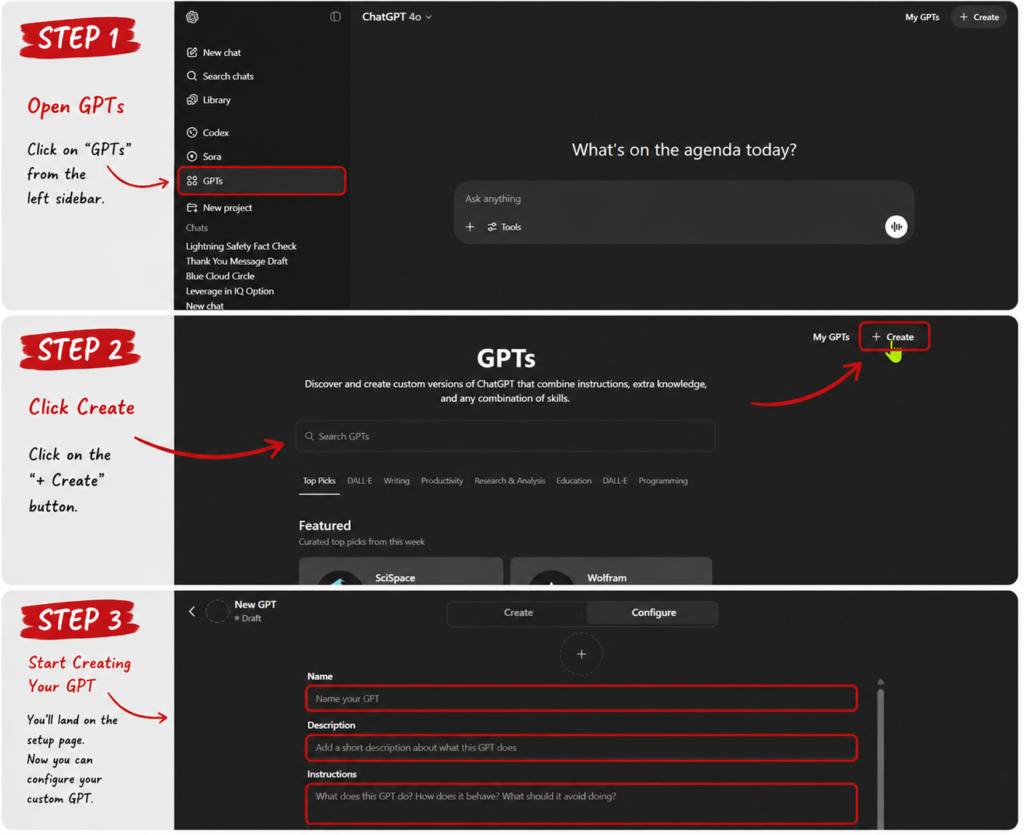
- Go to chatgpt.com and log in with your ChatGPT Plus account.
- In the left sidebar, click Explore GPTs, then click the Create button in the top right.
- You’ll see a split-screen editor. Left side = configuration, right side = live preview where you can test instantly.
- Fill in the basics:
- Name: Something clear like “Professional Email Writer” or “Daily Planner”
- Description: One short sentence, e.g., “Helps me write clear and friendly professional emails quickly”
- Write the Instructions (this is the heart of your GPT — we’ll cover this in detail below).
- Upload Knowledge Files if needed (PDFs, style guides, product sheets, previous examples, etc.). This helps the GPT give more accurate and contextual responses.
- Enable Capabilities — turn on Web Search, Image Generation, Canvas, or Code Interpreter depending on the GPT’s purpose.
- Choose visibility: Keep it private (“Only me”), share with a link, or make it public for the GPT Store.
- Click Save and start testing it right away in the preview window. Ask real questions you would actually use.
- After testing, go back and refine the instructions if the responses aren’t perfect.
You can edit any GPT anytime — it’s very flexible.
Writing Good Instructions (The Secret Sauce)
This section is what separates average GPTs from truly useful ones.
Bad Example: “You are a helpful assistant.”
Good Example: “You are a professional email writer for a SaaS company. Always use a friendly but confident tone. Keep emails under 130 words. Structure every email with a warm greeting, clear main message, bullet points for benefits, one strong call-to-action, and polite closing. Never use technical jargon unless the user asks. Be helpful and solution-oriented.”
The more specific and detailed your instructions are, the better and more consistent the output becomes. Define personality, tone, output format, what to avoid, and how to handle different situations. Spend extra time here — it’s worth it.
Practical Custom GPT Ideas You Can Build Today
Here are some actually useful Custom GPTs focused on daily tasks and business:
- Email Assistant — Writes, replies to, and improves all your professional emails while maintaining your tone.
- Meeting Summarizer — Takes raw notes or transcripts and turns them into clear action items with priorities.
- Daily Productivity Coach — Helps you plan your day, set realistic priorities, and track habits.
- Customer Support Responder — Drafts helpful, professional replies for common customer questions.
- Document Reviewer — Analyzes reports, proposals, or contracts and gives structured feedback.
- Social Media Content Helper — Generates captions and ideas that match your brand voice.
Start small. Build just one good GPT first and use it daily for a week. You’ll quickly see the time-saving benefits.
Common Mistakes to Avoid
- Making instructions too vague
- Uploading too many irrelevant files
- Not testing the GPT properly before saving
- Trying to build too many GPTs at once
Take it slow and focus on quality over quantity.
Conclusion
Custom GPTs are genuinely one of the smartest ways to get more value out of ChatGPT. Once set up properly, they save you a huge amount of time by eliminating repeated explanations and giving consistent results.
Don’t try to build five GPTs on your first day. Start with just one simple GPT (like an Email Assistant) and use it regularly. You’ll quickly understand the real power of this feature.
Want to explore more powerful AI assistants and comparisons? Check out our Best AI Assistants 2026 page.
Which Custom GPT are you planning to create first? Drop your answer in the comments below — I read every single one!
Frequently Asked Questions – FAQs
Can I create a Custom GPT for free?
No, unfortunately you cannot create your own Custom GPTs on the free plan. You need at least ChatGPT Plus ($20/month) to build them. However, free users can still use public Custom GPTs that other people have shared in the GPT Store.
Do Custom GPTs cost extra on top of ChatGPT Plus?
No, there is no extra charge. Once you have ChatGPT Plus, you can create as many Custom GPTs as you want at no additional cost. You only pay the regular Plus subscription fee.
Can other people use my Custom GPT?
Yes, you have full control. When creating a GPT, you can choose to keep it private (Only me), share it with a link, or make it public so anyone can use it through the GPT Store. Most people start with private until they’re happy with it.
What’s the difference between a Custom GPT and Custom Instructions?
Custom Instructions are simpler — they apply to all your normal chats and tell ChatGPT your general preferences. Custom GPTs are more powerful because they are separate, specialized assistants with their own instructions, knowledge files, and capabilities. Think of Custom Instructions as general settings and Custom GPTs as individual specialized tools.
Can I edit a Custom GPT after creating it?
Yes, absolutely. You can go back and edit any Custom GPT anytime — change the name, instructions, upload new files, enable/disable capabilities, or update the description. Nothing is permanent, so feel free to experiment and improve them over time.
Keep Exploring
You might also like these articles.
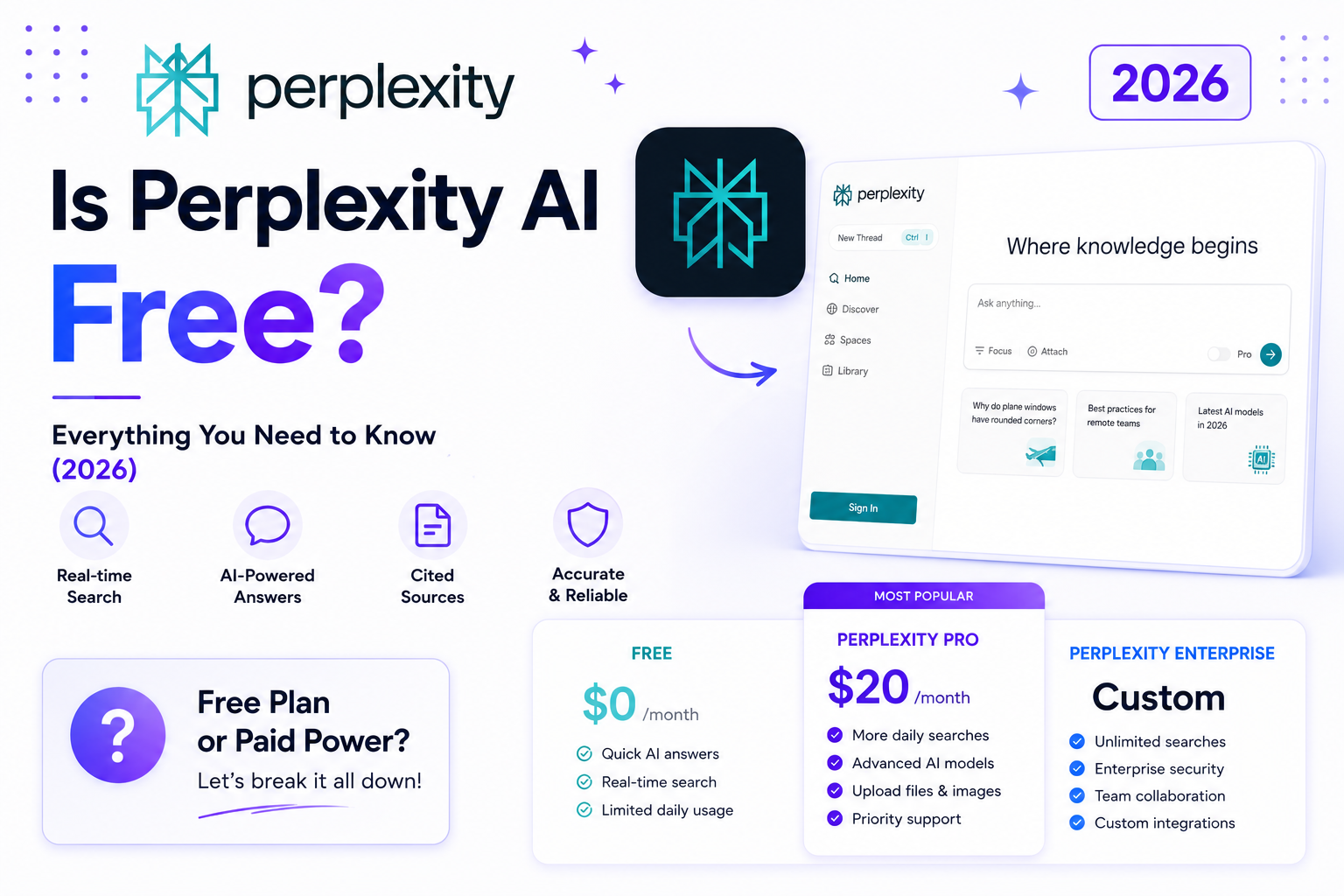
Is Perplexity AI Free? Everything You Need to Know (2026)
Short answer: Yes, Perplexity AI has a free plan. But the real answer is more nuanced — what you get…
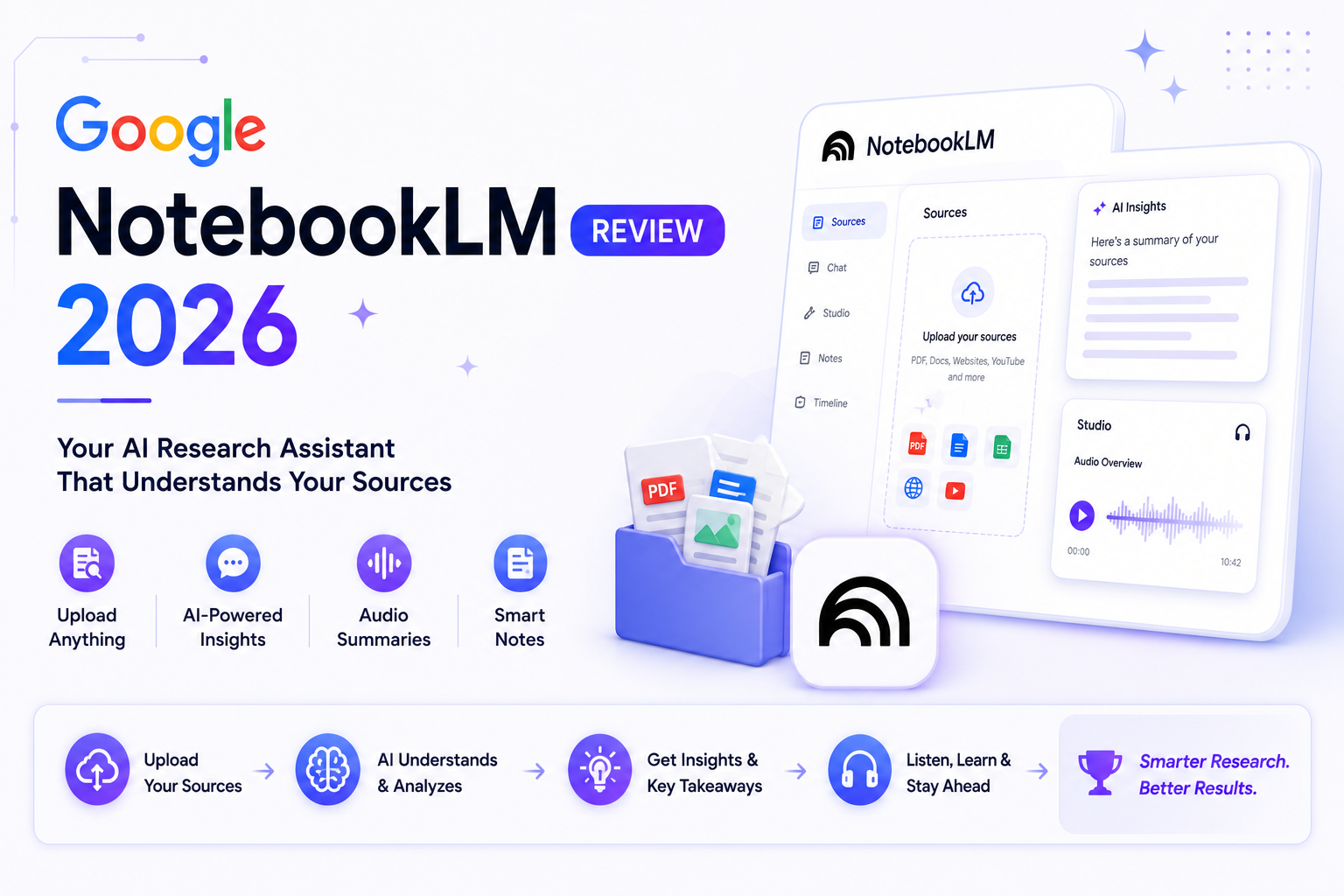
Google NotebookLM Review 2026 — Is It Really That Good?
Most AI tools promise to make research easier. NotebookLM actually delivers on that promise — but not in the way…
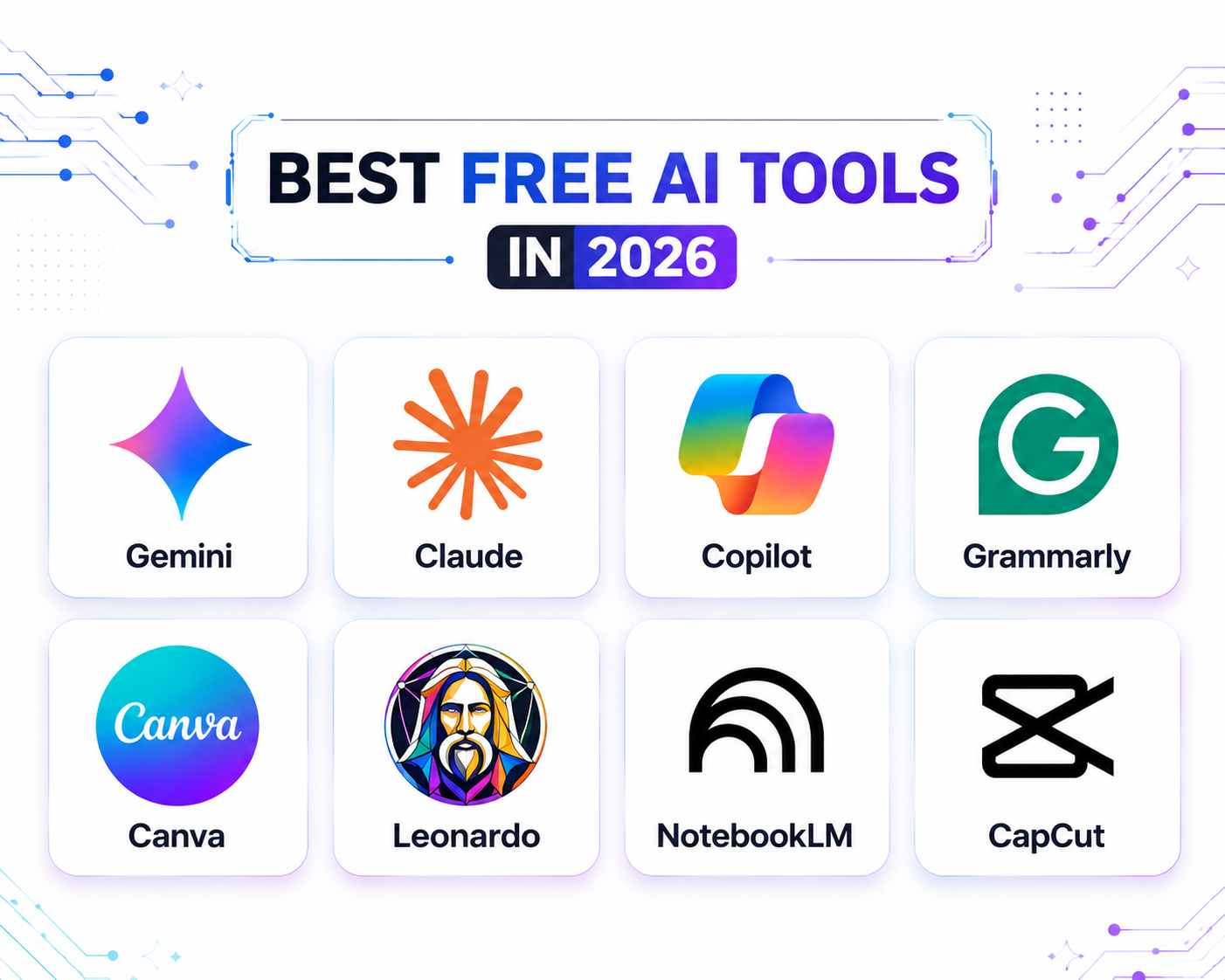
Best Free AI Tools in 2026 — Actually Free (No Credit Card Needed)
You don’t need to spend $20/month to get real work done with AI in 2026. These are the best free…
Pingback: Best Free AI Tools in 2026 — Actually Free (No Credit Card Needed) - AI Spark Hub