Blogs

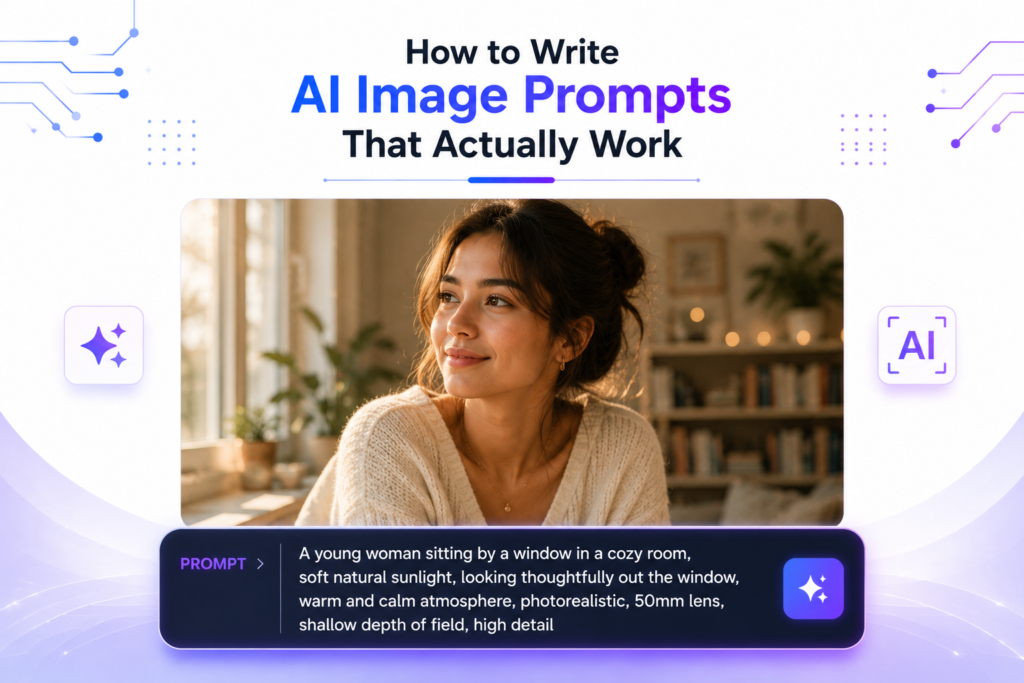
image of how to write ai image prompts
Blogs

How to Write AI Image Prompts – 2026 Guide

Type “a cat” into any AI image generator and you’ll probably get a usual and forgettable response. But type the right six or seven words instead, and the same tool can produce something genuinely beautiful and striking. The gap between bad and great AI images isn’t the tool — it’s the prompt. After spending weeks testing thousands of prompts across Midjourney, DALL-E, Leonardo, Flux, and Gemini, I’ve finally figured out what actually works in 2026. In this guide, I’ll share a simple repeatable structure, advanced techniques, tool-specific tips, common mistakes I made (so you don’t repeat them), and ready-to-use prompt templates. Let’s turn your AI images from average to impressive. Why Most Prompts Fail The biggest mistake I used to make (and most beginners still make) is writing prompts like I’m talking to a helpful person: “Please create a beautiful image of a cat sitting on a windowsill.” AI image models are not conversational. They are pattern-matching systems trained on millions of images and captions. They respond best to clear, descriptive language, not polite requests. Another common issue is being too vague. A short prompt like “a cat” or “forest” gives the AI too much freedom, so it produces safe, boring, generic results. I learned this the hard way after wasting hundreds of generations. The Core Prompt Structure (The 5-Part Formula) After testing thousands of prompts, I now follow this simple 5-part formula for almost every image I create. It consistently gives much better results across different tools. Weak Prompt: “fox, forest, autumn” Strong Prompt: “Photorealistic image of a beautiful red fox with fluffy fur and bright eyes walking towards the camera on a dirt path covered in fallen autumn leaves, dense misty forest with golden and orange trees in background, soft golden sunrise light breaking through the canopy, atmospheric fog, national geographic style, extremely detailed, sharp focus, cinematic lighting –ar 16:9” Breakdown of the Strong Prompt: See how each part builds on the previous one? The strong prompt gives the AI clear direction instead of leaving everything to guesswork. Advanced Techniques Negative Prompts Negative prompts are one of the most powerful but underused features in 2026. They tell the AI exactly what not to include in the image. This is especially useful in Midjourney, Leonardo AI, Stable Diffusion, and Flux. For example, you can add: “Don’t make it (blurry, low quality, deformed hands, extra fingers, watermark, text, oversaturated colors, cartoonish, ugly, bad anatomy)”. I use negative prompts almost every time because they dramatically reduce weird artifacts and low-quality results. It’s like giving the AI a checklist of things to avoid. Adding Text to Images Most AI image models still struggle with rendering text accurately. The best trick is to put the exact text you want in quotation marks, keep it short (under 25 characters), and describe the font style. Example: “bold white sans-serif text saying ‘2026 Vision’ on a futuristic glowing neon sign”. This method works much better than just writing the text normally. Reference Images & Consistency If you want the same character, face, or art style across multiple images, upload a reference image and clearly tell the model what to keep and what to change. Most modern tools (especially Midjourney and Leonardo) support this very well now. This technique is extremely useful for creating consistent characters for stories, branding, or social media content. Common Mistakes to Avoid Here are the mistakes I made a lot in the beginning (and still see many people making): 10 Copy-Paste Prompt Templates Here are ready-to-use templates you can copy and modify right now: Conclusion The secret to great AI images isn’t luck or constantly switching tools — it’s learning how to write better prompts. Use the 5-part structure, iterate on your results, and you’ll see massive improvement very quickly. Start simple. Take one template above, modify it for your needs, and generate a few variations. The more you practice, the better you’ll get at speaking the AI’s language. Not sure which image generation tool to use? Check out our full breakdown of the Best AI Image Generation Tools in 2026. Which prompt are you going to try first? Share it in the comments — I’d love to see what you create! Frequently Asked Questions – FAQs
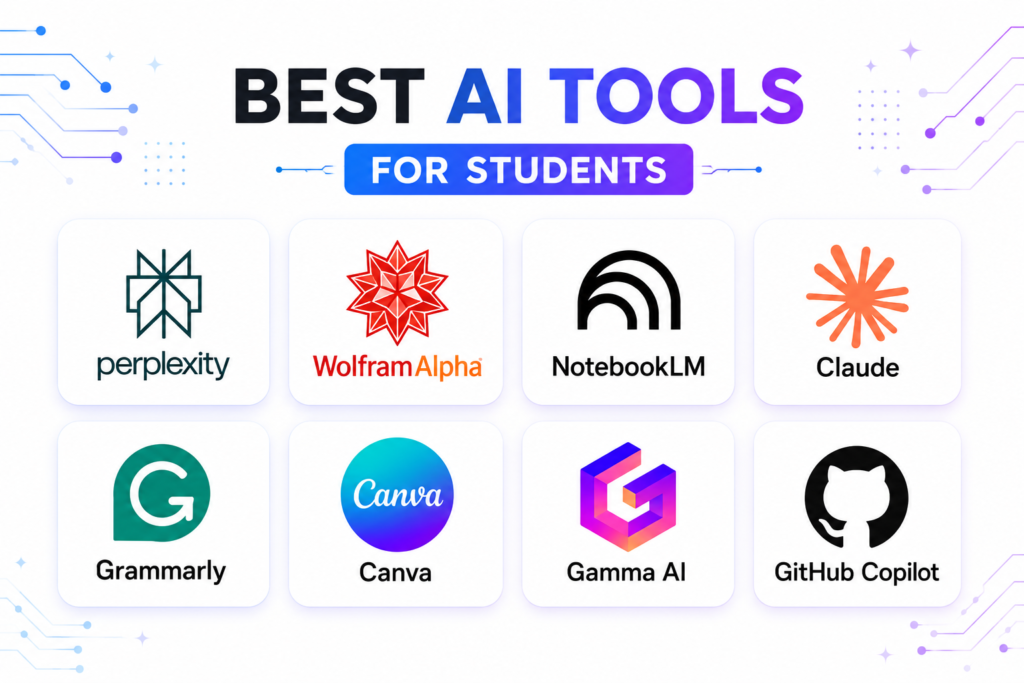
featured image of best ai tools for students
Blogs

Best AI Tools for Students in 2026 (Free & Paid, Tried & Tested)

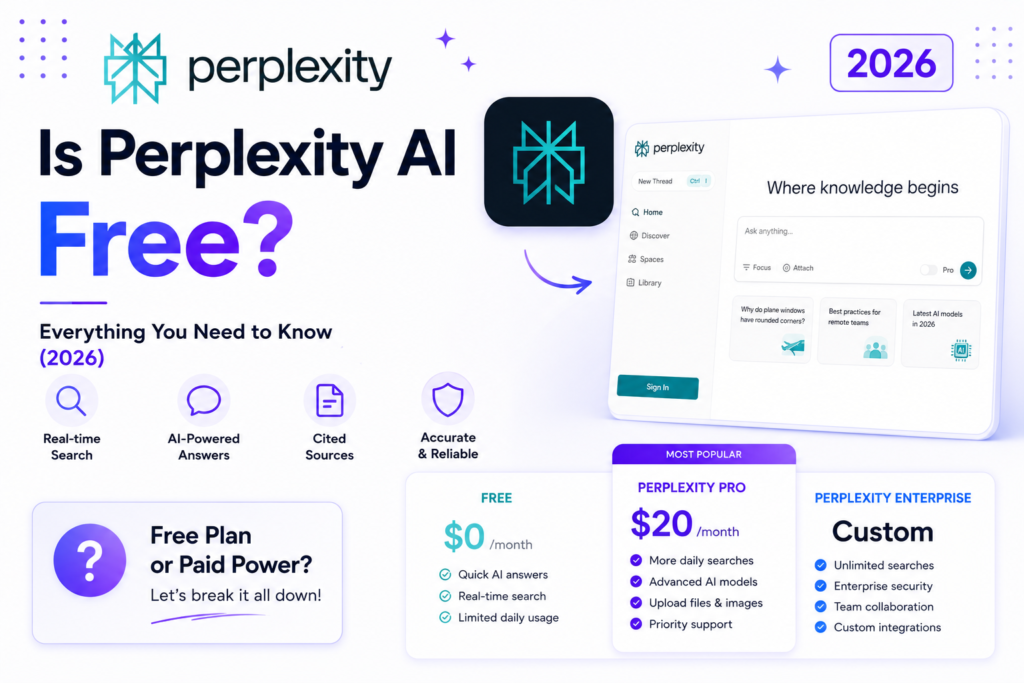
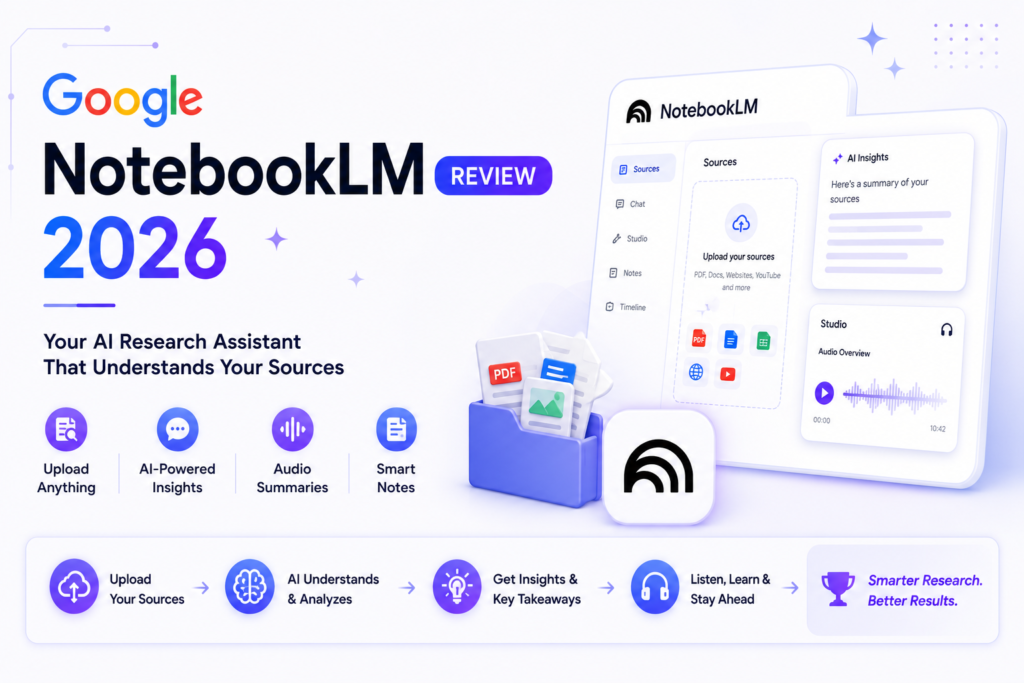
Introduction You don’t need a $20/month plan to get ahead with AI in 2026. Most students never will. Here’s the free stack that actually covers everything from research to presentations — plus which paid upgrades are genuinely worth it if you have some budget. I’ve tested these tools while managing assignments, group projects, and exam prep. In this guide, I’ve organized everything by real student workflow (Research → Notes → Writing → Design → Lectures → Coding) instead of just throwing a random list at you. I’ll also be upfront about limitations, pricing, student discounts, and how to use AI responsibly without getting into academic trouble. Let’s get into it. Task Best Free Tool Best Paid Upgrade Student Verdict Research & Citations Perplexity AI Perplexity Pro (50% off) Best for source-backed research Notes & Studying Google NotebookLM — (Fully free) Turns notes into a personal tutor Writing & Drafting Claude Free Claude Pro Best for essay writing & feedback Editing & Polishing Grammarly Free Grammarly Premium Essential for polished submissions Design & Presentations Canva / Gamma AI Canva Pro / Gamma Plus Fast visuals & slides Lectures & Transcription Otter.ai Otter.ai Pro Great for lecture notes Coding GitHub Copilot (Student) — (Free for students) Must-have for CS students Research & Citations Perplexity AI Perplexity AI has become one of the most useful research tools for students in 2026. You can access it through the clean website at perplexity.ai, the official mobile apps on Android and iOS, and as a browser extension for quick searches while studying. Signing up is simple with just an email or Google account — no credit card required for the free tier. On the free plan, you get unlimited standard searches with proper citations, which is a huge advantage over regular ChatGPT that sometimes hallucinates sources. It also has special “Focus” modes like Academic, which prioritizes scholarly and reliable sources. I used it heavily while working on research papers and literature reviews — it helped me quickly find good references and saved hours of manual searching. Key Extra Features: Study Mode (automatically turns your notes into flashcards and quizzes), file uploads, image analysis, and the ability to ask follow-up questions in the same thread. Pricing & Student Discount: The free tier is very generous for most students. Verified students can get Perplexity Education Pro at around 50% off (roughly $10/month). Drawbacks: Free tier has slower responses during peak hours and limited access to advanced “Pro Search”. While citations are generally good, you should always double-check important sources before submitting academic work. For the majority of students doing essays, assignments, or research projects, the free tier covers most needs. If you do heavy research, the student Pro plan is one of the smartest paid upgrades available. Wolfram Alpha Wolfram Alpha is completely different from regular chatbots — it’s a computational knowledge engine that actually calculates and computes answers instead of just predicting them. You can access it directly at wolframalpha.com, through the mobile apps on Android and iOS, and many universities provide access through their library portals. Basic use doesn’t even require signing up. It excels at math, physics, chemistry, statistics, equations, data analysis, and step-by-step problem solving. This is a critical distinction: while ChatGPT or Claude can confidently give wrong answers on calculations, Wolfram Alpha shows real computed results with transparent steps. I relied on it heavily during math, engineering, and statistics courses — it helped me truly understand the concepts instead of just copying answers. Key Extra Features: Step-by-step solutions, practice problem generator, photo input (upload handwritten problems), graphing tools, and course-specific web apps. Pricing: The basic version is completely free (with ads). Student Pro is heavily discounted (around $5–8/month) and unlocks full step-by-step solutions, more computation time, and ad-free experience. Many schools offer it for free via campus licenses. Drawbacks: It doesn’t handle open-ended writing, creative tasks, or general conversation well. The interface looks a bit old-school compared to modern chatbots. For STEM students (math, physics, engineering, economics, chemistry), Wolfram Alpha is almost essential. Even non-STEM students can use it for statistics, finance calculations, or data-heavy reports. Notes & Studying Google NotebookLM Google NotebookLM is easily one of the most powerful and underrated AI tools for students in 2026. You can access it directly through the website at notebooklm.google.com using any Google account. It also works seamlessly inside Google Docs, Drive, and Gmail. No credit card or payment is required — it’s completely free for personal use. The core idea is simple but brilliant: you upload your lecture notes, PDFs, slides, articles, or even audio recordings, and NotebookLM becomes a personal tutor that only knows your specific material. It can generate summaries, study guides, FAQs, timelines, concept maps, and even turn your notes into a realistic podcast-style audio conversation between two hosts. I used it extensively during exam season. I would upload all my readings and lecture notes for one subject, and within minutes it would create practice quizzes, highlight gaps in my understanding, and explain difficult concepts in simple language. The Audio Overview feature (podcast mode) is particularly helpful for revision while walking, commuting, or doing chores. Key Extra Features: Pricing: Fully free for most students. There is no paid tier required for core features. Google occasionally gives extra credits or higher limits to .edu accounts. Drawbacks: The free tier has a limit of around 100 notebooks total and daily caps on Audio Overviews (usually 3–5 per day). It works best with good quality, well-organized notes — messy or poorly scanned PDFs can reduce accuracy. It also doesn’t do general web research (it only knows what you upload). For students who deal with heavy reading loads or multiple subjects, NotebookLM is a genuine game-changer. Many students I know call it their “secret weapon” for studying. I highly recommend starting with this tool — it’s one of the highest-value free AI tools available right now. Writing & Editing Claude Claude (especially Claude Sonnet on the free tier) is currently one of the strongest
image of how to create customGPTs
Blogs

How to Create Custom GPTs in ChatGPT in 2026 (Step-by-Step Guide)

Most people use ChatGPT like a blank notepad — every single time you open a new chat, you have to explain who you are, what tone you want, your preferences, and how you like things done. It gets really tiring after a while. Custom GPTs fix this problem completely. Once you create one, it remembers your style, rules, knowledge, and personality forever. This is honestly one of the most powerful but underused features in ChatGPT right now. Many users don’t even know it exists or think it’s too complicated. In this guide, I’ll walk you through everything in simple, practical language. I’ll explain what Custom GPTs really are, who can actually create them, a detailed step-by-step process with real examples, how to write effective instructions, common mistakes to avoid, and some useful ideas you can build today. By the end, you’ll be ready to create your first Custom GPT confidently. Let’s break it down. What Exactly Is a Custom GPT? A Custom GPT is essentially your own personalized version of ChatGPT that you build and save. You give it specific instructions, upload relevant files (like style guides or documents), set its personality, and enable certain tools. After that, it behaves like a specialized assistant that already knows you. Instead of repeating the same instructions in every new chat (“Act as a professional email writer who is friendly but clear…”), you set those rules once, and the GPT remembers them for all future conversations. It’s like hiring your own mini team member. One GPT can handle all your emails, another can review documents, another can help with daily planning. The best part is consistency — every time you open that GPT, it responds in the exact same style and follows your rules. In 2026, Custom GPTs have become even more powerful with better memory, file handling, and tool integration. Many power users rely on 4–5 different Custom GPTs for different parts of their work and personal life. Who Can Create Custom GPTs? Let me be completely honest with you from the start — you need a paid ChatGPT subscription (ChatGPT Plus, Team, or Enterprise) to create your own Custom GPTs. The free plan does not support creating them. This is a key limitation. Many blogs hide this information until the end, but I’d rather tell you upfront so you can make an informed decision. However, even free users can still use public Custom GPTs created by others through the GPT Store. If you’re serious about getting more out of ChatGPT and saving time every day, the $20/month Plus plan is usually worth it just for Custom GPTs alone, plus you get access to better models and higher limits. How to Create a Custom GPT (Step-by-Step) Here’s the exact process to follow: You can edit any GPT anytime — it’s very flexible. Writing Good Instructions (The Secret Sauce) This section is what separates average GPTs from truly useful ones. Bad Example: “You are a helpful assistant.” Good Example: “You are a professional email writer for a SaaS company. Always use a friendly but confident tone. Keep emails under 130 words. Structure every email with a warm greeting, clear main message, bullet points for benefits, one strong call-to-action, and polite closing. Never use technical jargon unless the user asks. Be helpful and solution-oriented.” The more specific and detailed your instructions are, the better and more consistent the output becomes. Define personality, tone, output format, what to avoid, and how to handle different situations. Spend extra time here — it’s worth it. Practical Custom GPT Ideas You Can Build Today Here are some actually useful Custom GPTs focused on daily tasks and business: Start small. Build just one good GPT first and use it daily for a week. You’ll quickly see the time-saving benefits. Common Mistakes to Avoid Take it slow and focus on quality over quantity. Conclusion Custom GPTs are genuinely one of the smartest ways to get more value out of ChatGPT. Once set up properly, they save you a huge amount of time by eliminating repeated explanations and giving consistent results. Don’t try to build five GPTs on your first day. Start with just one simple GPT (like an Email Assistant) and use it regularly. You’ll quickly understand the real power of this feature. Want to explore more powerful AI assistants and comparisons? Check out our Best AI Assistants 2026 page. Which Custom GPT are you planning to create first? Drop your answer in the comments below — I read every single one! Frequently Asked Questions – FAQs
image of best free ai tools in 2026
Blogs

Best Free AI Tools in 2026 — Actually Free (No Credit Card Needed)

You don’t need to spend $20/month to get real work done with AI in 2026. These are the best free AI tools that actually deliver powerful results — not just watered-down demos. I’ve spent the last few weeks personally testing dozens of free AI tools for my own content creation on AISparkHub. I used them to write articles, generate thumbnails, research topics, edit videos, and brainstorm ideas. In this guide, I’ll cover every major category: AI chatbots & assistants, writing & editing, design & image generation, video, productivity, and coding. Whether you’re a student, content creator, freelancer, or small business owner, these tools can help you get started without spending money. Let’s get into it. Best Free AI Tools in 2026 — Quick Overview Category Top Free Tool Best For Key Strength Main Limitation AI Assistant Google Gemini Research & daily tasks Very generous + Google integration Occasional slower responses Writing Claude Sonnet Long-form & deep thinking Thoughtful, high-quality output Daily usage resets Image Generation Leonardo AI High-quality visuals 150 generations/day Queue during peak hours Video Editing CapCut Social media videos Full AI features + free export Watermark on premium effects Research Perplexity AI Accurate cited answers Unlimited standard searches Limited advanced features AI Chatbots & Assistants ChatGPT Free ChatGPT’s free tier remains one of the most accessible and versatile AI tools in 2026. You can access it directly through the website at chatgpt.com or via the official mobile apps on both Android and iOS. No credit card is needed — just a simple email signup or even Google/Apple login. On the free plan, you get access to GPT-4o mini as the main model, along with limited use of more advanced GPT-5.5 features (roughly 10 messages every 5 hours on the smarter model). It supports web browsing, basic image generation/analysis, conversation memory, and file uploads with some restrictions. I use the web version almost daily for brainstorming blog titles, creating outlines, and quick research. The mobile app is also quite smooth for on-the-go use. The interface is clean and beginner-friendly, which makes it great for new users. The main limitation is the rolling 5-hour message cap. Once you hit it, the model automatically switches to a lighter version until the window resets. Despite the limits, it’s still an excellent all-rounder for general writing, coding help, brainstorming, and learning. Overall, ChatGPT Free is a solid starting point for most people. Claude Free Claude Sonnet on the free tier is highly regarded for its writing and reasoning capabilities in 2026. You can access it through the website (claude.ai) and the official Claude mobile apps on Android and iOS. Only an email signup is required. It offers a massive 200K token context window, which allows you to work with long documents, research notes, or full articles in one conversation. The free tier gives strong performance on writing, deep analysis, coding, and creative tasks. I tested it by uploading a 4,500-word rough draft, and it provided thoughtful feedback on structure, tone, clarity, and flow. The output quality feels more natural and human-like than most free alternatives. It also supports file uploads and has a clean, distraction-free interface. The main limitation is the usage cap, which operates on a rolling 5-hour window (roughly 15–40 messages depending on complexity). If you’re a writer, student working on essays, or someone who needs high-quality output, Claude Free is currently one of the strongest free options available. Google Gemini Free Google Gemini Free is currently my personal #1 recommendation for most people in 2026. You can access it via the website (gemini.google.com), the dedicated Gemini mobile app, and directly inside Google apps like Gmail, Docs, and Drive. No credit card is required — just a Google account. The free tier is very generous with almost no strict daily caps for normal conversations. It excels at real-time web search, multimodal tasks (text + images), document summarization, and Google Workspace integration. I regularly use it inside Google Docs to improve drafts or summarize long email threads. The mobile app is excellent for quick questions on the go. It also handles image analysis and generation quite well. Because of its deep integration with Google services, it feels seamless for users already in the Google ecosystem. The main limitation is occasional slower responses during peak hours, but overall, it delivers the best balance of speed, accuracy, and daily usability among free tools. Microsoft Copilot Free Microsoft Copilot Free is one of the most convenient options because it’s built directly into Windows 11 and Microsoft Edge. You can access it through copilot.microsoft.com, the Copilot sidebar in Windows, and the mobile apps. If you have a Microsoft account, you can start using it instantly with minimal setup. The free tier runs on strong GPT models and offers good performance for everyday tasks. It integrates well with Microsoft Office apps (Word, Excel, PowerPoint) and Edge browser. I use it frequently for quick document summaries, explaining technical topics, and brainstorming while working on my laptop. The Windows integration makes it feel like a native assistant. It also supports image generation and web search. Many users already have access without realizing its full potential. The limitation is that some advanced features are restricted on the free plan, but for general use, it’s surprisingly capable and convenient. Perplexity AI Free Perplexity AI Free is the best choice when you need accurate research and fact-checking. You can access it through the website (perplexity.ai) and the official mobile apps on Android and iOS. A simple email or Google signup is enough. It stands out by providing cited, sourced answers with every response, which greatly reduces hallucinations. The standard search is basically unlimited on the free tier. I use it almost daily for competitor research, gathering latest information, and fact-checking before publishing articles on AISparkHub. It feels like a smart, trustworthy search engine rather than a regular chatbot. It also supports file uploads and follow-up questions in the same thread. The main limitation is that some advanced Pro features (like deeper

Blogs

Claude vs ChatGPT vs Gemini 2026 – Which AI Assistant Wins? (Updated June 2026)

The AI assistant world in mid-2026 is seriously competitive right now. ChatGPT (powered by GPT-5.5), Claude (Opus 4.7/4.8), and Gemini (3.1 Pro) are the clear top players, but each one has its own strengths. Whether you’re a content creator trying to write faster, a developer debugging code, a researcher digging up information, or a business owner looking to save time, picking the right AI can make a big difference. I’ve been testing all three tools heavily for the past few weeks — using them for writing, coding, research, image and video tasks, and real daily work. In this guide, I’m sharing an honest breakdown of their features, strengths, weaknesses, pricing, real-time abilities, and more. At the end of the day, there’s no single “best” AI — it really depends on what you need. Last updated: June 14, 2026. Quick Verdict Who Should Choose Which in 2026? Most People & Versatile Needs → Start with ChatGPT Plus If you’re looking for one AI assistant that can handle almost everything reasonably well, ChatGPT Plus is the best starting point for most users. Its balanced performance across creative writing, brainstorming, content creation, and everyday productivity makes it incredibly versatile. For example, a content creator can use it to generate blog ideas, write drafts, create social media captions, and even analyze images — all in one smooth workflow. Because of its mature ecosystem and user-friendly interface, it’s perfect for beginners, small business owners, and anyone who wants an all-rounder without switching between multiple tools frequently. Developers & Deep Work → Go for Claude Pro Developers, writers, researchers, and professionals who deal with complex, long-form tasks should strongly consider Claude Pro. Its superior reasoning, low hallucination rate, and excellent long-context handling make it the top choice for serious work that requires precision and depth. For instance, a software developer can paste an entire codebase or large documentation file and ask Claude to debug, refactor, or explain complex logic — something it handles exceptionally well. Similarly, writers working on long reports, eBooks, or detailed analysis will appreciate its thoughtful, high-quality output that feels more natural and reliable than the others. Researchers, Google Users & Real-Time Needs → Choose Gemini Pro If your work involves research, current events, studying, or heavy use of Google tools, Gemini Pro is usually the smartest pick. Its native integration with Google Search gives it the best real-time information capabilities, and the massive context window plus Workspace integration makes it extremely powerful for data-heavy tasks. A student or market researcher, for example, can ask Gemini about the latest industry trends and get well-sourced, up-to-date answers with citations. Google Workspace users can seamlessly summarize long email threads, analyze documents in Drive, or create presentations — saving hours of manual work every week. Power Users & Heavy Workloads → Use Multiple Tools (Rotation Strategy) Many advanced users in 2026 don’t rely on just one AI — they rotate between all three depending on the task. This hybrid approach lets you get the best results from each model’s unique strengths. For example, you might use Gemini for quick research with real-time data, send the findings to Claude for deep writing and analysis, and finally use ChatGPT to format everything nicely or generate creative visuals. This strategy is especially useful for freelancers, serious content creators, and businesses looking to maximize productivity. Quick Comparison Table ChatGPT (GPT-5.5) Claude (Opus 4.x) Gemini (3.1 Pro) Best For Versatile all-rounder, creativity, agents Deep reasoning, coding, long docs Research, multimodal, Google ecosystem Context Window ~128K–1M tokens Up to 1M tokens Up to 1M–2M tokens Real-Time Info Good (browsing) Limited (more static) Excellent (native Google Search) Pricing (Pro Tier) $20/mo (Plus) / $100–200 Pro $20/mo Pro ~$20/mo Google AI Pro Coding Strength Strong Excellent (SWE-bench leader) Good Writing Quality Very Good Best (nuanced, low hallucination) Good (formal) Multimodal Strong (image/voice) Good (vision) Strongest (video/audio) ChatGPT (GPT-5.5) ChatGPT’s GPT-5.5 Thinking and Pro variants are excellent for handling complex reasoning and agentic tasks. You can easily manage computer use, multi-step workflows, and advanced automation that feels almost like having a smart assistant by your side. It also comes with a powerful Canvas feature for inline editing, along with custom GPTs, conversation memory, voice mode, and deep integrations across many other tools and platforms. This makes it one of the most ecosystem-friendly options available right now. On the multimodal side, ChatGPT shines with excellent image generation and analysis, plus natural voice conversations that feel very human-like. For real-time information, it has built-in browsing capabilities that keep you updated on current events — though it’s not quite as seamless as Gemini in this area. Strengths: Weaknesses: Pricing (June 2026): Best Use Cases: Content creation, brainstorming, customer support scripts, general productivity, and users who want one tool for everything. Claude (Opus 4.7/4.8) Claude stands out with its superior long-context handling, supporting up to 1 million tokens. This means you can feed it entire books, large codebases, or lengthy documents without losing track. It also offers Projects for well-organized workspaces and Skills/Artifacts that let you create reusable components for future tasks. You get access to strong agentic tools, including Computer Use and a powerful code interpreter that makes it a favorite among developers. Claude also puts a big emphasis on safety, ethical reasoning, and very low hallucination rates. Its vision capabilities for image analysis are excellent too. Strengths: Weaknesses: Pricing: Best Use Cases: Developers, writers, researchers handling large documents/codebases, and tasks needing precision and depth. Gemini (3.1 Pro) Gemini offers a massive context window ranging from 1 million to 2 million tokens, making it perfect for handling very large documents or complex projects. It integrates natively with Google Workspace (Gmail, Docs, Drive), so everything feels smooth if you already use Google tools. Its multimodal abilities are top-tier — especially for video and audio analysis, plus image generation through Nano Banana. You also get a powerful Deep Research mode along with native tool use and search capabilities that deliver accurate, up-to-date results. Strengths: Weaknesses: Pricing: Best Use Cases:

Scroll to Top